Appearance
Using Google Map
Asli comes with an Elementor widget based on Google Map with many customization options. But before you can use it, you need to obtain a correct API key from Google Cloud. Google now requires a credit card to use their map API (even if you don’t have a lot of visitors which load their server anyway).
▶️ Step 1.
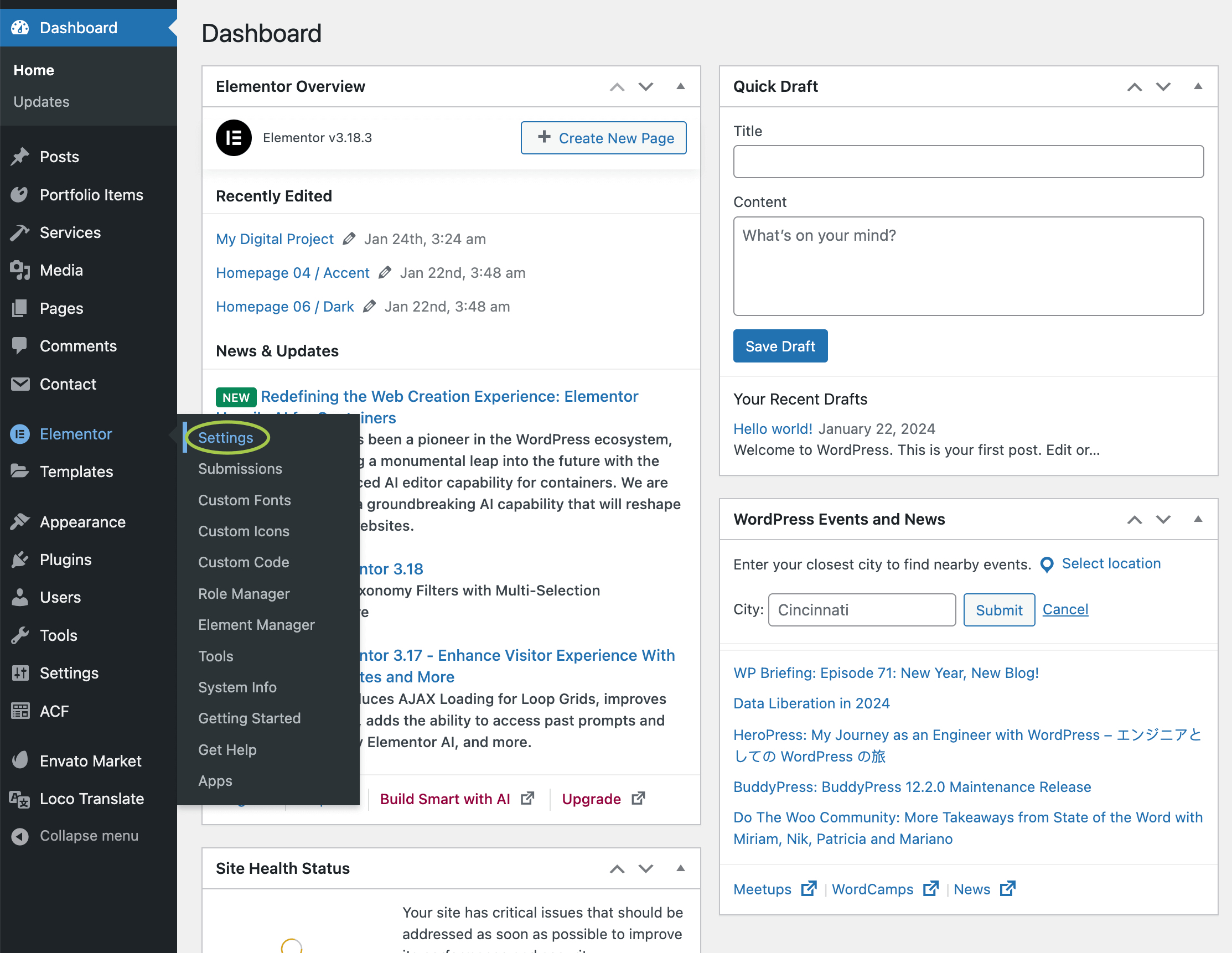
From the admin panel, go to Elementor -> Settings
▶️ Step 2.
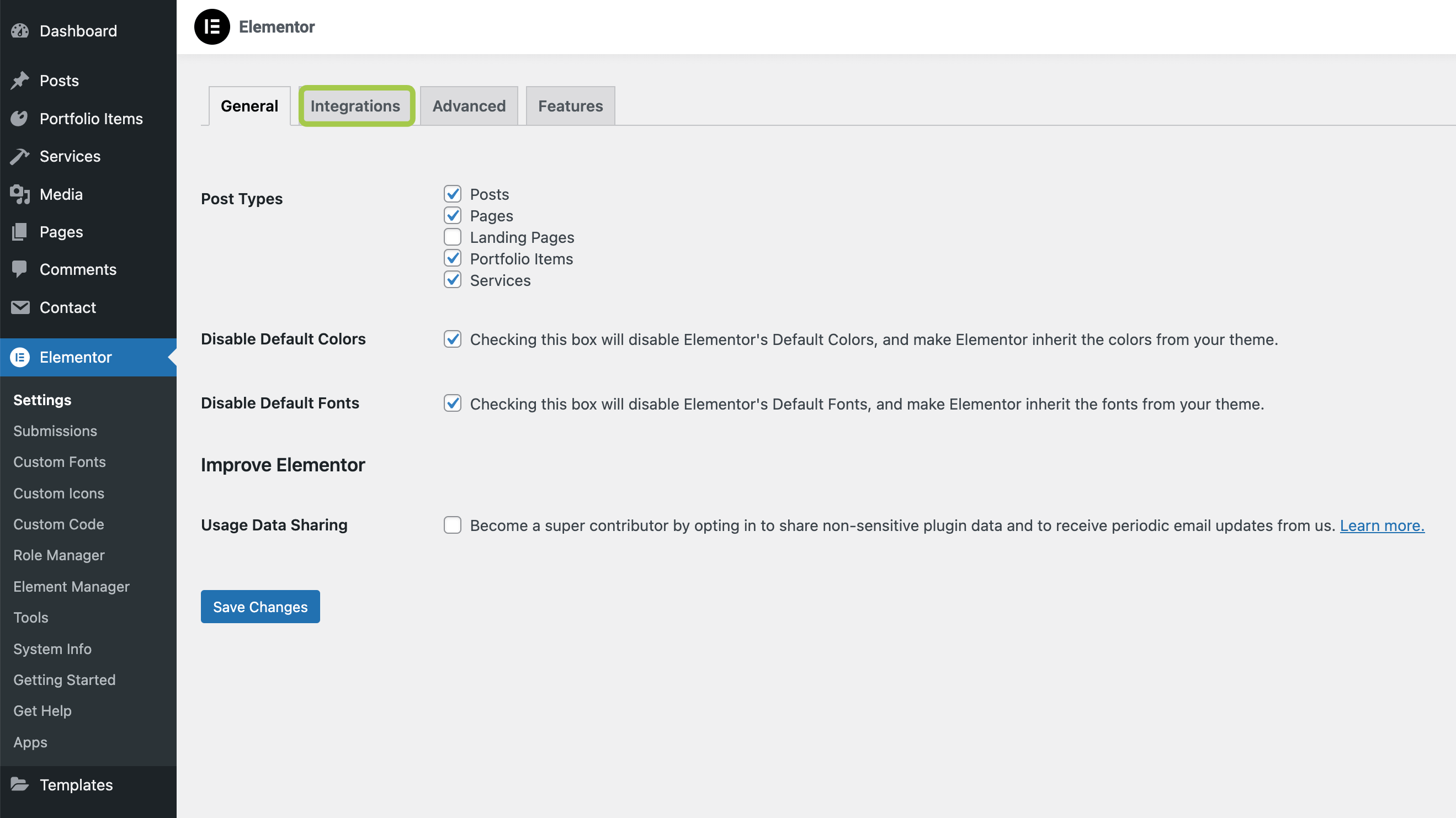
Open the Integrations tab
▶️ Step 3.
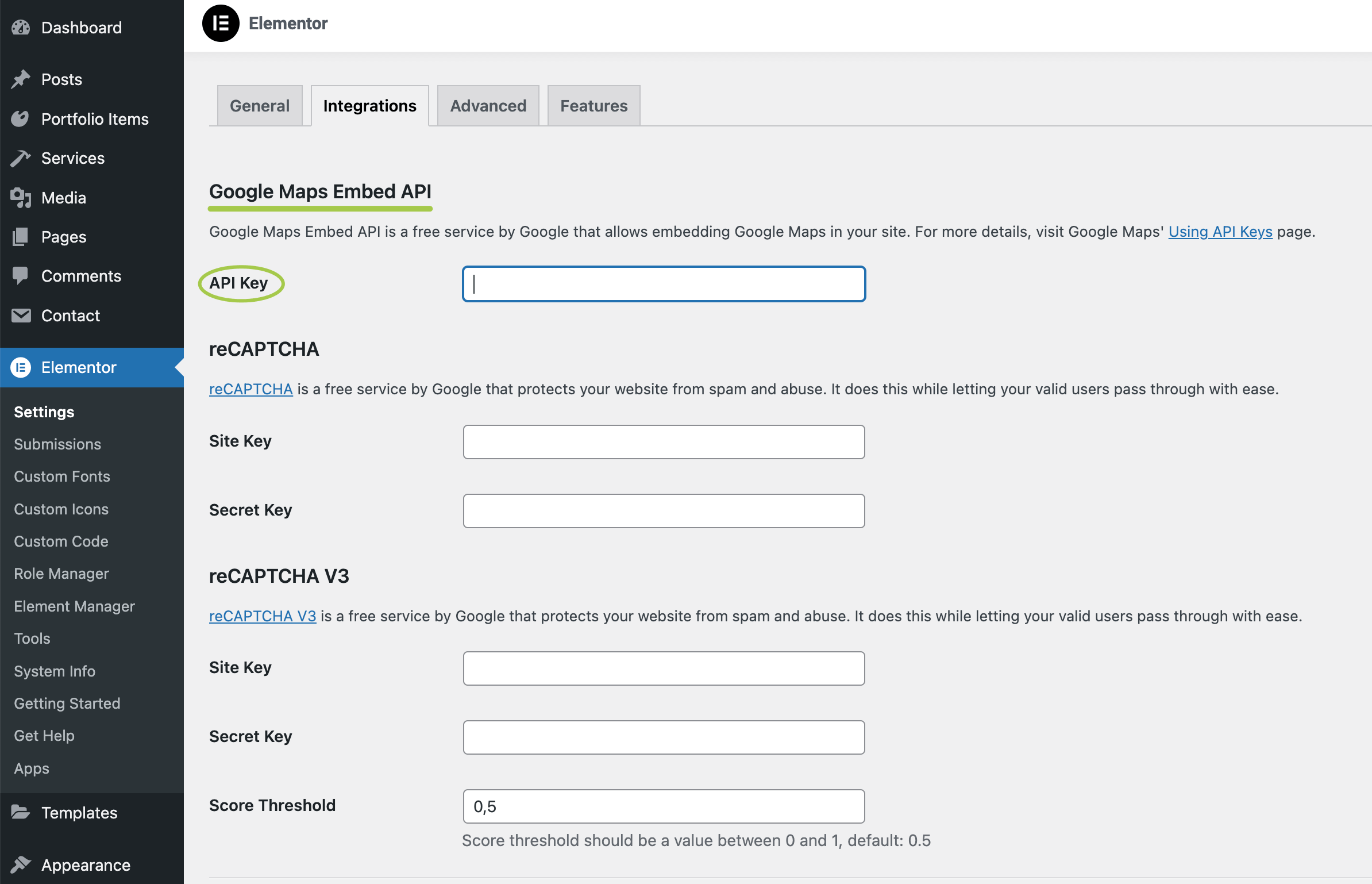
Paste your API key that you got from Google Cloud and click the Save Changes button.
WARNING
The API key used in the live demo will NOT work on your website! You need to get your own if you want to use Google Maps on your website.
▶️ Step 4.
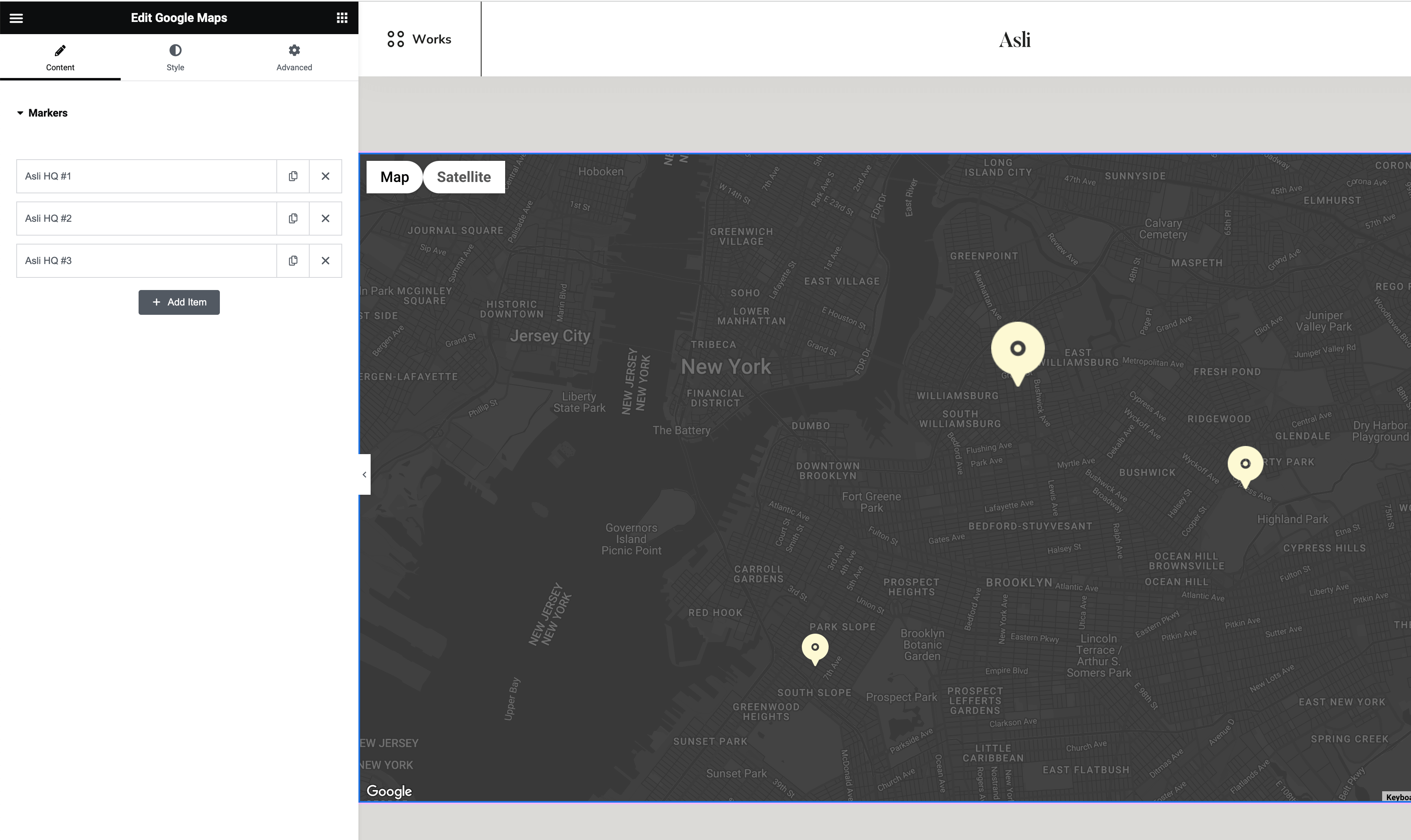
If you’ve done everything correctly, the Google Maps Elementor widget will display a working map. Here you can add markers, change the map style, and make other adjustments.
Still having issues?
If you’ve set up a correct API key but are still experiencing issues with the Google Map, check your browser console and see the error produced by Google Map. For available solutions, please check the error messages knowledgebase.