Appearance
Customizing Theme Typography
▶️ Step 1.
Open any site page or post and enter the Elementor editor by clicking Edit with Elementor in the admin bar.

▶️ Step 2.
Click the Burger icon in the top left corner.

▶️ Step 3.
Go to the Site Settings panel.

▶️ Step 4.
Navigate to the Global Fonts panel.

▶️ Step 5.
You can customize the existing typography presets or add new custom presets.


Using Typography Presets in Widgets
All theme widgets provided by the Asli Core Plugin have a unified typography customization section.
When editing a widget in Elementor, click Style and locate the Typography & Colors section.

Creating Custom Fluid Typography
▶️ Step 1.
Open the Font-size Clamp Generator website and input your desired fluid size parameters.
▶️ Step 2.
Copy the generated font-size value.
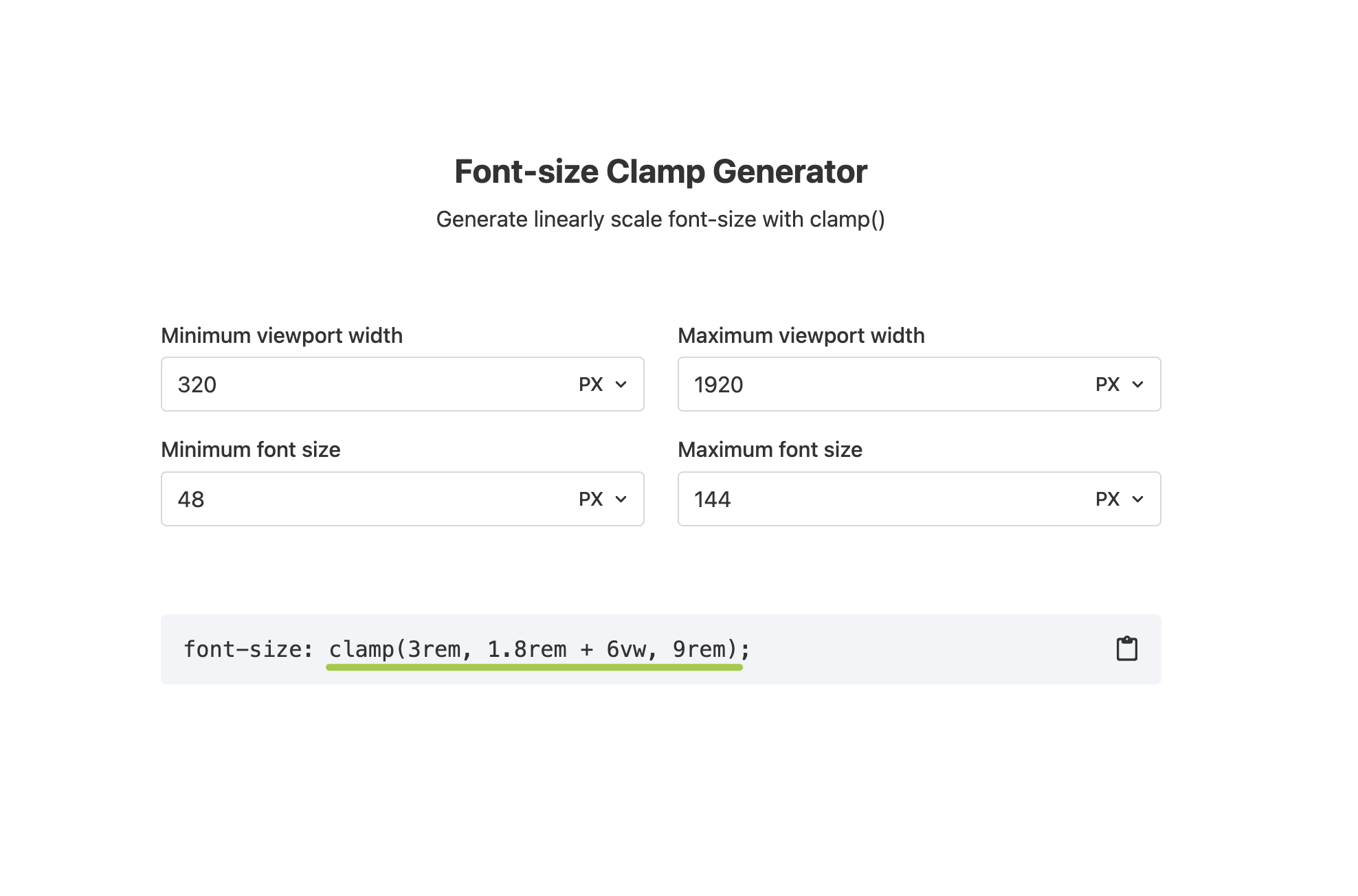
▶️ Step 3.
When customizing a typography control in Elementor, switch the Size unit to Custom and paste the previously copied value.
Ensure that the formula starts with clamp. Remove any unnecessary text or symbols before and after the formula if needed.

Typography Controls Freezing?
If typography size controls become unresponsive when editing, see our dedicated guide: Fixing Typography Controls Freeze