Appearance
Troubleshooting Editor Loading Issues
If you’re experiencing issues when loading the Elementor editor (e.g., infinite loading, Safe Mode prompts, or blank pages), it could be due to server configuration conflicts, memory limitations, or plugin conflicts. Below is a step-by-step guide to resolving the most common problems.
Enable "Switch Editor Loader Method"
One of the most effective solutions for resolving Elementor loading issues is enabling an alternative editor loader method.
▶️ Step 1.
Go to WordPress Admin Panel → Elementor → Settings. Click on the Advanced tab.

▶️ Step 2.
Look for the Switch Editor Loader Method option. Set the option to Enable and click Save Changes.

▶️ Step 3.
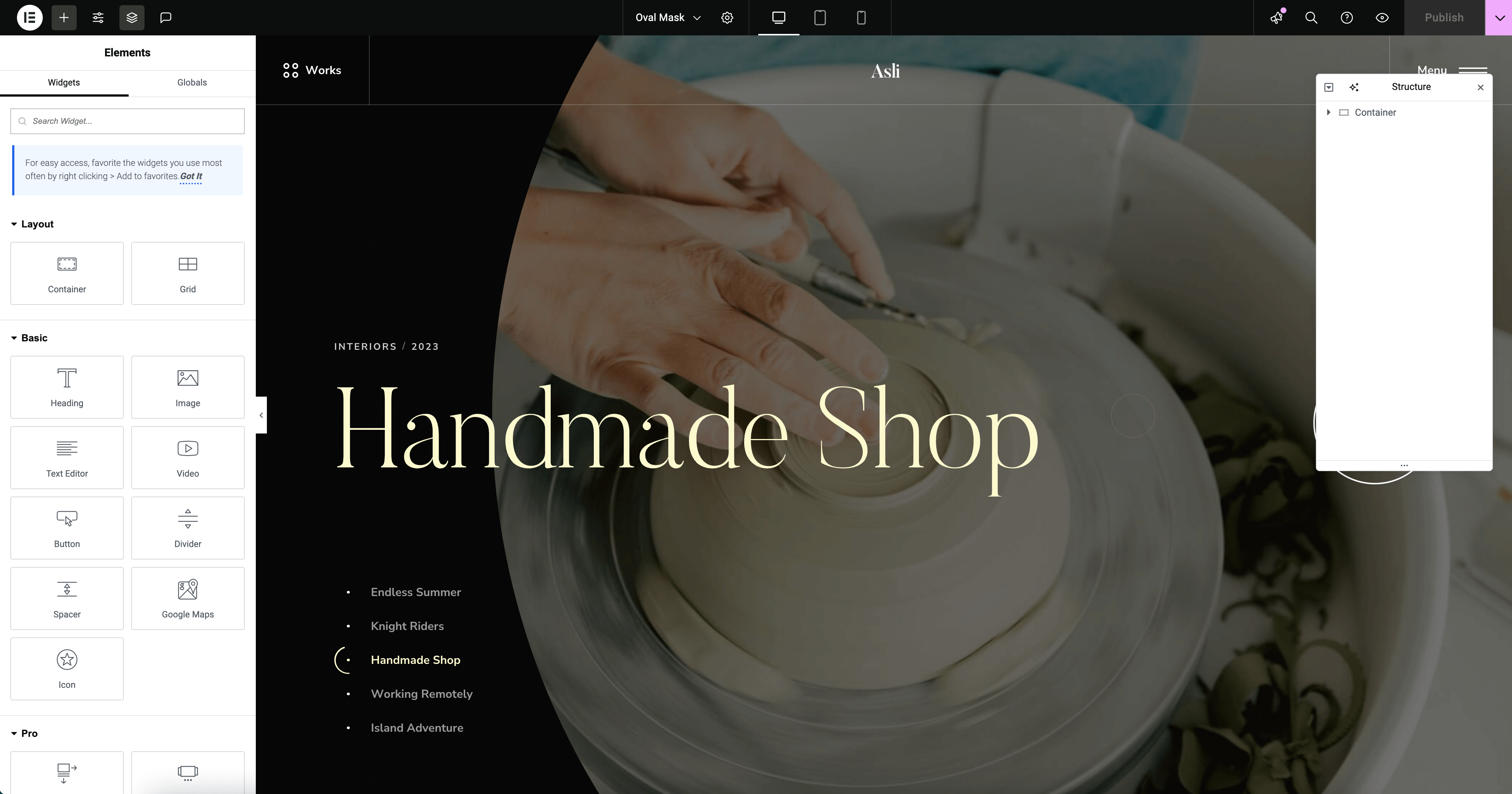
Try to enter the Elementor editor by clicking Edit with Elementor in the admin bar on any page.
Increase PHP Memory Limit
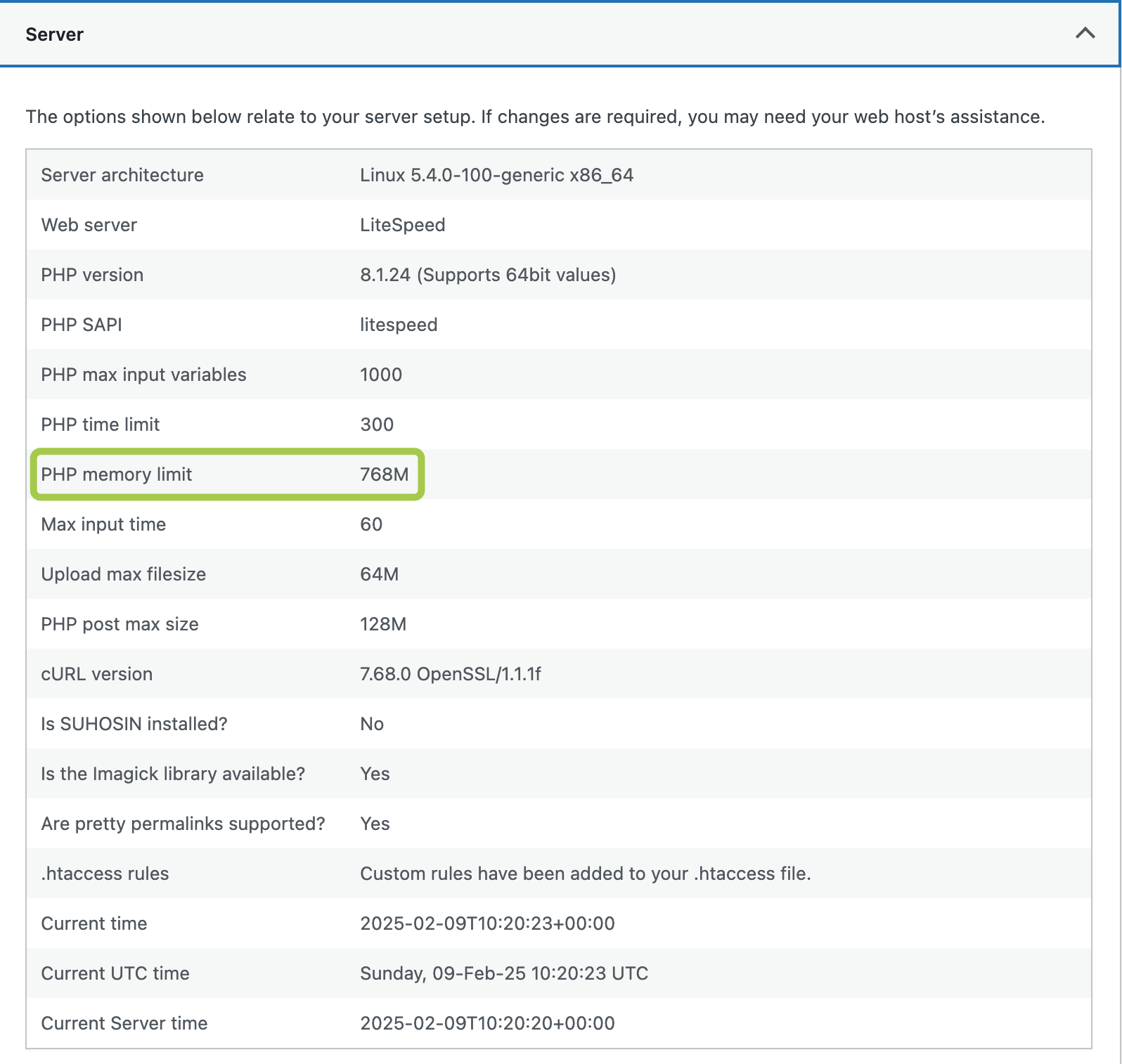
Elementor requires a minimum of 256MB of memory to function smoothly, but 512MB is recommended.
How to Check Your Current PHP Memory Limit?
▶️ Step 1.
Navigate to WordPress Admin Panel → Tools → Site Health.
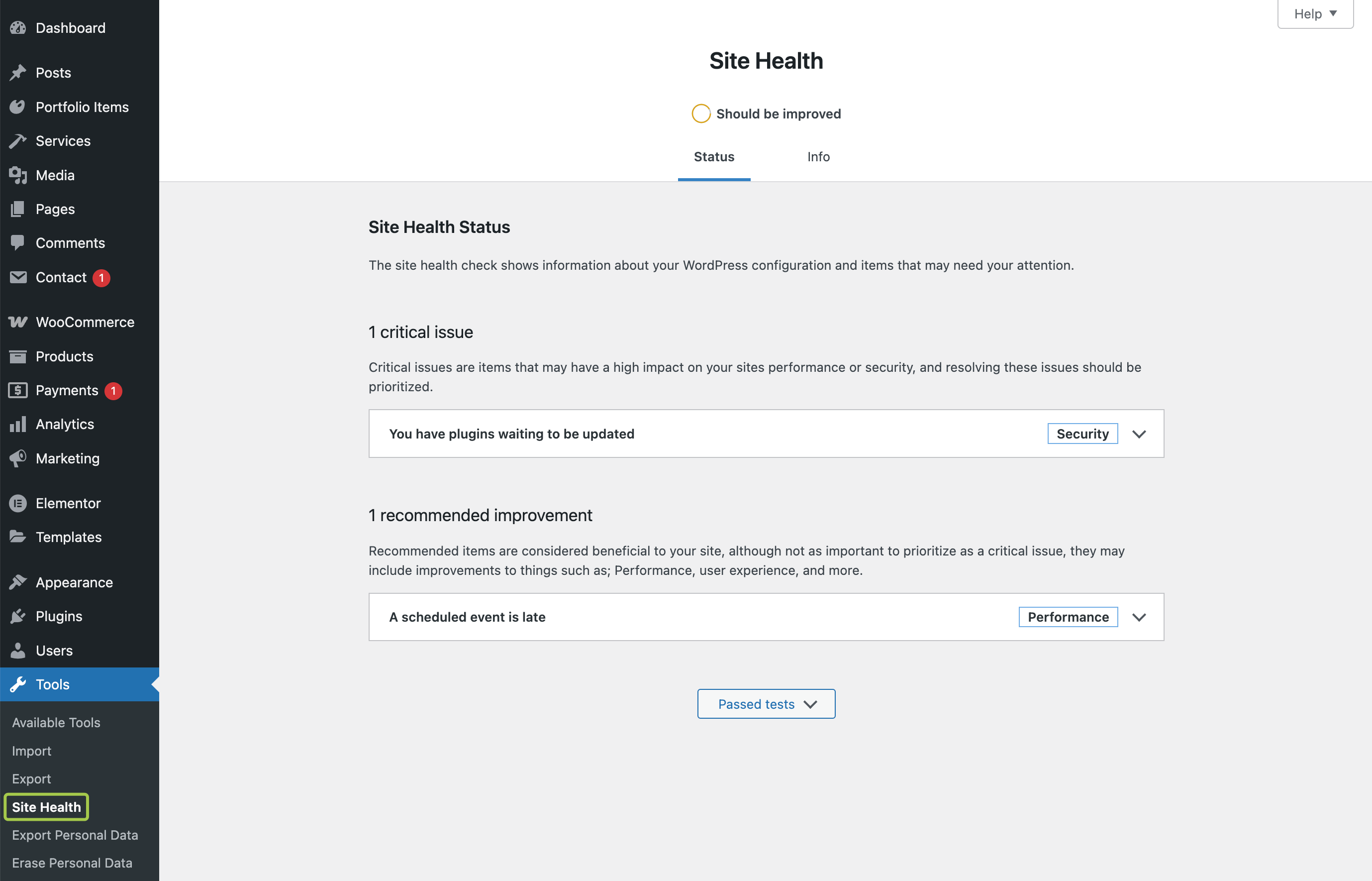
▶️ Step 2.
Click on Info and expand the Server section.
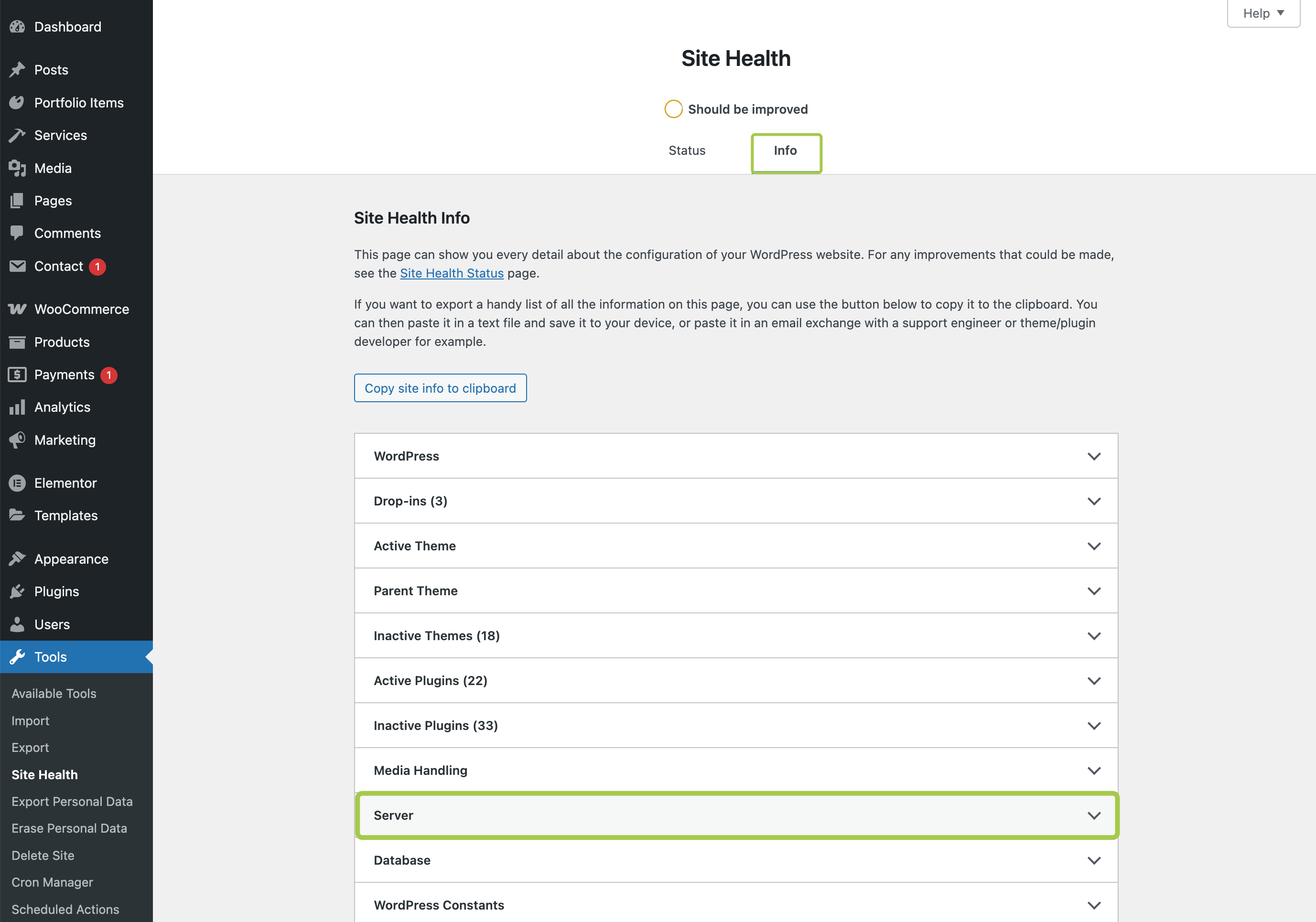
▶️ Step 3.
Look for the PHP memory limit value. Ensure it meets the minimum requirement.
How to Increase PHP Memory Limit?
Method 1: Editing wp-config.php
▶️ Step 1.
Access your WordPress files via FTP or File Manager.
▶️ Step 2.
Open the wp-config.php file in the root directory of your website. Add this line before /* That's all, stop editing! */:
php
define( 'WP_MEMORY_LIMIT', '512M' );

/* That's all, stop editing! */
Method 2: Editing .htaccess
▶️ Step 1.
Open the .htaccess file in the root directory of your website. Add the following line at the bottom:
php_value memory_limit 512MMethod 3: Contact Your Hosting Provider
If you cannot edit server files, ask your hosting provider to increase the PHP memory limit for you.
Check for Plugin Conflicts
Some third-party plugins may interfere with Elementor, causing loading issues.
How to Troubleshoot Plugin Conflicts?
▶️ Step 1.
Disable All Plugins Except Elementor & Asli Core Plugin. To do this, go to WordPress Admin Panel → Plugins and deactivate all plugins except:
- Elementor
- Asli Core Plugin
▶️ Step 2.
Check If Elementor Works.
- If Elementor loads properly, reactivate plugins one by one and test Elementor after each activation.
- If a specific plugin causes the issue, consider replacing it with an alternative.