Appearance
Manual Update
To update your theme manually, download its latest release from your Downloads page on ThemeForest.
Make sure to download only the theme file 📄 asli.zip—there is no need to download the entire package with documentation and demo content.
Updating via WordPress Panel
Since WordPress 5.5, you can update themes directly from the admin panel.
▶️ Step 1.
Navigate to Appearance → Themes and click Add New.

▶️ Step 2.
Click Upload Theme.

▶️ Step 3.
Select your downloaded theme file 📄 asli.zip and click Install Now.

▶️ Step 4.
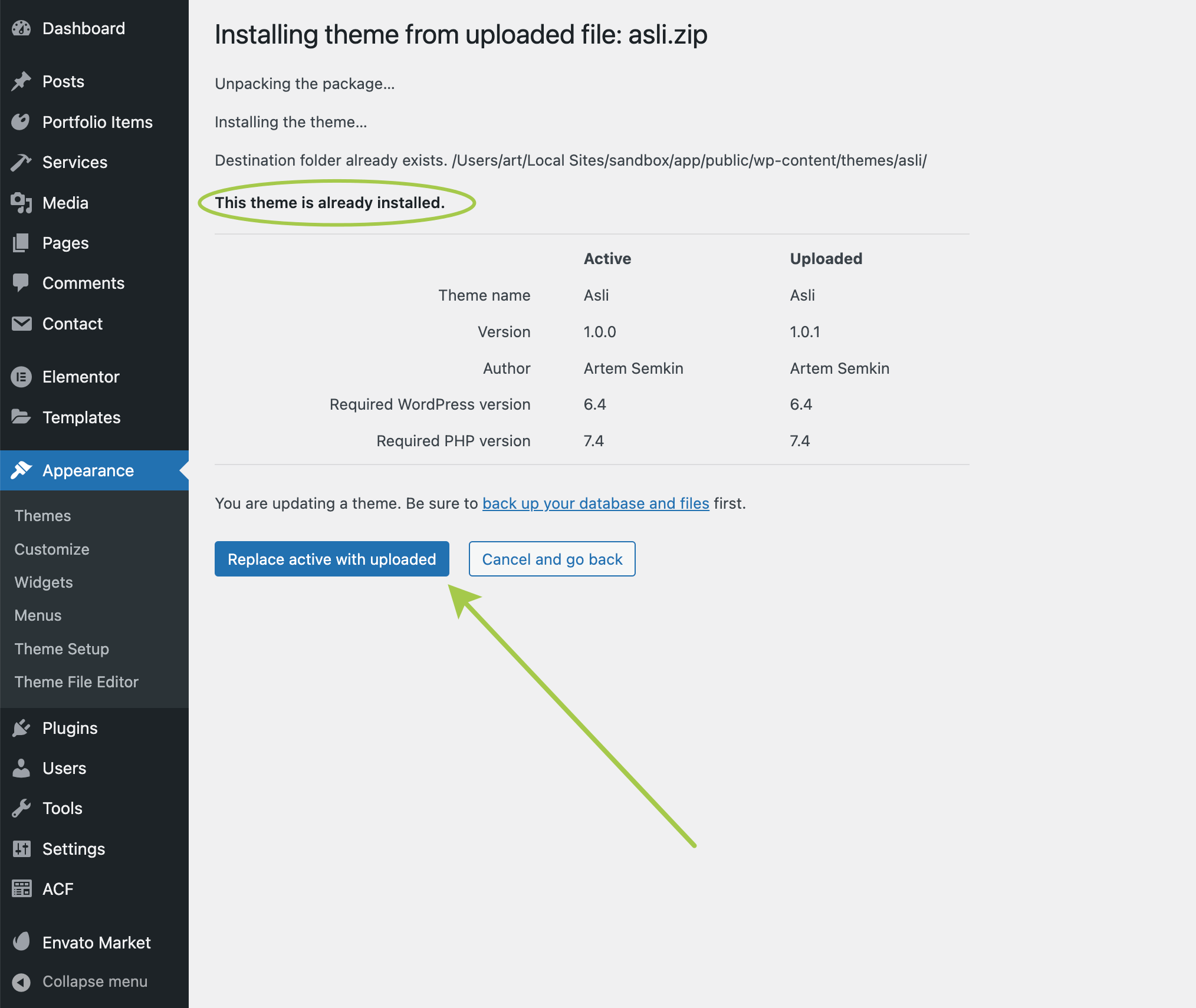
You will be notified that a theme with the same name already exists. Click Replace current with uploaded to complete the update.
Updating via FTP Upload
▶️ Step 1.
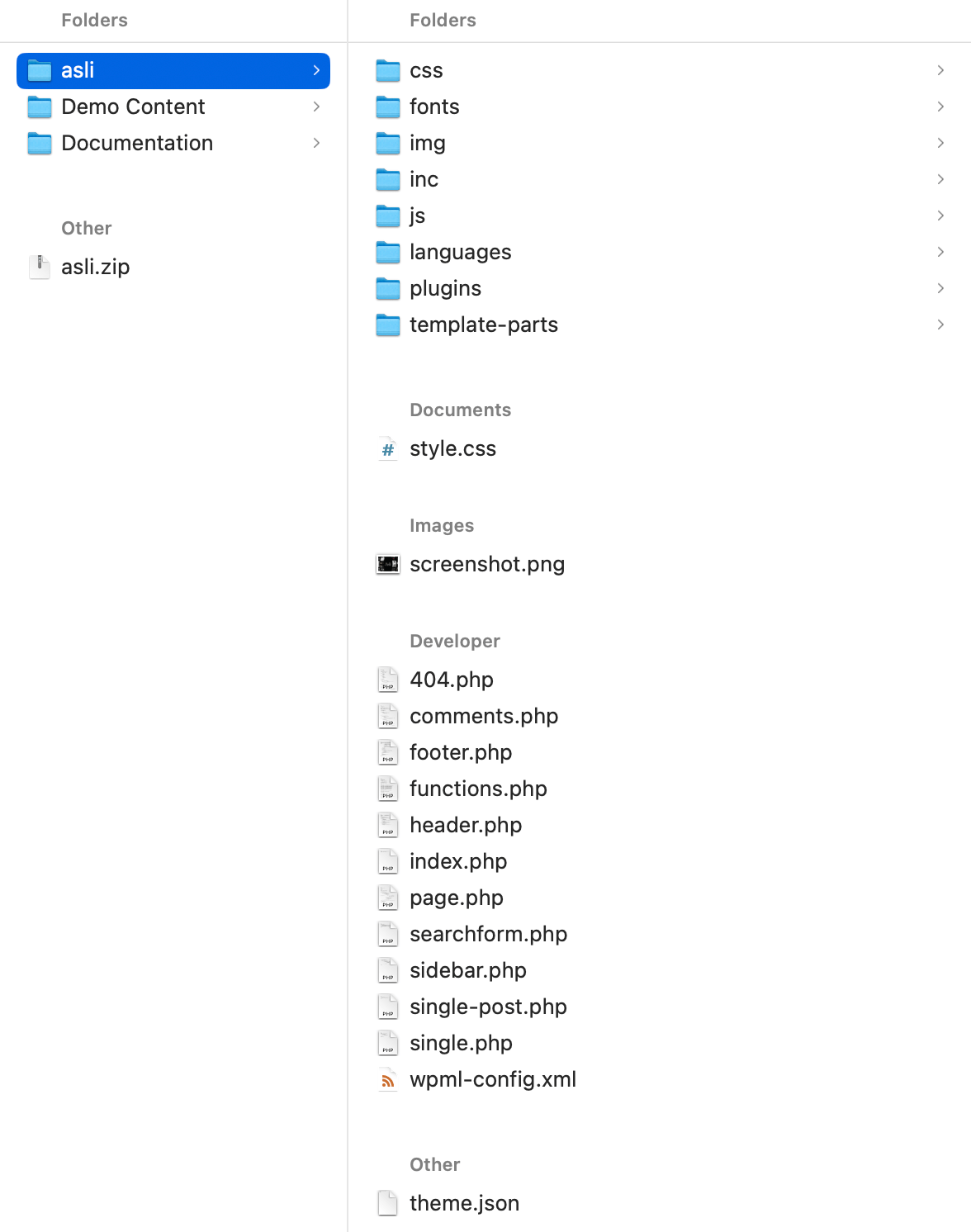
Extract the 📄 asli.zip file that you downloaded. This will generate a folder named 📁 asli containing the theme files.
▶️ Step 2.
Use an FTP client (such as Cyberduck) to log in to your server. You can obtain the necessary credentials (server address, login, and password) from your hosting panel.
▶️ Step 3.
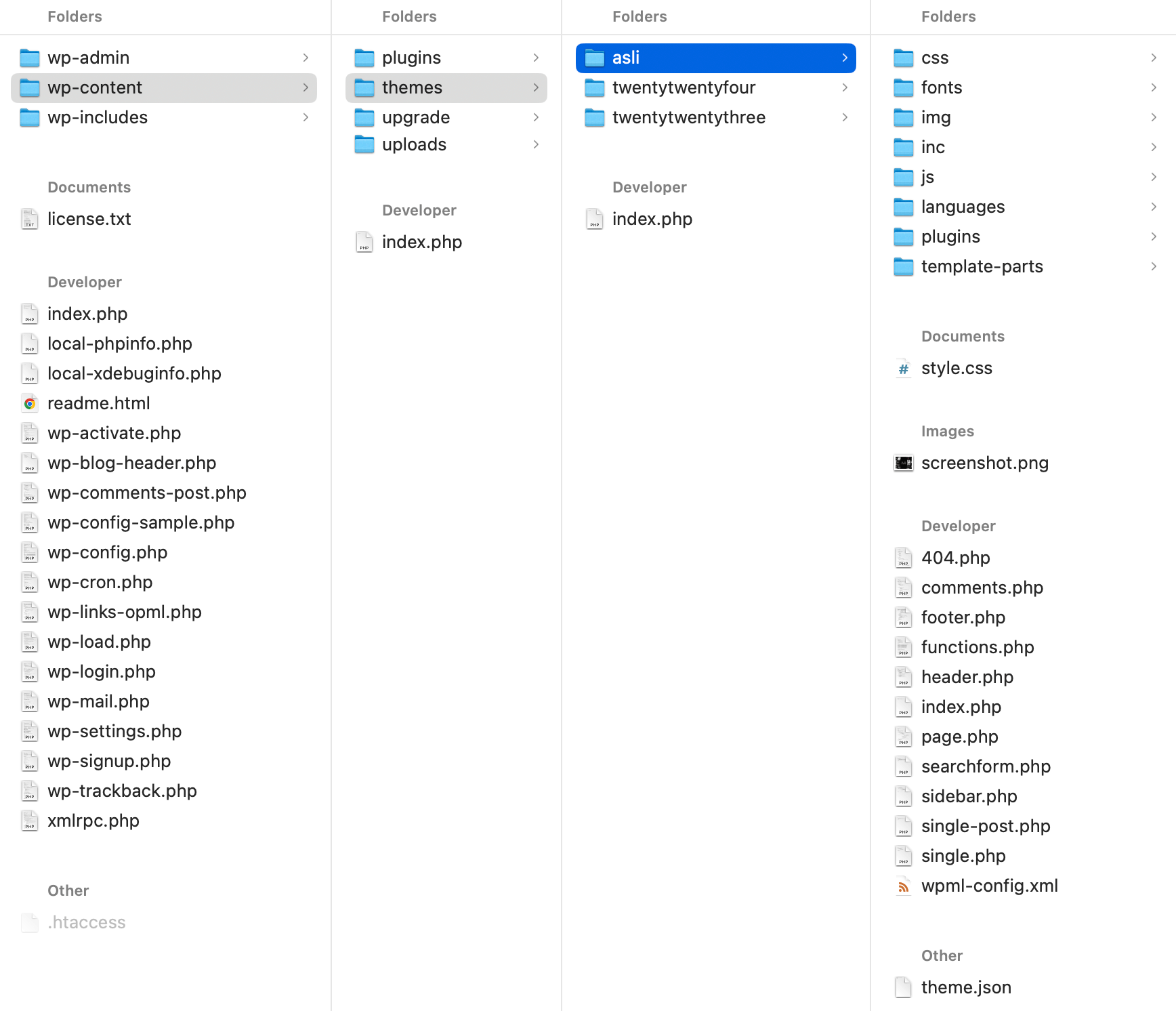
Upload the extracted theme folder, overwriting all existing theme files.
IMPORTANT!
If you have made any customizations to your child theme, always update ONLY the parent theme and NEVER update the child theme. Updating the child theme will result in the loss of all customizations made in it.