Appearance
Overriding Page Cursor Color
▶️ Step 1.
Open the page where you want to override the cursor color and enter the Elementor editor by clicking Edit with Elementor in the admin bar.

▶️ Step 2.
Open the document settings panel by clicking the cog icon in the bottom left corner.

▶️ Step 3.
Go to the Settings tab and expand the Document Cursor section.
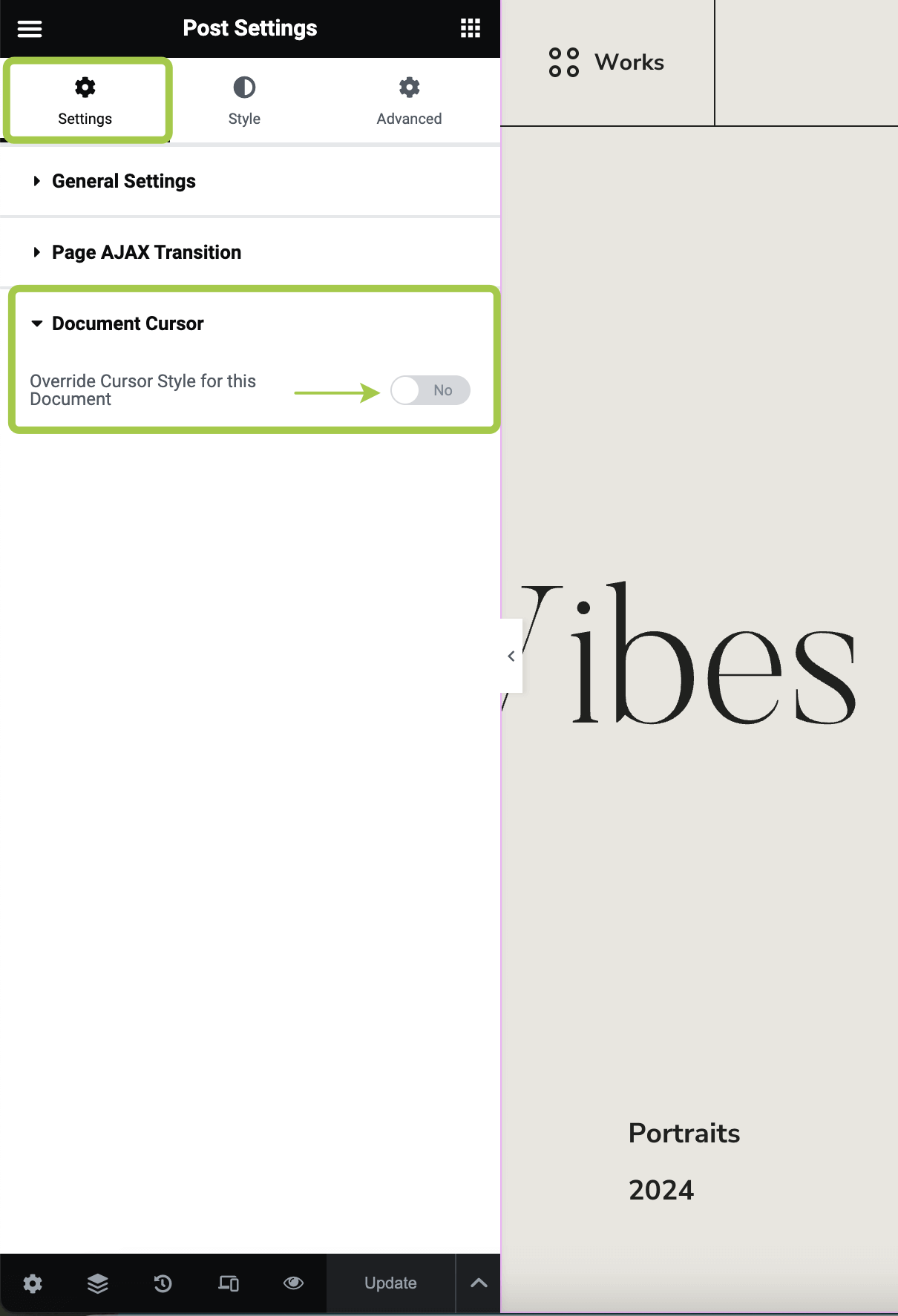
▶️ Step 4.
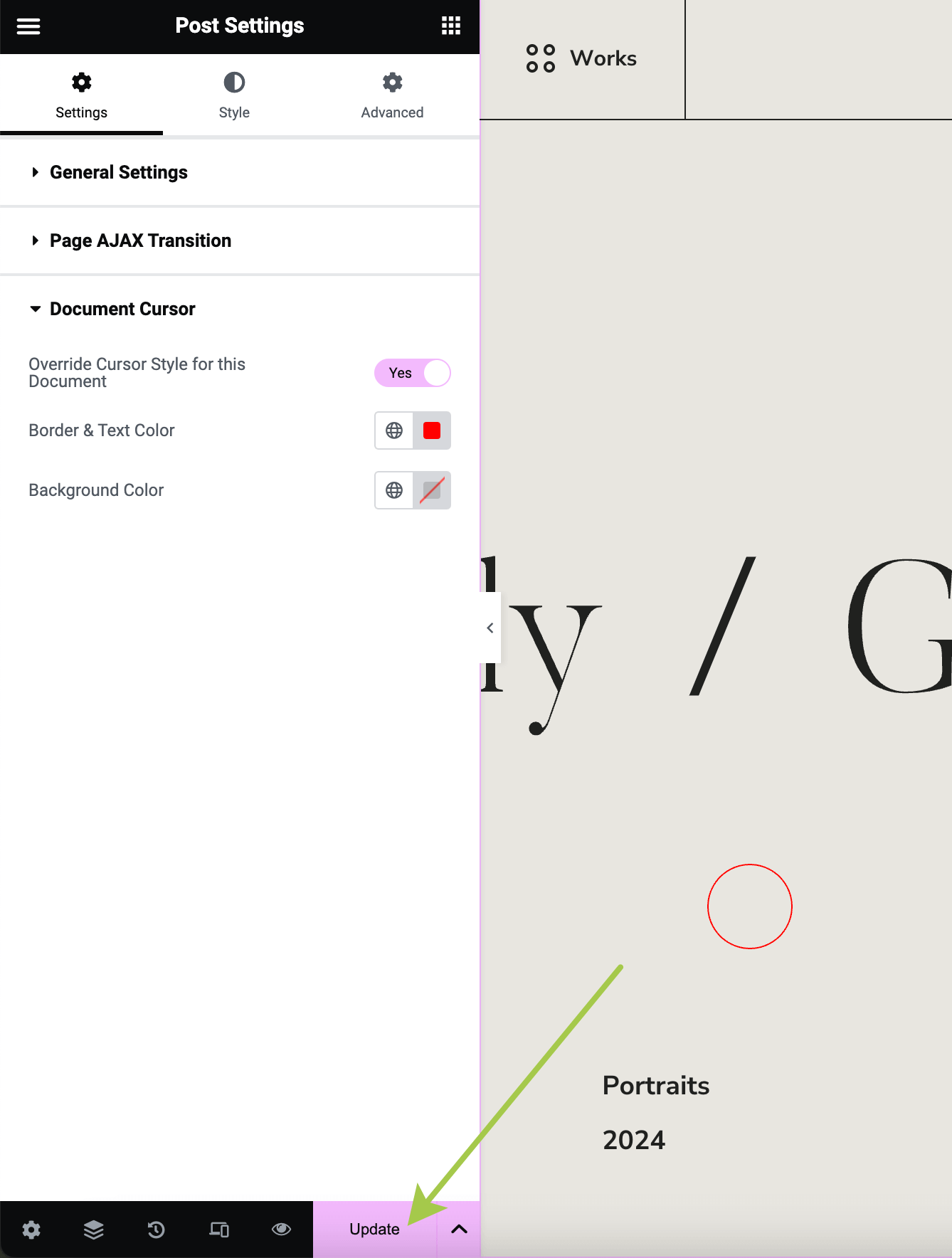
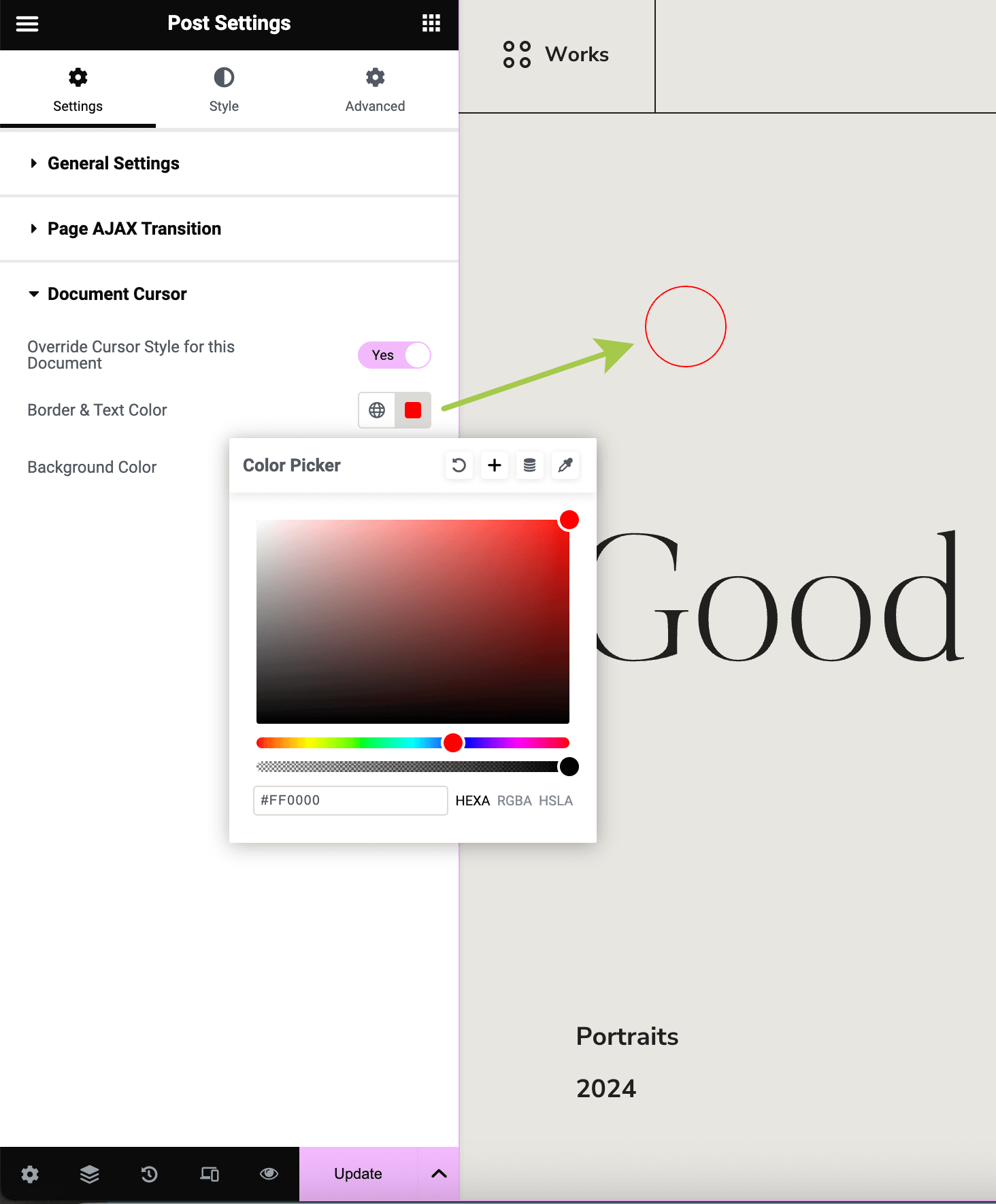
Enable the override toggle and adjust the cursor colors as needed.
Note: These cursor adjustments apply only to the current page/post.
▶️ Step 5.
Save your changes by clicking the Update button in the bottom left corner.