Appearance
Page Templates
Elementor provides three useful page templates that allow you to customize layouts on a per-page basis.
For example, you can remove the page masthead while keeping the header, content, and footer using the Full Width template.

Templates
Let's explore the available pages templates.
Default Template
The default template includes the full theme layout: Header, Masthead, Footer, Content, and Sidebar (for blog posts).
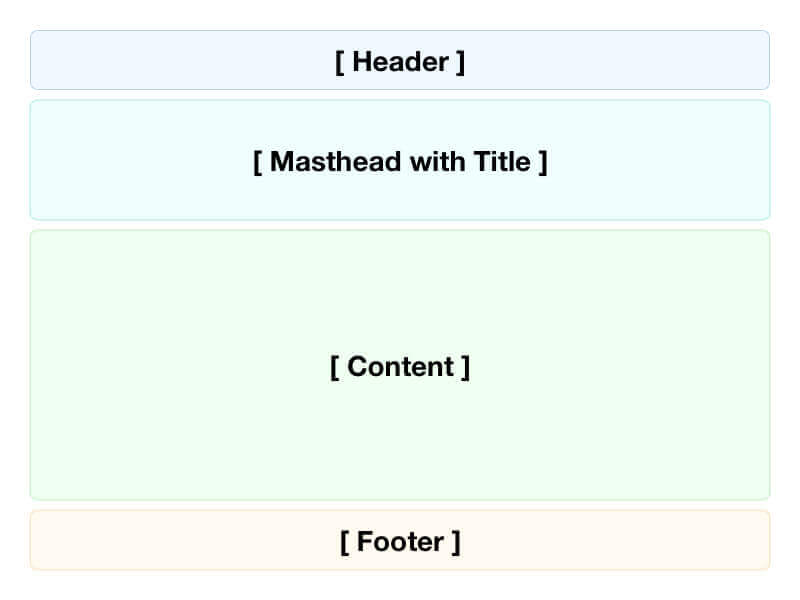
Elementor Full Width
This template displays the Elementor-created content along with the Header and Footer but removes the Masthead and Title.
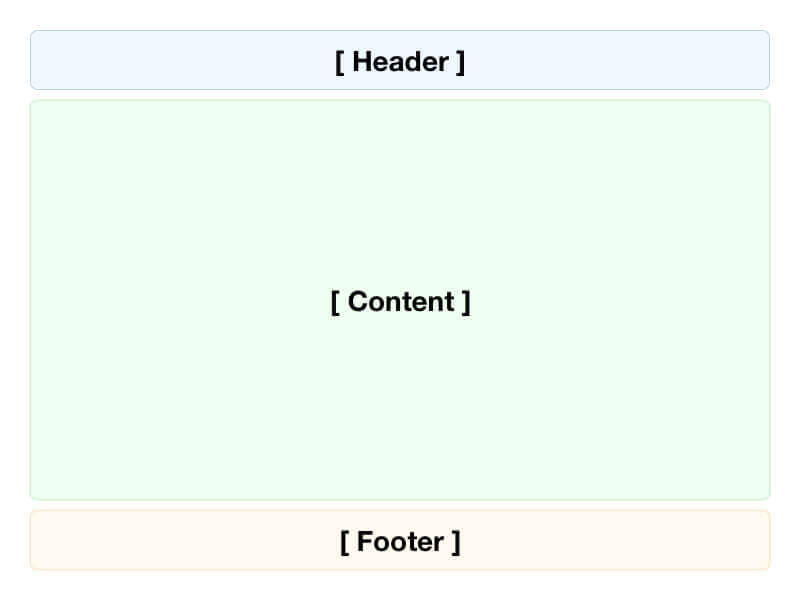
Elementor Canvas
This template displays only the Elementor-created content, removing all theme areas including the Header and Footer.
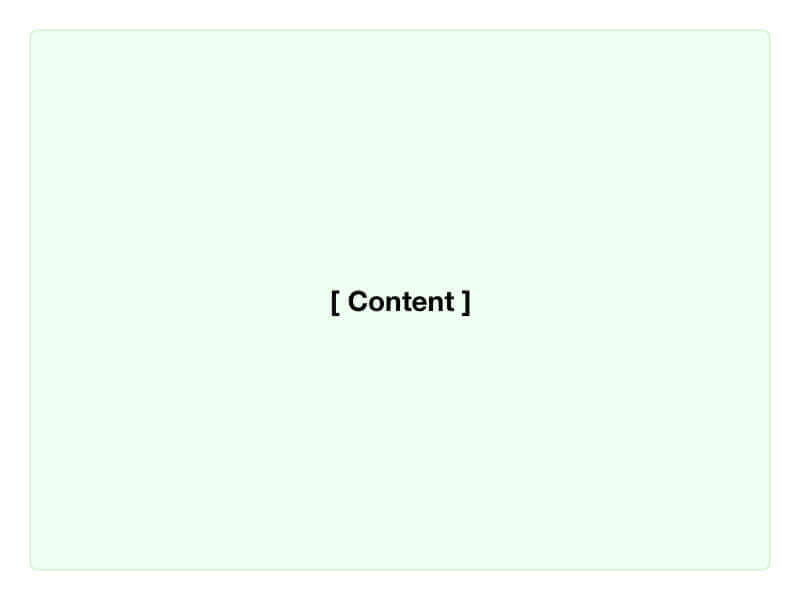
Note
Only posts using the Default Template will have the Single Post Template applied. If you use the Canvas or Full Width templates, the Single Post Template will not be applied.
Changing the Default Page Template
▶️ Step 1.
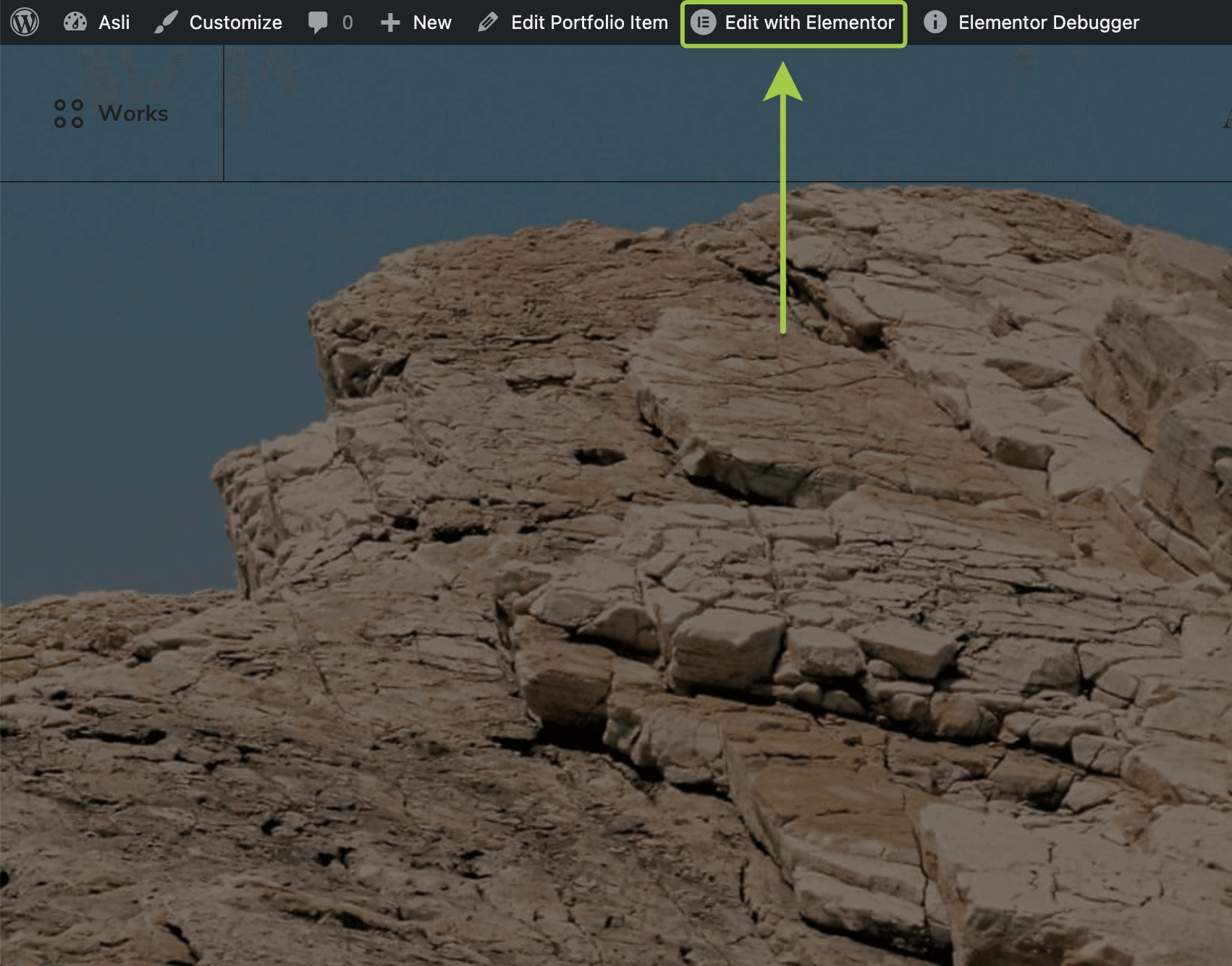
Open any site page or post and click Edit with Elementor in the admin bar.
▶️ Step 2.
Click the Burger icon in the top left corner.

▶️ Step 3.
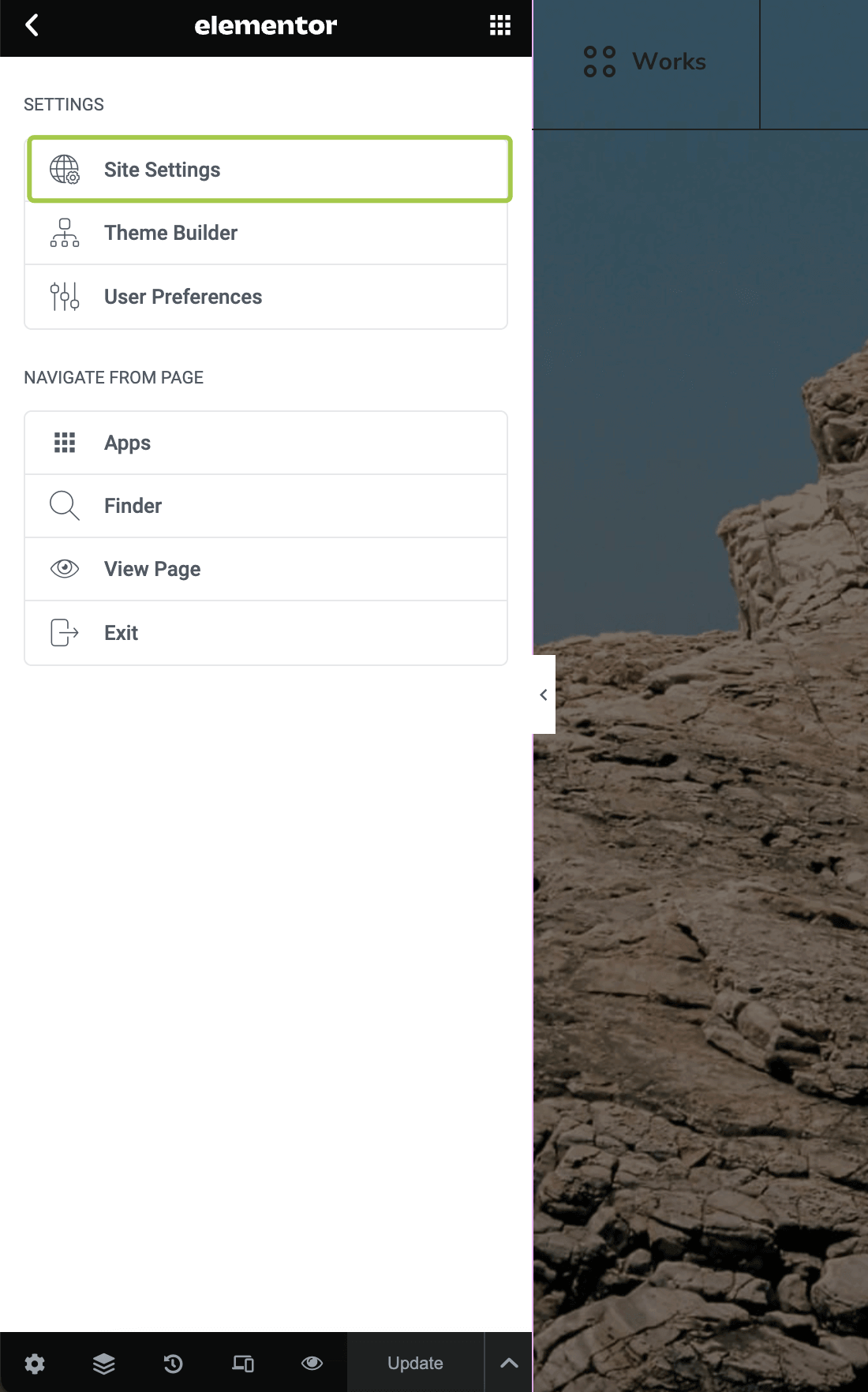
Go to the Site Settings panel.
▶️ Step 4.
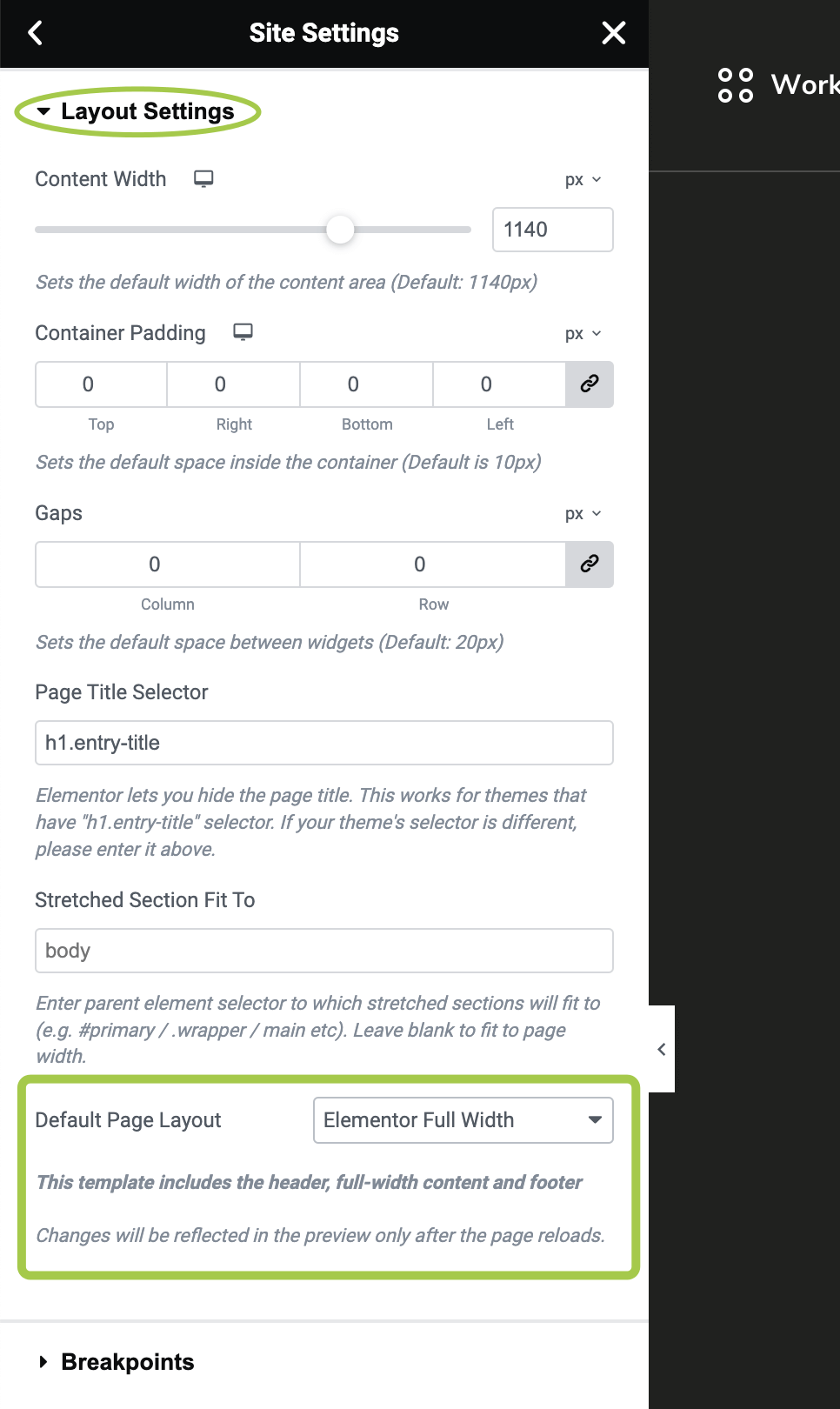
Navigate to Layout → Layout Settings.
In the Default Page Layout dropdown, you can set the template that will be considered the Default for Elementor-driven posts and pages.