Appearance
AJAX Transitions
How to Access this Panel?
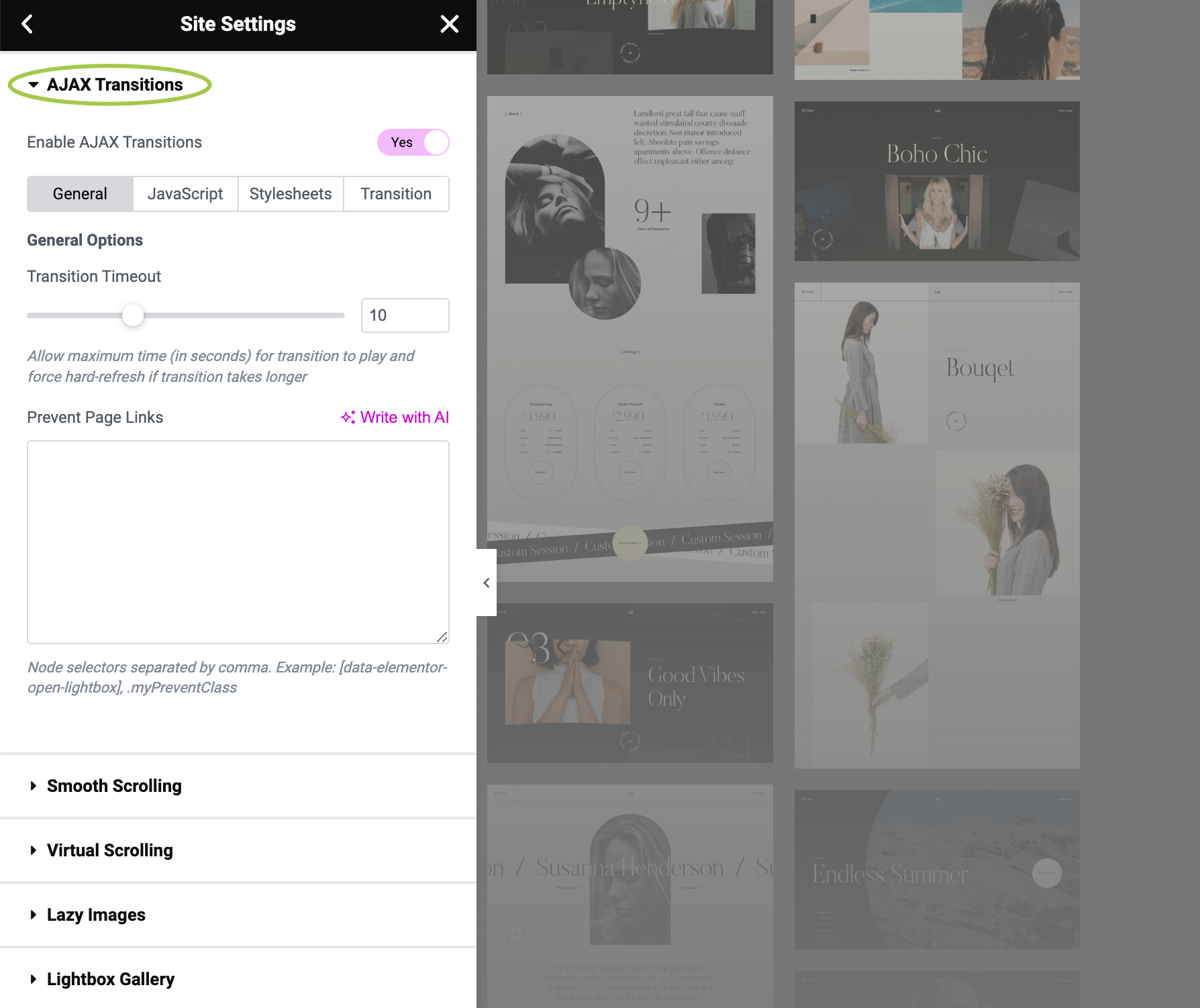
Open the Site Settings panel in Elementor using this guide Accessing Theme Options Panel. Then go to the Asli / Theme Features panel and expand the AJAX Transitions section.

Enabling/Disabling AJAX Transitions
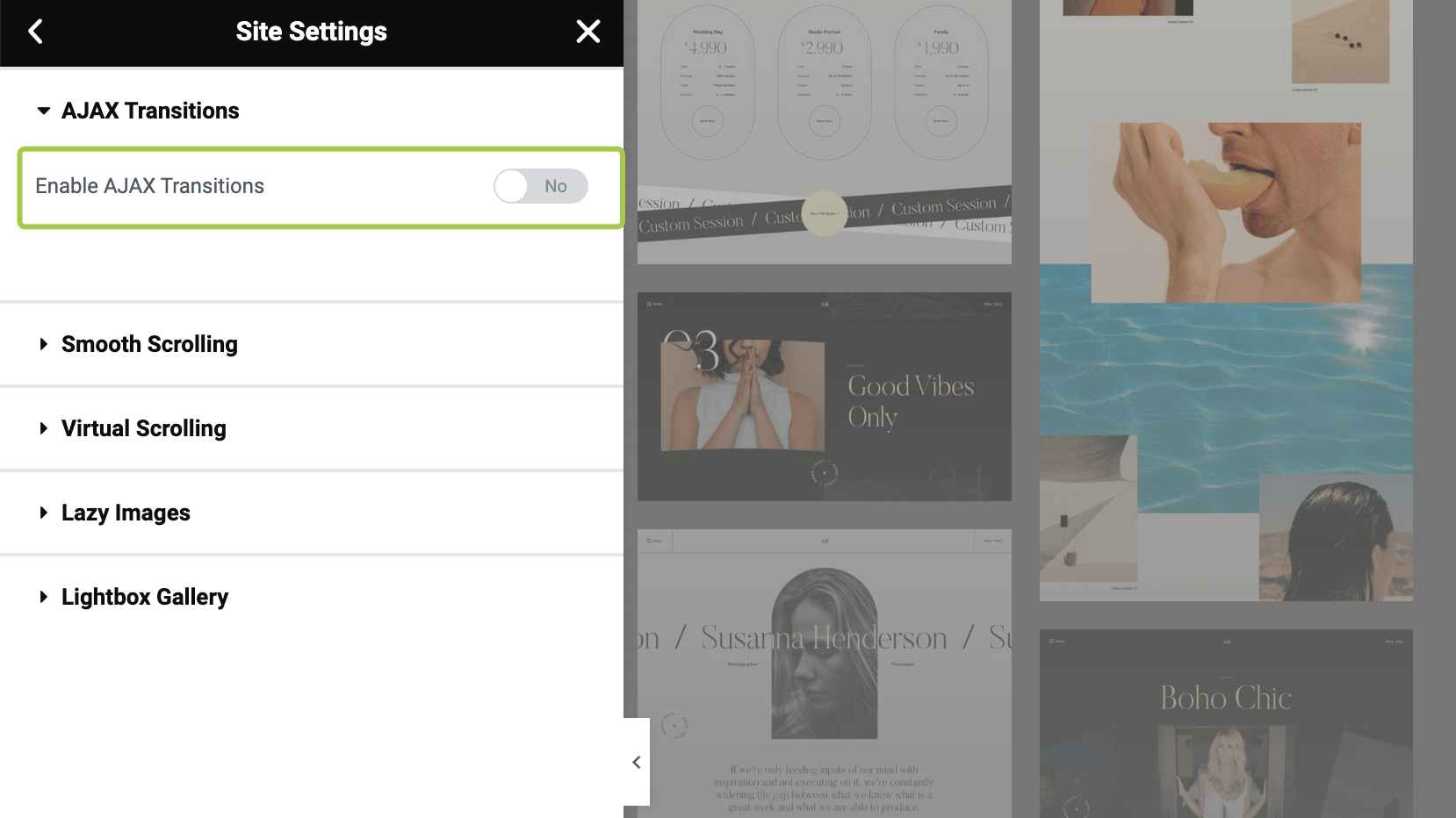
Use the Enable AJAX Transitions toggle to control whether AJAX transitions should be enabled on your website.
TIP
When AJAX transitions are off, the browser will perform a hard refresh every time a site is navigated. In that case, you probably don't want to show the site preloader on each refresh. There is a workaround option Show Only Once available in the Loading Screen panel.
Adjusting Transitions Speed
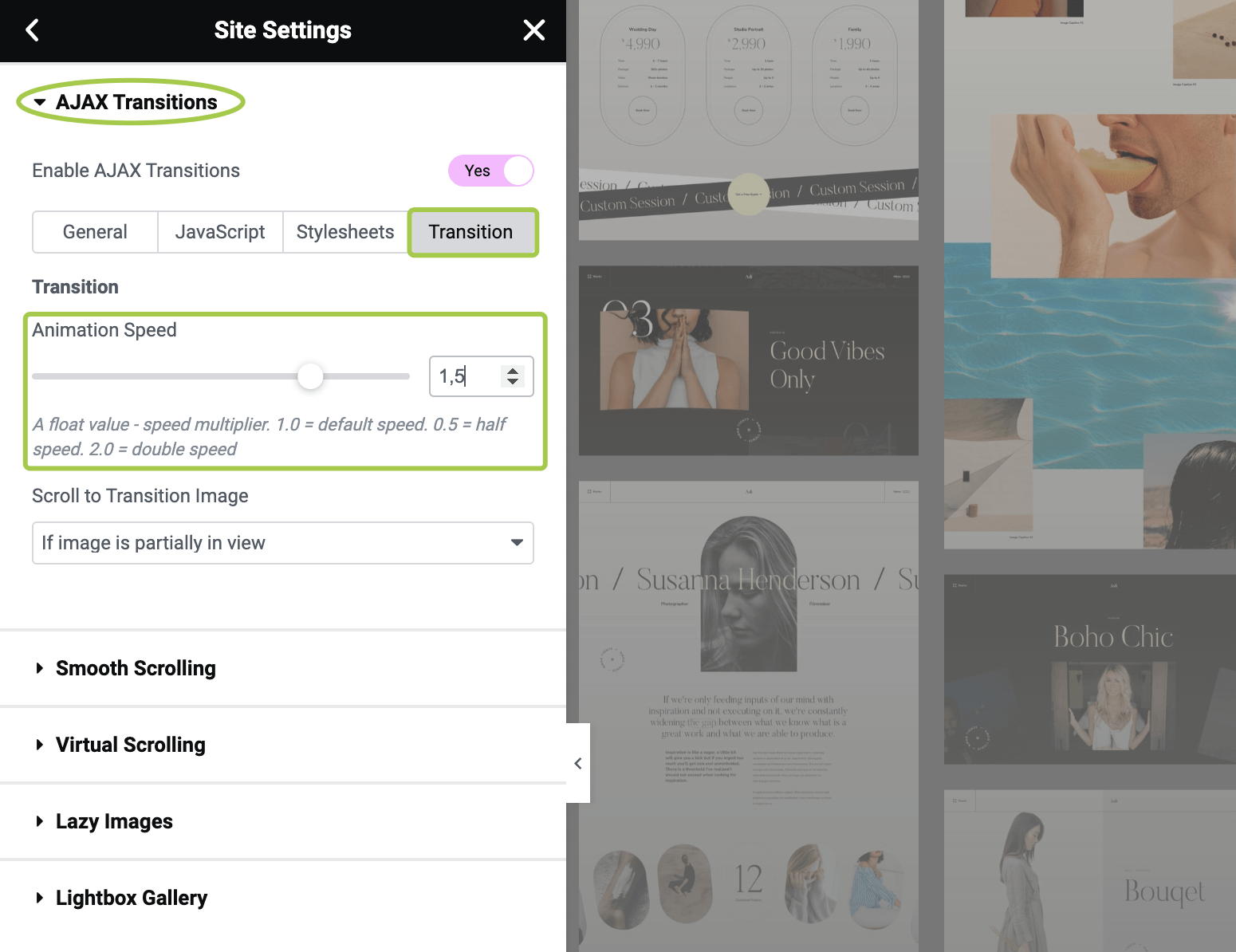
Activate the Transition tab in the panel. Use the controls as shown in the screenshot below to tweak the transition animation. You can make it faster or slower using the Animation Speed sliding control.
Excluding Particular Pages from Transitions
Some 3rd-party scripts and plugins are technically impossible to make AJAX compatible. To let them function properly, the browser has to perform a page refresh to reload and initialize the page scripts.
If you don't want to turn off AJAX transitions completely for the entire website, there is a possibility to turn it off selectively only for particular pages.
▶️️️️️ Step 1.
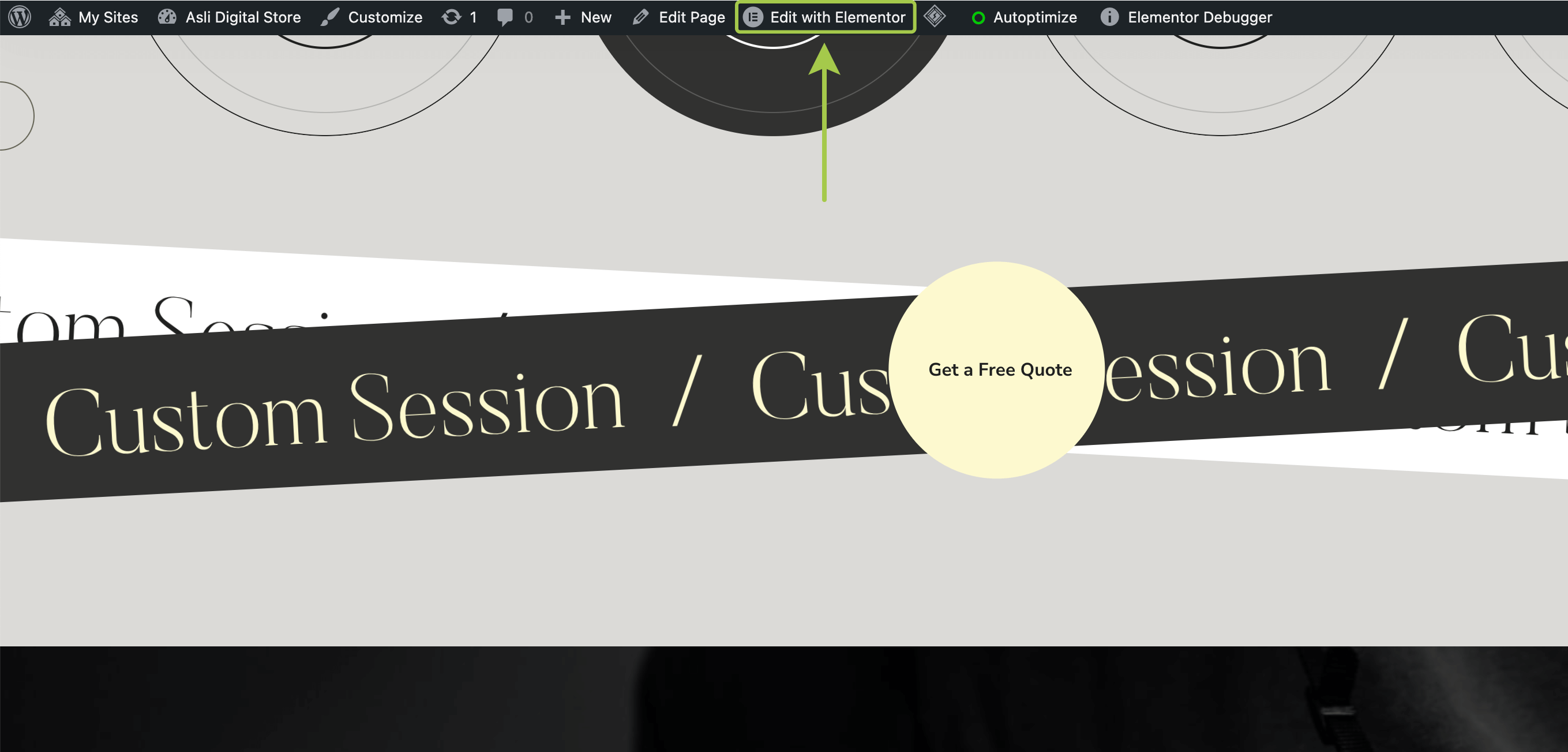
Visit the page you'd like to exclude from AJAX transitions and enter the Elementor editor by clicking Edit with Elementor in the admin bar.

▶️️️️️ Step 2.
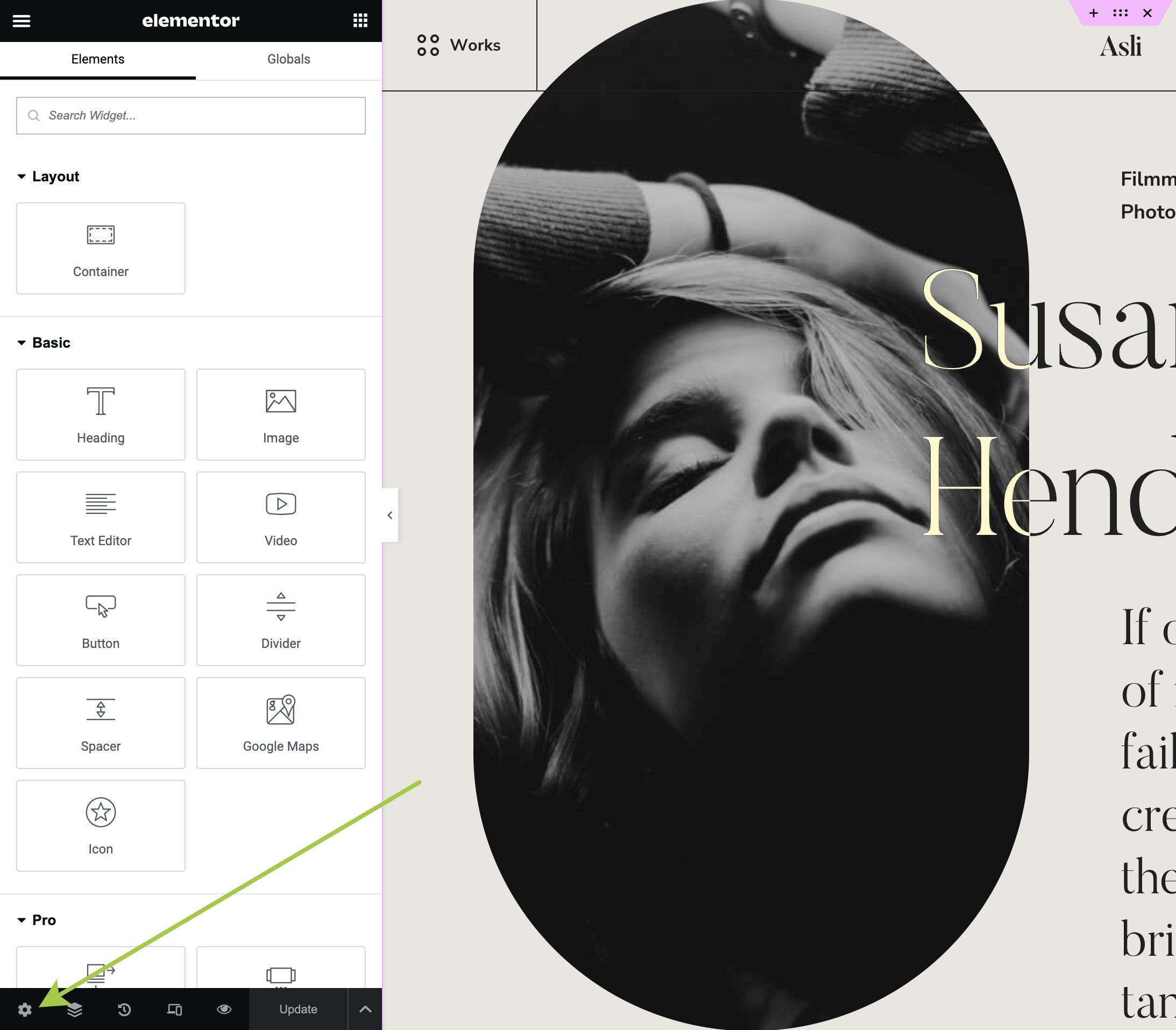
Open the document settings panel by clicking the cog icon in the bottom left corner.
▶️️️️️ Step 3.
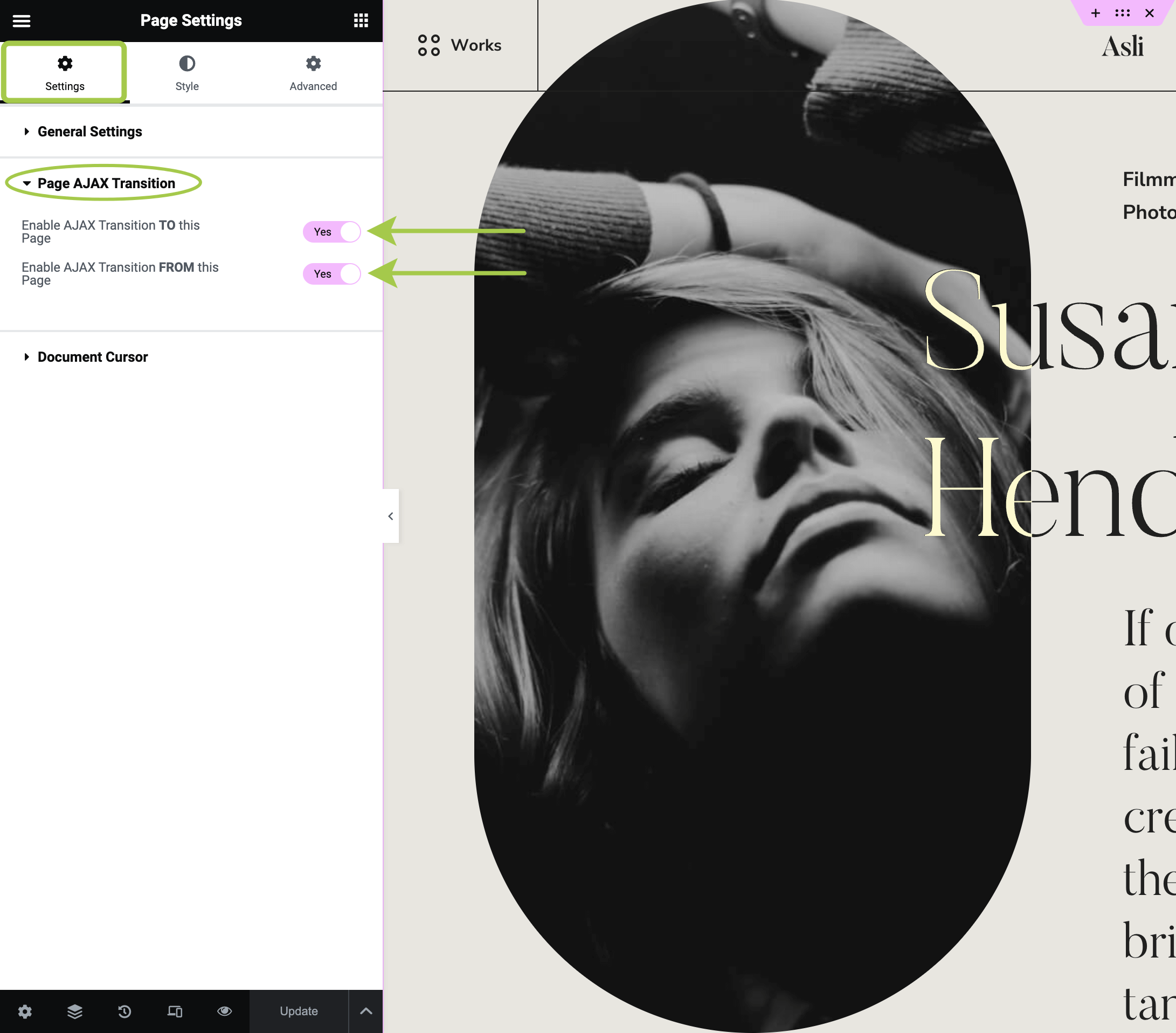
Activate the Settings tab and expand the Page AJAX Transition section. Use the toggles as shown in the screenshot below to control if the page should perform a hard refresh instead of AJAX navigation.
Excluding Menu Items from Transitions
▶️️️️️ Step 1.
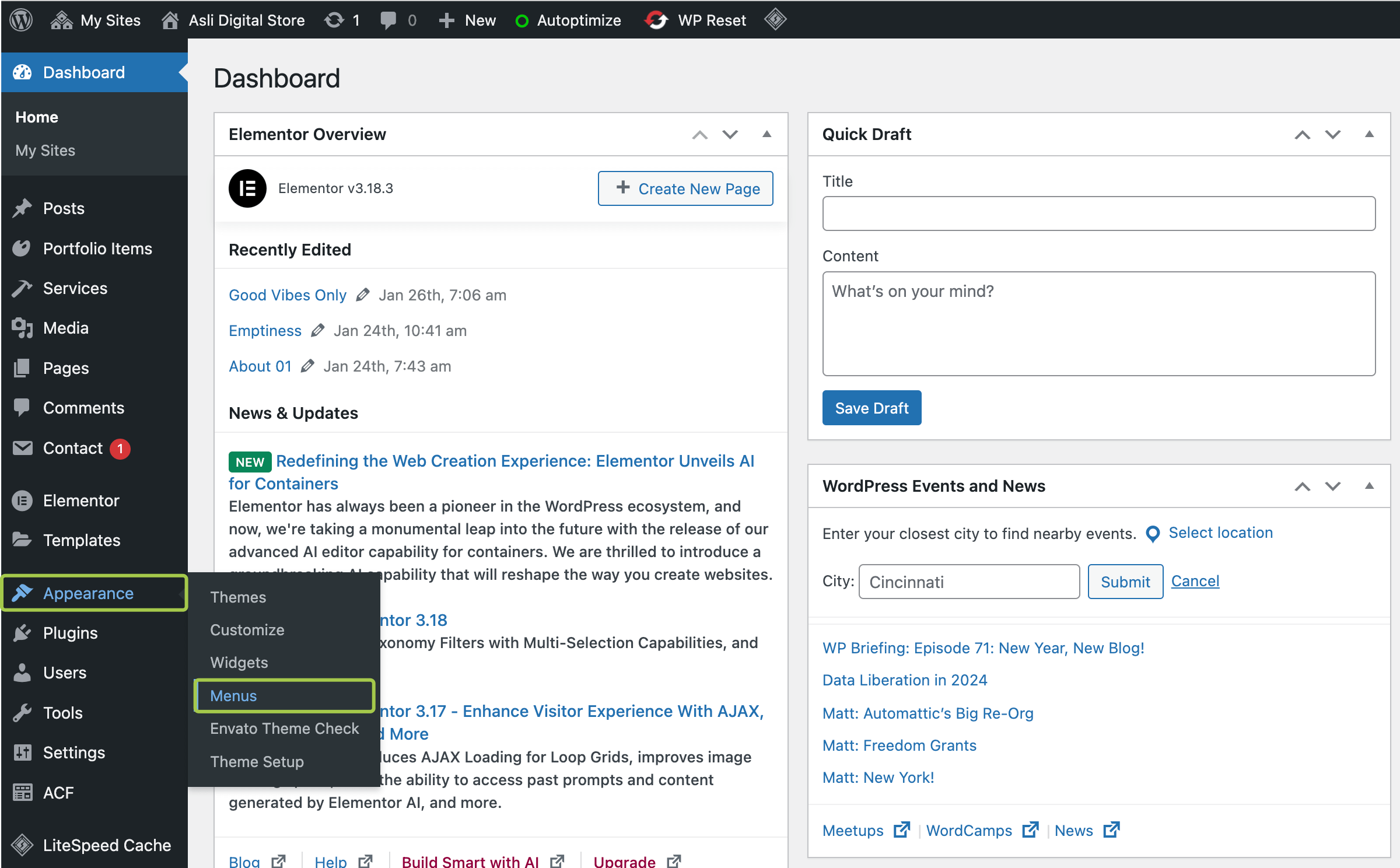
In the admin panel, hover over Appearance and go to Menus.
▶️️️️️ Step 2.
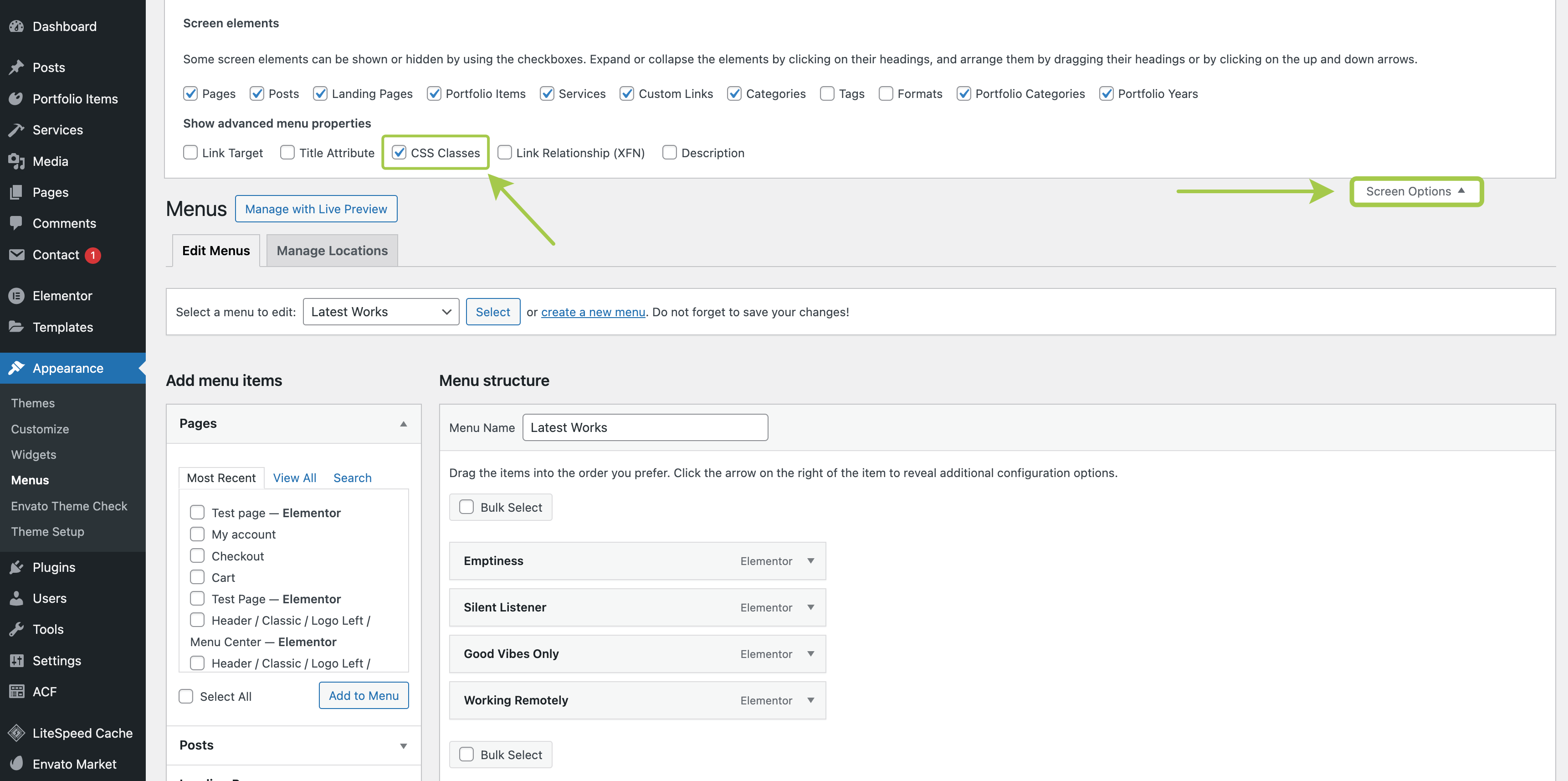
Open the Screen options panel and make sure the CSS Classes property is enabled.
▶️️️️️ Step 3.
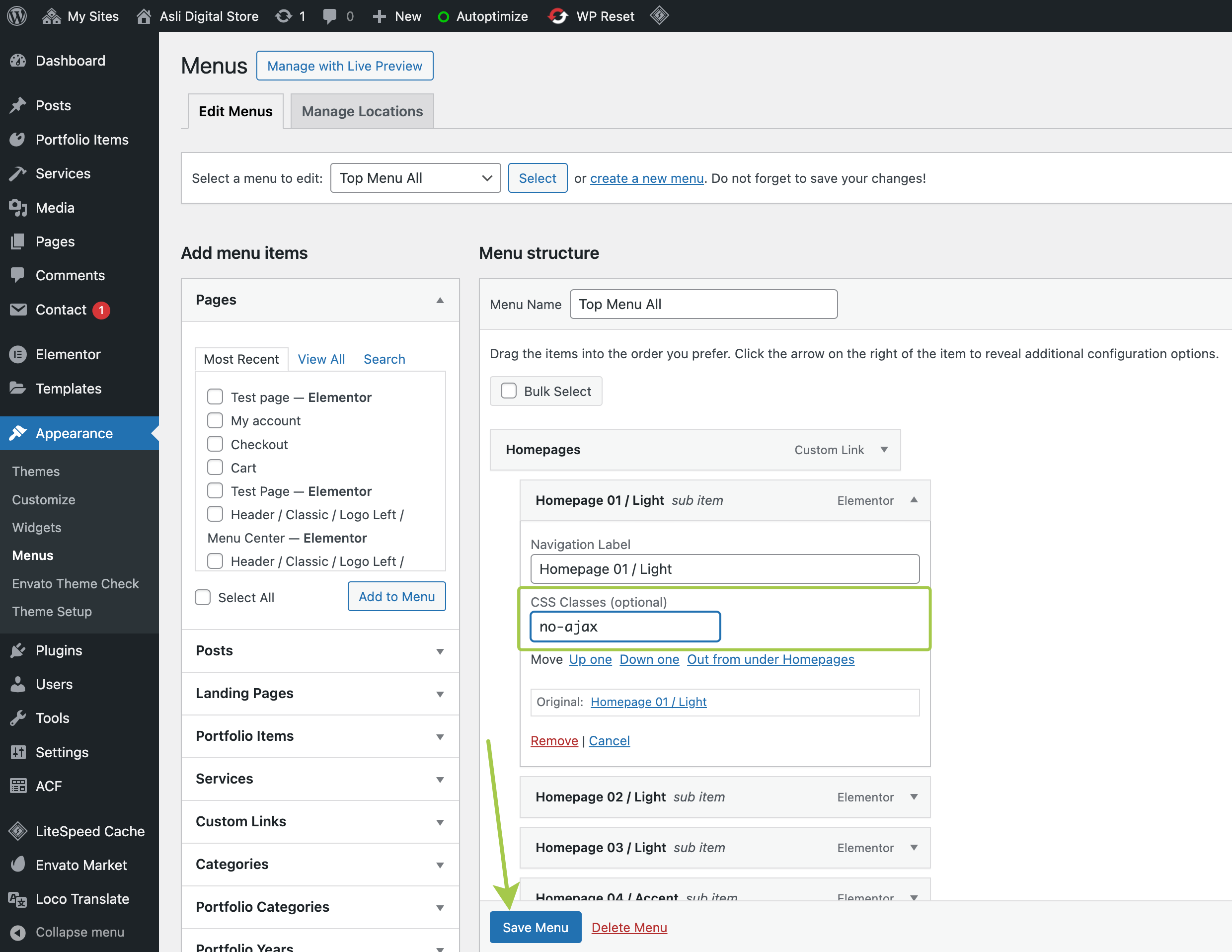
Add the no-ajax class (without the dot) to the menu item that you'd like to exclude from transitions. Don't forget to click Save Menu to apply changes.
Excluding Links on a Page from Transitions
▶️️️️️ Step 1.
Visit the page in which element you'd like to exclude from AJAX transitions and enter the Elementor editor by clicking Edit with Elementor in the admin bar.
▶️️️️️ Step 2.
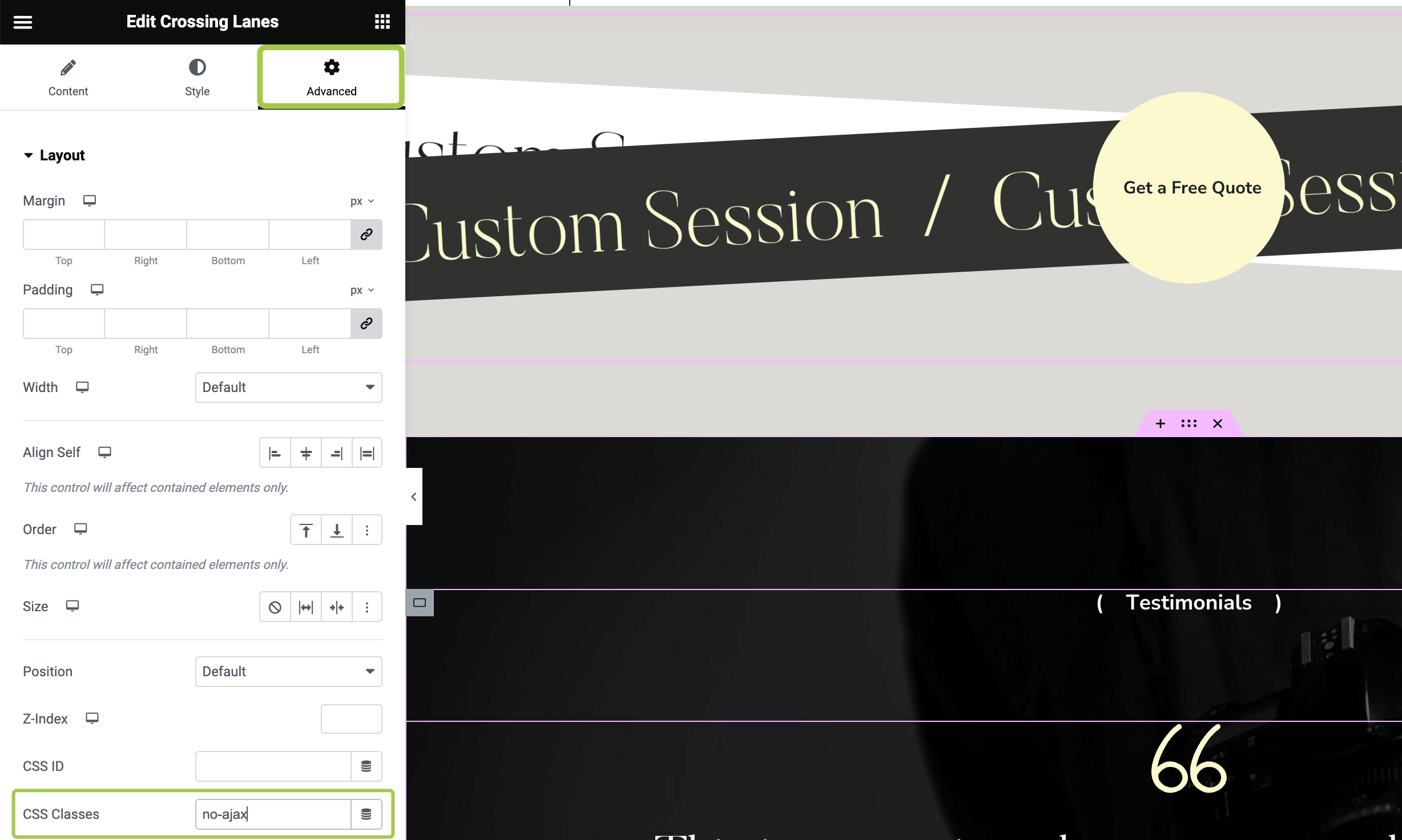
Select any widget or container in Navigator, then activate the Advanced tab and expand the Layout section. Add no-ajax to the CSS Classes field here.
Extending Plugins Compatibility
JavaScript plugins don't work after page transition?
When extending the theme functionality with a JavaScript plugin that’s not included in the package, you may run into an issue. Your plugin may work well after the initial site load. But when it comes to any AJAX transition, it doesn’t initialize. This is expected behavior due to some technical limitations of the AJAX feature.
Normally, the page initializes scripts each time it's loaded by the browser. But when AJAX navigation is enabled, it loads only once initially. The rest of the navigation is performed without any page refresh. So to make the 3rd-party scripts work, you need to re-init them manually each time an AJAX transition occurs.
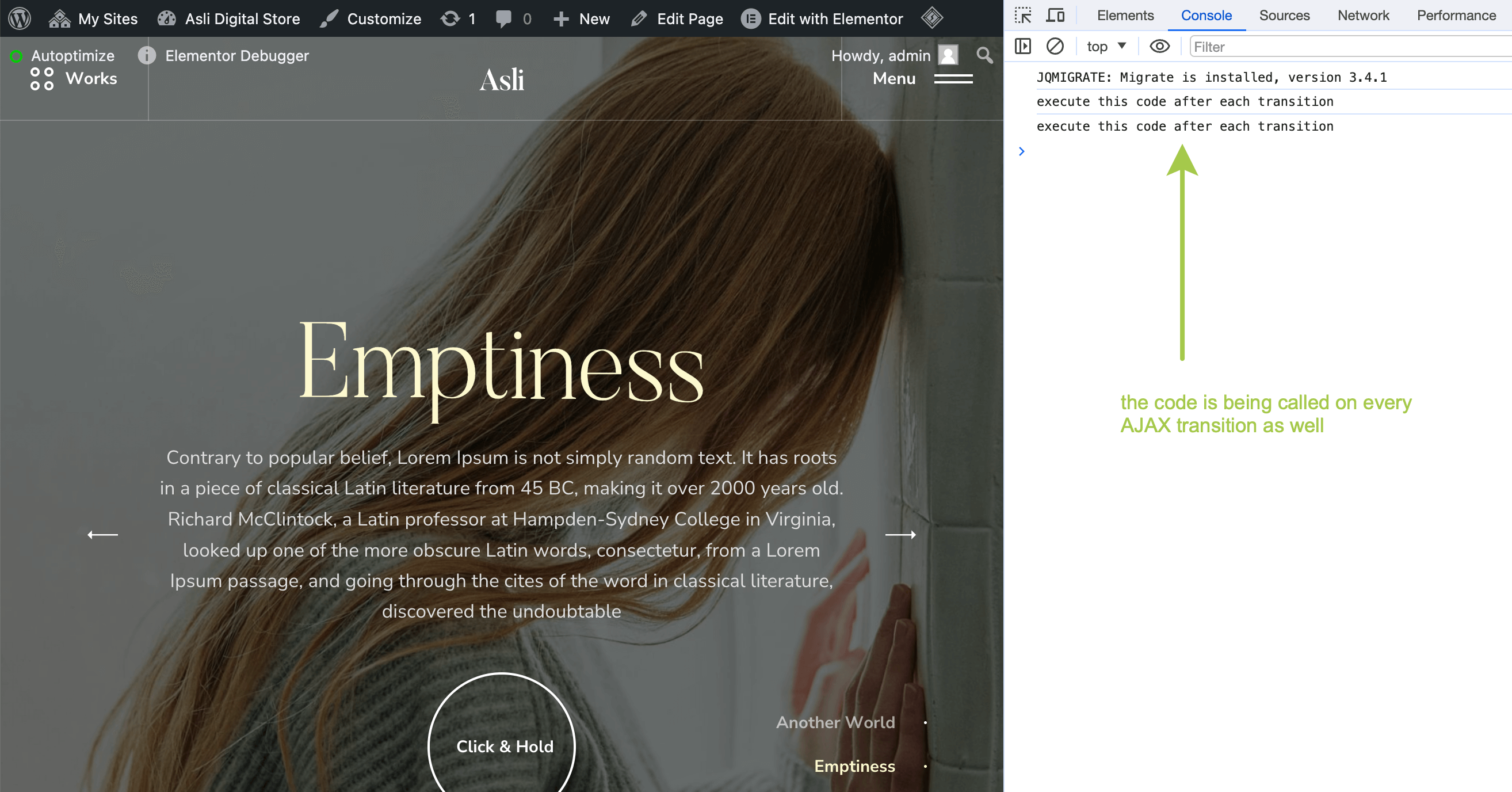
The theme has a special Eval Custom JavaScript field where you can place JavaScript initialization code for your scripts.
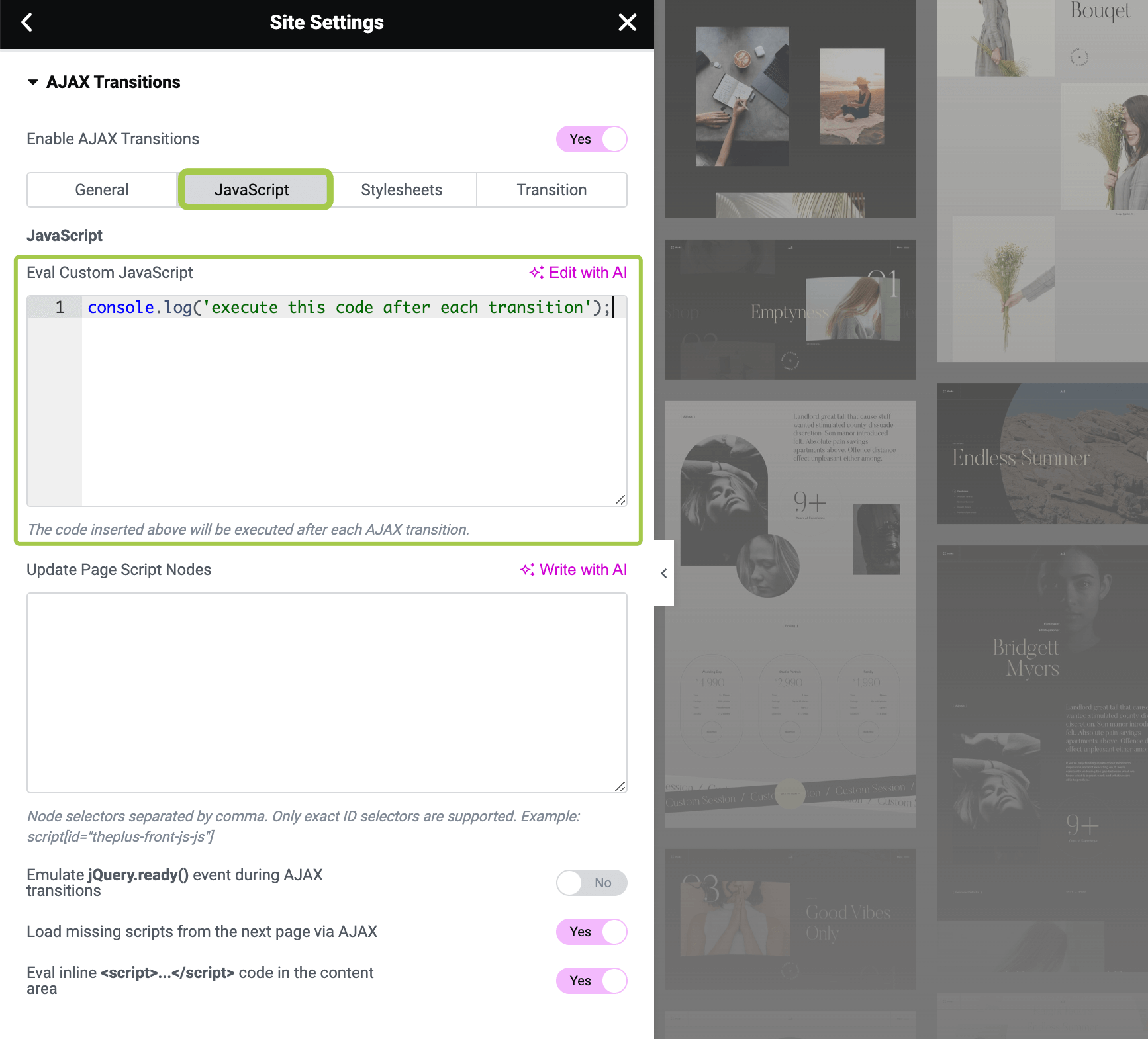
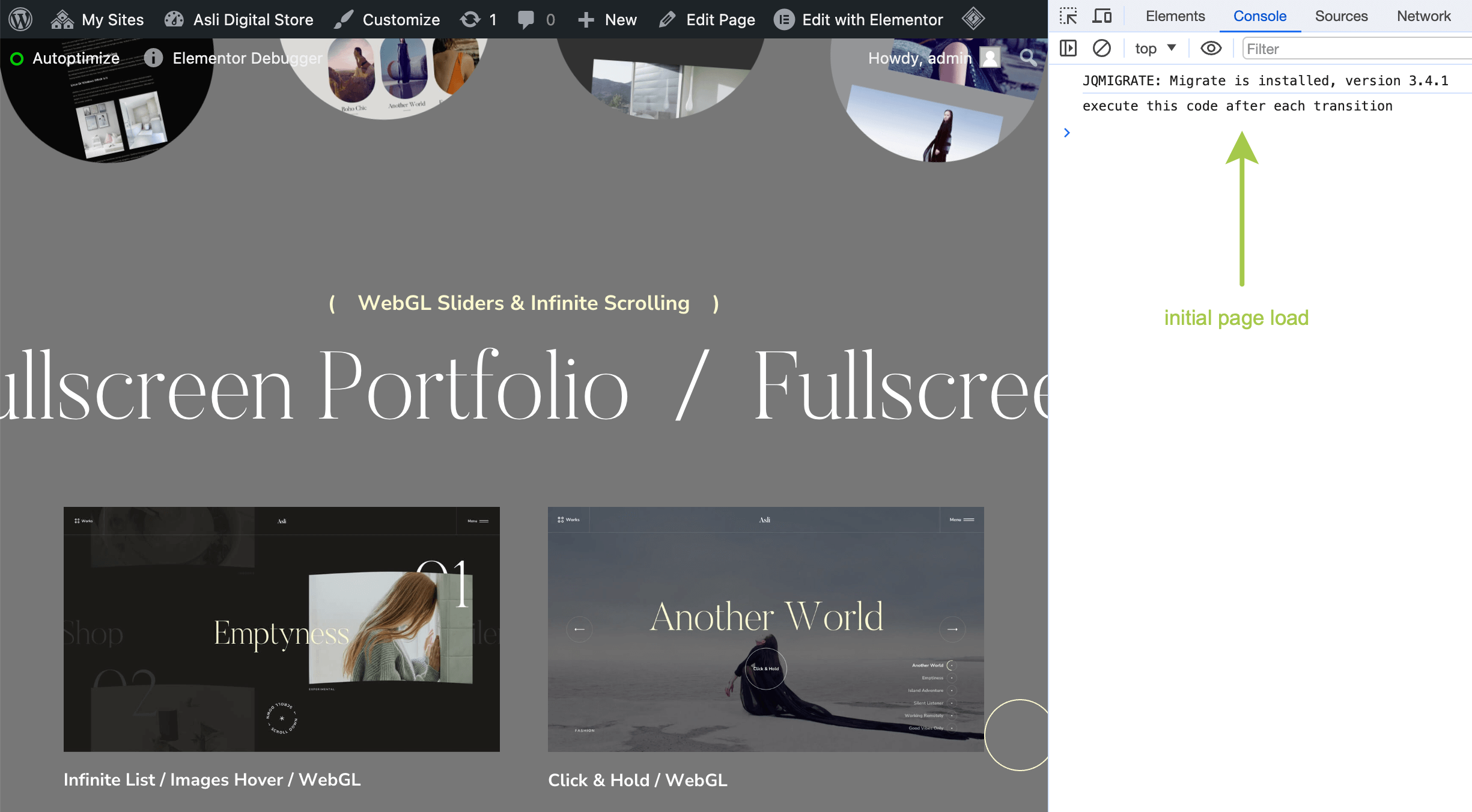
This code you put here will be executed on the initial page load and after each AJAX transition.
How to Figure Out the Initialization String I Need for My Plugin?
Depending on your script's JS architecture, the init string may vary. It can be a constructor invocation via the new keyword or a global function() call. Also, please keep in mind that sometimes it's not possible to re-initialize the plugin at all. The best way to know is to contact the support of the plugin you're trying to implement AJAX compatibility for.
How can I Add AJAX Compatibility to My Own Plugin?
▶️️️️️ Step 1.
Connect your plugin scripts and styles as you normally would using the standard wp_enqueue_script and wp_enqueue_style WordPress functions.
▶️️️️️ Step 2.
Place your initialization code inline using the wp_localize_script function or to an external JS file that's enqueued via wp_enqueue_script. Make sure to hook the plugin initialization string to the DOMContentLoaded or load events.
The
DOMContentLoadedevent fires when the HTML document has been completely parsed, and all deferred scripts (<script defer src="…">and<script type="module">) have downloaded and executed. It doesn't wait for other things like images, subframes, and async scripts to finish loading.The
loadevent is fired when the whole page has loaded, including all dependent resources such as stylesheets, scripts, iframes, and images. This is in contrast toDOMContentLoaded, which is fired as soon as the page DOM has been loaded, without waiting for resources to finish loading.
js
window.addEventListener('DOMContentLoaded', () => {
  /**
   * The code you put here will be executed
   * on page load AND on each AJAX transition
   *
   * This event can be used in the external JS files too.
   */
});

window.addEventListener('load', () => {
  /**
   * The code you put here will be executed
   * on page load AND on each AJAX transition
   *
   * This event can be used in the external JS files too.
   */
});
▶️️️️️ Step 3.
Depending on your plugin, you may need to check if the target element exists before initializing to avoid frontend errors.
js
window.addEventListener('DOMContentLoaded', () => {
// Collect target elements to array
const myElements = [...document.querySelectorAll('.my-elements')];
▶️️️️️ Step 4.
If your plugin requires to be destroyed or needs to clean up things before going to another page, you can hook your destroy/clean function to the arts/barba/transition/start event. It fires on the document element immediately after the transition starts.
js
window.addEventListener('DOMContentLoaded', () => {
  // Collect target elements to array
  const myElements = [...document.querySelectorAll('.my-elements')];

  // Check if elements actually exist on the page
  if (myElements.length > 0) {
    const myPluginOptions = {
      myOption1: 'foo',
      myOption2: 'bar'
    };

    myElements.forEach((el) => {
      // Create plugin instance for each element
      const myPluginInstance = new MyPlugin(el, myPluginOptions);

      // Schedule destroy function to the transition start
      document.addEventListener('arts/barba/transition/start', () => {
        // Call your plugin destroy function here
        myPluginInstance.destroy();
      }, {
        once: true
      });
    });
  }
});