Appearance
License Activation
Since version 1.5.0, a new license activation mechanism has been implemented in the theme. Once activated, you will receive automatic updates for:
- Asli Theme
- Asli Core Plugin
- Bundled Plugins (e.g., Advanced Custom Fields Pro)
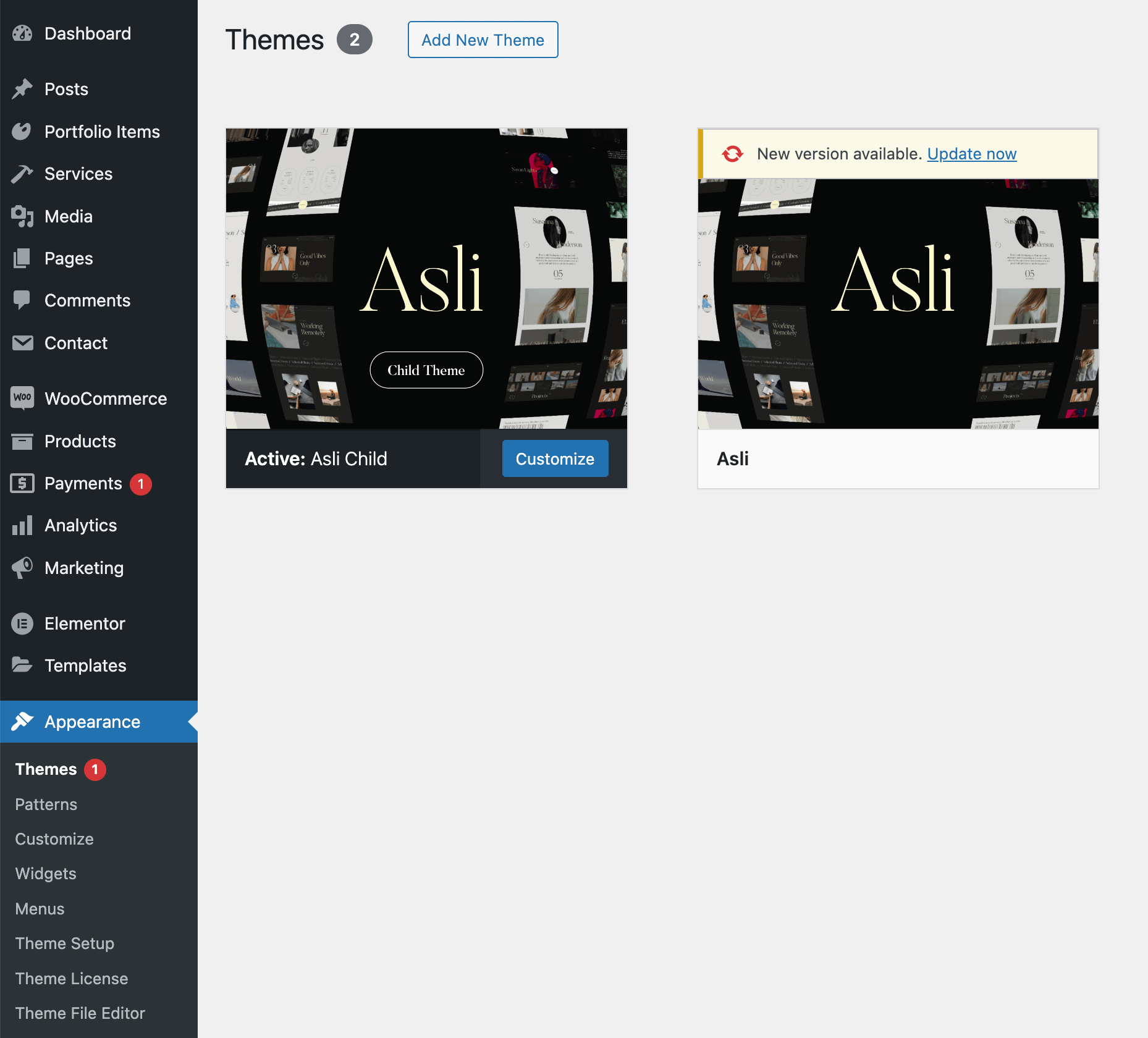
The updates will appear in your WordPress dashboard via notifications, as shown in the screenshots below:

🚨 Moving from Staging to Production?
IMPORTANT: If you're moving your site between domains (e.g., staging → production, subdomain → main domain), you must deactivate your license from the old domain FIRST before activating on the new domain.
Common scenarios requiring deactivation:
- Moving from test subdomain to main domain
- Switching from staging to production environment
- Changing to a new domain name
- Reinstalling WordPress on same domain
Quick deactivation: Appearance → Theme License → Deactivate License
Can't access the old domain? Jump to manual reset instructions
How to Activate?
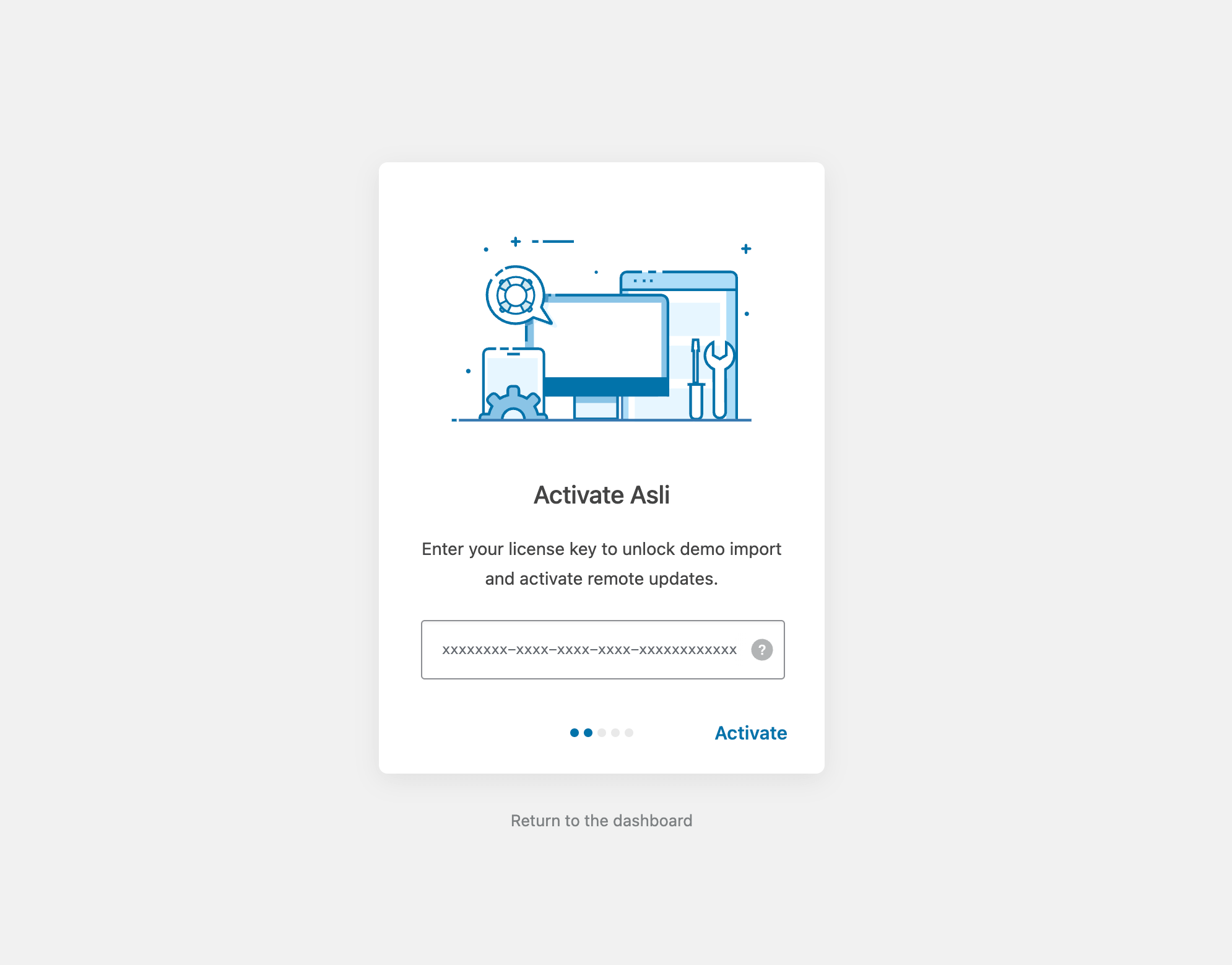
Via Theme Wizard Setup
When the theme is installed for the first time, a step-by-step setup wizard will appear. During one of the steps, you’ll be prompted to enter your item purchase code:
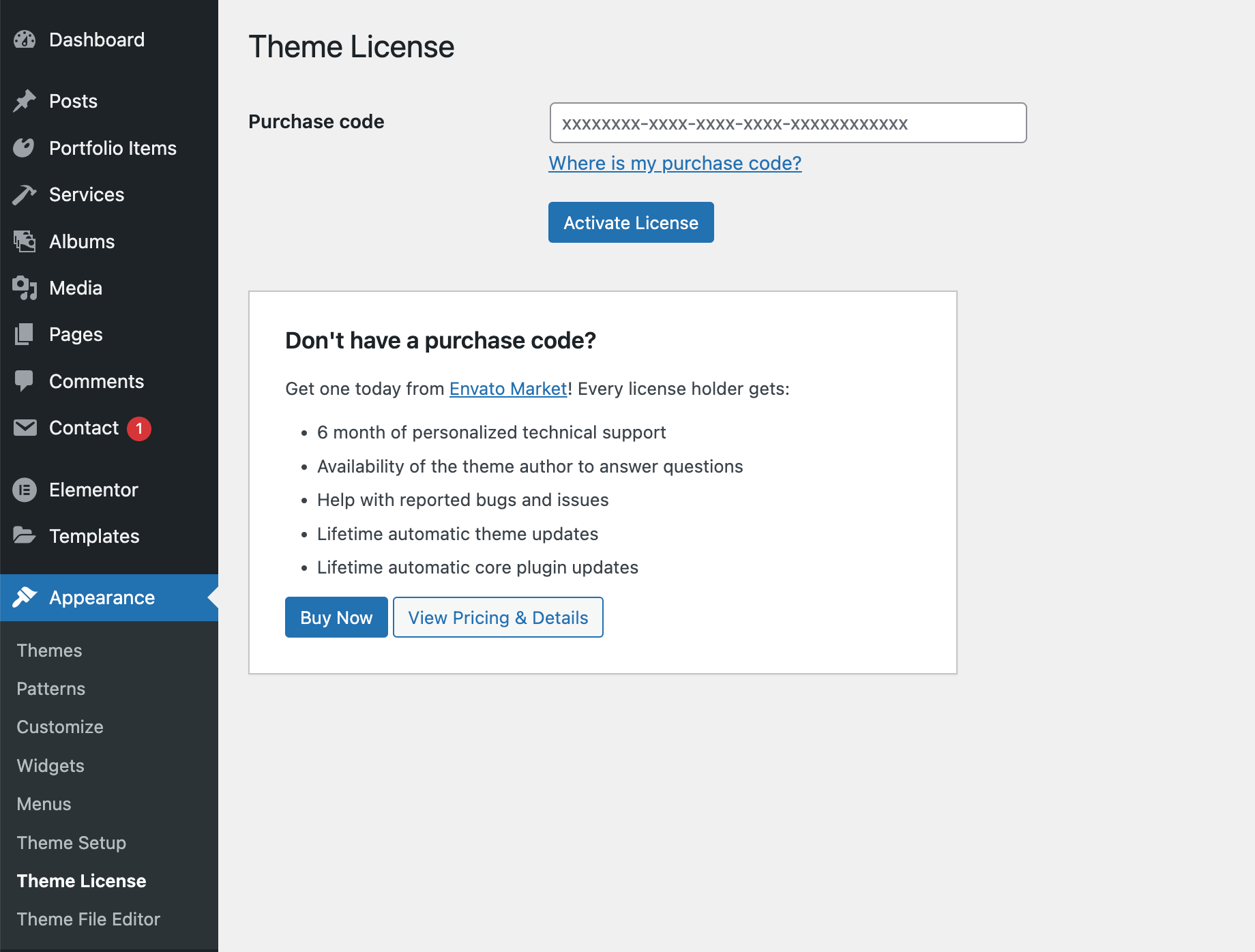
Via Theme License Panel
You can also manage license activation from the Admin Panel -> Appearance -> Theme License panel:
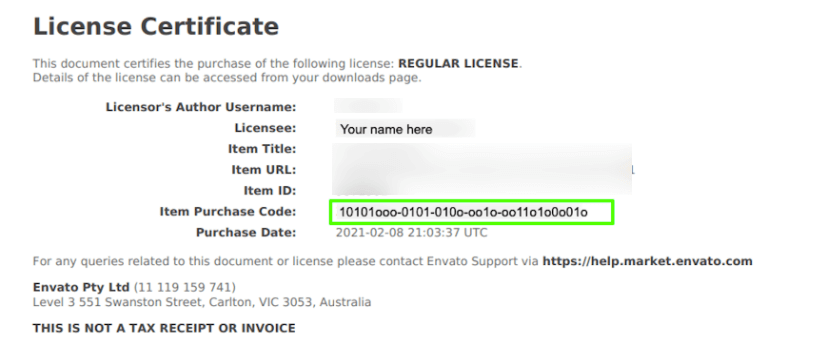
Where to Find the Purchase Code?
For more information, refer to this article: Where is my purchase code?.
The purchase code consists of letters and numbers separated by dashes:xxxxxxxx-xxxx-xxxx-xxxx-xxxxxxxxxxxx
I Don’t Have a Valid Purchase Code
If you don’t have a purchase code (e.g., if you licensed the theme via Envato Elements), you can still obtain one from Envato Market:
Asli – AJAX Portfolio Elementor WordPress Theme.
Activating your purchase code provides the following benefits:
- 6 months of personalized technical support
- Direct assistance from the theme author
- Help with reported bugs and issues
- Lifetime automatic theme updates
- Lifetime automatic core plugin updates
License Usage Policy
A single regular license purchased from Envato Market covers one live website. If you need to use the theme on multiple websites, you must purchase a separate license for each domain.
A New License Is Required For:
- A different domain e.g.,
myotherwebsite.com. - A separate client project.
- Any website that is not strictly a staging environment.
How to Deactivate or Transfer a License?
Theme activation is tied to your website’s domain. A single regular theme license can be activated on only one website, as per Envato Licensing Terms.
Steps to Deactivate a License
- Go to
WordPress Admin → Appearance → Theme License. - Click the
Deactivate Licensebutton.
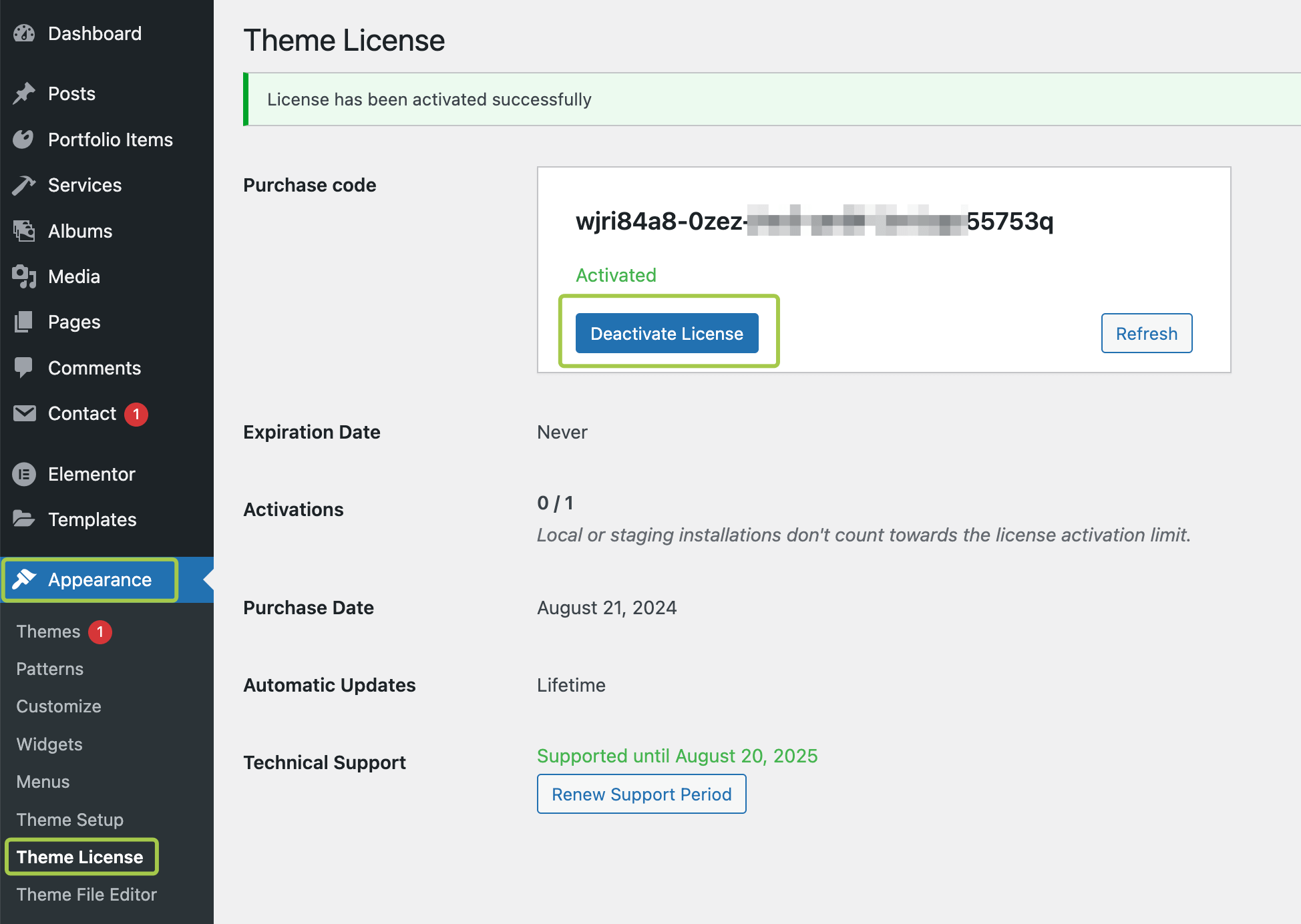
Steps to Activate the License on a New Website
- Install the theme on the new domain.
- Go to
WordPress Admin → Appearance → Theme License. - Enter your purchase code and click
Activate.
💡 Important Notes:
- If the old website no longer exists (e.g., deleted or inaccessible), open a private ticket in the Support Forum to request a manual license reset.
- If you purchased the theme for a client and they need ongoing support, they should purchase their own license.
TIP
Local or staging installations (e.g., https://localhost/, https://my-staging.local/) do not count toward the license activation limit and do not require deactivation.
Using the Envato Market Plugin?
Before the 1.5.0 update, it was recommended to install the Envato Market plugin and connect it via an API token. However, this method is now deprecated and will no longer be listed among the "recommended" plugins during setup.
Although updates via the Envato Market plugin may still function, activating your theme license is recommended to receive updates for both the theme and bundled premium plugins (e.g., ACF Pro).