Appearance
Customizing Widgets
▶️ Step 1.
Go to any page you want to edit and click the Edit with Elementor button.

▶️ Step 2.
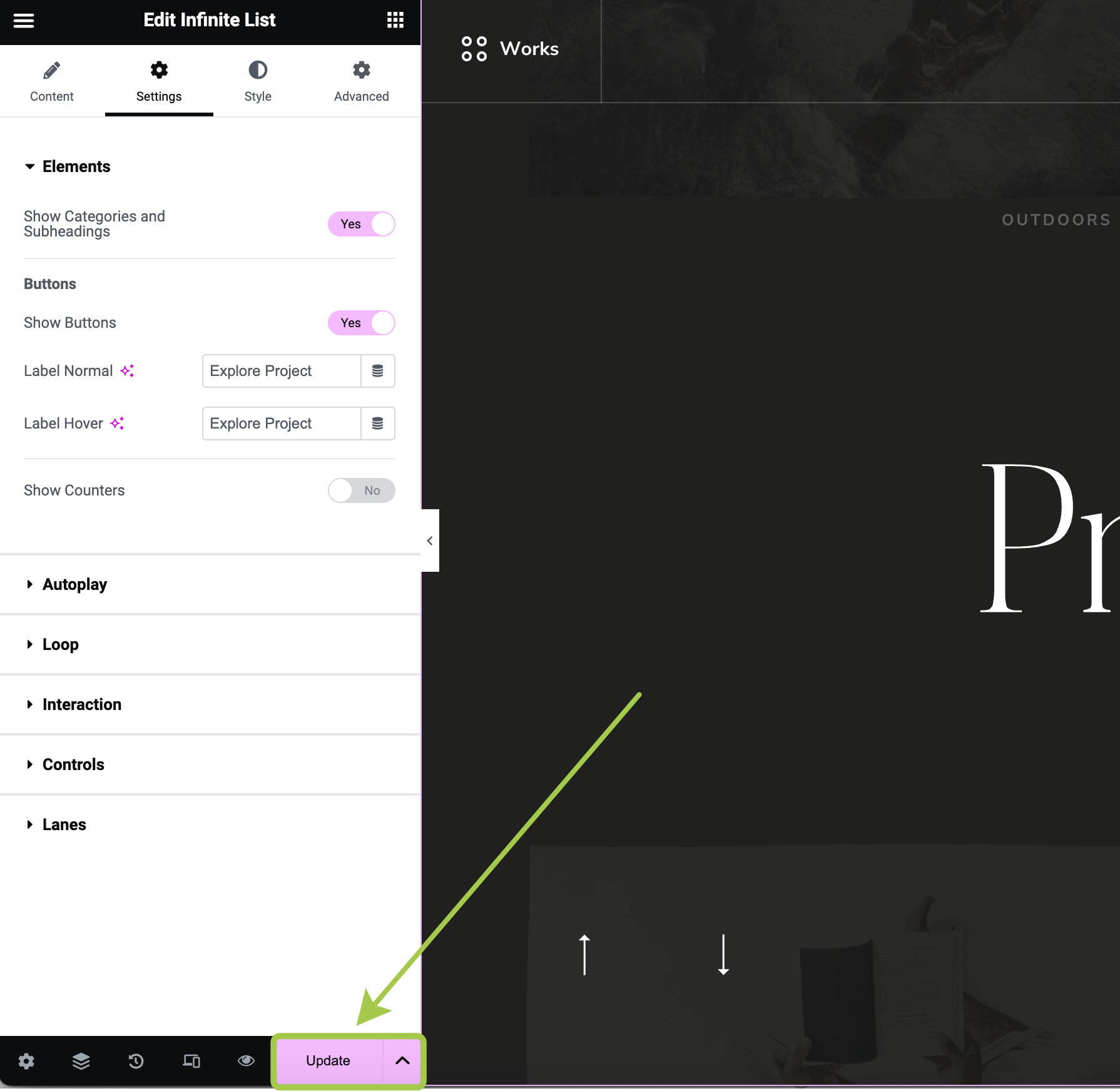
Select the widget you want to customize by clicking on it in the editor or via the Navigator.
You will see a set of tabs in the left sidebar: Content, Settings, Style, and Advanced (these tabs may vary depending on the widget).

▶️ Step 3.
At the bottom left corner of the page, click Update to save your changes and preview them on the frontend.
Using Dynamic Data Sources
Some widgets pull content dynamically from existing posts (e.g., Portfolio Items, Services, Blog Posts).
These settings can be adjusted in the Content → Data section, where you can modify:
- The post type being fetched.
- The number of displayed posts.
- The order of the posts.
- Other filtering options.

Using Static Data Sources
You can also input custom content (headings, images, links, etc.) instead of dynamically fetched posts.
To do this, switch the Data Source Type to Custom Content. When Custom Content is selected, you can add content under the Items control.

Custom links do not need to be bound to site posts or pages—you can also use external links (with an option to open them in a new window).

If you do not want an item to be clickable (e.g., if you just want to display images and headings without linking to another page), simply leave the Link field empty.

Changing Typography and Colors
All theme widgets provided by the Asli Core Plugin have a unified typography and color customization panel.
To adjust these settings, go to the Style tab and expand the Typography & Colors section.

Here, you can modify all typography settings for the selected widget.

Adjusting Cursor Effects
To modify cursor interactions, go to the Style tab and expand the Interactive Cursor section.
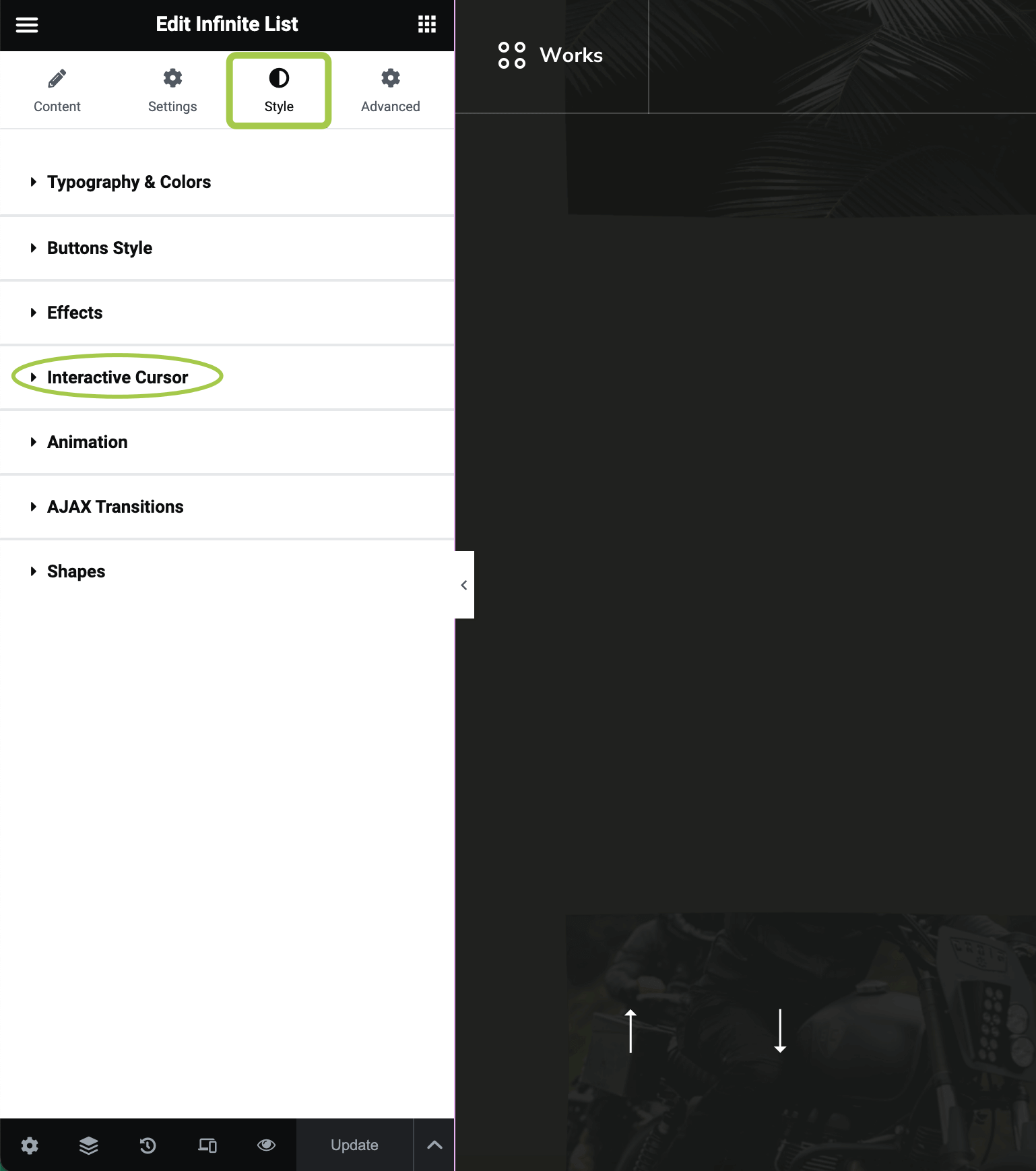
This section allows you to configure how widget elements interact with the mouse cursor follower.

Disabling or Adjusting Appearance Animations
To control scroll-based animations, go to the Style tab and expand the Animation section.
Here, you can enable or disable on-scroll animations.

Some widgets also offer additional animation customization options.
For example:
- In the
Text Contentwidget, you can change theSplit Text Type.

- In the
Parallax Imagewidget, you can modify theMask Animationdirection.
