Appearance
Bottom Projects Navigation
How to access this panel?
While viewing a portfolio post, edit the Footer theme part with Elementor using Theme Builder, then return to this guide.
Open the Navigator and locate the Posts Navigation widget. In the left sidebar, you can adjust the appearance of the bottom projects navigation.
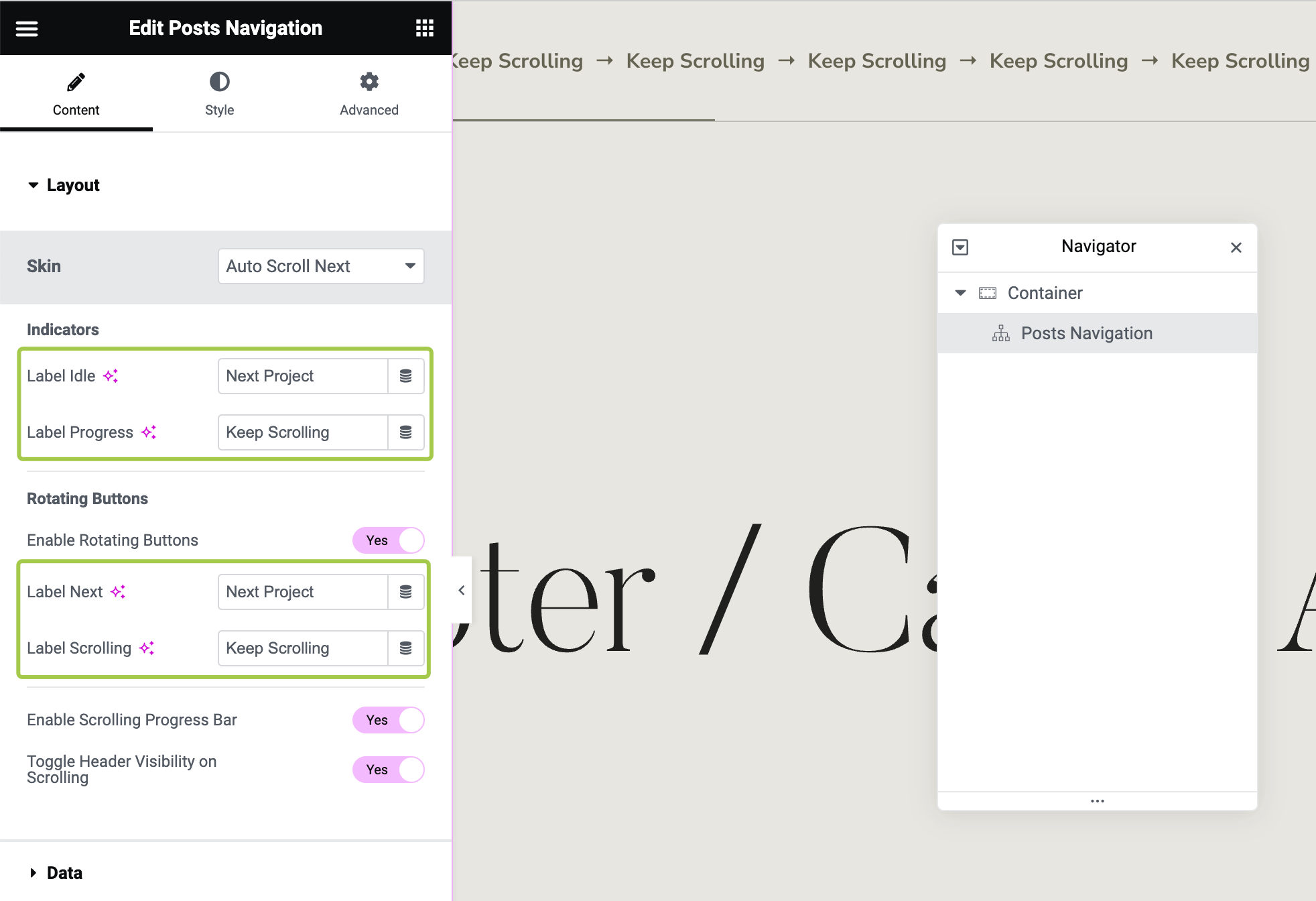
Customizing Text Indicators
Activate the Content tab and expand the Layout section. Here, you can customize the additional text indicators.
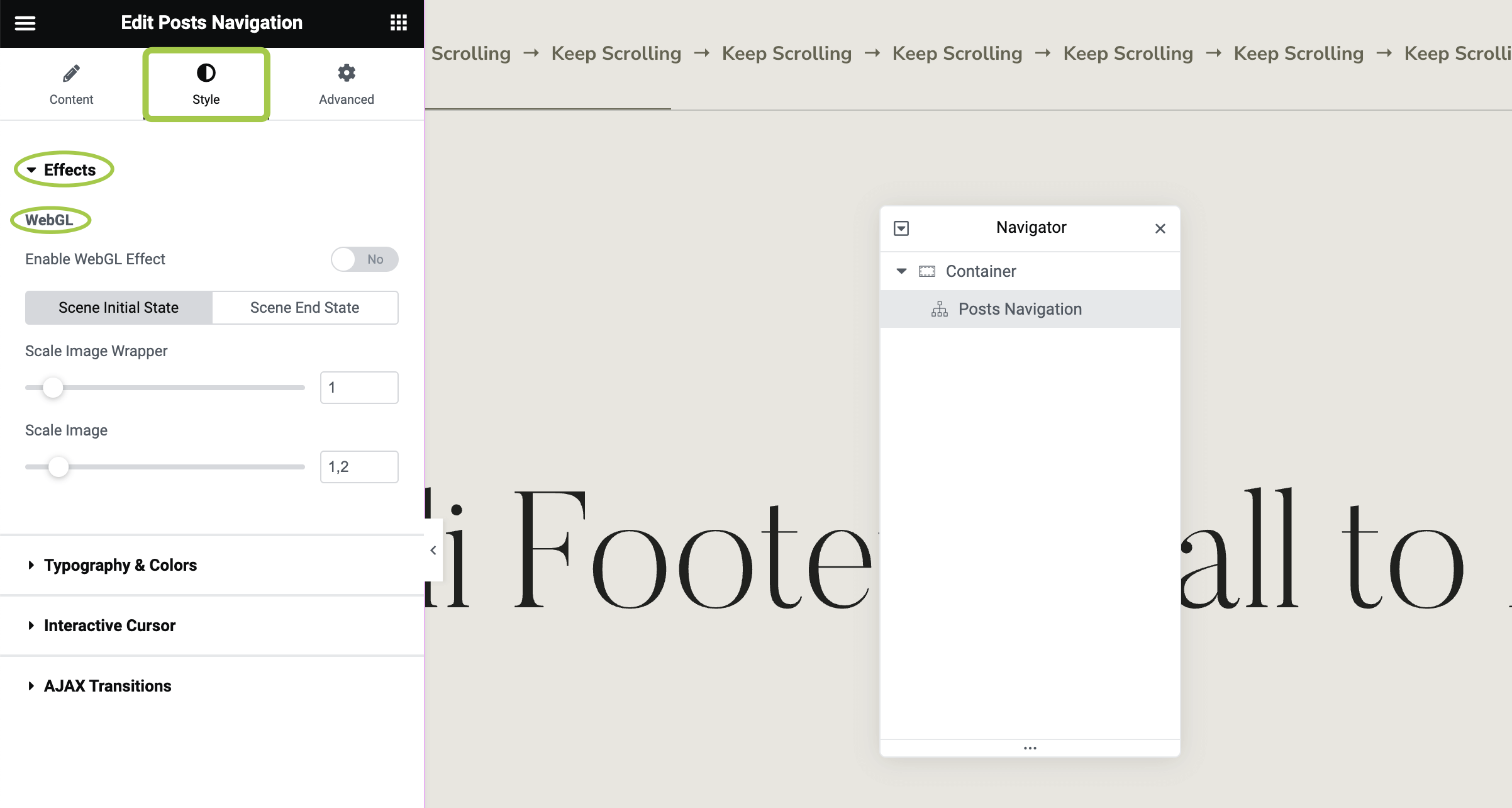
Enabling or Disabling the WebGL Effect
To adjust (or disable) the image WebGL effect of the widget, activate the Style tab and expand the Effects section. This widget provides multiple options to fine-tune the effect.
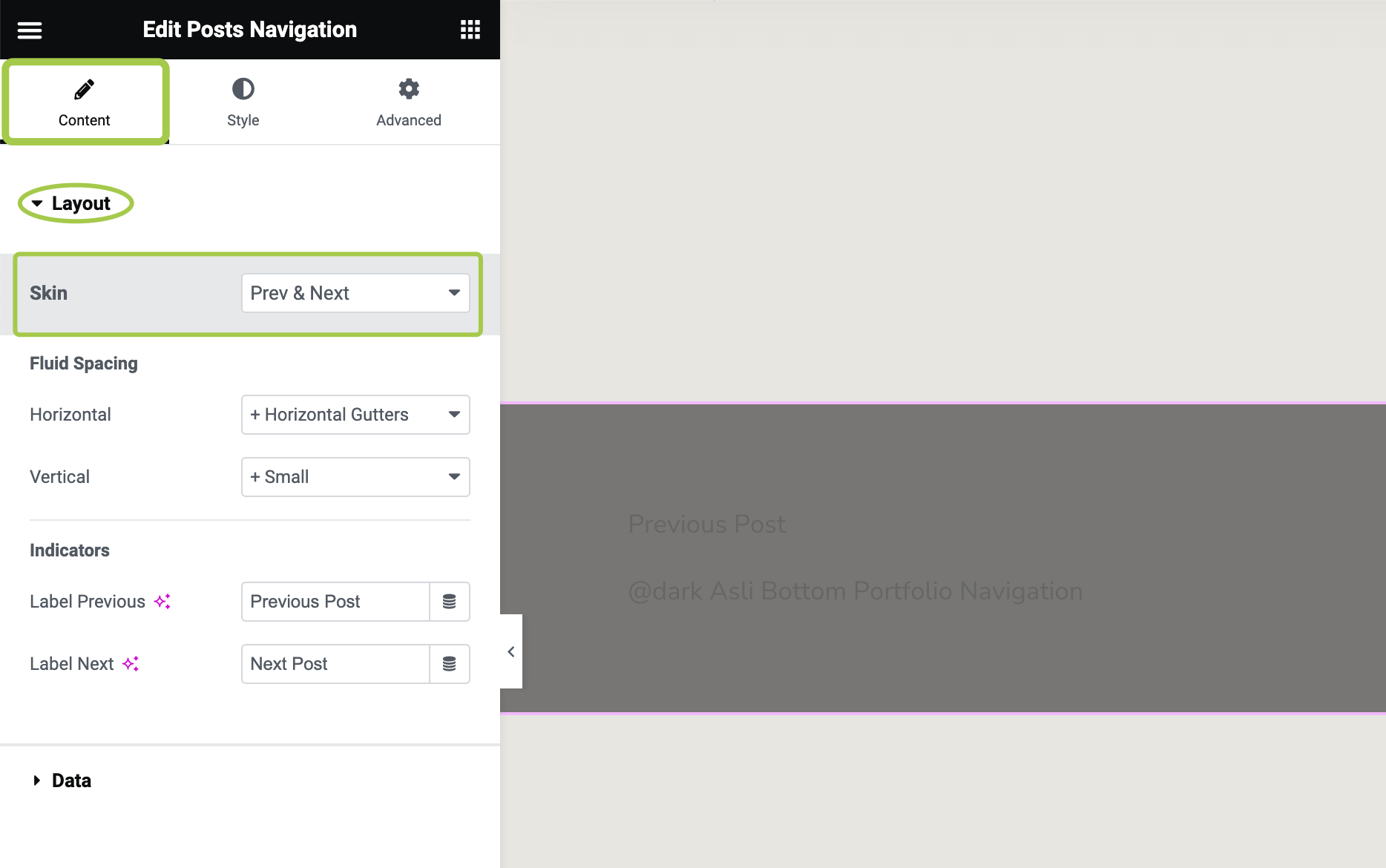
Switching to the "Prev/Next" Skin
▶️ Step 1.
Activate the Content tab and expand the Layout section. In the Skin control, select Prev & Next.
▶️ Step 2.
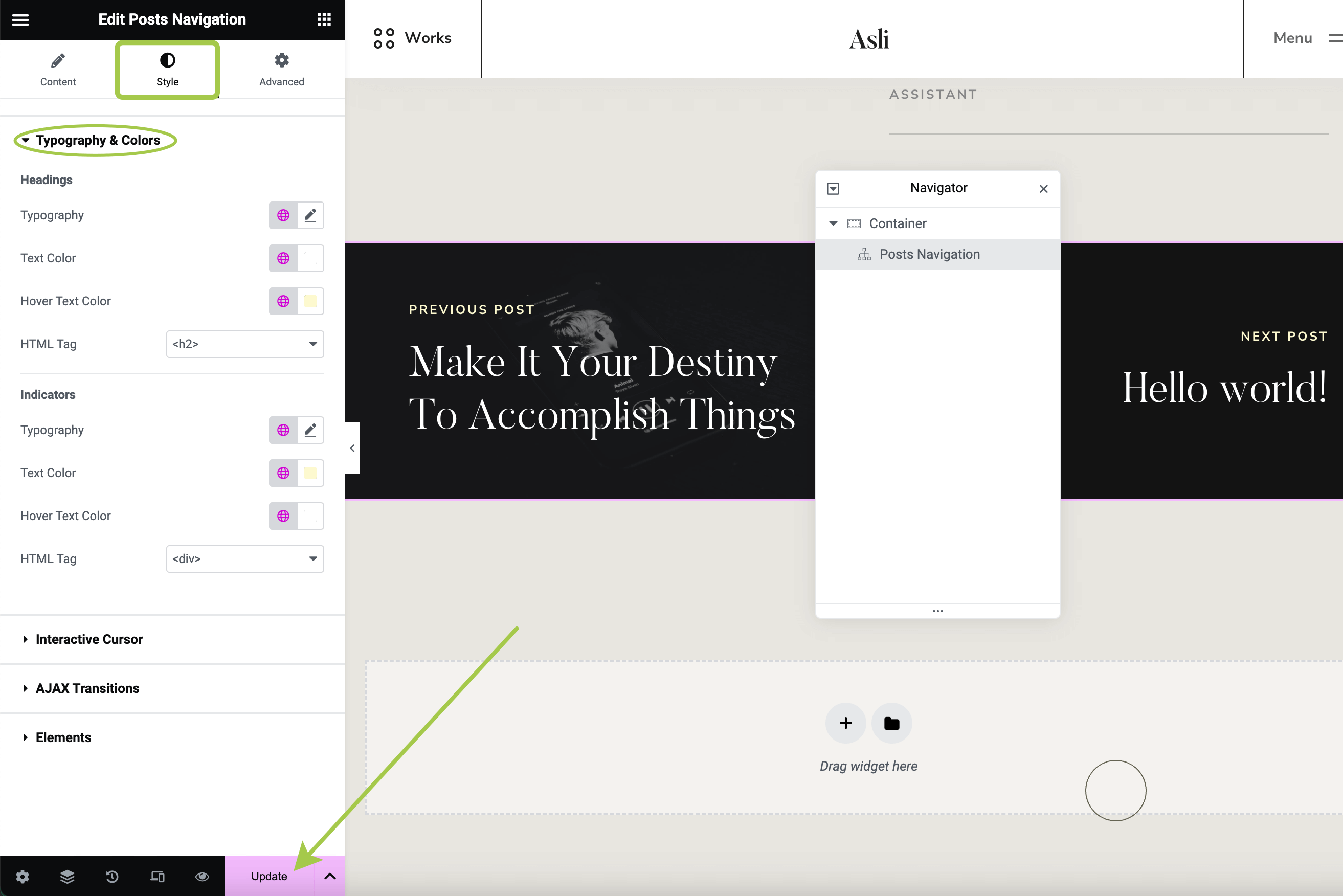
Activate the Style tab and expand the Typography & Colors section. You may need to adjust the widget typography here. Once ready, click Update in the bottom left corner to save your changes.
▶️ Step 3.
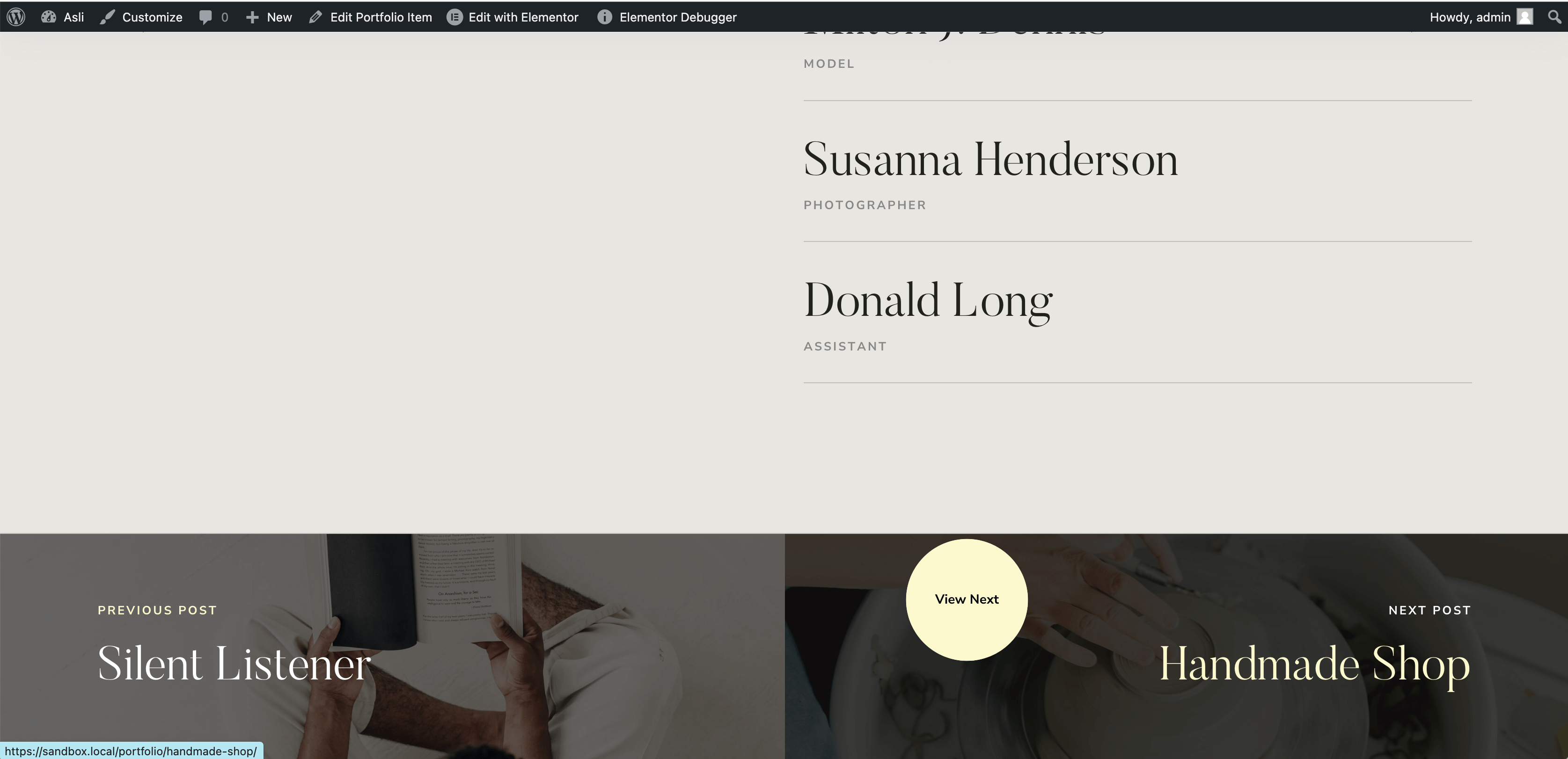
Preview your portfolio posts. You should now see Prev & Next style navigation at the bottom. The links direct to sibling posts.
Changing Navigation Direction
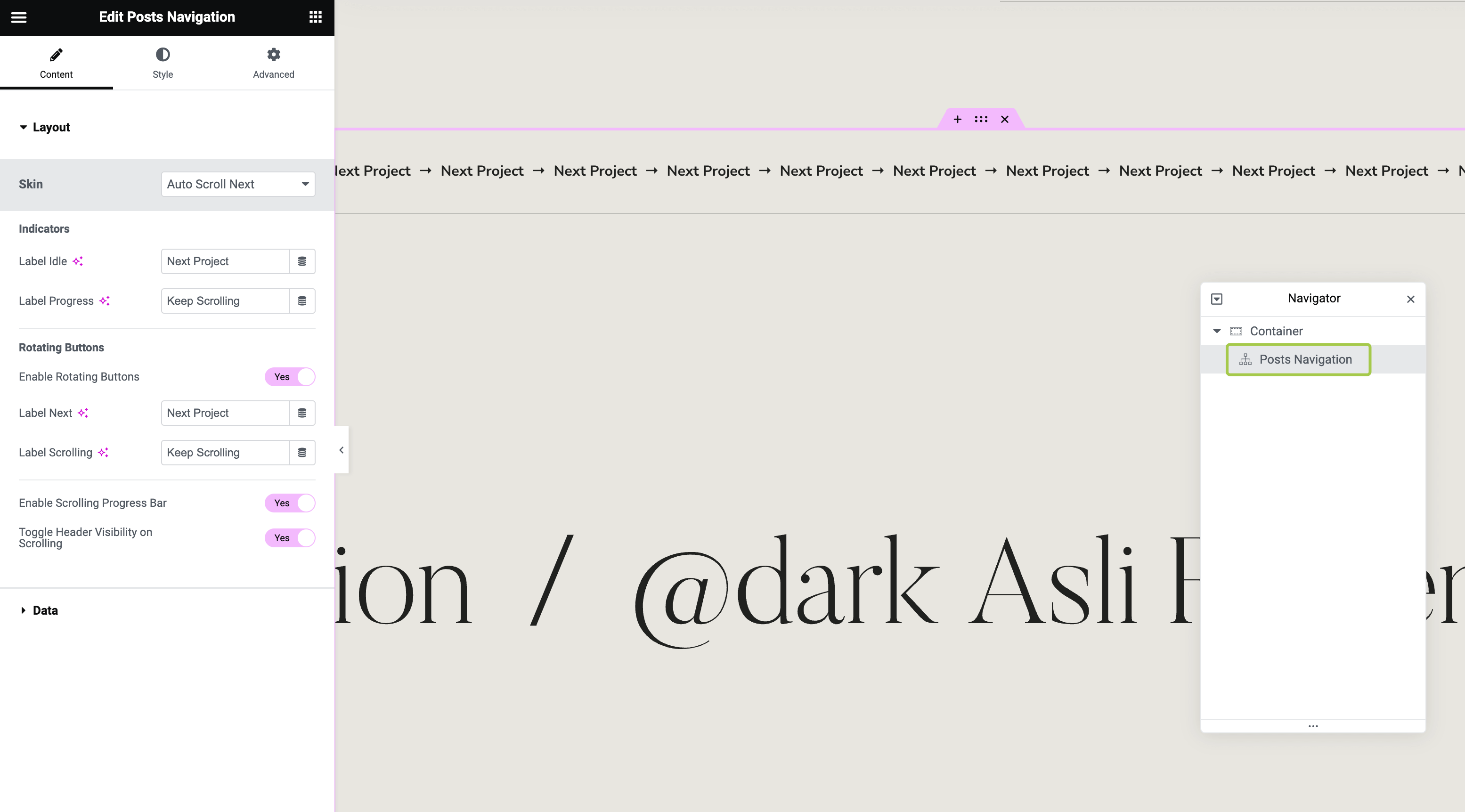
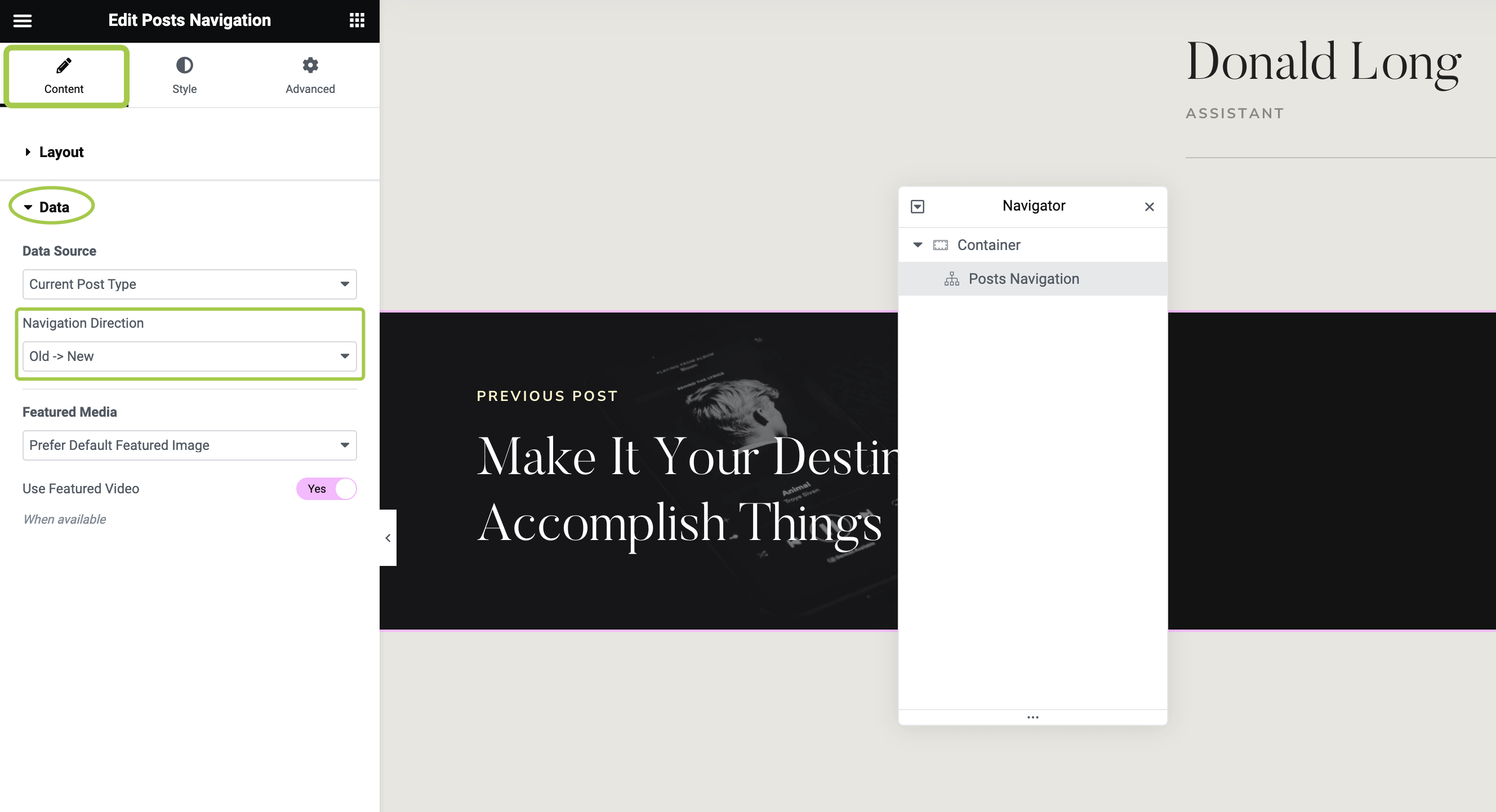
Activate the Content tab and expand the Data section. Adjust the Navigation Direction control as needed:
- For the
Auto Scroll Nextskin, this setting determines whether the newest or oldest posts appear first. - For the
Prev & Nextskin, this setting swaps the previous and next posts in the loop.
Rearranging Posts in the Navigation Loop
To reorder posts in the admin panel, refer to this guide: Intuitive Custom Post Order.