Appearance
Blog
How to access this panel?
Edit the Archive theme part with Elementor using Theme Builder, then return to this guide.
Open the Navigator and locate the Blog Posts widget. In the left sidebar, you can adjust the appearance of the blog page.
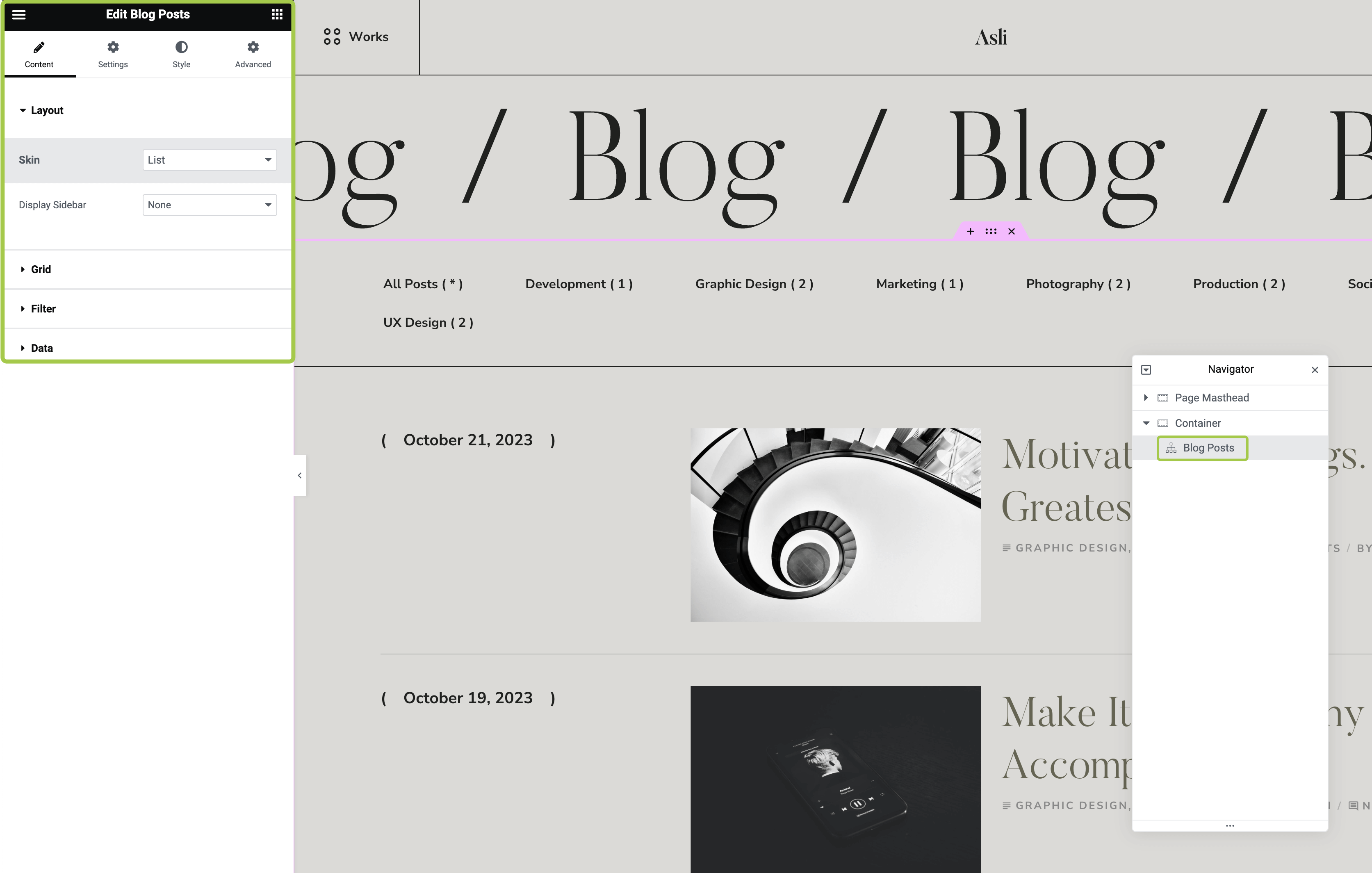
Enabling or Disabling Sidebar
▶️ Step 1.
In the admin panel, navigate to Appearance → Widgets.
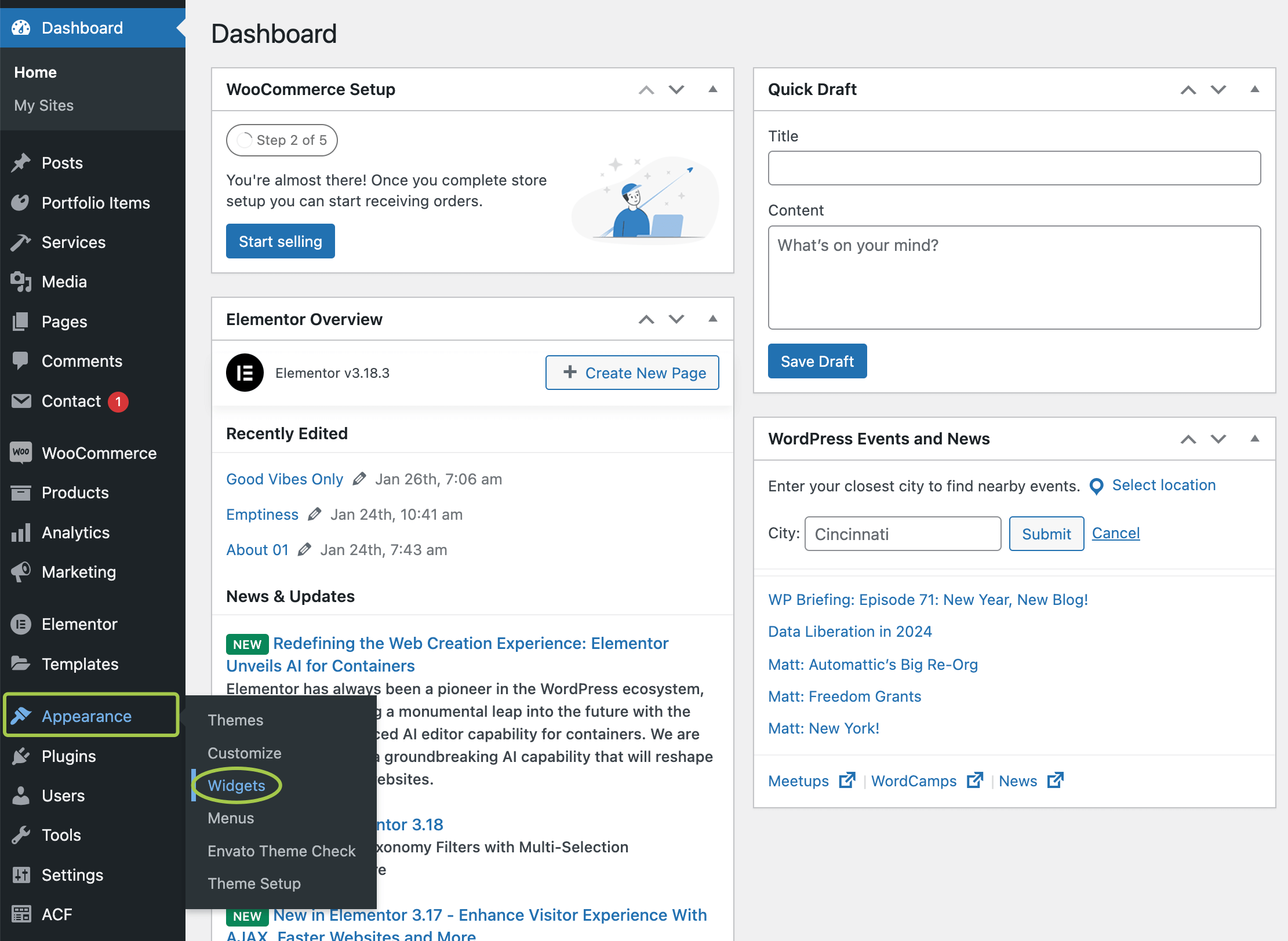
▶️ Step 2.
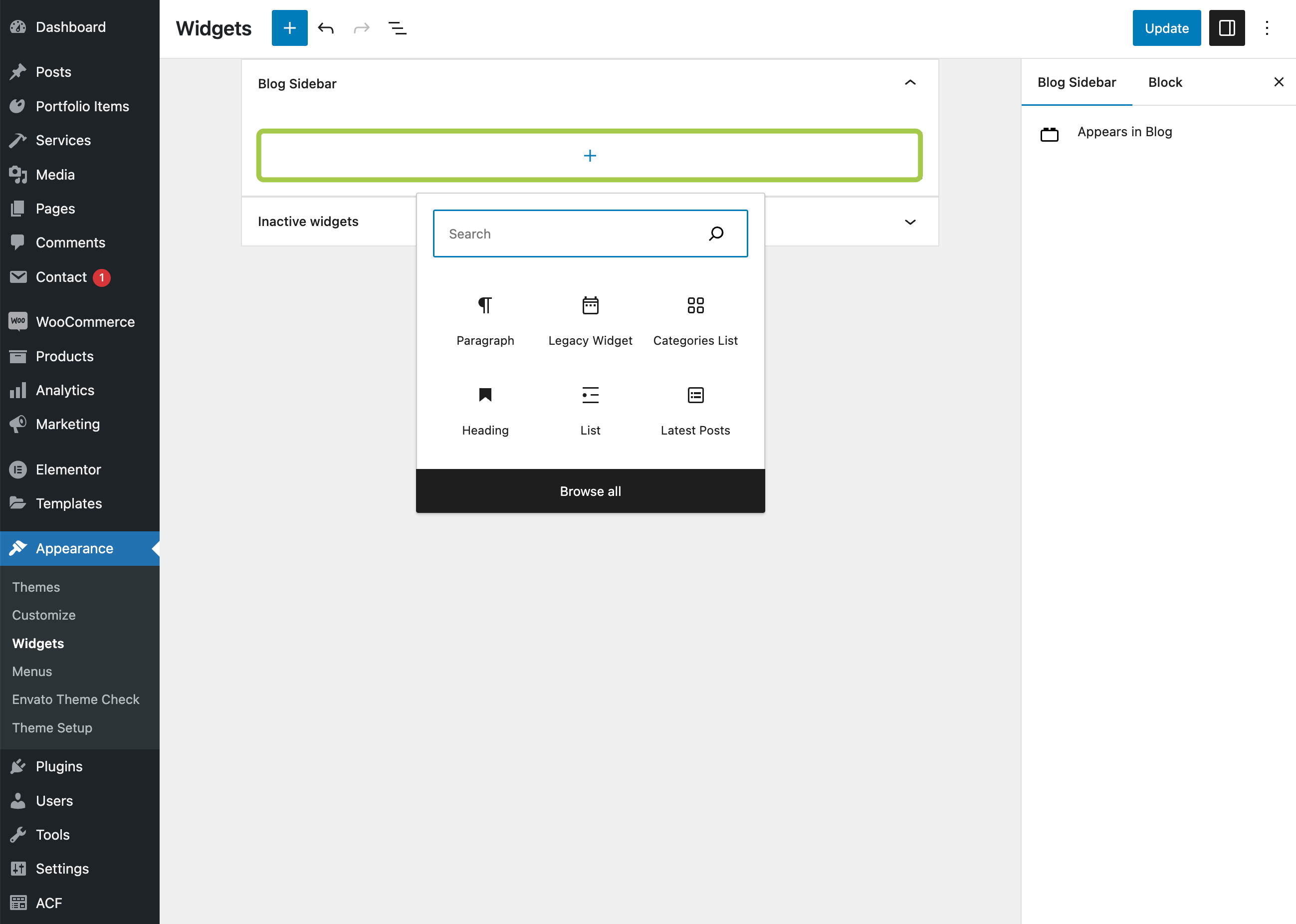
Locate the Blog Sidebar registered widget area. This is where you need to add content for the blog sidebar.
Having trouble customizing site widgets with the block editor?
Install and activate the Classic Widgets plugin. This restores the old WordPress widgets panel and disables the block editor for widgets.
▶️ Step 3.
Once you're done, click Update to save your changes.
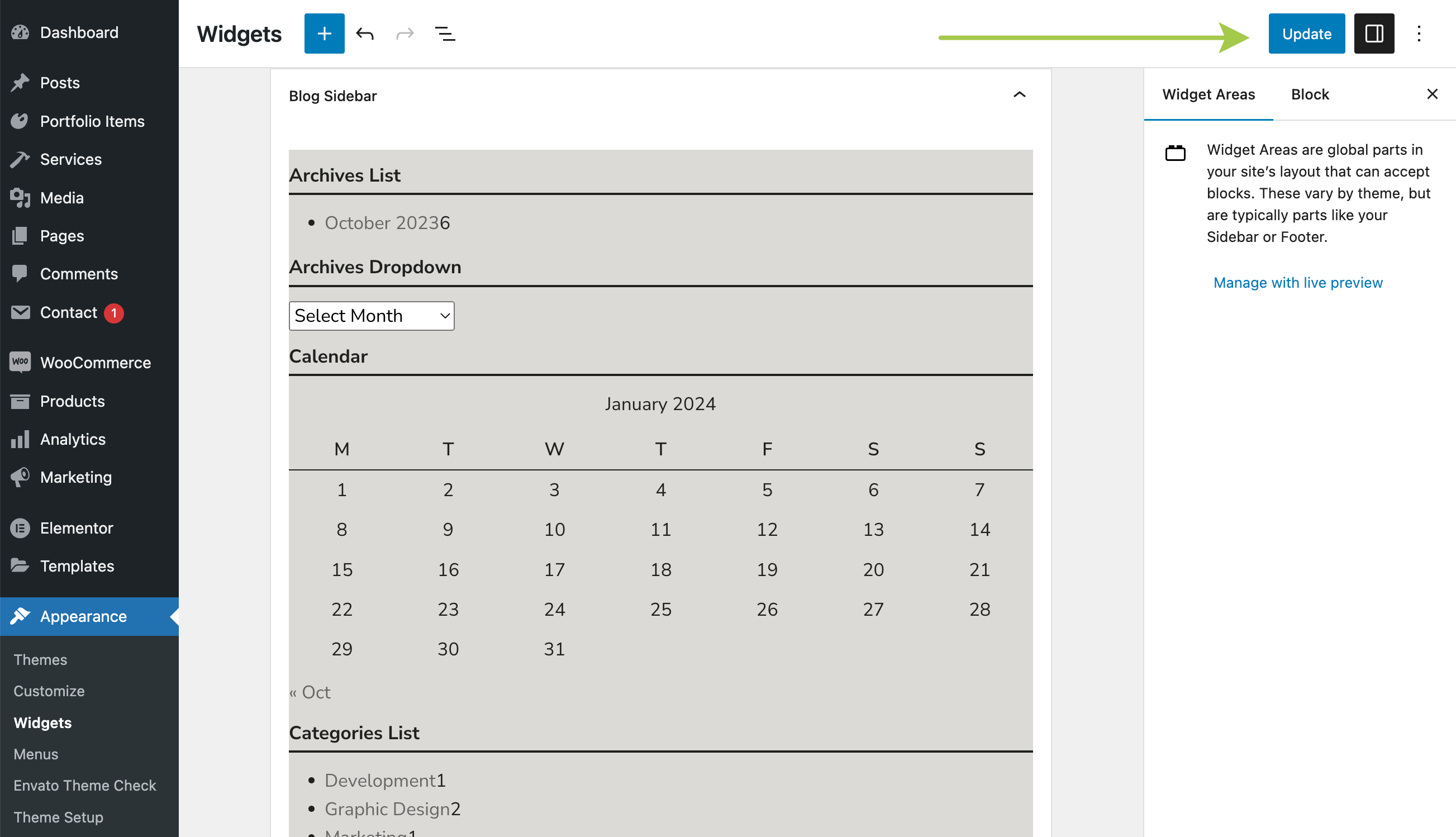
▶️ Step 4.
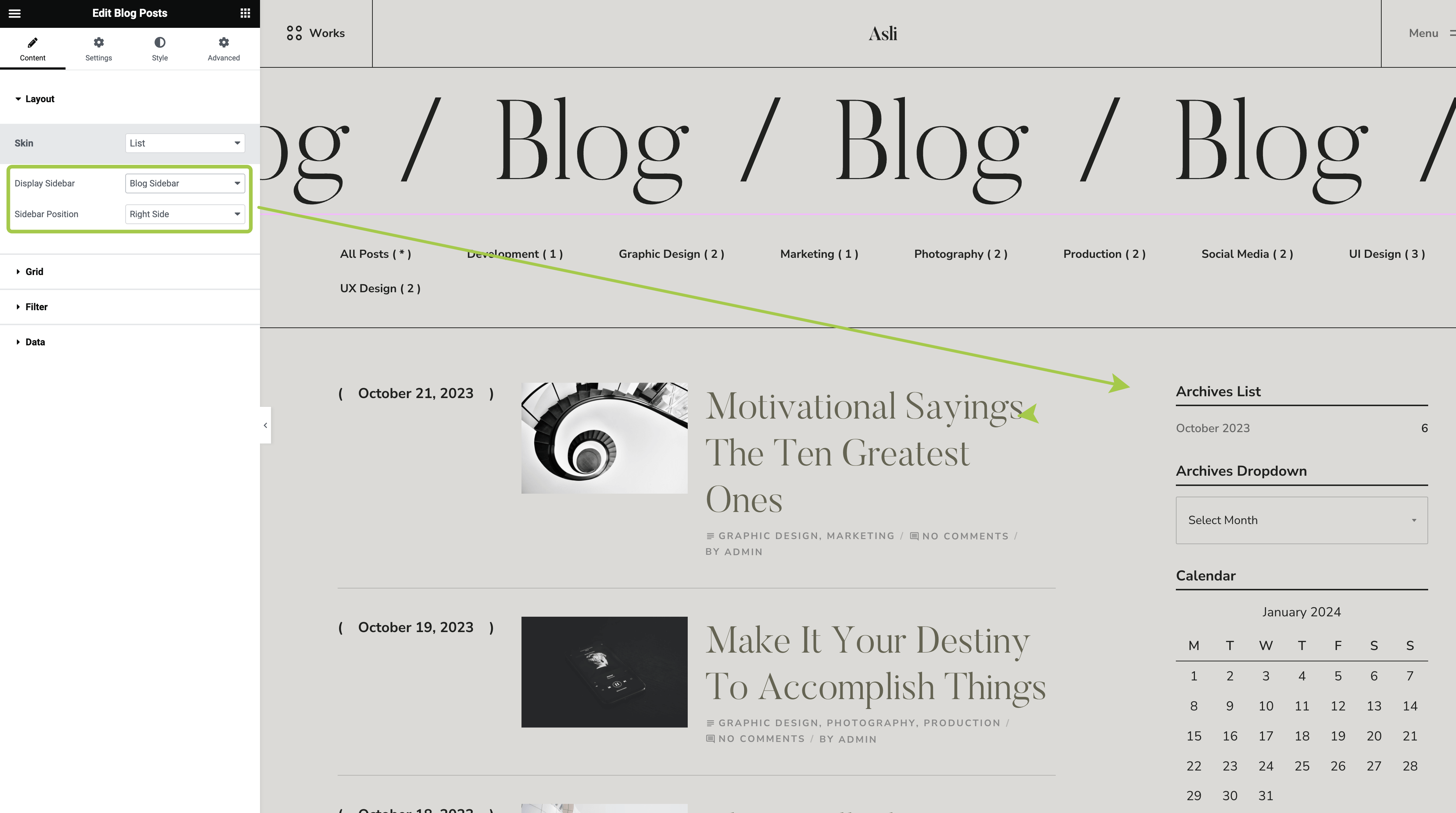
Return to the Elementor editor and go to the Blog Posts widget panel. For the Display Sidebar field, select Blog Sidebar.
The blog widgets will appear. You can also change the Sidebar Position (left or right side) from this panel.
Changing the Number of Displayed Posts
▶️ Step 1.
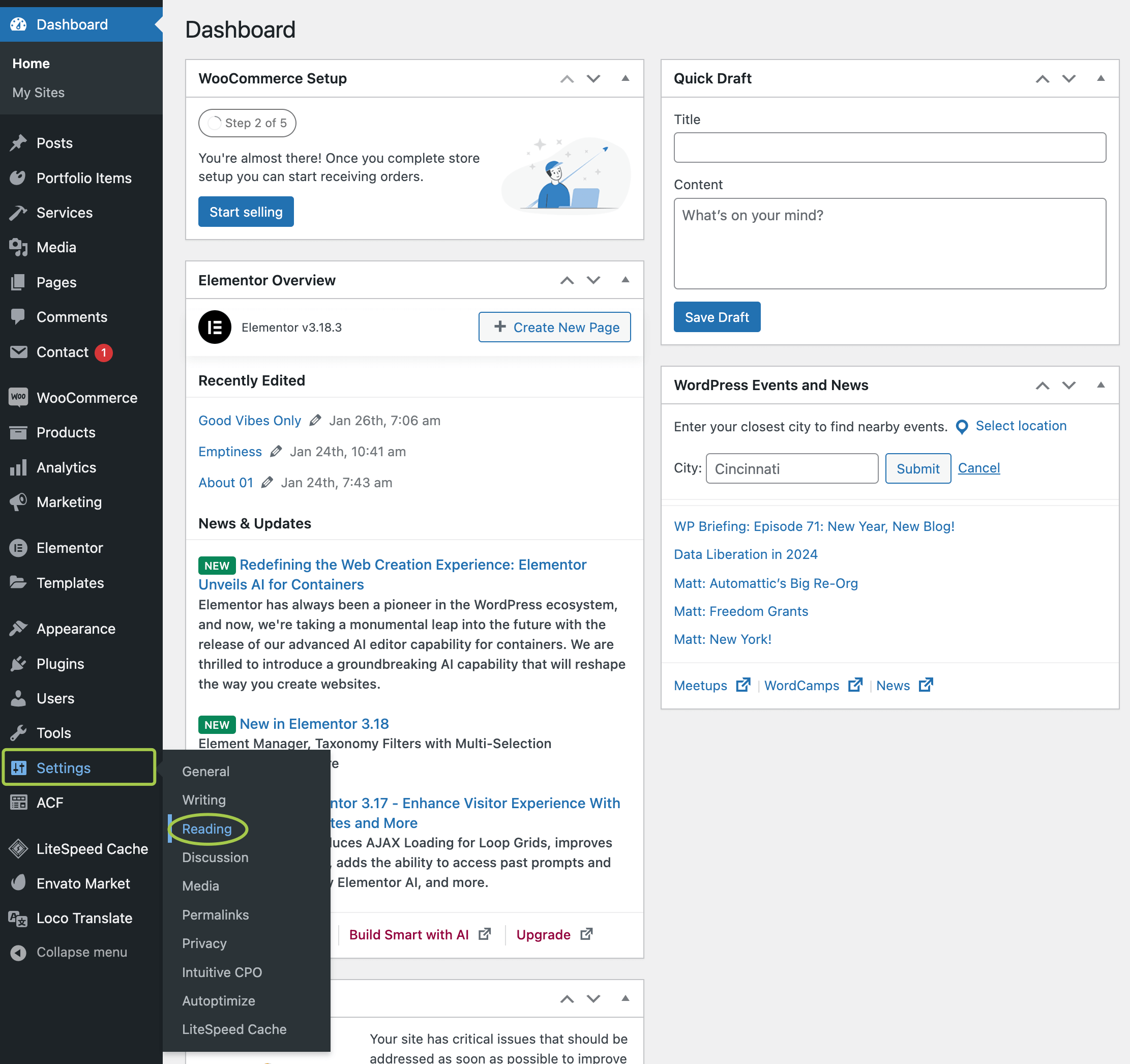
In the admin panel, navigate to Settings → Reading.
▶️ Step 2.
Adjust the Blog pages show at most value as needed.
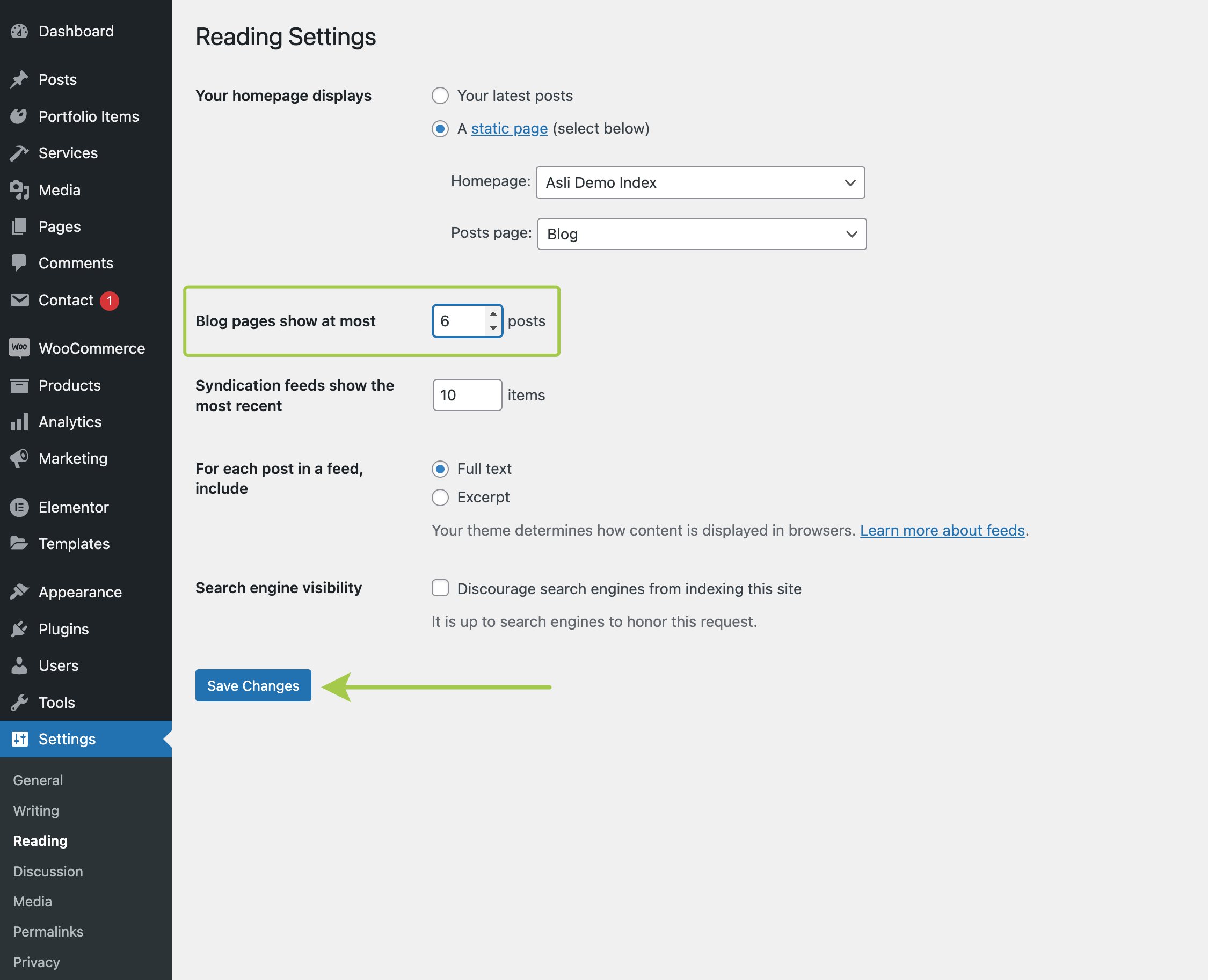
This setting changes the number of displayed posts only on the Posts page (selected in Settings → Reading → Posts page).
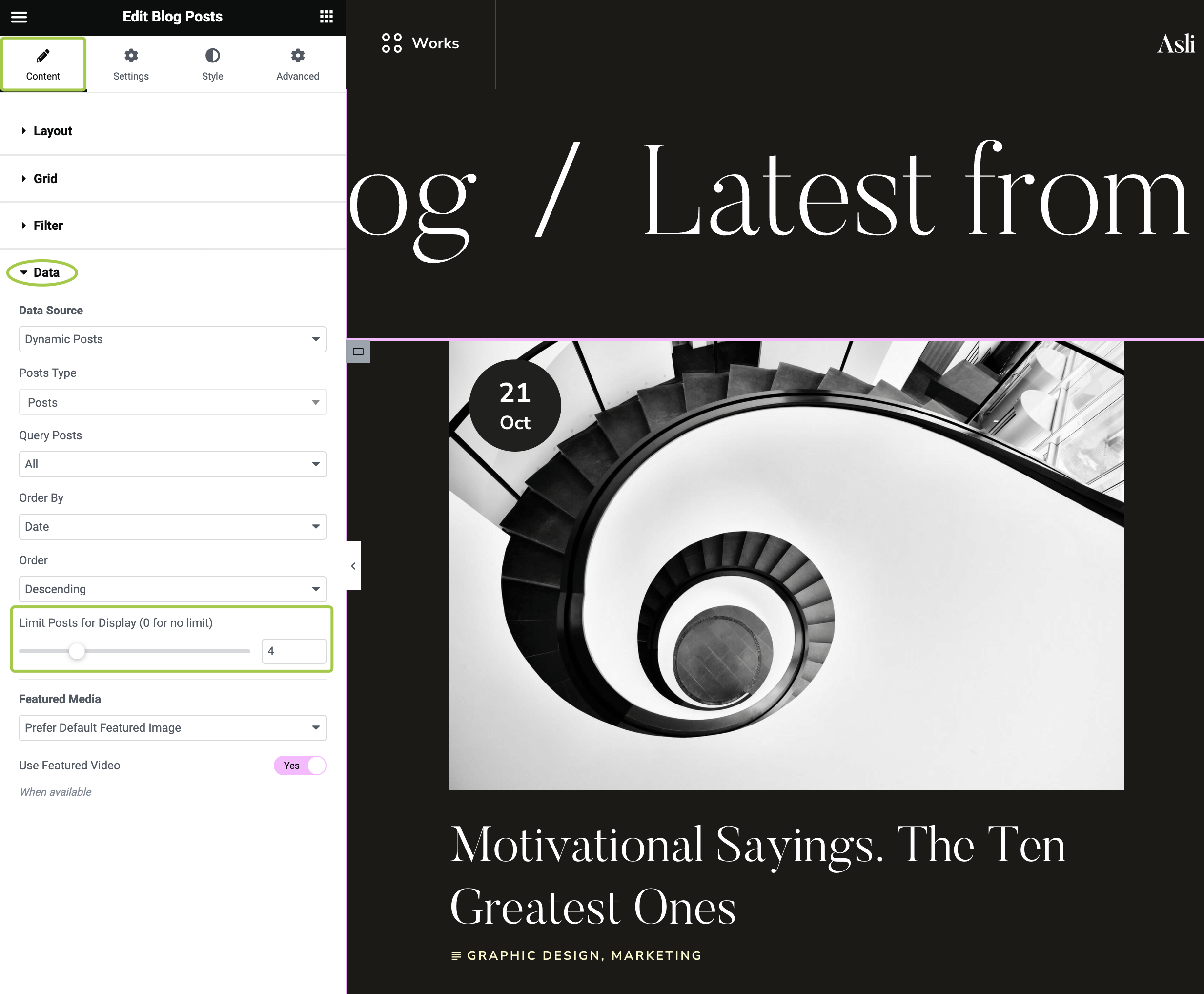
If the Blog Posts widget is placed on a static page (e.g., Homepage 08 / Dark in the theme demo), use the dedicated control in the Elementor panel to limit the number of displayed posts.
Customizing Post Meta Information
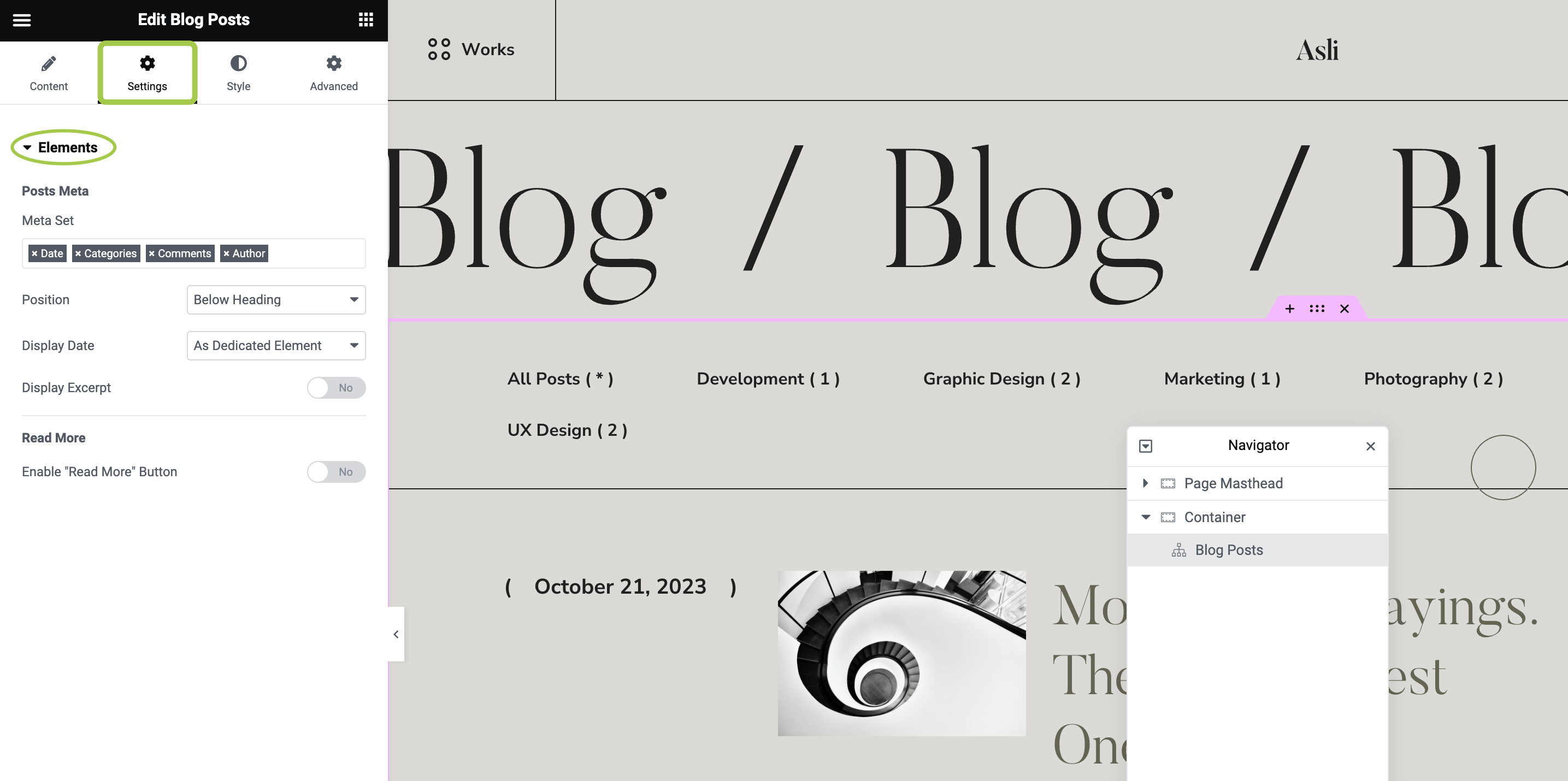
Activate the Settings tab and expand the Elements section. Here, you can adjust the appearance of post meta information (date, categories, comments, author) and choose whether to display post excerpts and "Read More" buttons.
Adjusting the Posts Filter
Activate the Settings tab and expand the Filter section.
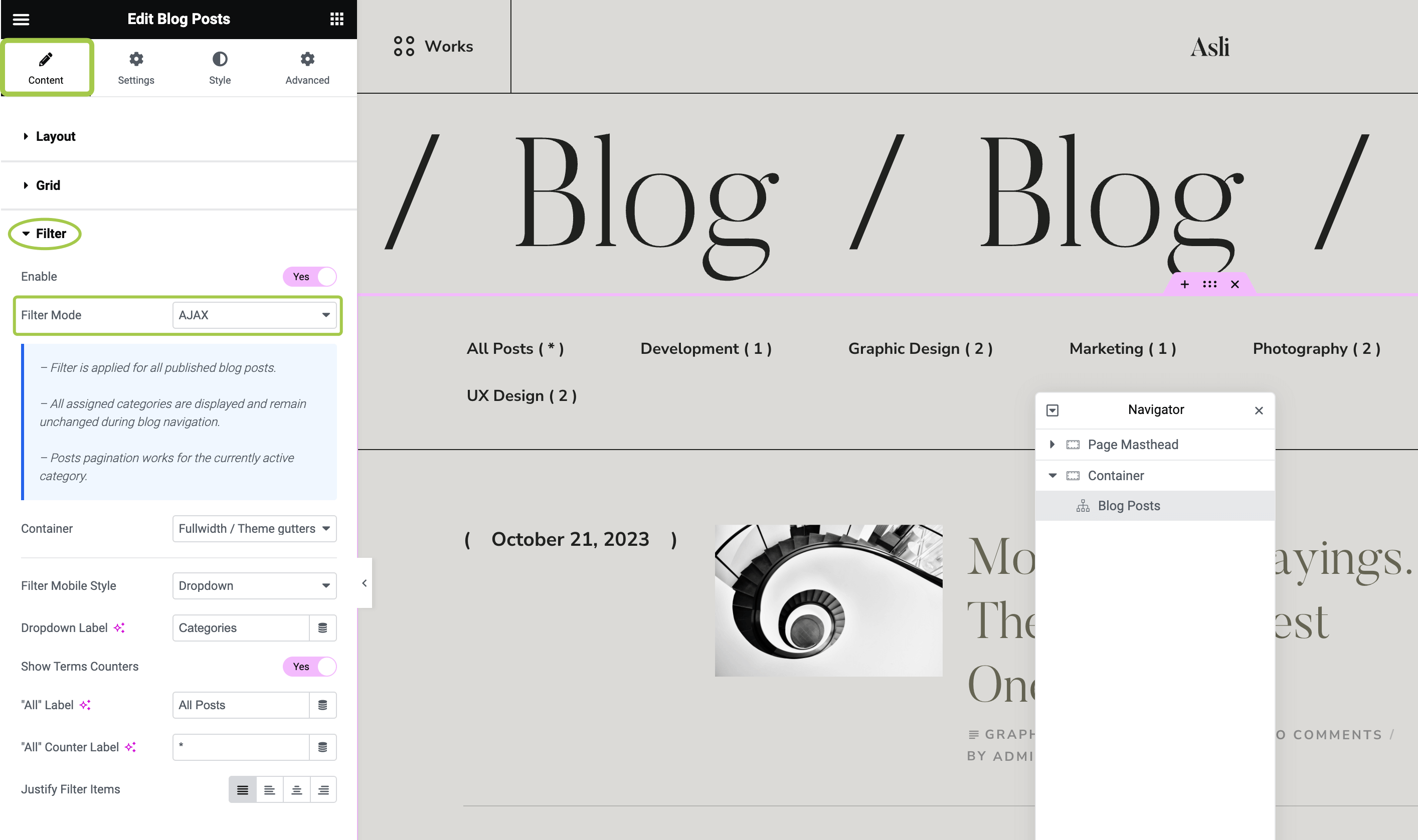
The posts filter can operate in two modes:
Current Page Mode
- The filter applies only to the posts displayed on the current page in a paginated blog.
- Navigating through blog pages updates the filter bar based on the currently displayed posts.
- Using the filter does not update the current page contents.
AJAX Mode
- The filter applies to all published blog posts.
- All assigned categories remain visible and unchanged during blog navigation.
- Post pagination functions for the currently active category.
- Using the filter updates the current page contents dynamically.