Appearance
Getting Dynamic Header Height Value
The theme tracks and updates a CSS variable --header-height which calculates the current header height in pixels. This can be handy when building page layouts.
css
/* Example */
:root {
  --header-height: 65px;
}
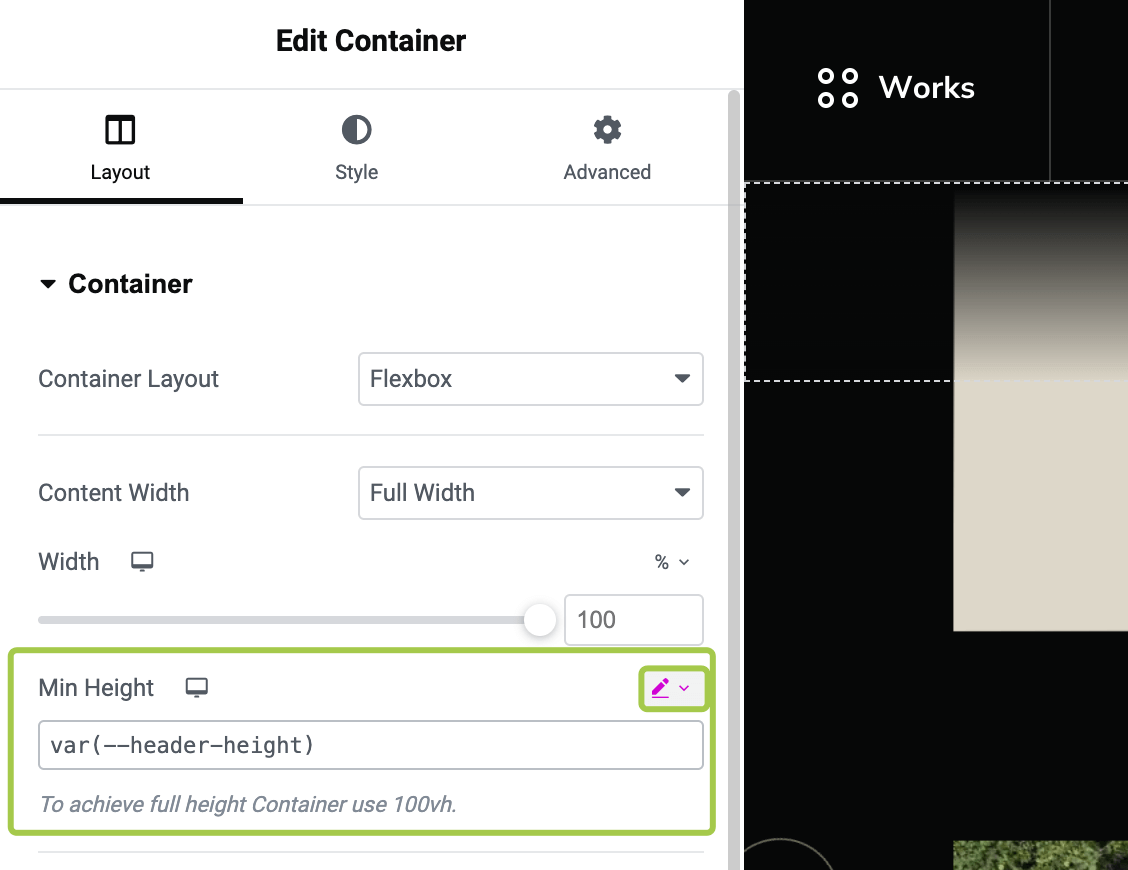
It's also exposed to some panels across Elementor widgets and on the Container element:

Below you'll find some usage cases. Make sure to open a page in the Elementor editor before following the instructions.
Case 1: Shifting Down Element by the Header Height
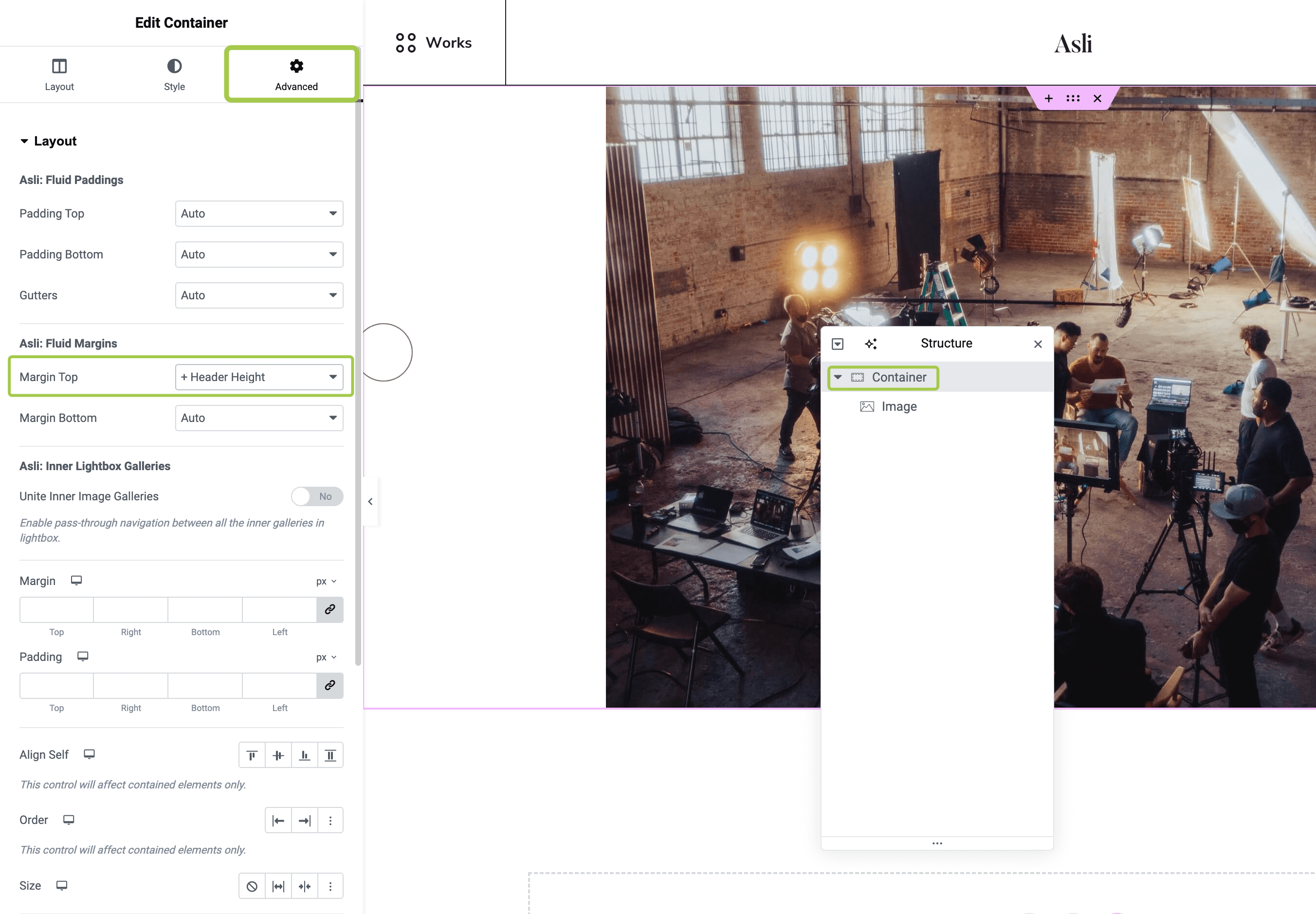
Say you placed an element at the very beginning of the page and noticed that the header overlaps the content, which is not desired.

To fix this, select the parent container of your element and apply the + Header Height preset under Advanced Tab -> Asli: Fluid Margins -> Margin Top.
Case 2: Creating Fade-in Gradient Overlays for Infinite Lists
Say you'd like to place smooth fade-in gradients at the top and bottom of a widget with an infinite list effect.

▶️ Step 1.
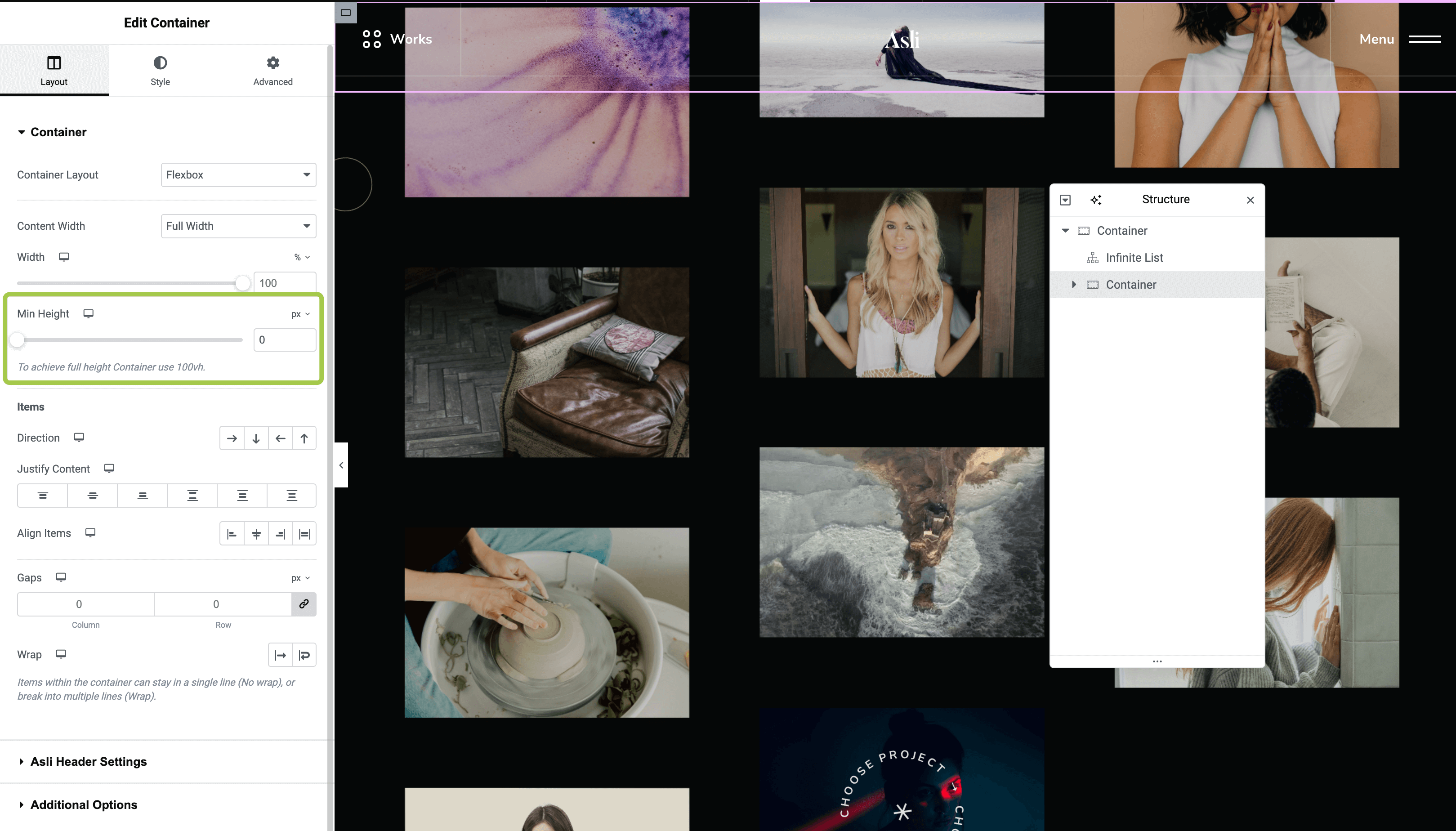
Create a new Container and place it next to the Infinite List widget.

▶️ Step 2.
Set the Min Height value to zero. We will create the height using element padding.
▶️ Step 3.
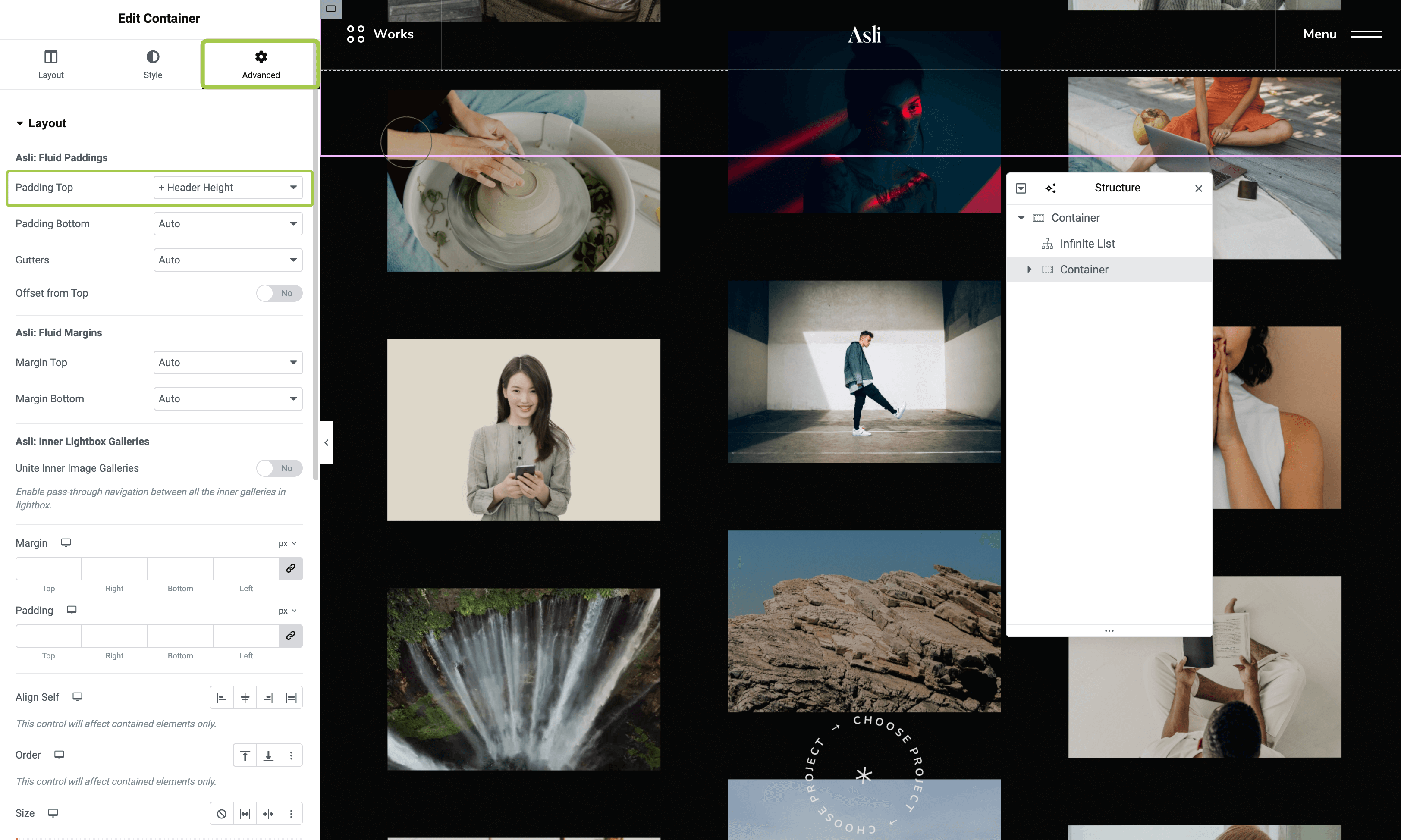
Go to the Advanced tab and select the + Header Height preset for the Padding Top fluid padding value.
▶️ Step 4.
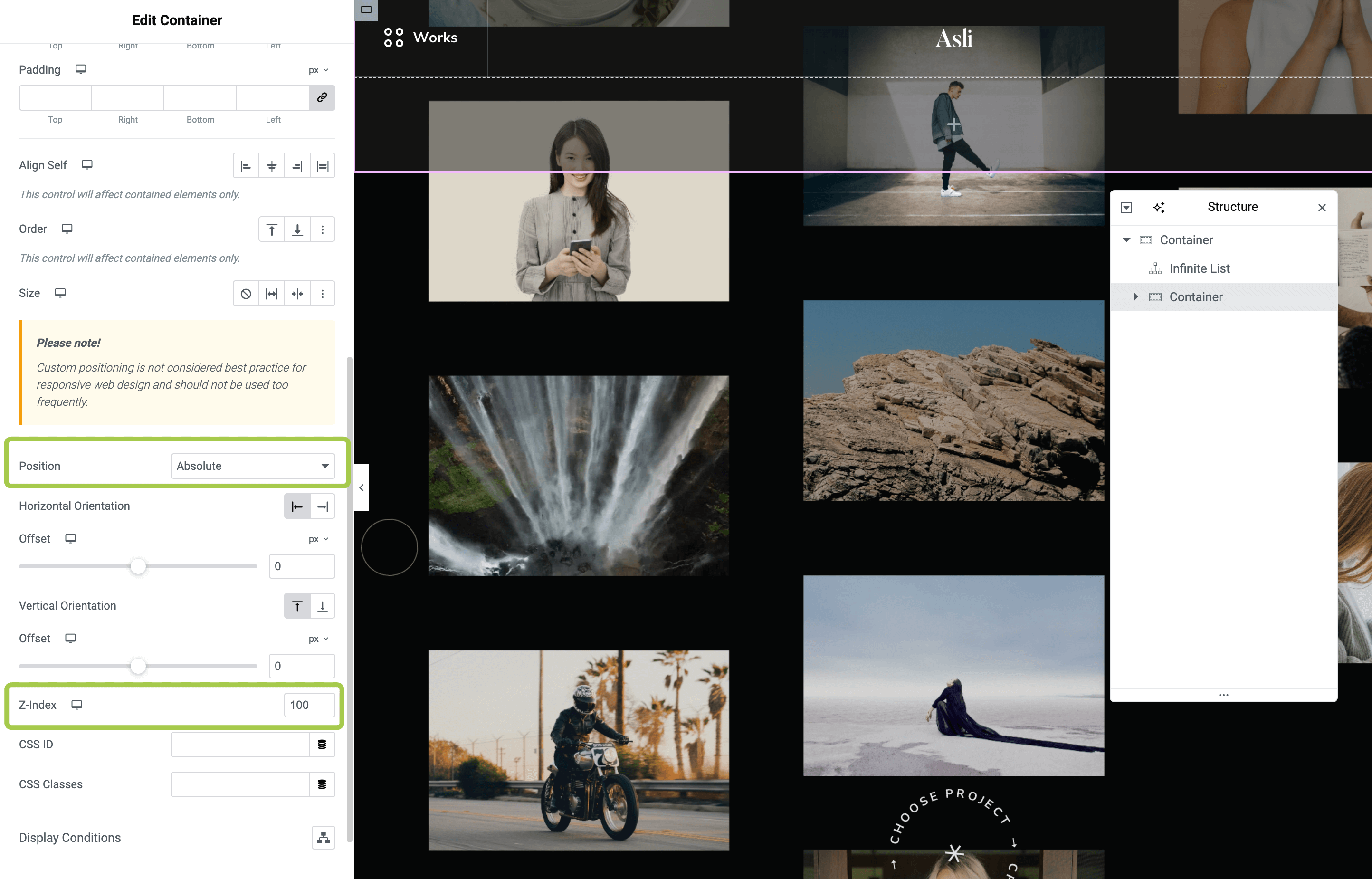
Scroll down in the Advanced tab and set Position to Absolute and the Z-Index value to 100.
▶️ Step 5.
Now go to the Style tab and create a new background overlay. For smooth color blending, I recommend using the same color as the background of your page. In the screenshot, it's the Background / Dark 4 color preset. Feel free to adjust the overlay settings to your taste.

▶️ Step 6.
Click Publish and preview the result.

Creating Bottom Overlay
▶️ Step 1.
Duplicate the overlay container.

▶️ Step 2.
Go to the Advanced tab and change the position settings. Set Vertical Orientation to Bottom so the overlay appears stuck to the bottom.

▶️ Step 3.
Go to the Style tab and rotate the gradient direction from 180 to 0 degrees.

▶️ Step 4.
Click Publish and preview the result.

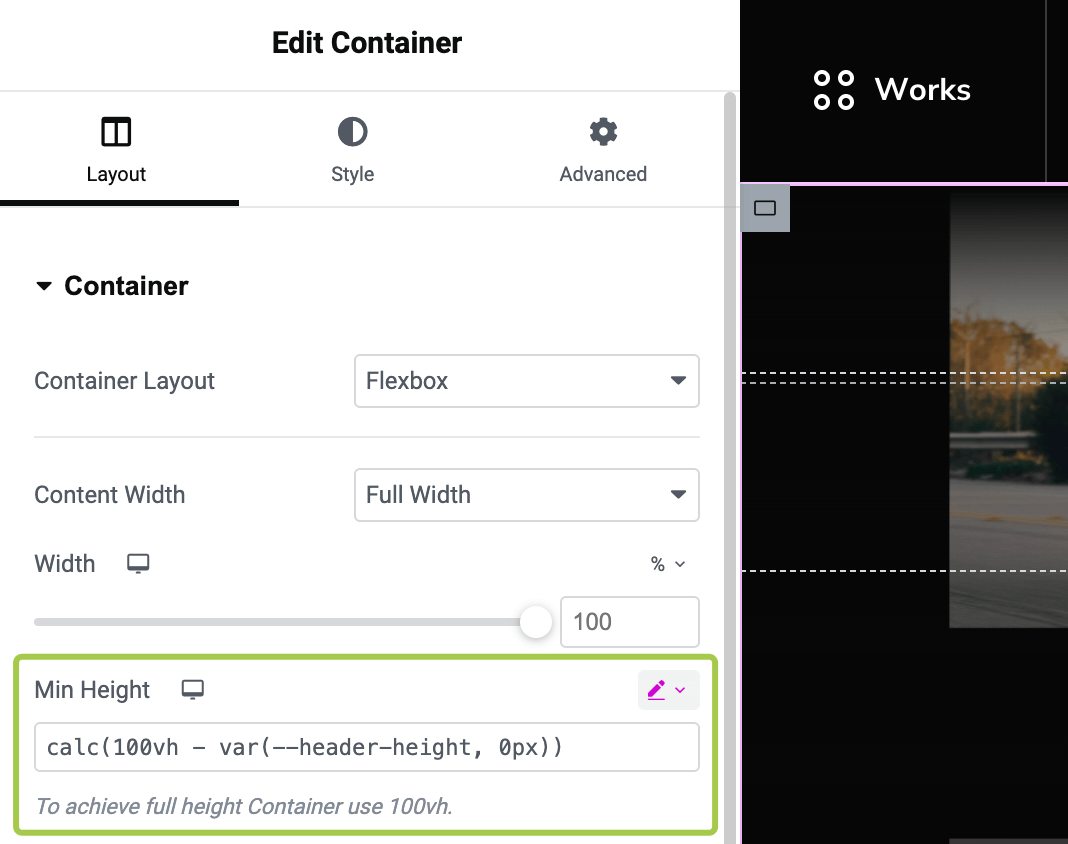
Case 3: Using CSS Variable in Formulas
For complex layouts with calculated formulas, you can directly use the CSS variable var(--header-height, 0px) in your calc expression wherever Elementor has that input field.