Appearance
Optimizing Site Loading Speed
Trigger includes built-in performance optimizations like smart asset preloading and lazy loading. However, site speed is influenced by many factors including hosting, network bandwidth, media file sizes, page complexity, third-party plugins, and CDN usage.
This article focuses on the most impactful optimizations you can control.
Compress Your Images
Unminified images with large resolutions significantly affect loading speed. Use images no larger than 1920×1280. For optimization, try the free TinyPNG tool to reduce file sizes.
While building the theme's demo content, all images were optimized with TinyPNG. You can optimize directly in the browser (up to 20 images for free) or use the official TinyPNG WordPress plugin. The plugin is convenient and time-saving but may cost money if your site has many images.
Optimize Featured Videos
iOS Safari has a 1920px maximum dimension limit. Videos larger than this won't display on iPhones in browser, and 4K videos (3840×2160) slow down all devices significantly.
Recommended video dimensions: 1920×1080 maximum with reduced bitrate.
Use free tools like HandBrake to resize and compress videos. Select the "Fast 1080p30" preset for optimal balance between quality and file size. This can reduce a 1.2GB video file to under 40MB.
Always test your featured videos on iPhone before publishing your site.
Generate Static HTML files
WordPress relies on PHP to communicate with a database for each page load. If your site is rarely updated (e.g., a portfolio), you can speed it up by generating static HTML pages.
Use the free WP Super Cache plugin, which is flexible and tested with Trigger. It also supports AJAX transitions.
Optimize CSS & JS assets
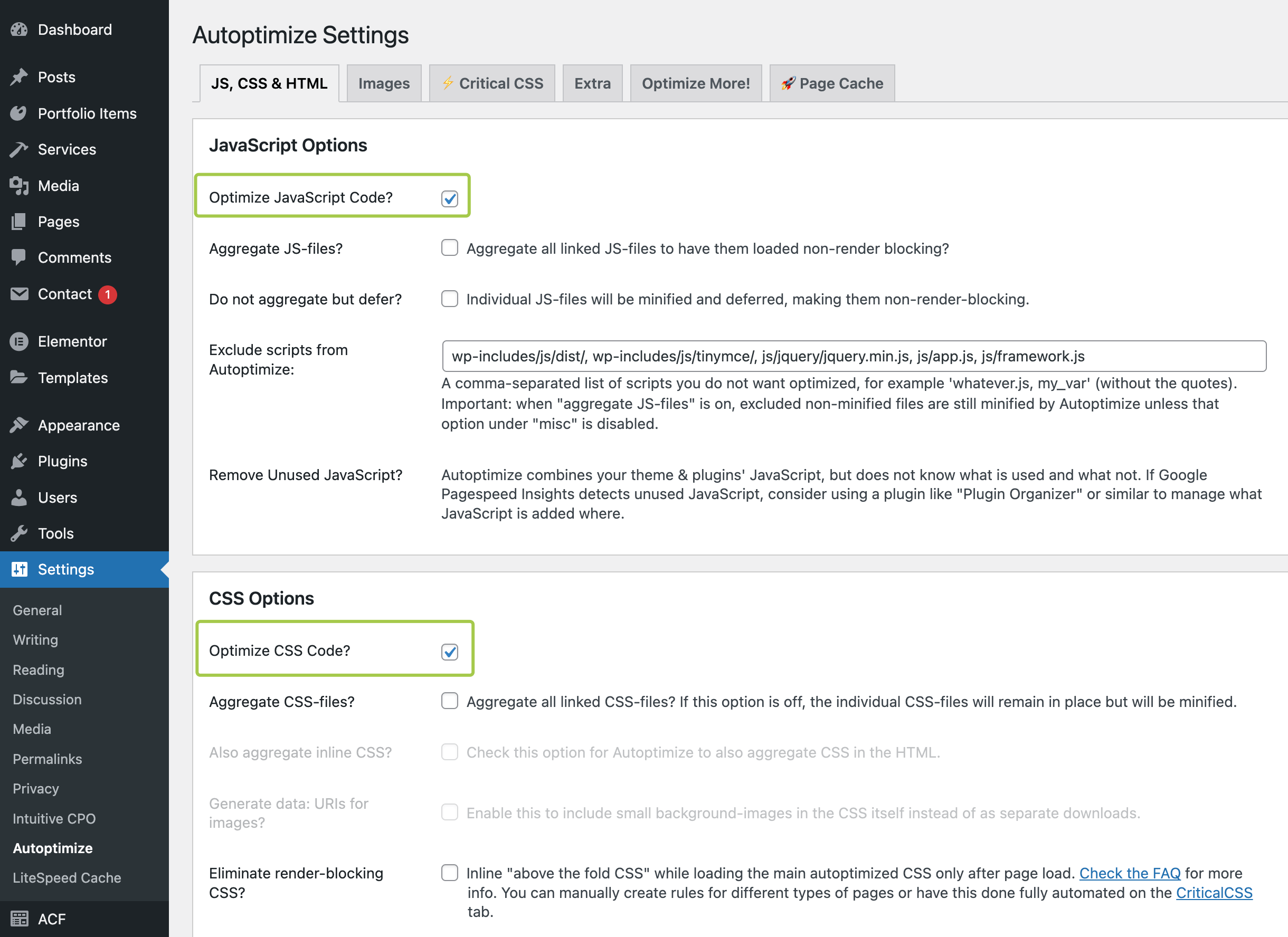
Autoptimize can aggregate, minify, and cache both scripts and styles. Setup is simple:
- Go to "Settings → Autoptimize → JS, CSS & HTML"
- Apply recommended settings
Check Server Requirements
If your site is still slow after implementing the optimizations above, verify your hosting meets the minimum requirements.
See Server Requirements or Elementor Requirements for detailed specifications.
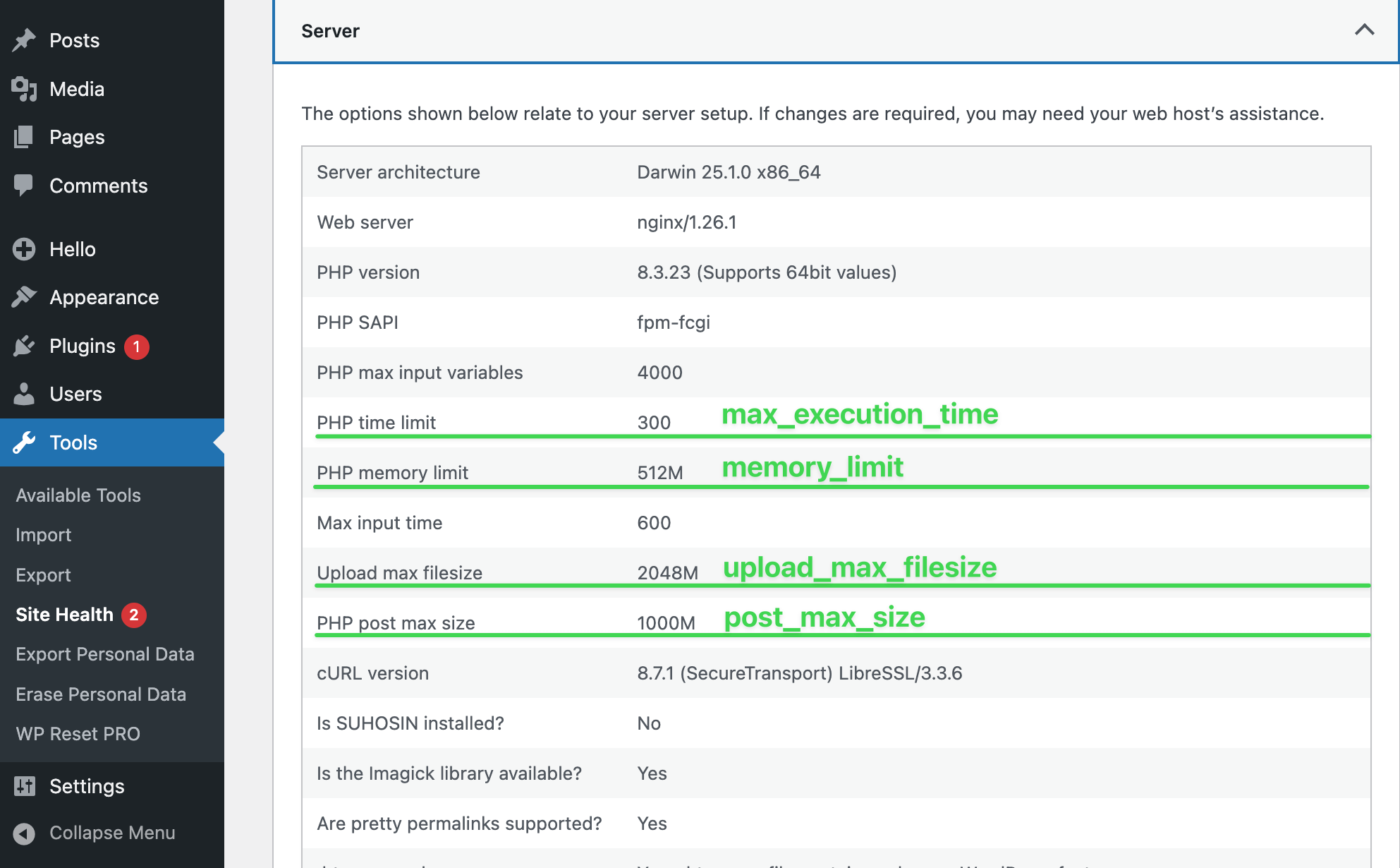
Navigate to Admin Panel → Tools → Site Health → Info → Server to verify your current server configuration: