Appearance
AJAX Page Transitions
AJAX page transitions make your website feel faster and more engaging. Instead of a full page reload showing a blank screen, content updates with smooth, seamless transitions — the kind of cinematic page loading effects visitors expect from modern, high-end portfolio websites.
This creates an app-like browsing experience without page refresh, keeping visitors engaged longer and making your site feel like a polished web application rather than a traditional website.
How to Access this Panel
Open Site Settings panel in Elementor using this guide Accessing Theme Options Panel and select AJAX Transitions.

Enabling or Disabling
Toggle Enable AJAX Transitions at the top of the panel.

When AJAX is Disabled
If you turn off AJAX transitions, the browser performs a full page reload on every click. In that case, you may want to enable Show Only Once in the Loading Screen panel so visitors don't see the loading animation on every page.
Images Grid Transition
Trigger features a cinematic page transition effect with scrolling image lanes — a continuation of the visual language from the Loading Screen. During seamless navigation between pages, a grid of images and videos scrolls across the screen, creating a memorable loading animation.

Content Tab
Choose where the transition media comes from:
- Dynamic Posts — automatically pulls images from your portfolio items, posts, or other content
- Custom Content — manually upload specific images and videos
Options Tab
- Number of Lanes — how many vertical columns of images (1, 3, or 5)
- Media Sources — which images to use (featured image, secondary image, videos, gallery)
- Cloning — duplicate items to ensure the grid fills the screen during animation
Style Tab
Customize the visual appearance:
- Lane Width — how wide each column is
- Items Gap — spacing between images
- Border Radius — rounded corners on images
- Background Color — color behind the grid
Animation Tab
Fine-tune the motion:
- Items Scale — how much images shrink during animation
- Media Scale — zoom level of images within their frames
- Animate Opacity — fade images in/out
- Animate Grayscale Filter — black & white to color effect
Animation Speed
The overall transition speed is controlled in the Transition tab, not here. The Animation tab only controls the grid-specific effects.
Excluding Pages from Transitions
Some pages may need a full page reload to work correctly — for example, pages with complex 3rd-party plugins or external scripts. You can disable smooth transitions on specific pages while keeping the SPA-like navigation for the rest of your site.
▶️ Step 1.
Visit the page you want to exclude and click Edit with Elementor in the admin bar.
▶️ Step 2.
Click the Page Settings icon in the top bar.
▶️ Step 3.
Go to the Settings tab and expand Page AJAX Transition.
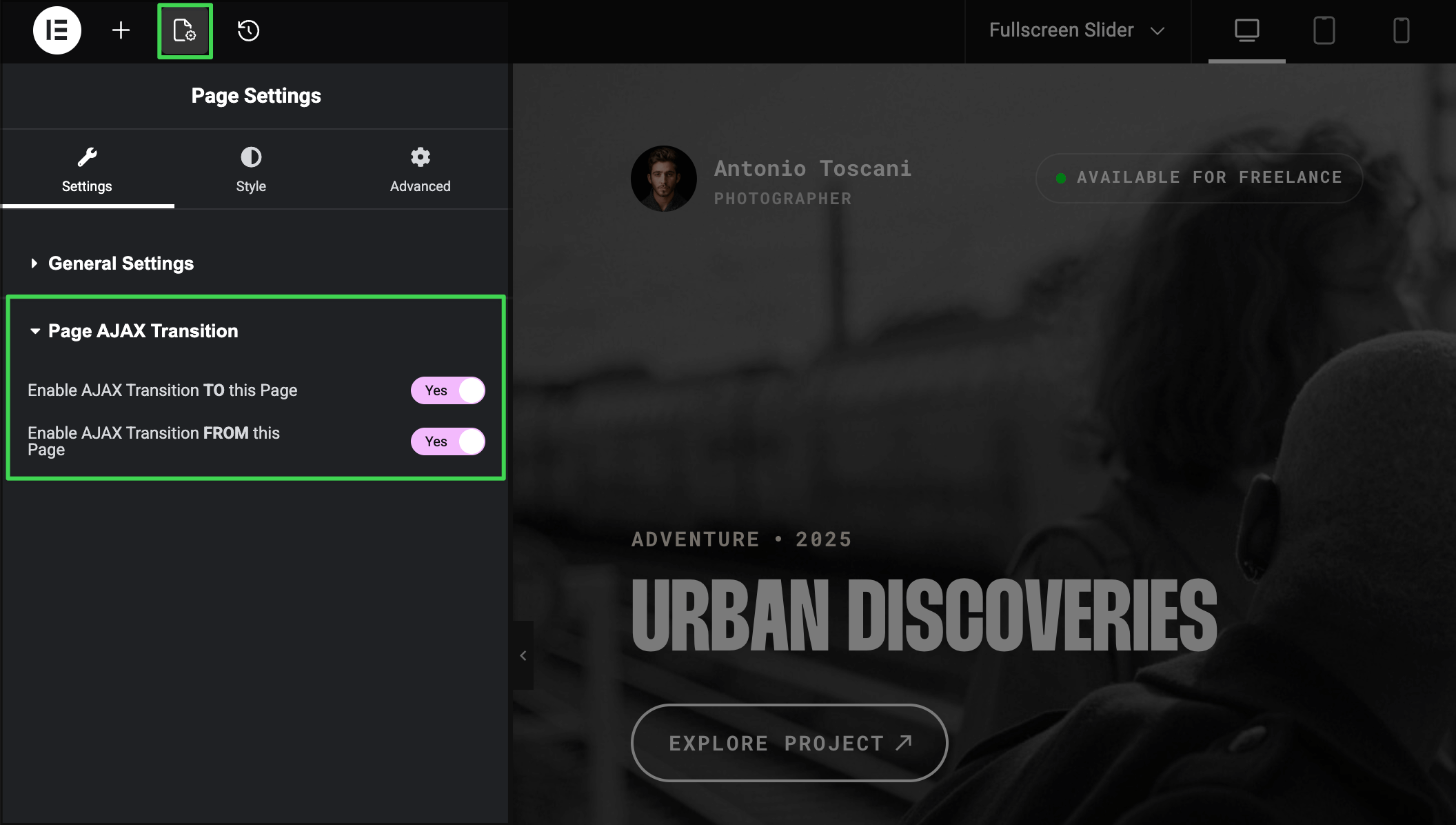
You'll see two options:
- Enable AJAX Transition TO this Page — toggle off to force a full refresh when visitors navigate TO this page
- Enable AJAX Transition FROM this Page — toggle off to force a full refresh when visitors leave this page
Use one or both depending on your needs.
Excluding Links from Transitions
Sometimes you don't need to disable AJAX for an entire page — just specific links or buttons.
Excluding Menu Items
▶️ Step 1.
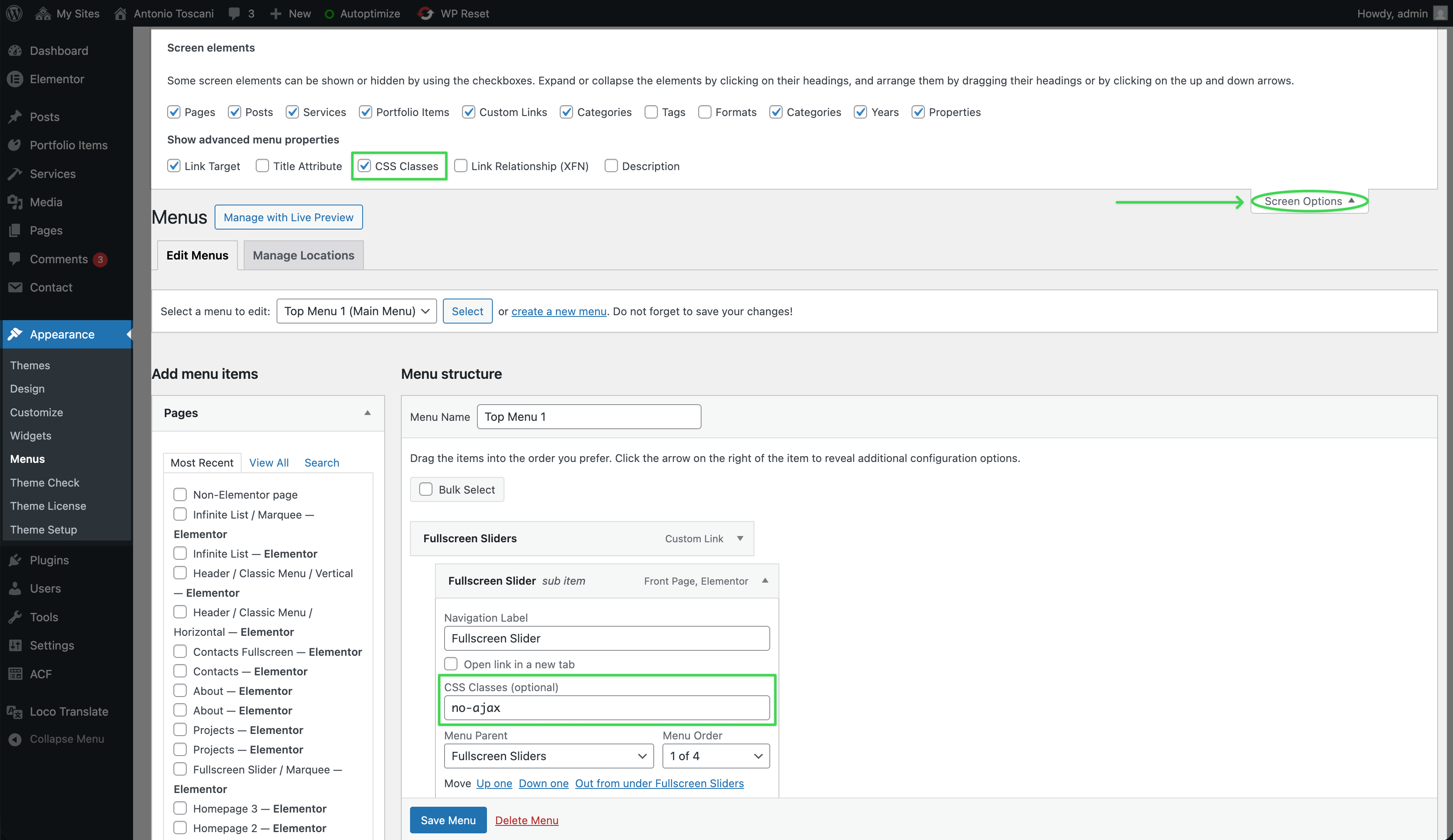
Go to Appearance → Menus in WordPress admin.
▶️ Step 2.
Open Screen Options (top right) and enable CSS Classes.
▶️ Step 3.
Click on the menu item you want to exclude and add no-ajax to the CSS Classes field.
▶️ Step 4.
Click Save Menu.
Excluding Any Link or Element
▶️ Step 1.
Edit the page in Elementor.
▶️ Step 2.
Select the widget or container containing the link.
▶️ Step 3.
Go to Advanced → Layout and add no-ajax to the CSS Classes field.
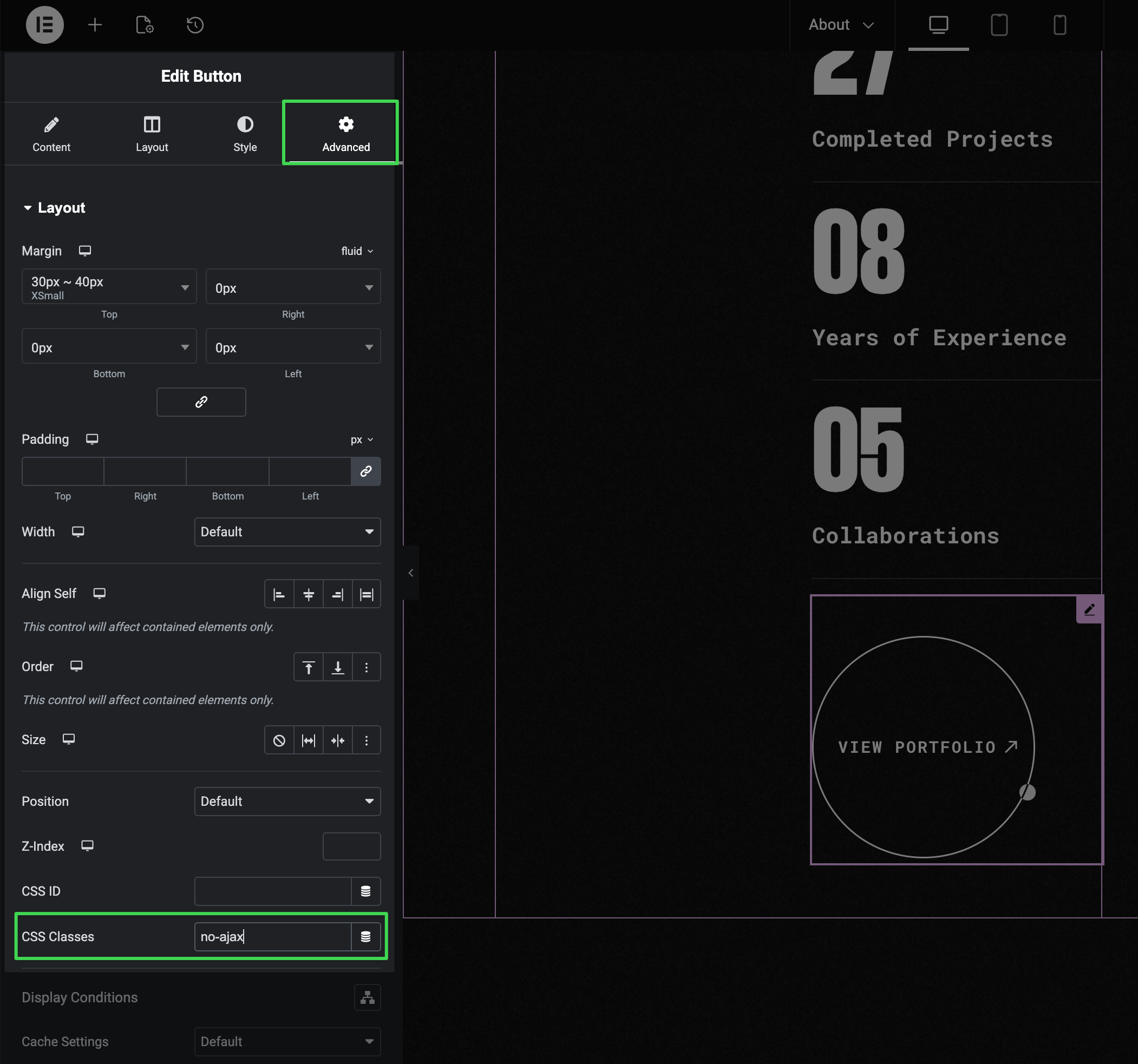
Any link inside that element will now trigger a full page refresh.
3rd-Party Plugin Compatibility
Quick Fix
If a plugin works on first load but breaks after navigating, exclude that page from AJAX transitions (see above). For advanced solutions, read on.
Why Some Plugins Don't Work After Transitions
With AJAX enabled, the page only loads once initially. After that, seamless navigation happens without a page refresh — which means JavaScript plugins don't get a chance to re-initialize their scripts.
If a plugin works on first load but breaks after navigating to another page and back, this plugin conflict is likely the cause.
Solution 1: Exclude the Page
The simplest fix for plugin conflicts is to exclude the problematic page using the steps above. The plugin's page will load normally with a full page reload.
Solution 2: Re-initialize with Custom JavaScript
For developers who want AJAX to work everywhere, Trigger provides a way to re-run plugin initialization code after each transition.
For Plugin Developers
Ideally, plugins should be designed with SPA (Single Page Application) patterns in mind — having proper init() and destroy() methods. This prevents memory leaks and ensures correct behavior when content is dynamically replaced. If you're building or modifying a plugin, consider implementing these patterns.
In the AJAX Transitions panel, go to the JavaScript tab and find Eval Custom JavaScript. Code placed here runs after every AJAX transition.
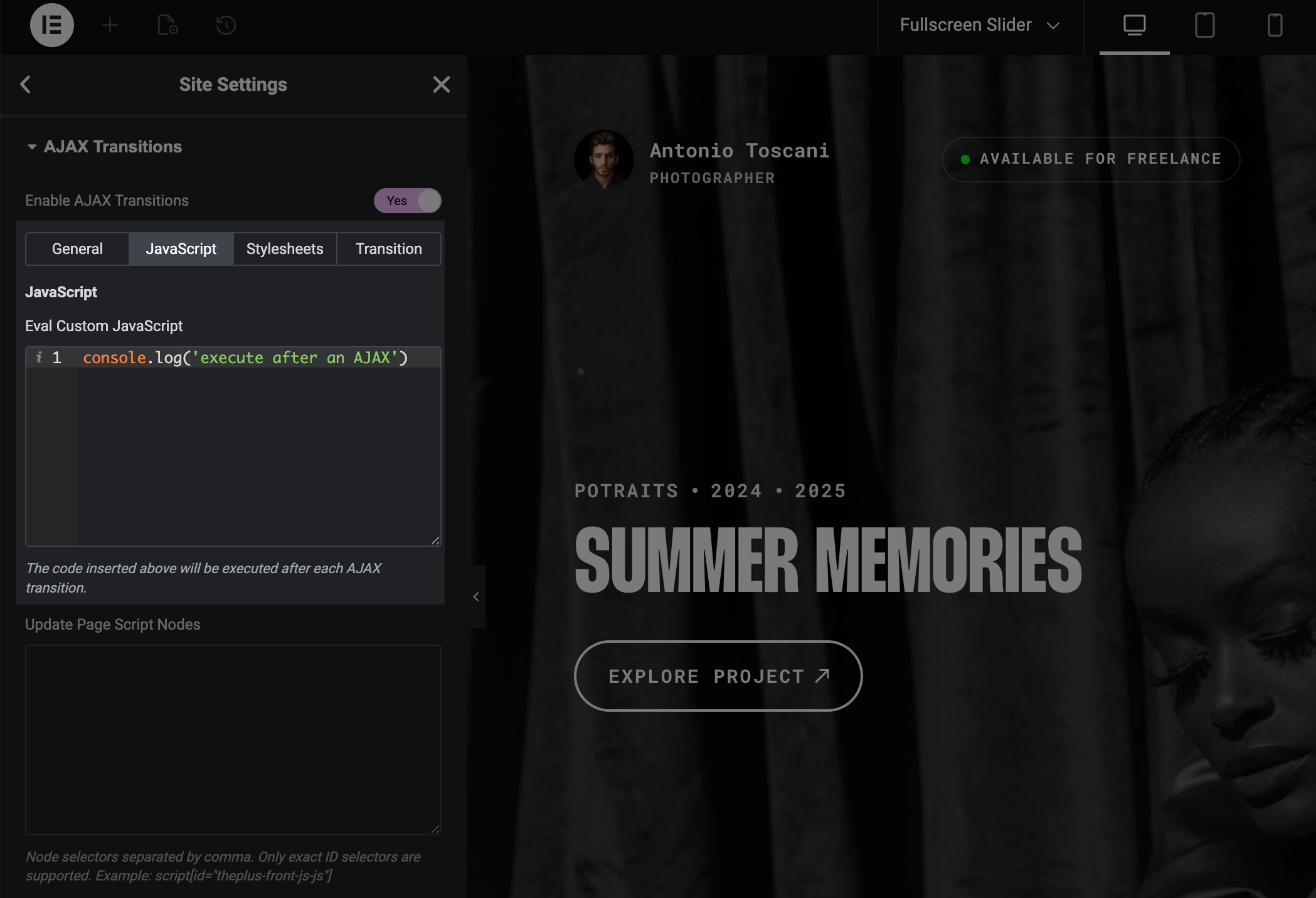
Additionally, the theme re-emits the DOMContentLoaded event after each transition. If your plugin hooks into this event, it should work automatically:
javascript
window.addEventListener('DOMContentLoaded', () => {
  // This code runs on initial load AND after each AJAX transition
  // Initialize your plugin here
});
Solution 3: Enable jQuery.ready() Emulation
Some older plugins use jQuery's .ready() function. Enable Emulate jQuery.ready() in the JavaScript tab to make these plugins re-initialize after transitions.
Last Resort Option
jQuery.ready() emulation is a last-resort solution. It may work fine for some plugins, but can produce unexpected issues with others — especially those not designed with SPA patterns in mind. If you experience problems, use the page exclusion method instead.
Adjusting Transition Speed
Control how fast or slow your page transition animation plays. In the Transition tab, use the Animation Speed slider:
- 1.0 = default speed
- 0.5 = half speed (slower)
- 2.0 = double speed (faster)