Appearance
Fixing 404 Page Not Found Errors
Sudden 404 errors after installing or removing a plugin almost always mean WordPress permalink rules need to be regenerated.
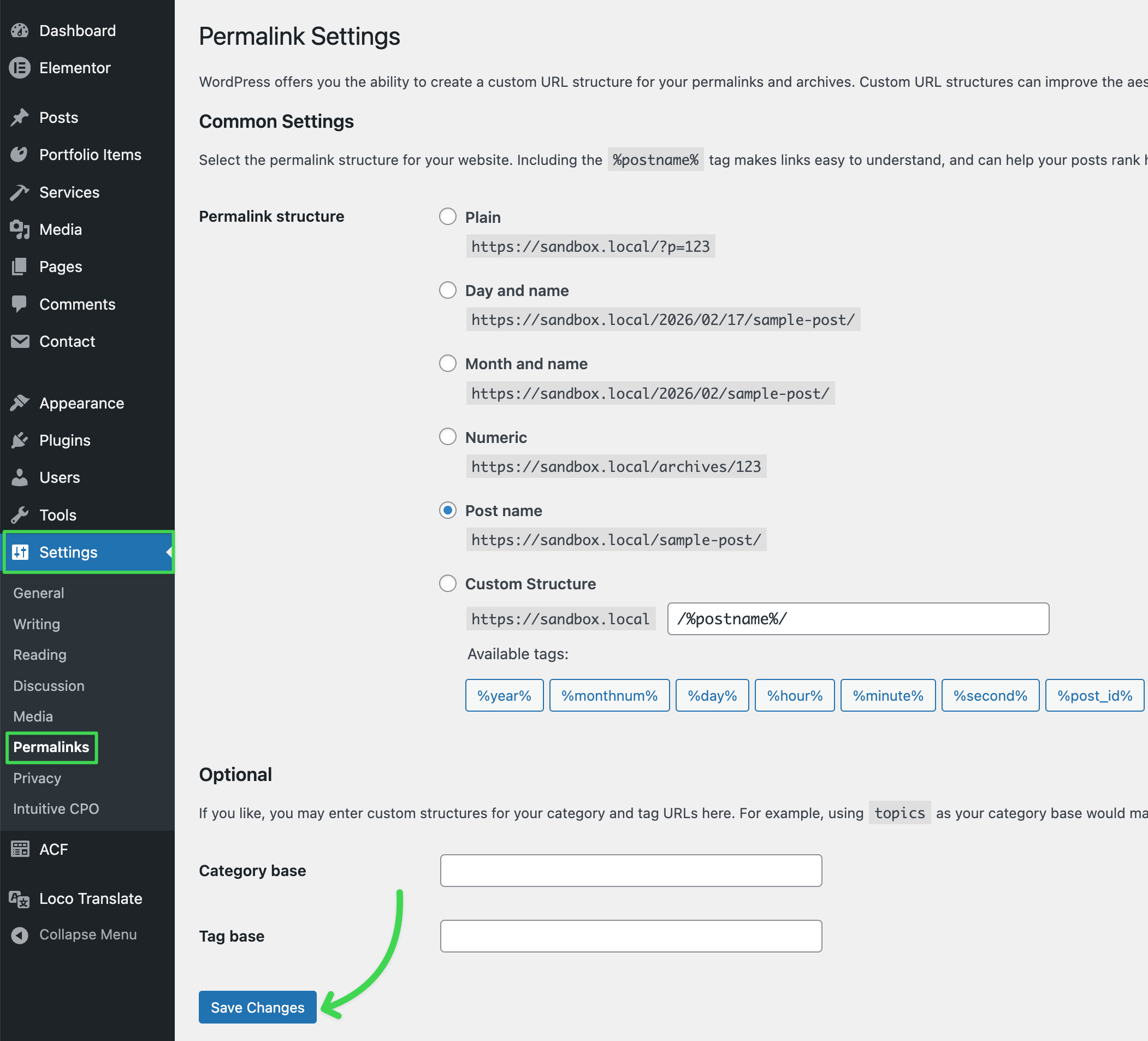
Quick Fix: Flush Permalinks
- Go to Settings → Permalinks
- Click Save Changes (no need to change anything)
- WordPress regenerates the rewrite rules
This resolves the majority of 404 issues — especially after installing, updating, or removing multilingual plugins like WPML or Polylang.
Diagnosing Server Issues
If flushing permalinks doesn't help, test whether the problem is server-side:
Switch to the Plain permalink structure in Settings → Permalinks. If plain URLs work but "Post name" gives 404, your server is not processing pretty permalink rewrites.
Apache / .htaccess
WordPress writes its rewrite rules to .htaccess in your site root. Verify the file exists and contains the standard WordPress block:
apache
# BEGIN WordPress
<IfModule mod_rewrite.c>
RewriteEngine On
RewriteBase /
RewriteRule ^index\.php$ - [L]
RewriteCond %{REQUEST_FILENAME} !-f
RewriteCond %{REQUEST_FILENAME} !-d
RewriteRule . /index.php [L]
</IfModule>
# END WordPress
If the file is missing or empty, WordPress may lack write permission. You can recreate it manually via FTP or ask your host to check directory permissions.
Also confirm Apache's mod_rewrite module is enabled — contact your hosting provider if unsure.
Nginx
Nginx ignores .htaccess. Pretty permalinks require a try_files directive added to your server block configuration. Contact your hosting provider or system administrator to add the correct rewrite rules for WordPress.
Still having issues?
Get Support
If your support period is active, open a private ticket on the Support Forum with your site URL and a description of your server setup.