Appearance
Templates Display Conditions
Display conditions control which templates appear on which pages. You can assign different headers, footers, and other theme parts to specific pages, post types, or your entire site. The Trigger demo uses this to show different header layouts on different pages.
How Display Conditions Work
Each template can have Include and Exclude rules:
| Condition | Result |
|---|---|
| Include: Entire Site | Shows on all pages |
| Include: Entire Site + Exclude: Contact | Shows everywhere except Contact page |
| Include: Page A, Page B | Shows only on those specific pages |
Exclude rules always override Include rules on the same template.
Editing Display Conditions
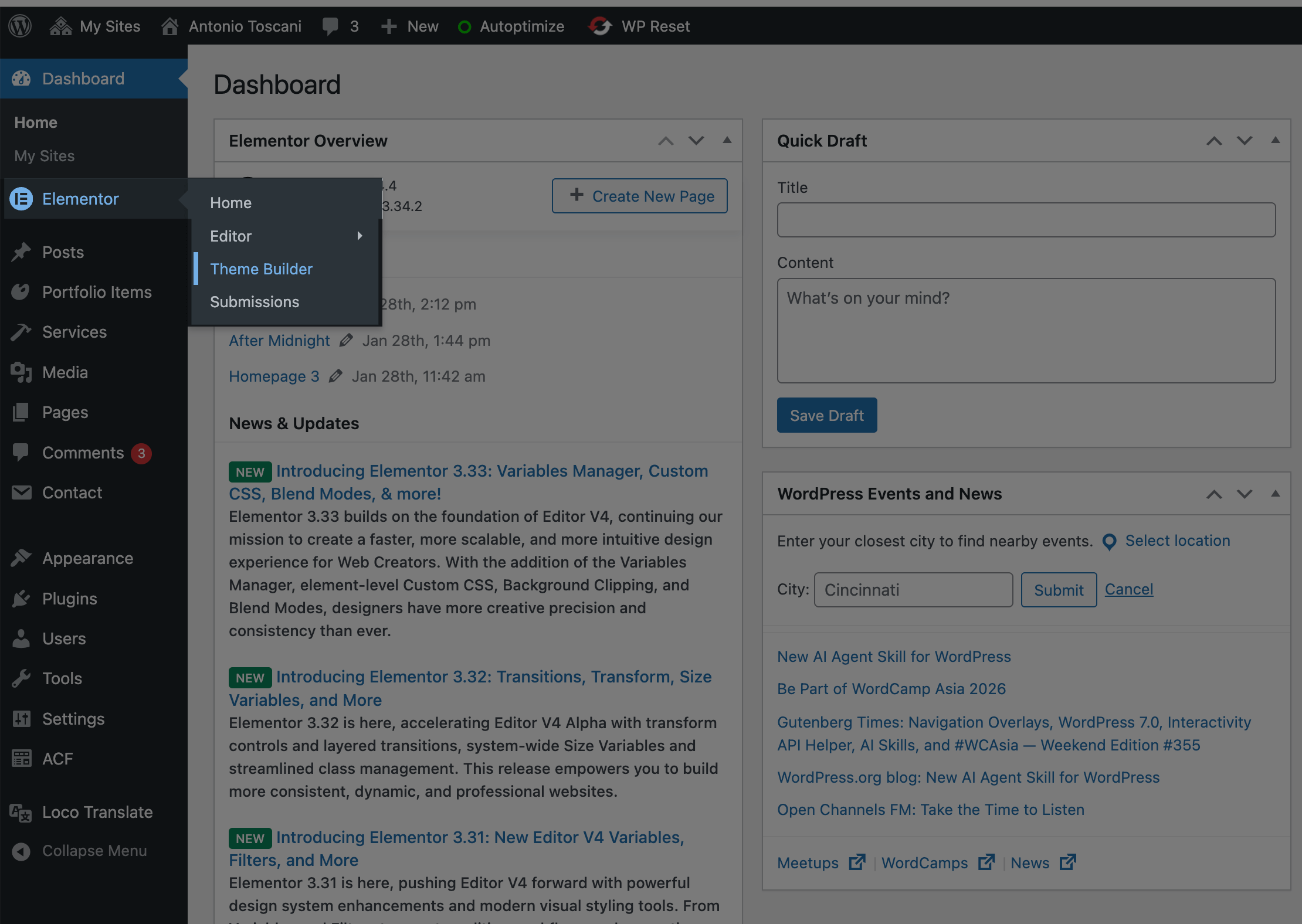
▶️ Step 1.
In WordPress admin, go to Templates → Theme Builder.
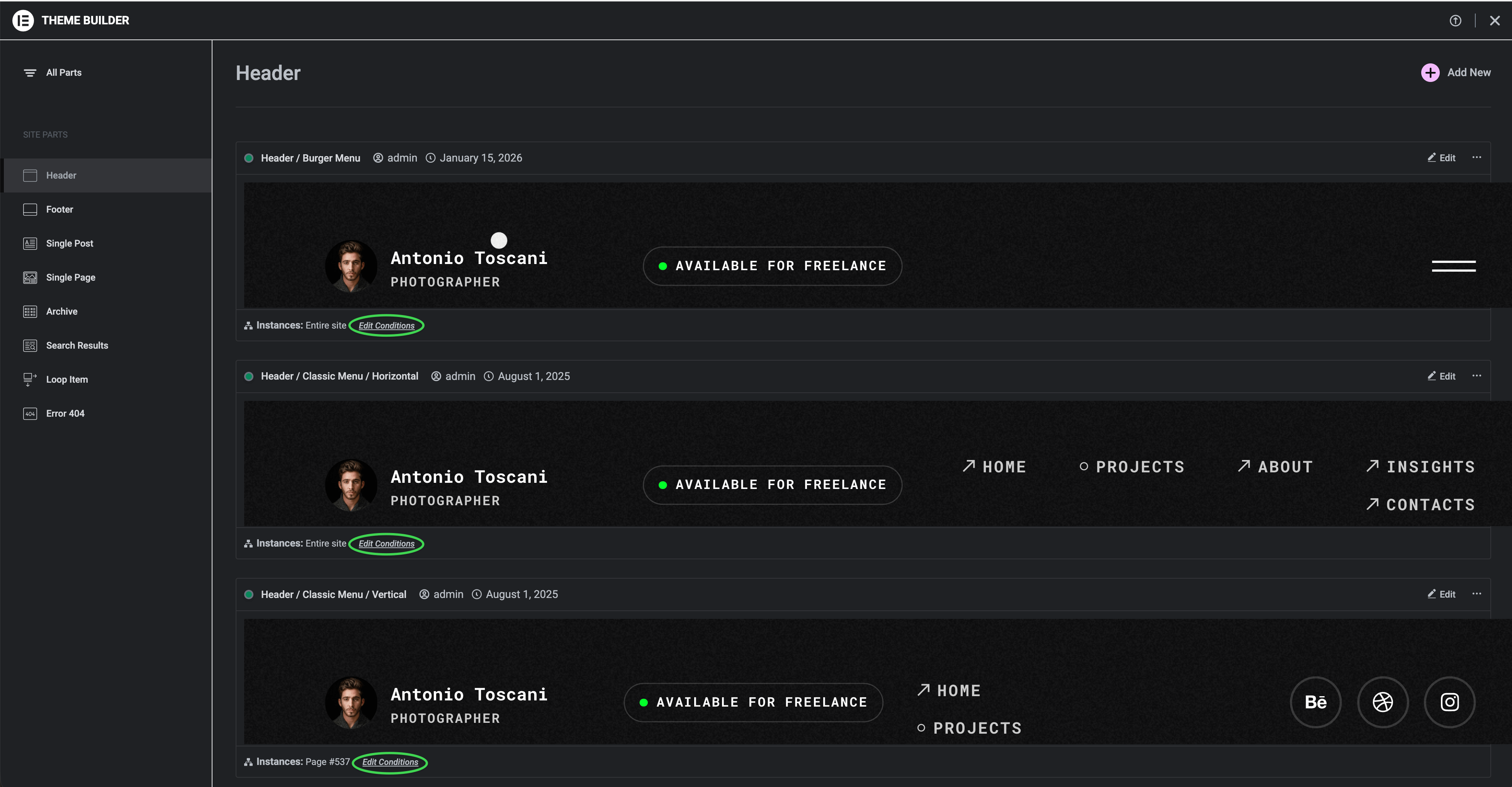
▶️ Step 2.
Hover over the template you want to modify and click Edit Conditions.
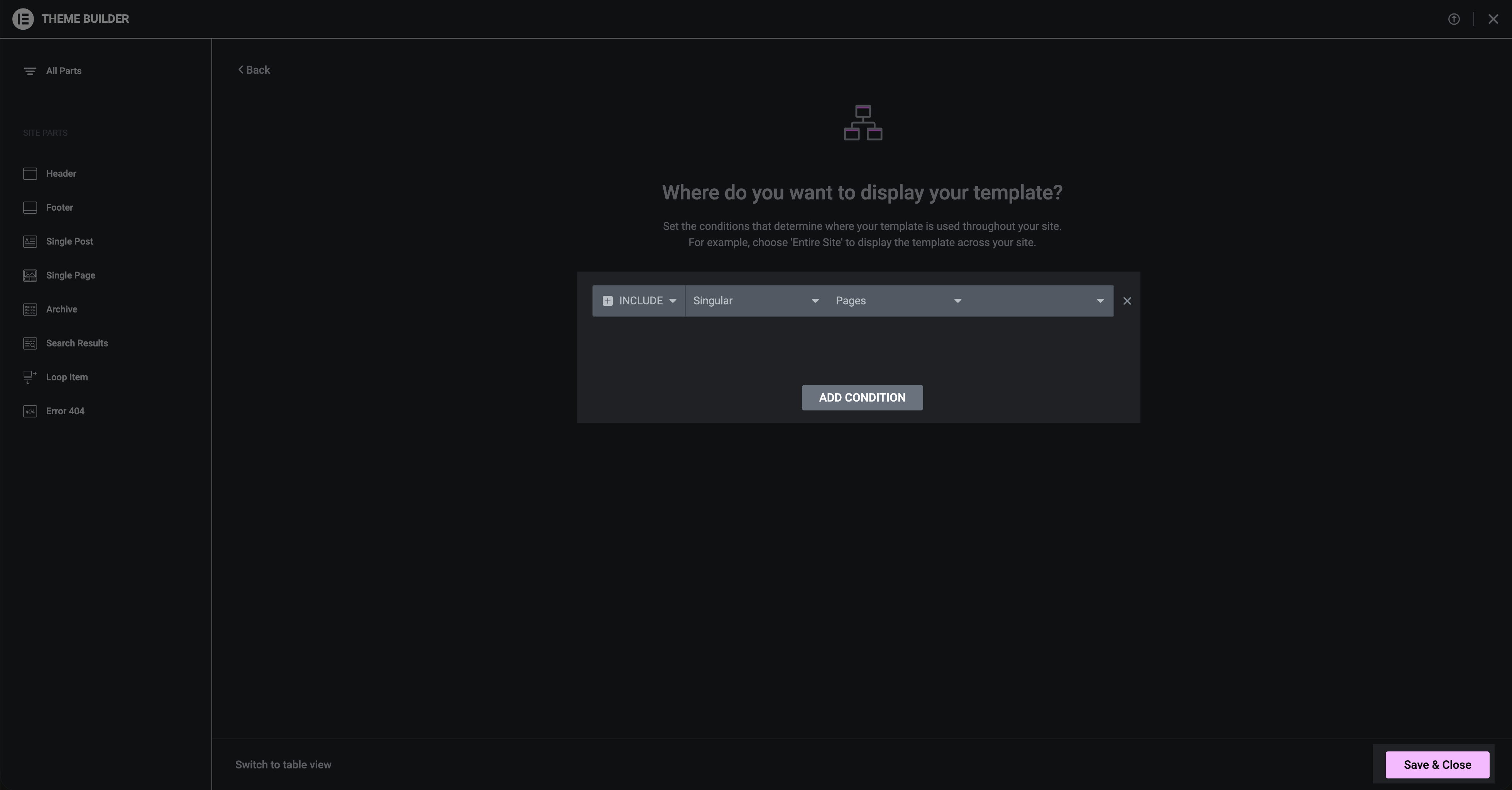
▶️ Step 3.
Add, edit, or remove conditions as needed, then click Save & Close.
Learn More
For a detailed walkthrough, see Elementor's video tutorial: Setting Conditions – Theme Builder Tutorial
Quick Diagnostic
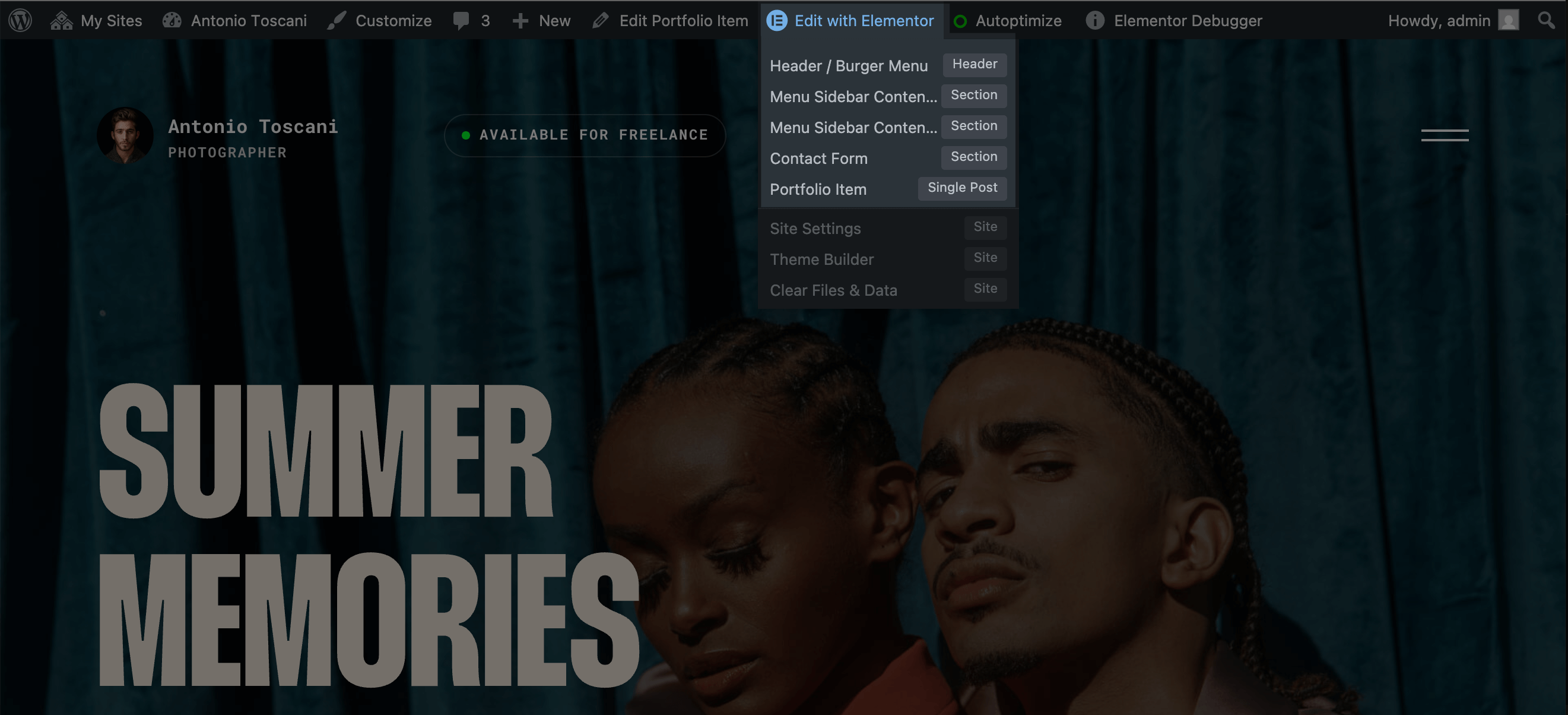
To check which template is active on a specific page:
- Visit the page while logged in
- Hover over
Edit with Elementorin the admin bar - The dropdown shows which Header/Footer templates are active