Appearance
Lightbox Gallery
The lightbox gallery displays images and videos in an elegant fullscreen overlay when visitors click on them. Trigger gives you a choice between Elementor's default lightbox and PhotoSwipe — a modern, touch-friendly gallery library with smooth animations, pinch-to-zoom gestures, and enhanced zoom controls.
PhotoSwipe creates a more immersive image viewing experience, especially on mobile devices where touch gestures feel natural and responsive.
How to Access this Panel
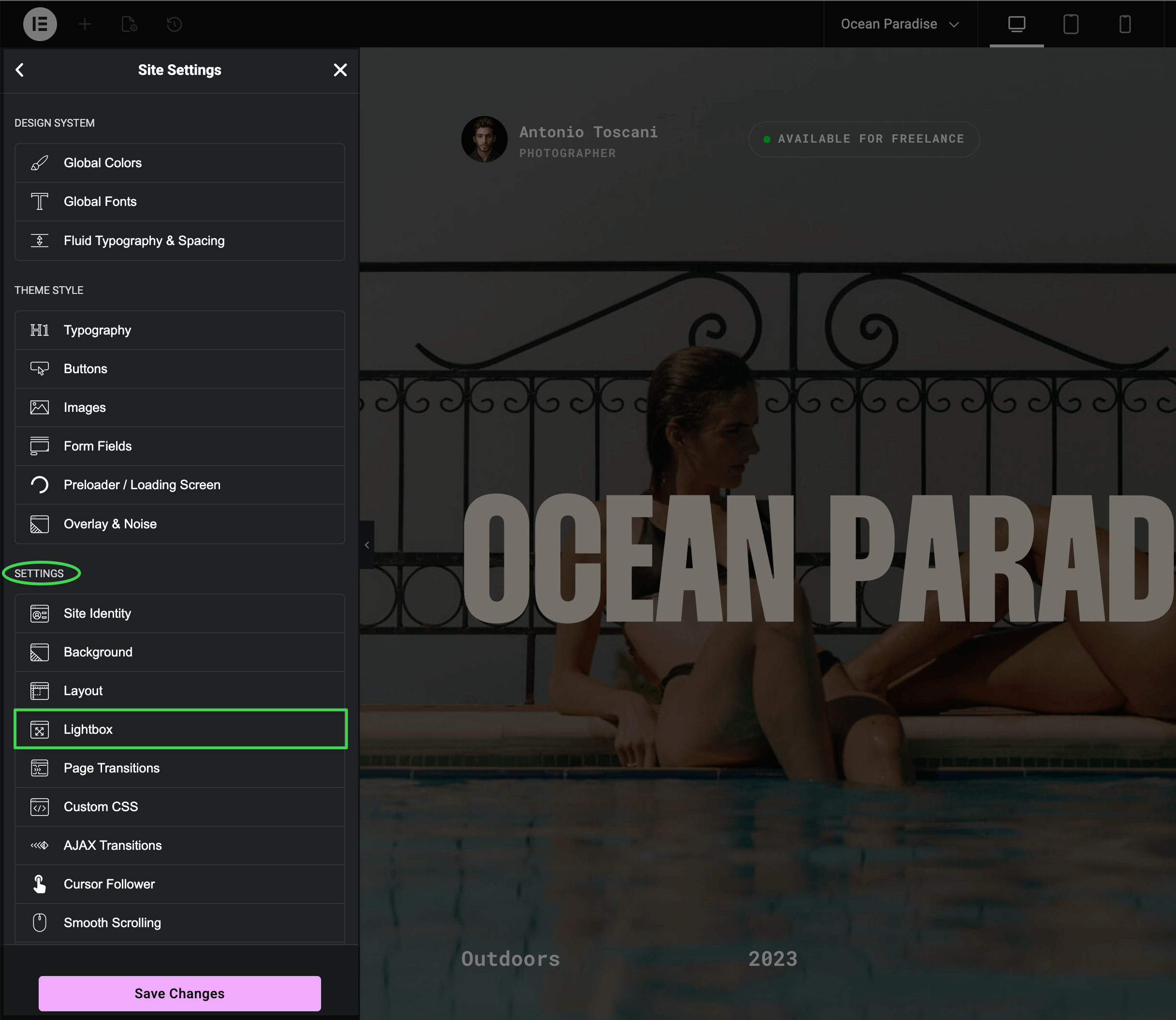
Open Site Settings panel in Elementor using this guide Accessing Theme Options Panel and select Lightbox.
Choosing Lightbox Library
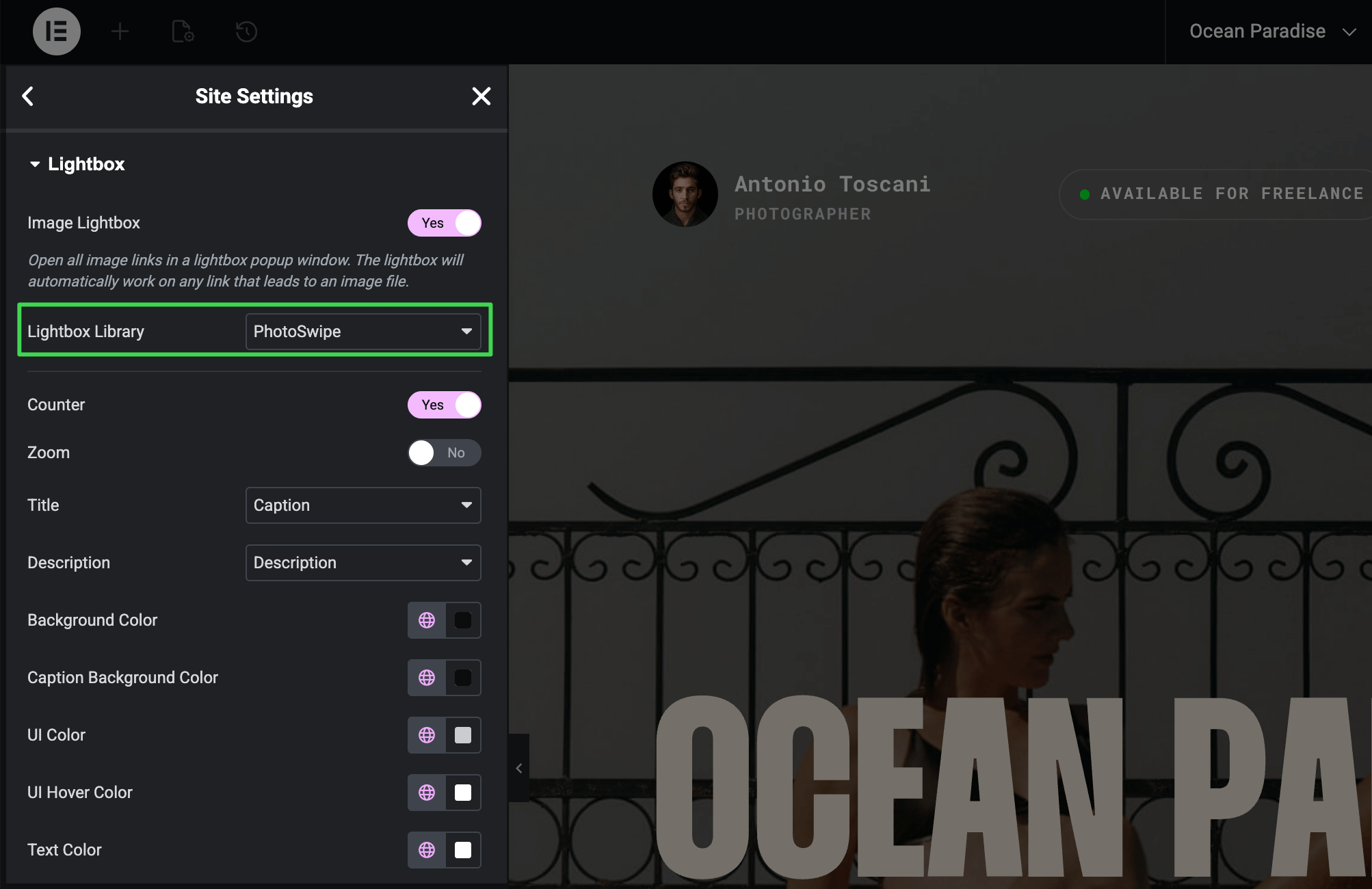
The Lightbox Library control lets you switch between two options:
- Default (Elementor) — Elementor's built-in lightbox with standard features
- PhotoSwipe — Advanced lightbox with smooth animations, touch gestures, and enhanced zoom
When to Use PhotoSwipe
PhotoSwipe is ideal for portfolio sites, photography galleries, and any site where image viewing is important. It offers better mobile experience with pinch-to-zoom and swipe gestures that feel native to touch devices.
Opening Any Link in Lightbox
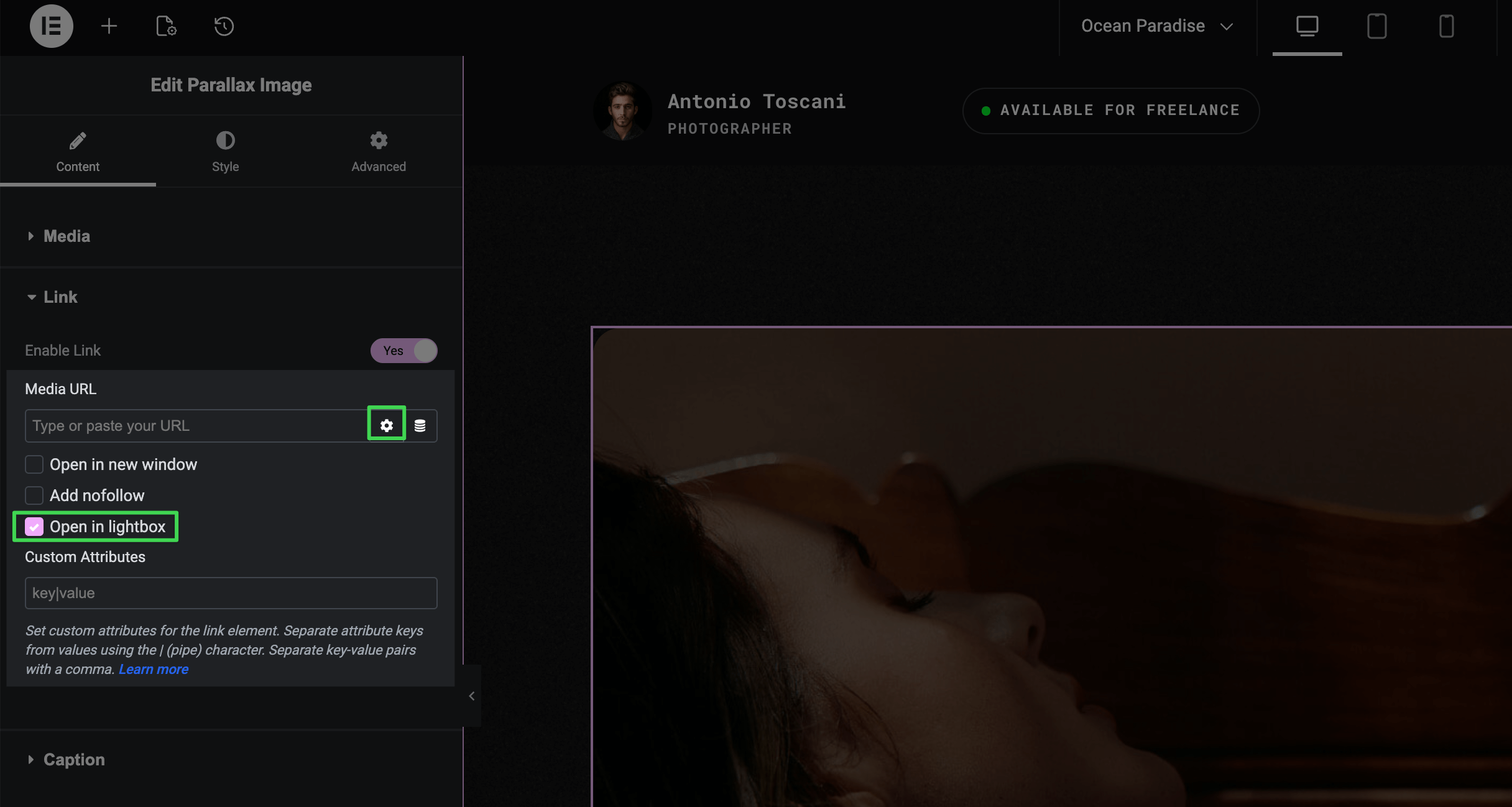
One of the most powerful features is the ability to open any image or video in the lightbox — not just from gallery widgets. Any widget with a URL/link field (buttons, images, icons, etc.) now has an Open in lightbox checkbox.
▶️ Step 1.
Select any widget that has a link option (Image, Button, Icon, etc.).
▶️ Step 2.
In the Link section, enter the URL of an image or video.
▶️ Step 3.
Enable Open in lightbox.
Now clicking that element opens the linked media in the PhotoSwipe lightbox instead of navigating to the URL.
Supported Media
YouTube, Vimeo, self-hosted videos, images, and iFrames. Any clickable element — buttons, icons, images — can open media in the lightbox. You're not limited to gallery widgets.
PhotoSwipe Options
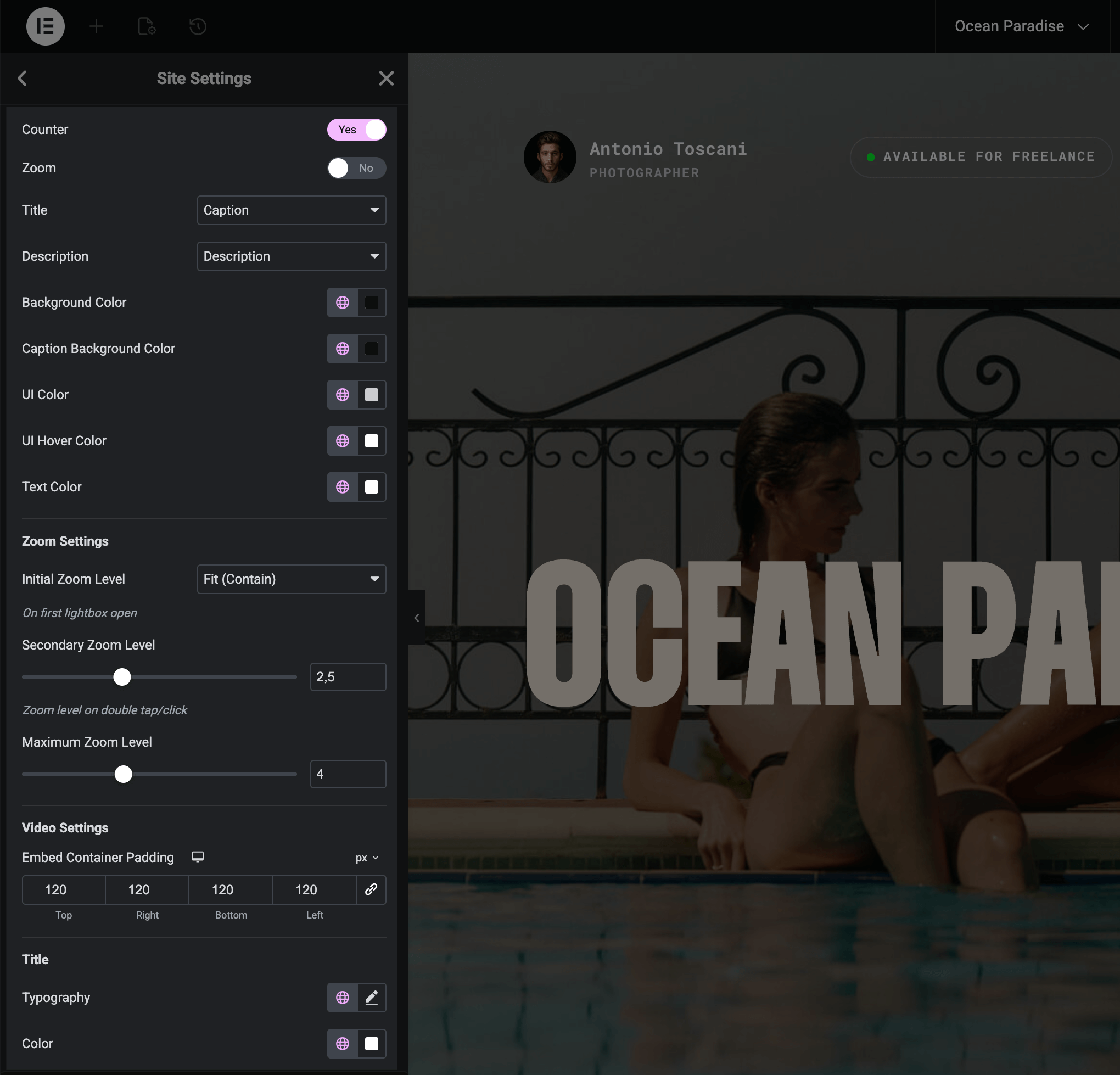
When PhotoSwipe is selected as the lightbox library, additional options become available:
Zoom Settings
- Initial Zoom Level — how images appear on open (Fit, Fill, or fixed multiplier)
- Secondary Zoom Level — zoom on double-tap/click (default 2.5x)
- Maximum Zoom Level — furthest zoom with pinch gestures (default 4x)
Caption Styling
- Caption Background Color — background behind caption text
- Title / Description Typography — font family, size, weight, and color for each
Video Settings
- Embed Container Padding — spacing around embedded videos (YouTube, Vimeo, self-hosted). Responsive — set different padding for desktop, tablet, and mobile.
Colors
- Background Color — overlay background behind images
- UI Color / UI Hover Color — toolbar button colors
- Text Color — caption text color
Unite Inner Lightboxes
This powerful feature lets you merge multiple galleries within a container into a single lightbox slideshow.
How It Works
Normally, each gallery widget has its own separate lightbox. If you have three galleries on a page, clicking an image opens only that gallery's images.
With Unite Inner Lightboxes enabled on a container, all galleries inside that container become one unified slideshow. Visitors can swipe through all images seamlessly.
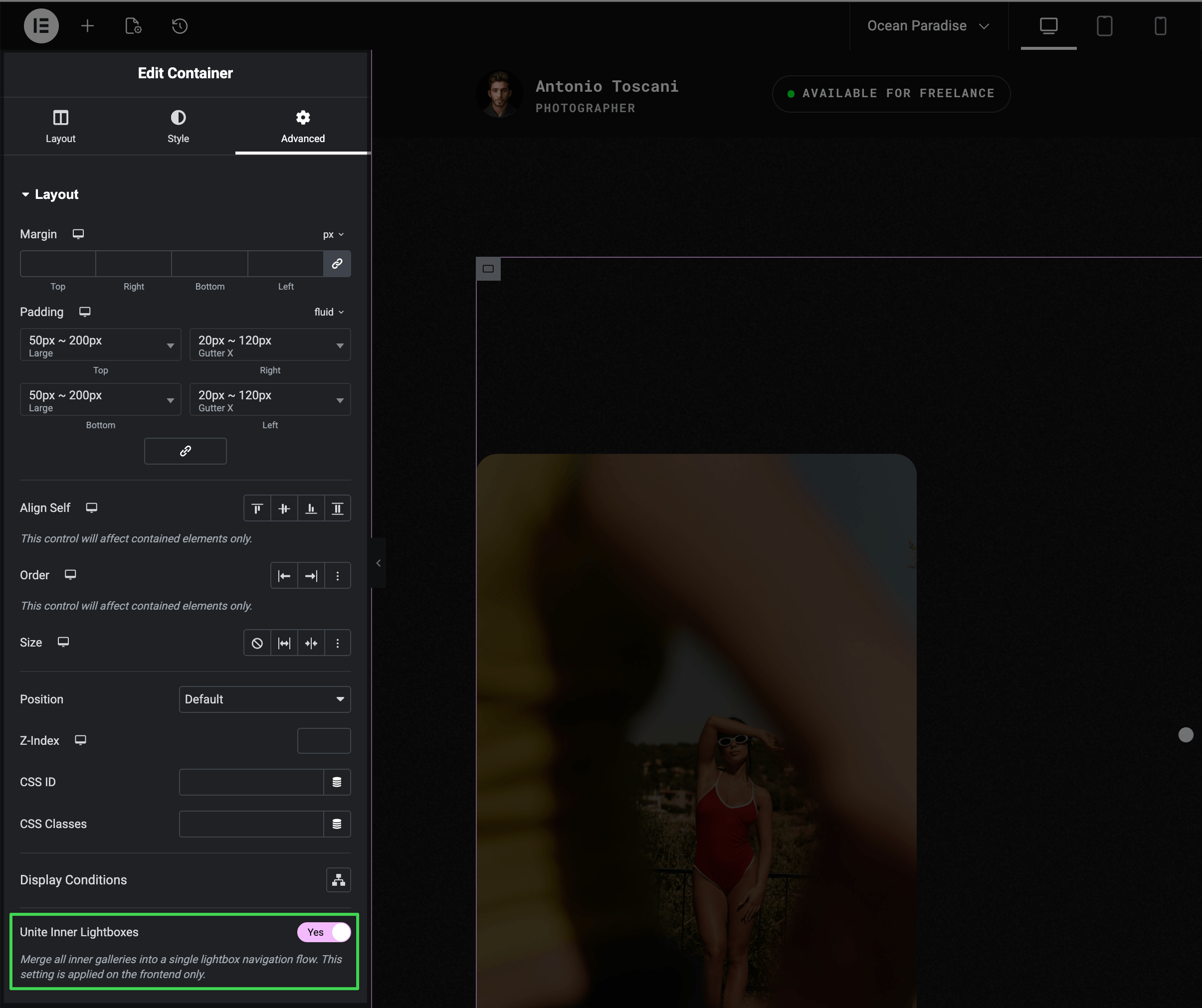
Enabling Unite Inner Lightboxes
▶️ Step 1.
Select the container that holds your galleries.
▶️ Step 2.
Go to the Advanced tab.
▶️ Step 3.
Enable Unite Inner Lightboxes.
Not Available in Editor Preview
This setting only takes effect on the live site. In the Elementor editor, galleries remain separate for easier editing.