Appearance
Editing Site Templates
The Theme Builder is where you customize your site's global elements — the header, footer, blog post layouts, archive pages, and other templates that appear across multiple pages. Instead of editing these on every single page, you edit them once and changes apply site-wide.
New to Elementor?
If you haven't used Elementor before, start with Getting Started with Elementor to learn the basics of editing pages.
Which Method Should I Use?
There are three ways to access Theme Builder. Choose based on where you are:
| You are... | Use this method |
|---|---|
| Editing a page in Elementor | Via Elementor Editor (fastest) |
| Viewing your site on the frontend | Via Admin Bar |
| In WordPress dashboard | Via Backend Panel |
Via Elementor Editor
The quickest way when you're already editing a page.
▶️ Step 1.
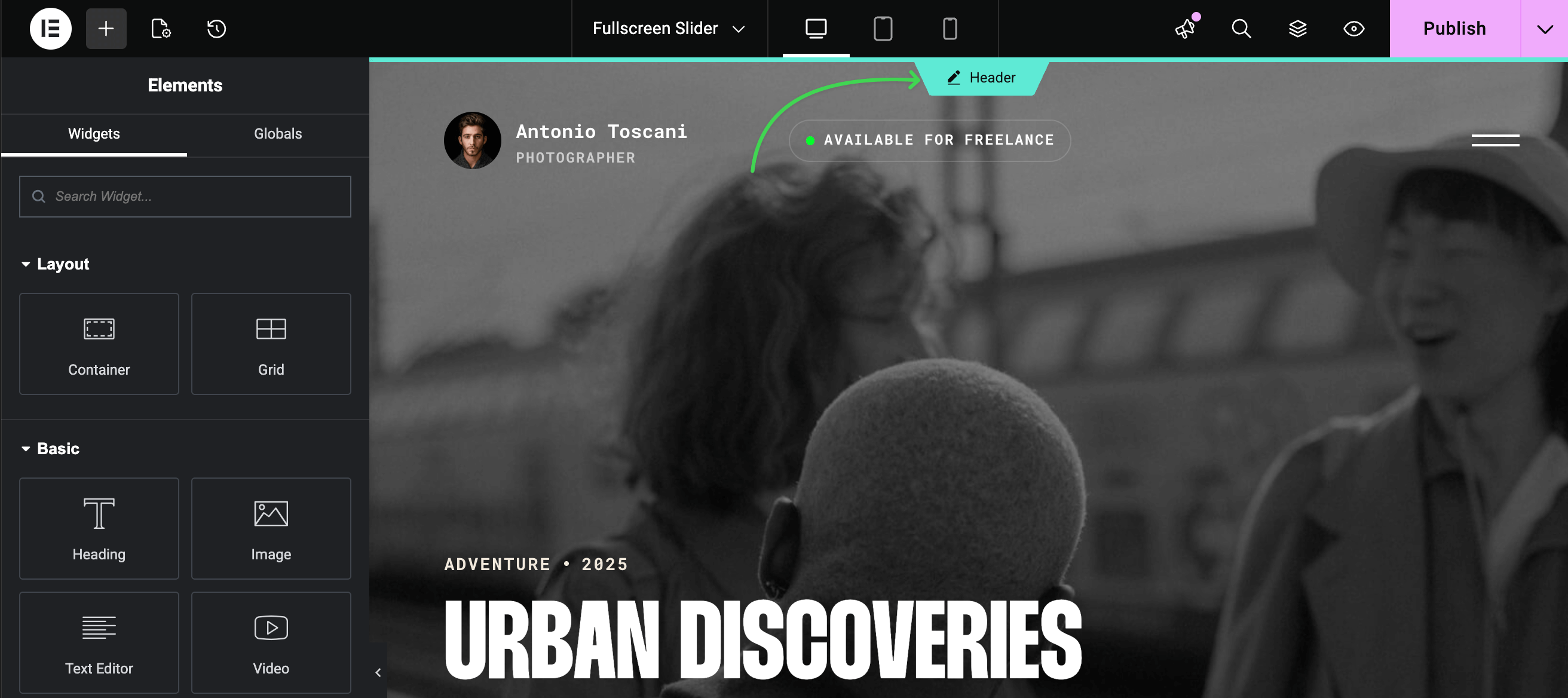
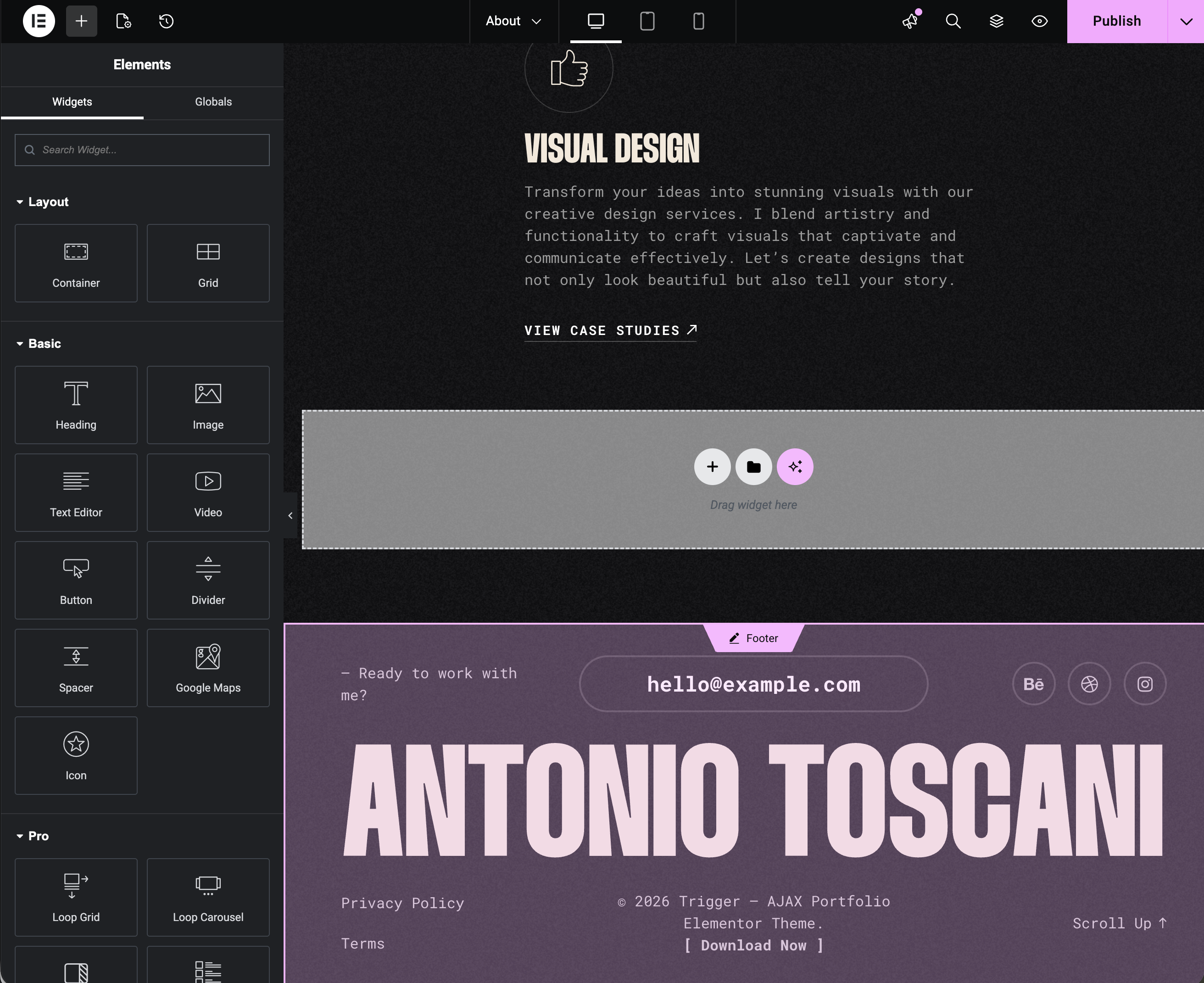
While in the Elementor editor, hover over the header or footer area. A blue Edit icon will appear.
▶️ Step 2.
Click the Edit icon. You'll enter the template editing mode for that element.
▶️ Step 3.
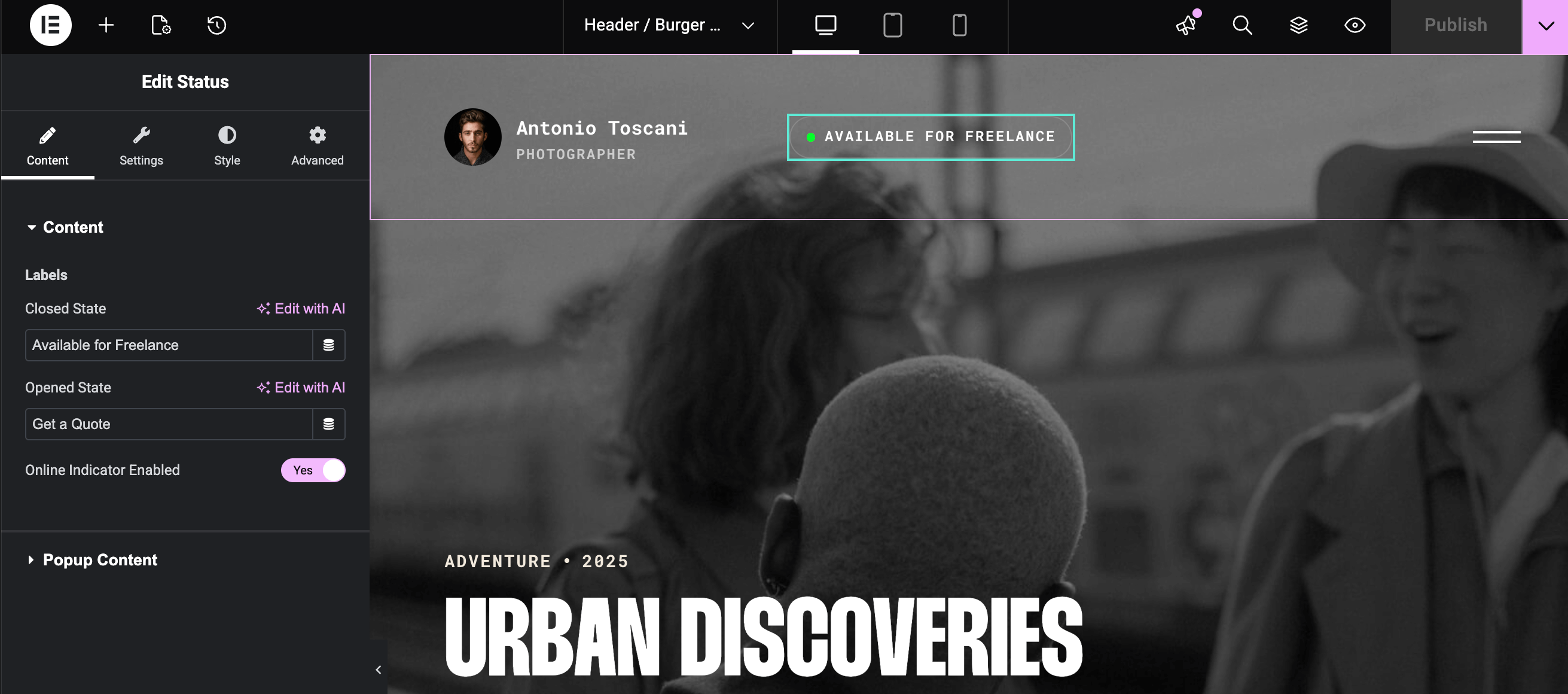
Make your changes, then click Publish to save.
Via Admin Bar
Quick access from anywhere on the frontend while logged in.
▶️ Step 1.
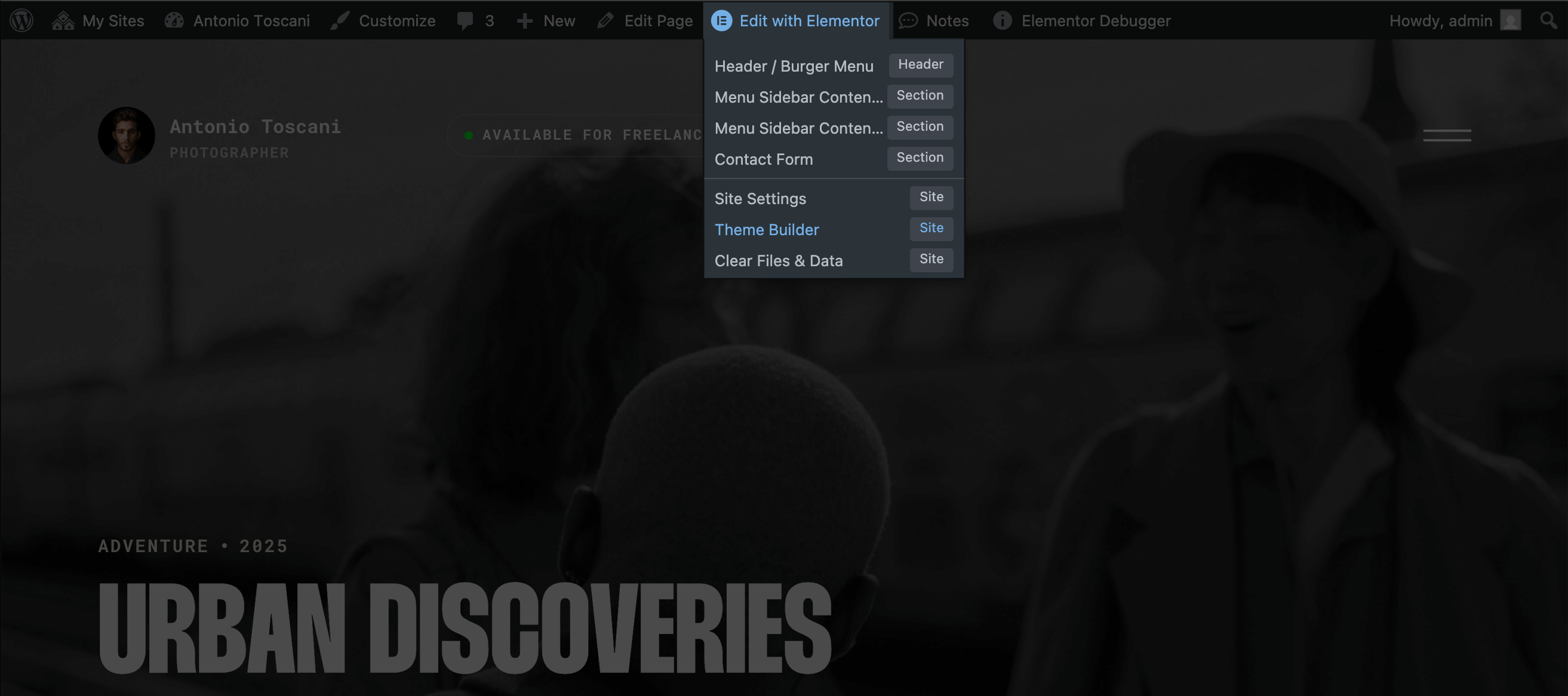
While viewing any page on your site, hover over Edit with Elementor in the admin bar.
▶️ Step 2.
Click Theme Builder to open the full builder, or click a specific part (Header, Footer, etc.) to edit it directly.
Via Backend Panel
The most comprehensive view — see all your templates in one place.
▶️ Step 1.
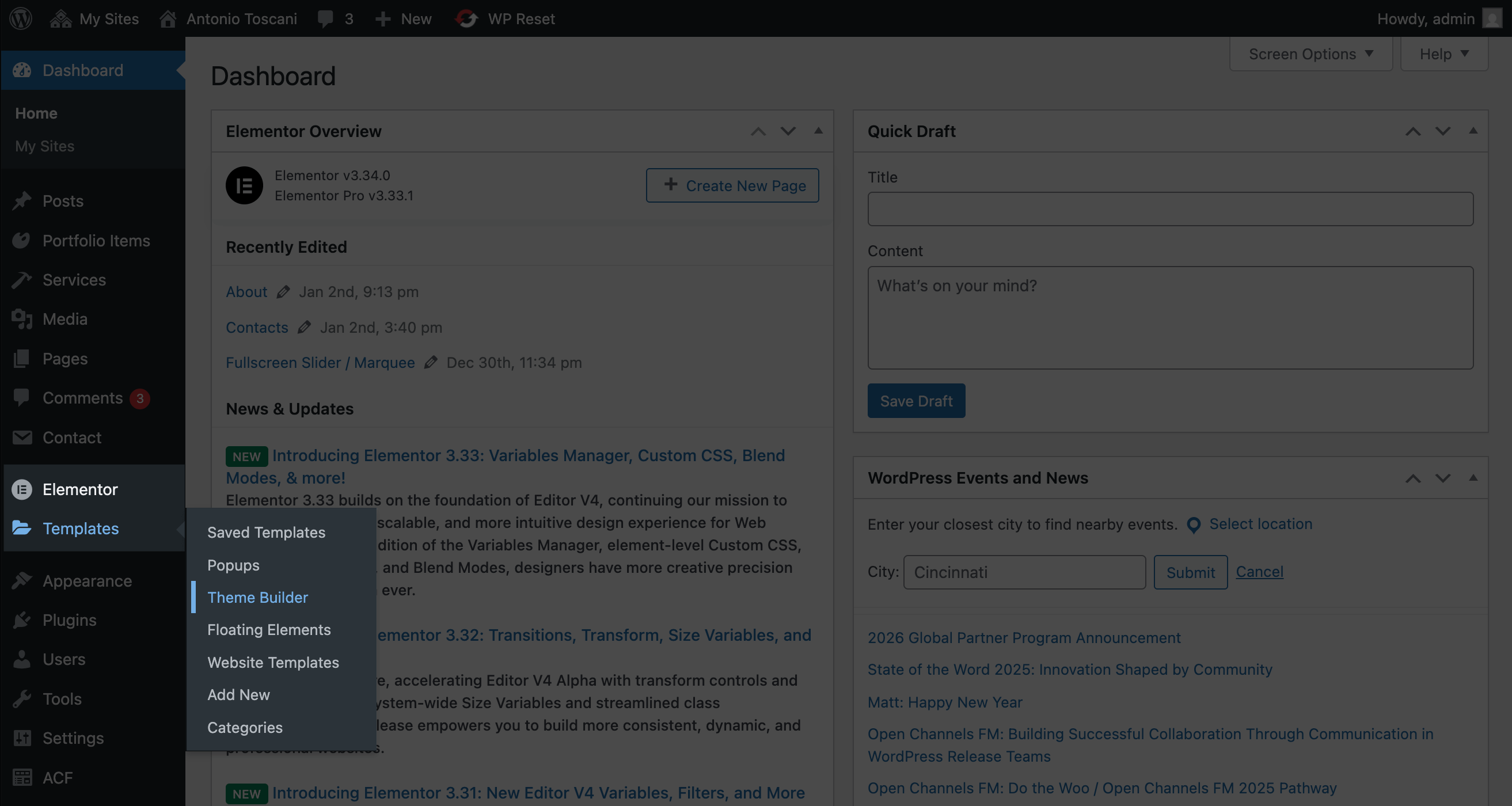
In WordPress admin, go to Templates → Theme Builder.
▶️ Step 2.
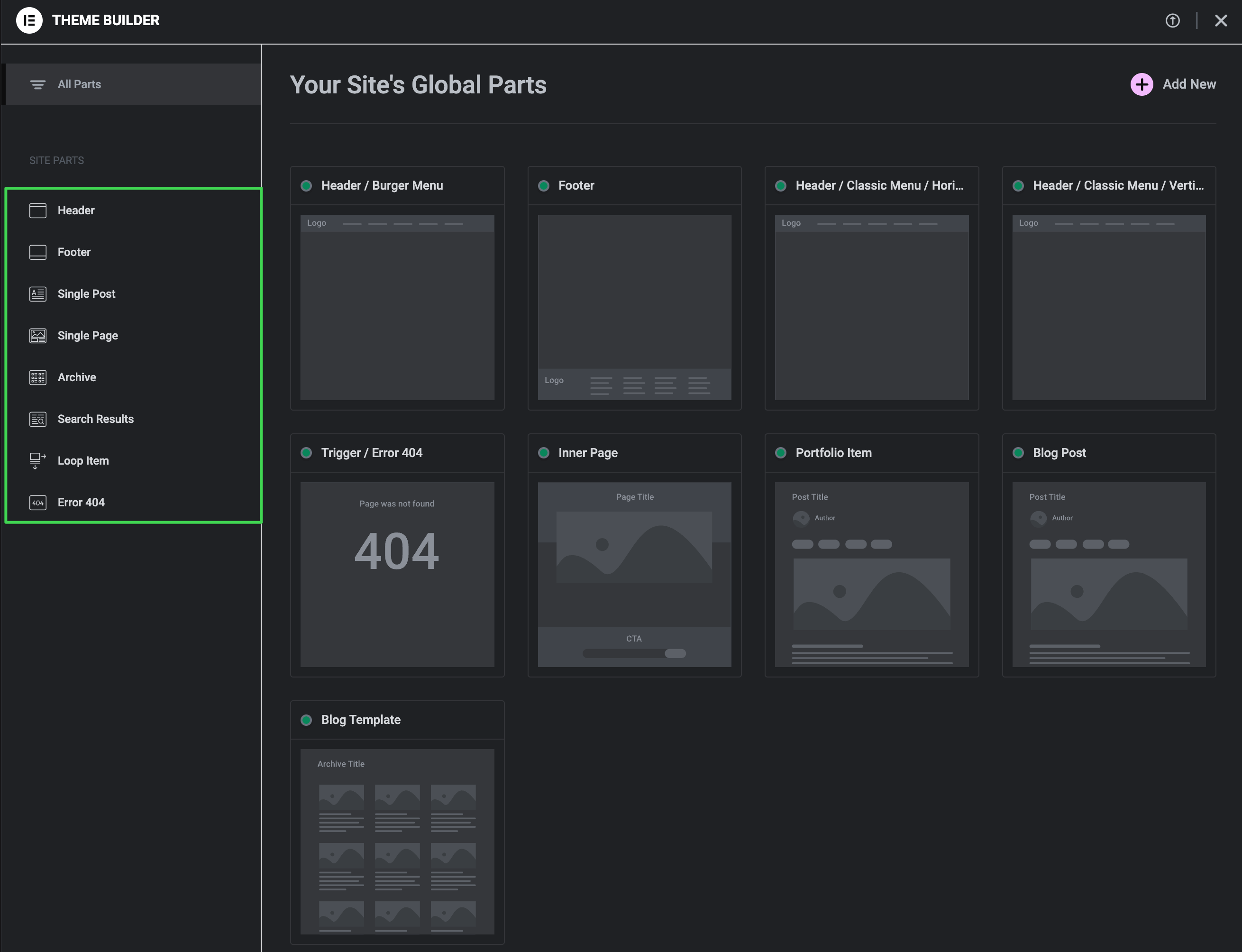
In the left sidebar, select what you want to edit: Header, Footer, Single Post, Archive, etc.
▶️ Step 3.
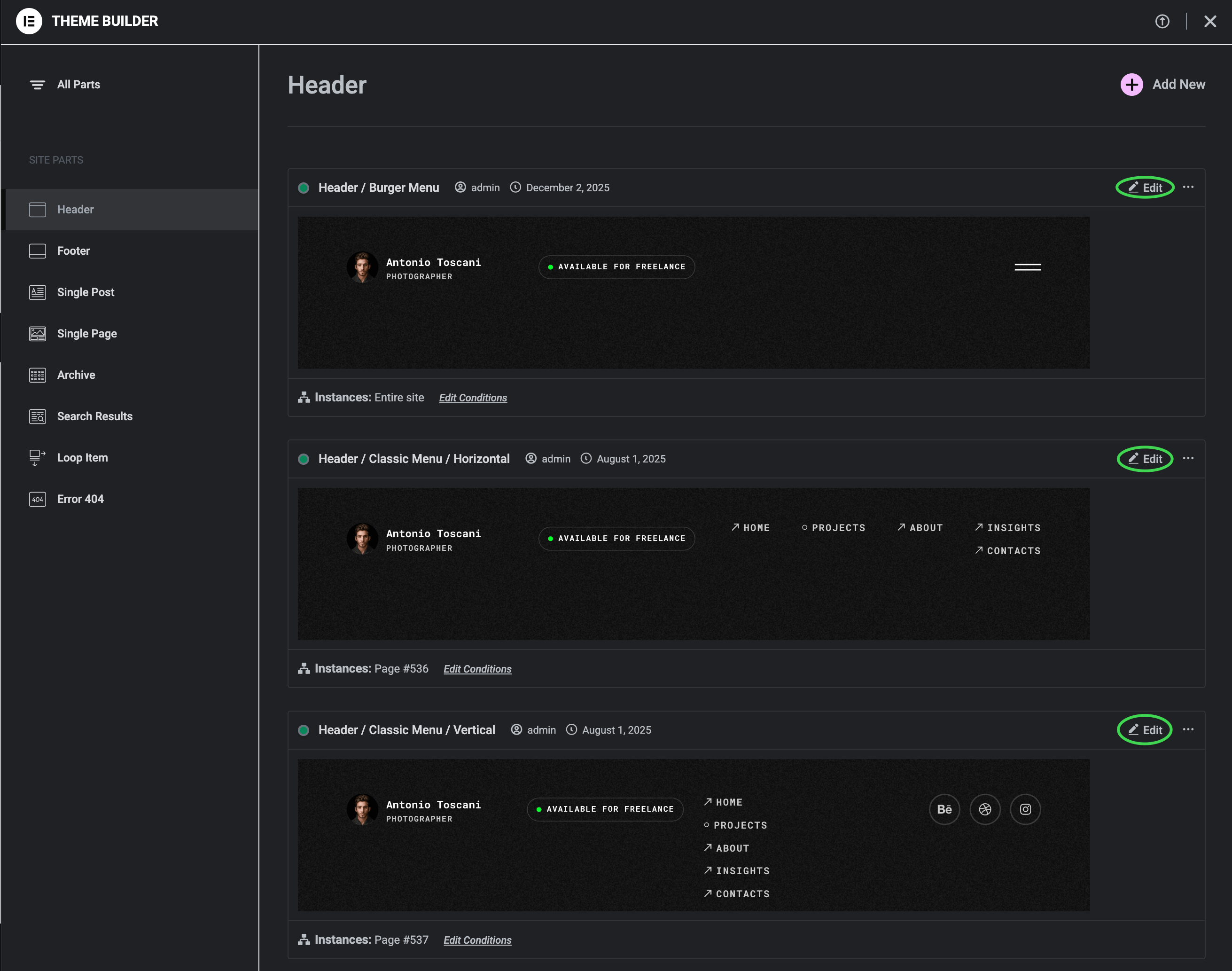
You may see multiple templates for each type. Click Edit on the one you want to customize.
Multiple Templates?
Trigger includes different header and footer variations. To change which one displays on your site, see Templates Display Conditions.