Appearance
Masthead
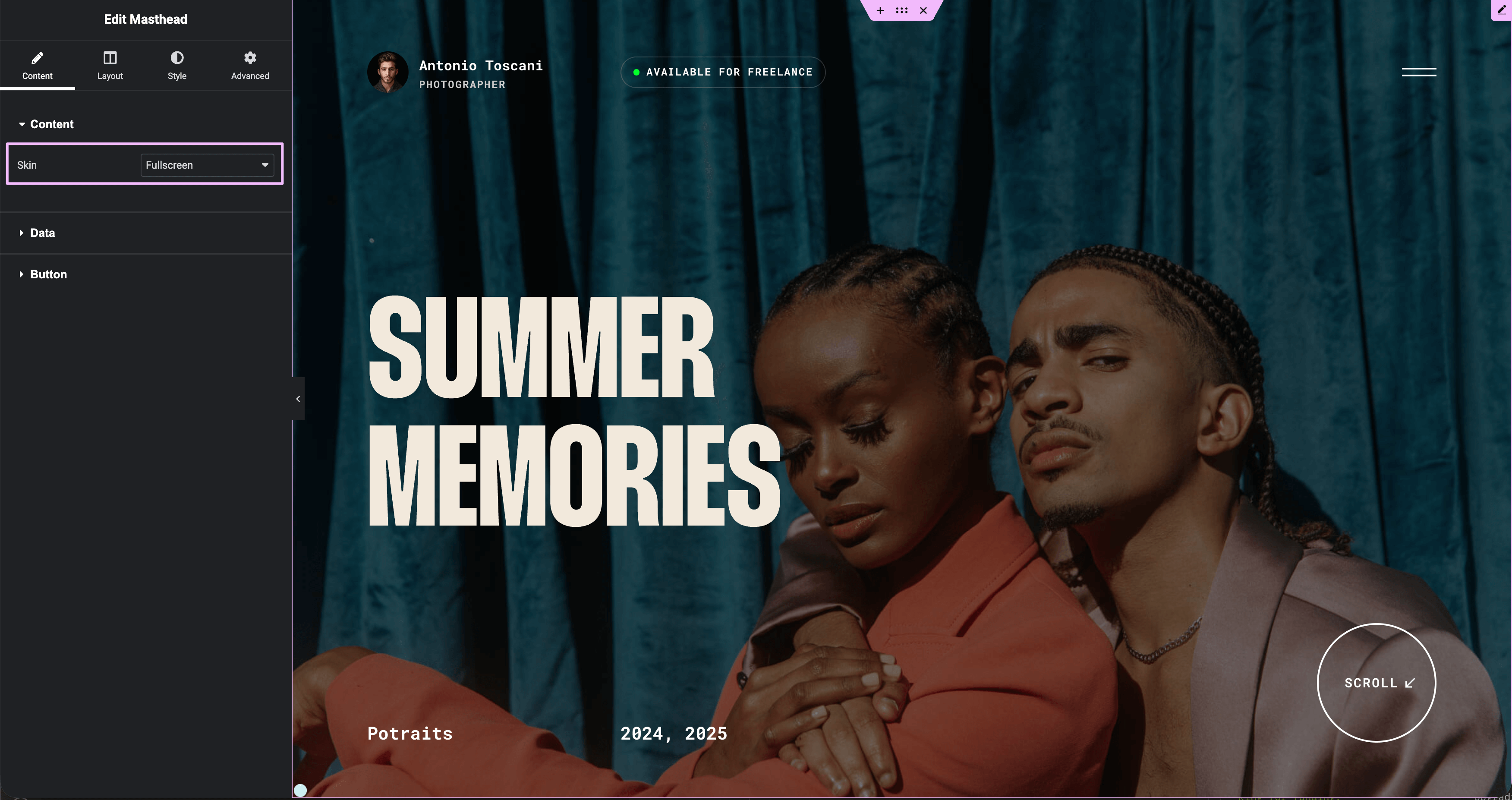
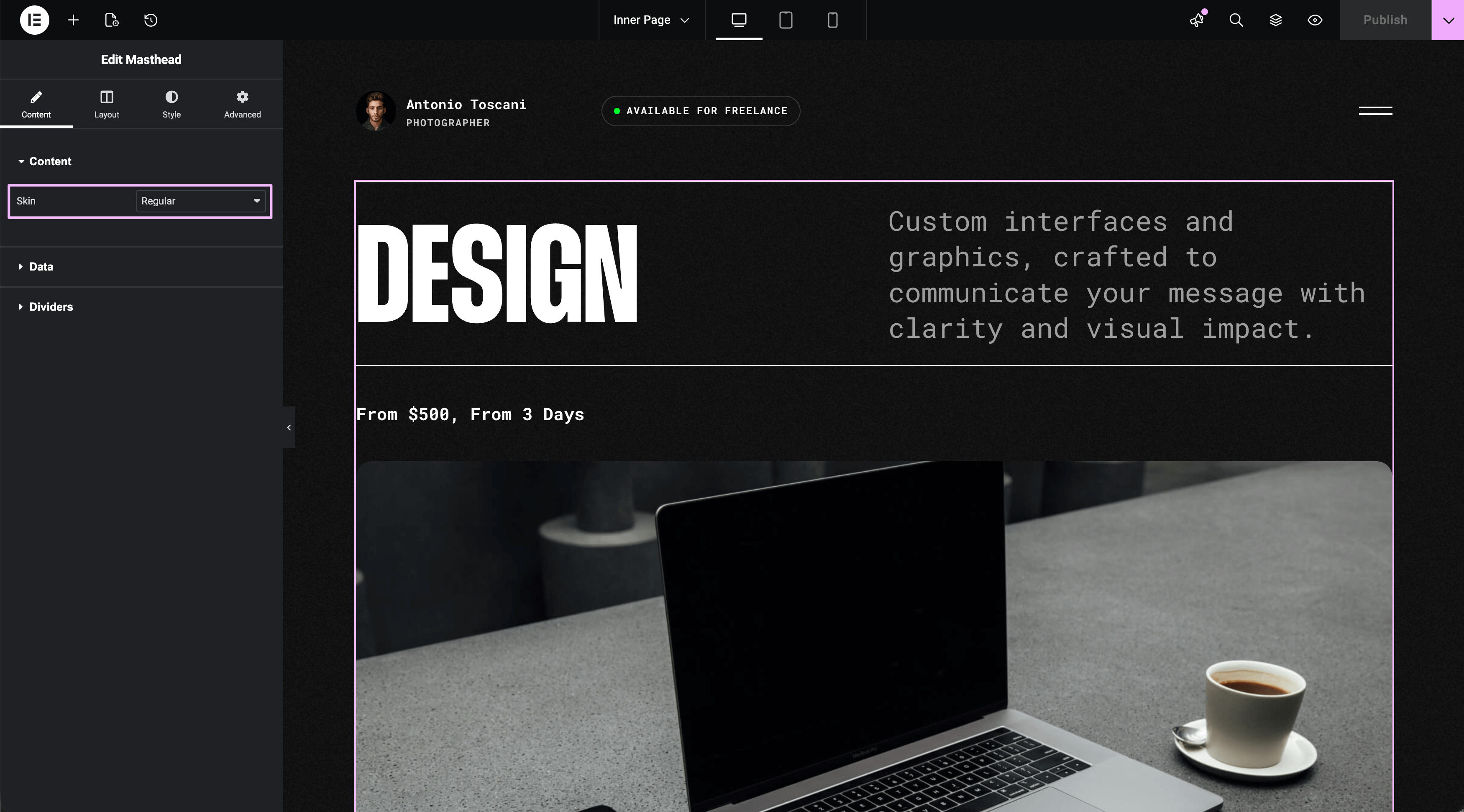
The masthead is the top section of pages and posts that displays the title, featured image, and optional metadata. Trigger includes two masthead variations:
- Fullscreen — full-viewport hero with large typography, used on portfolio items and posts
- Regular — compact header area, used on inner pages (About, Contacts, etc.)
How to Access this Panel
The Masthead widget is part of the page templates in Theme Builder:
- Go to Elementor → Theme Builder
- Select Single Post, Single Page, or the relevant template
- Find and select the Masthead widget
For more on accessing templates, see Editing Site Templates.
Data Source
By default, the Masthead pulls content dynamically from the current page or post (title, excerpt, featured image).
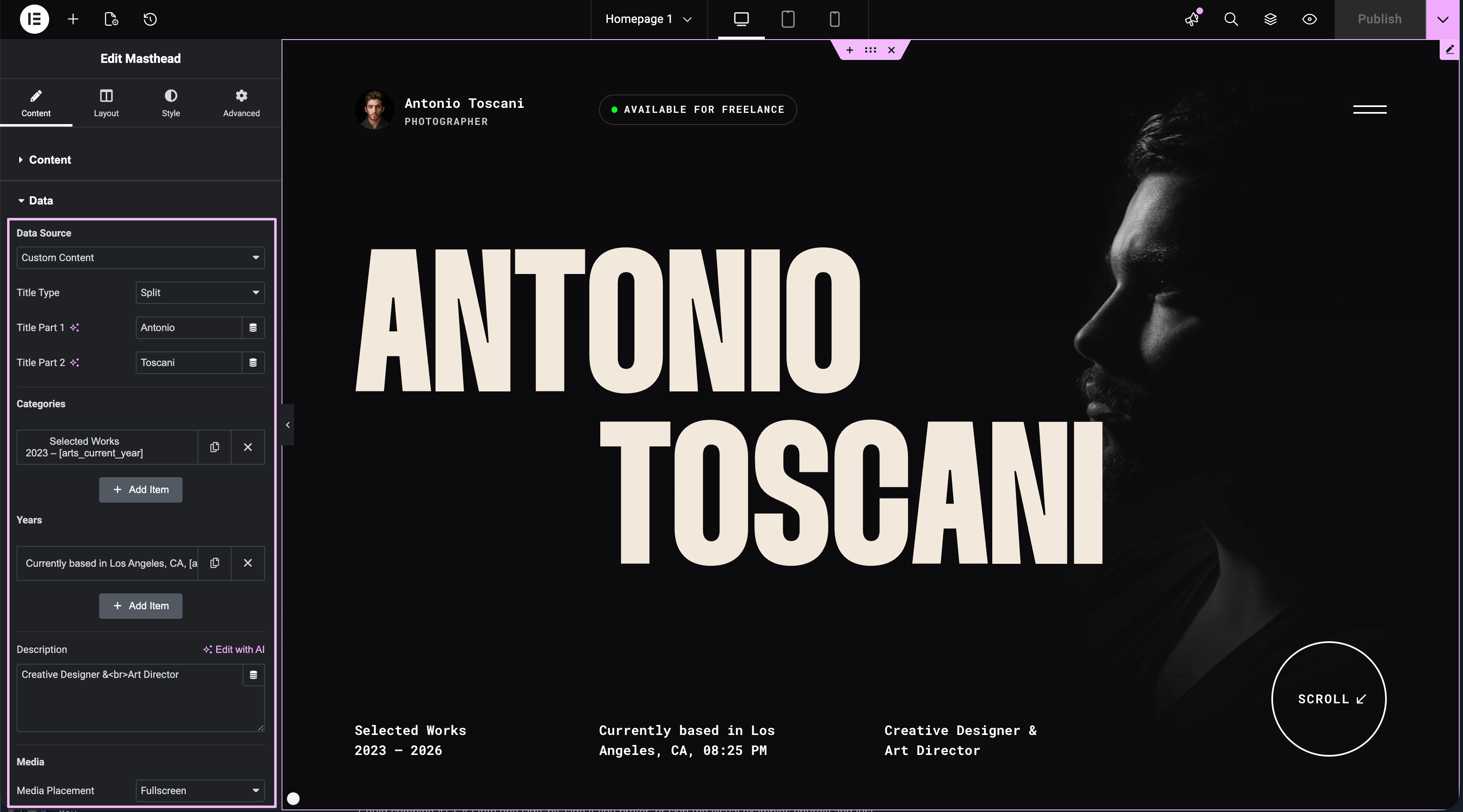
In the Content tab → Data section:
- Current Post Data — displays title and media from the WordPress post/page
- Custom Content — lets you enter custom text and images directly in the widget
Homepage Mastheads
The demo homepages use Custom Content mode. If you edit the page title in WordPress admin and it doesn't change on the frontend, the Masthead is using Custom Content — edit it directly in the widget settings (not via Theme Builder).
For more details, see Dynamic vs Custom Content.
Featured Media Options
In the Settings tab → Featured Media section, you can control which image displays:
- Prefer Default Featured Image — uses the standard WordPress featured image
- Prefer Secondary Featured Image — uses the secondary image field (if set)
- Use Featured Video — displays the featured video instead of an image
Secondary Featured Image
To set a secondary featured image or video, edit the page/post in WordPress and look for the custom fields below the content editor. See Editing Pages and Posts for details.