Appearance
Customizing Widgets
▶️ Step 1.
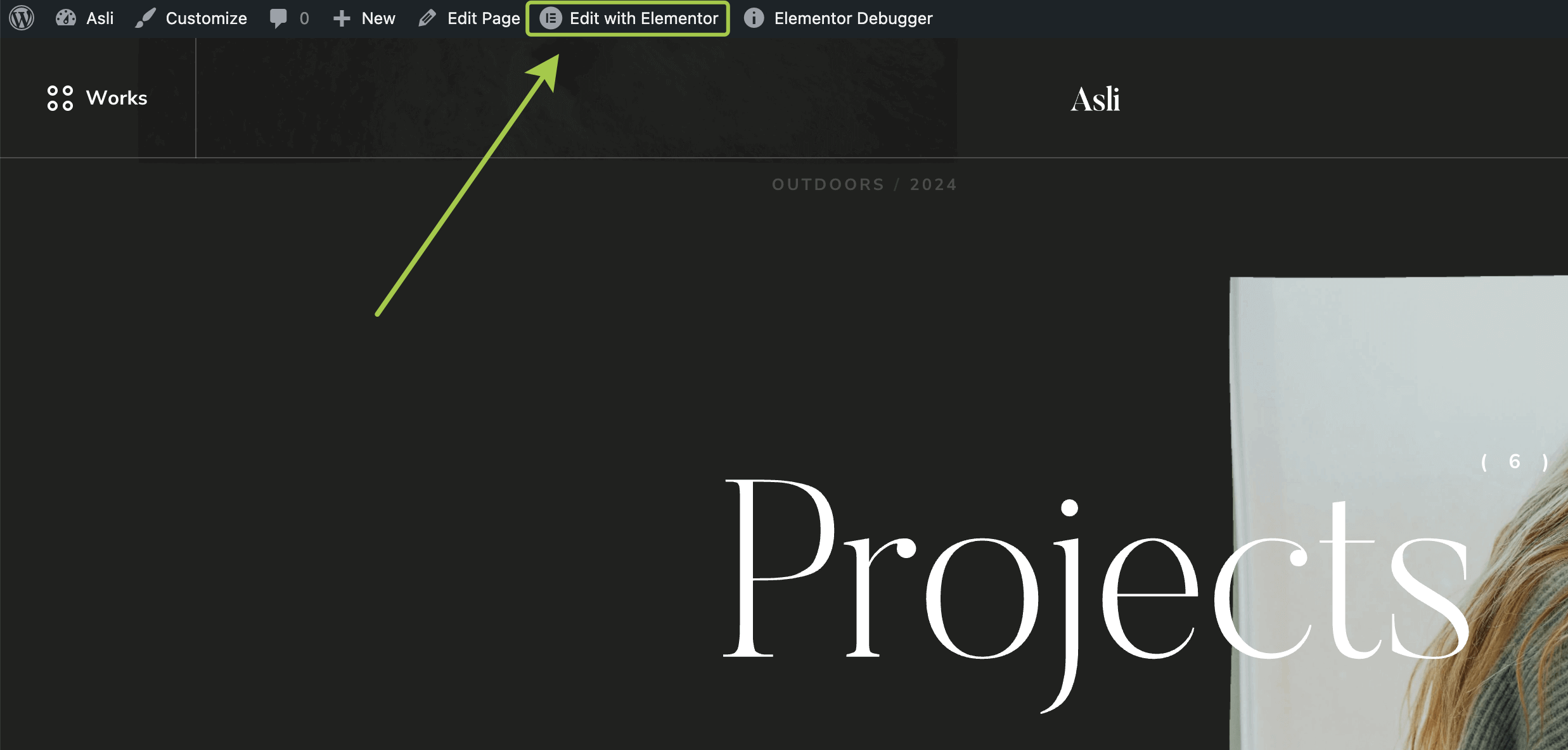
Go to any page you want to edit and click the Edit with Elementor button.
▶️ Step 2.
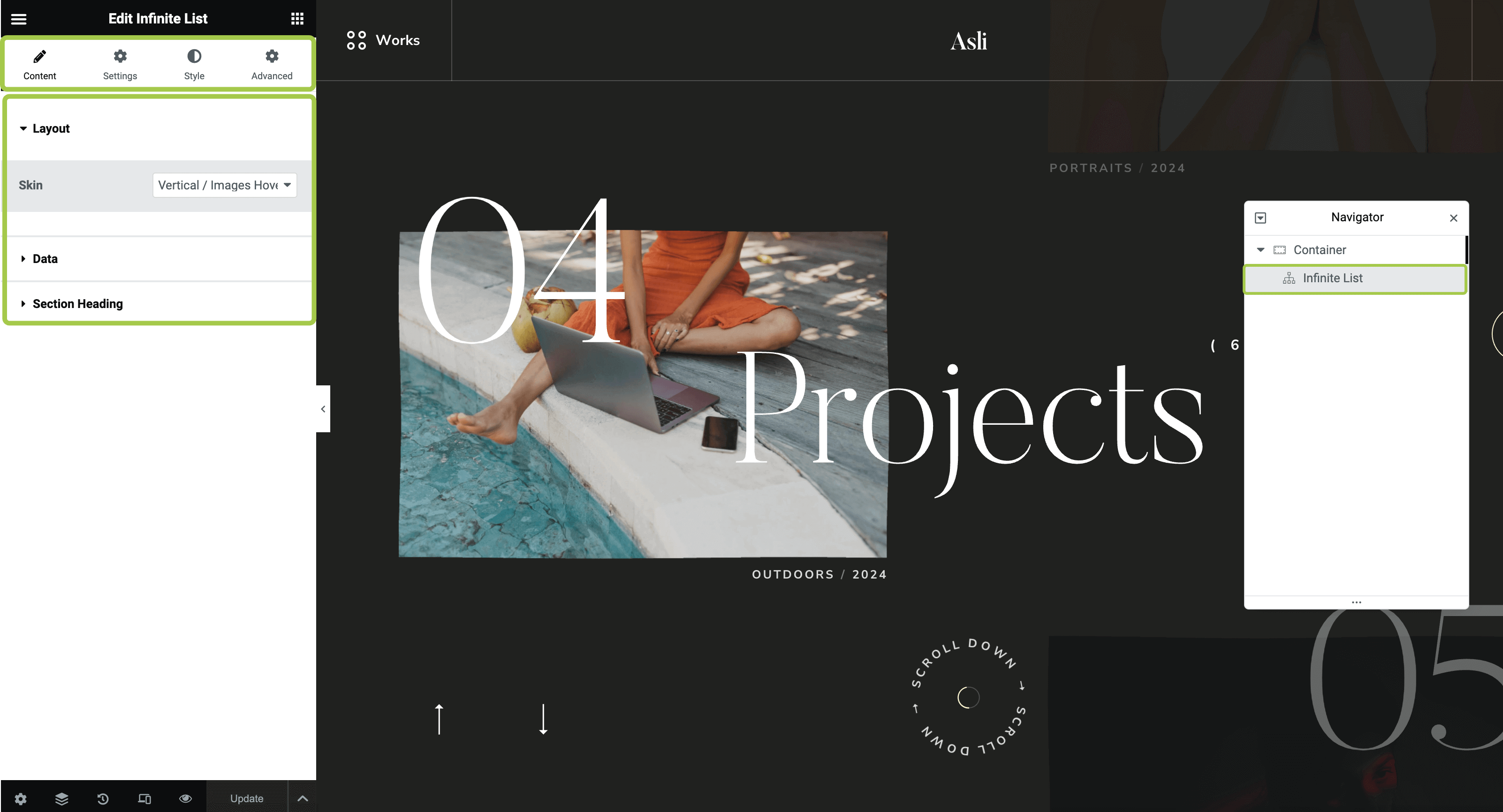
Select the widget you want to customize by clicking on it in the editor or via the Navigator.
You will see a set of tabs in the left sidebar: Content, Settings, Style, and Advanced (these tabs may vary depending on the widget).
▶️ Step 3.
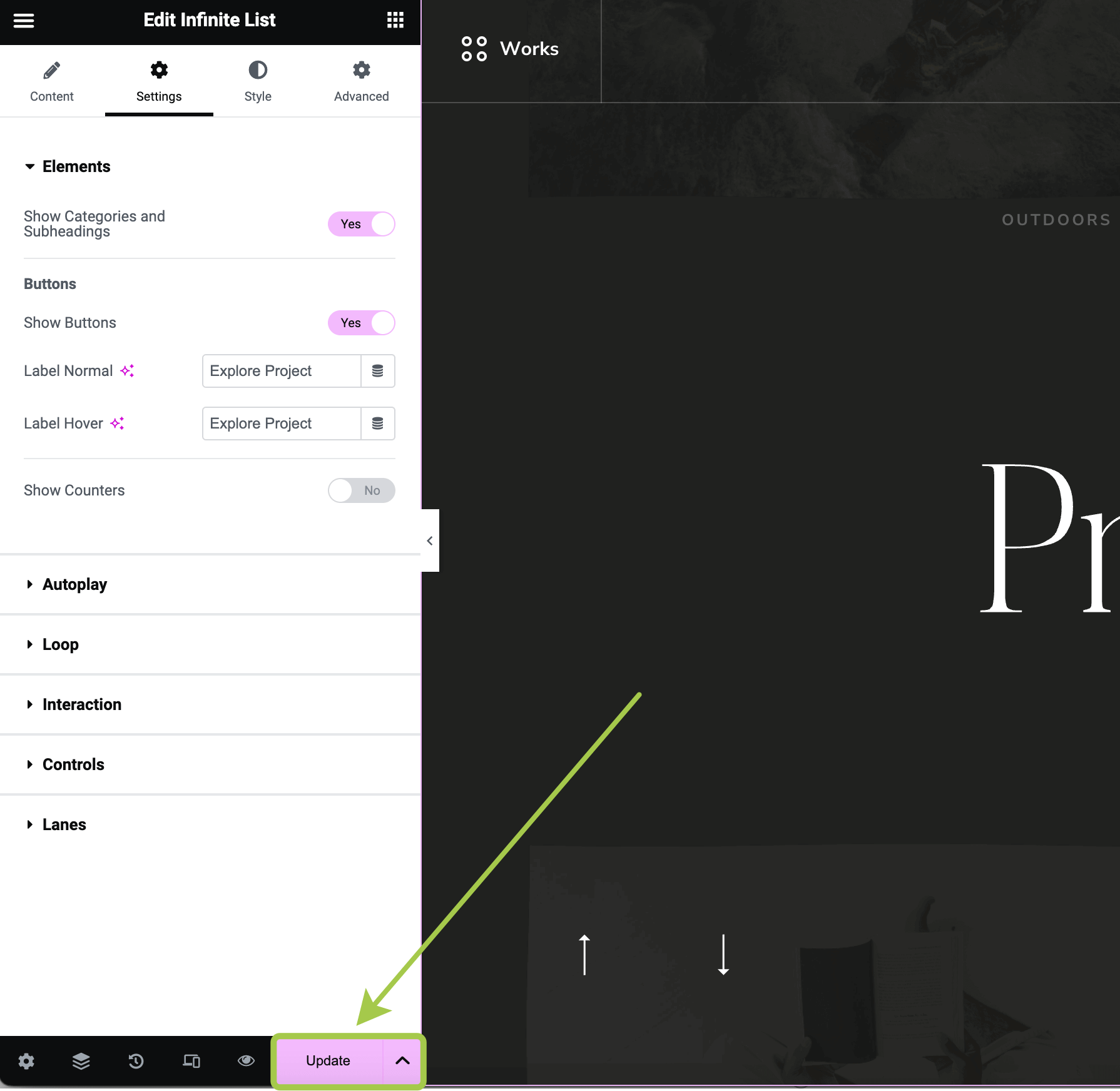
At the bottom left corner of the page, click Update to save your changes and preview them on the frontend.
Data Sources
Many widgets can display content in two ways — pulling dynamically from WordPress posts, or using custom content defined in the widget. See Dynamic vs Custom Content for details.
Changing Typography and Colors
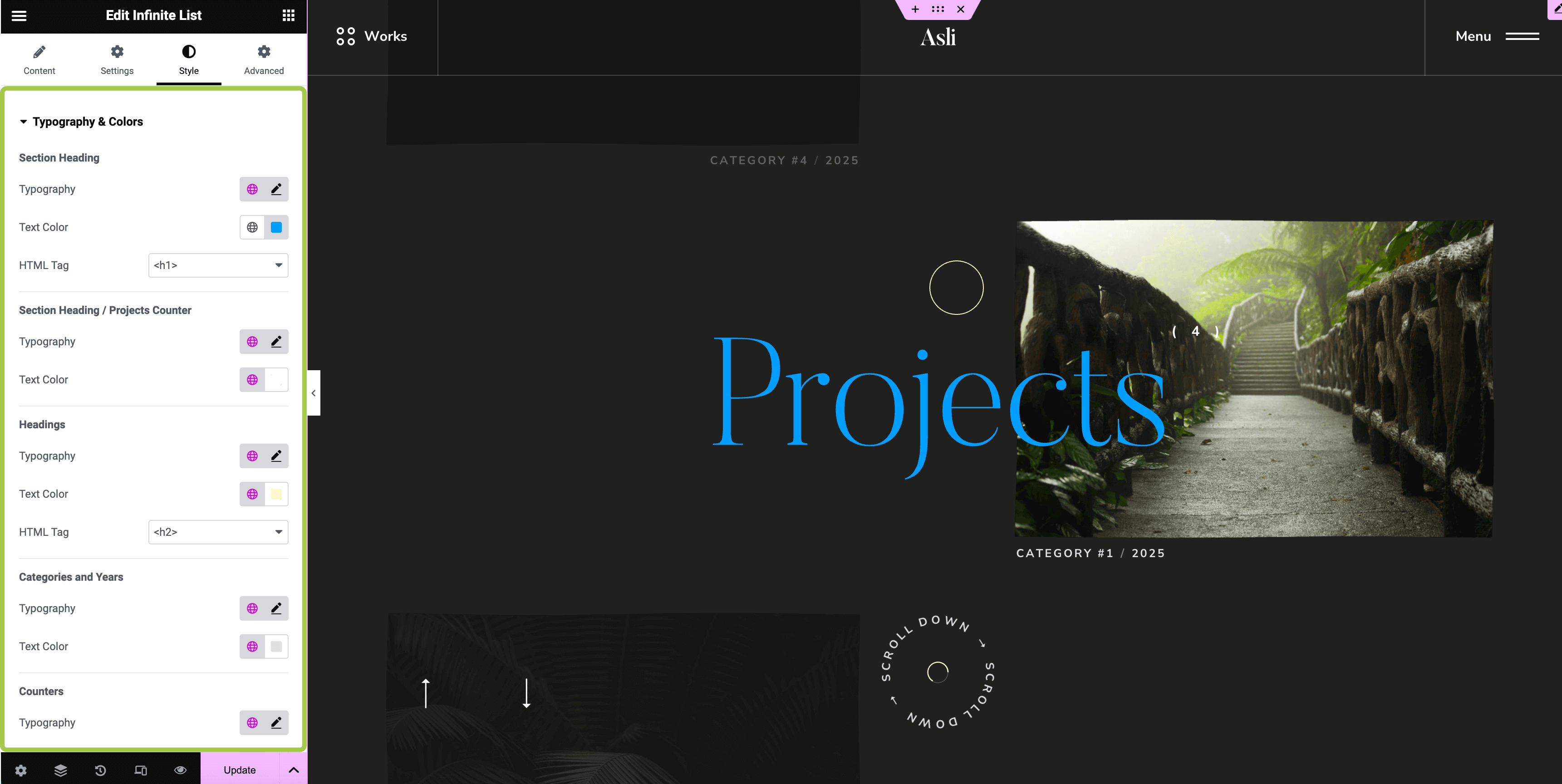
All theme widgets provided by the Trigger Core Plugin have a unified typography and color customization panel.
To adjust these settings, go to the Style tab and expand the Typography & Colors section.
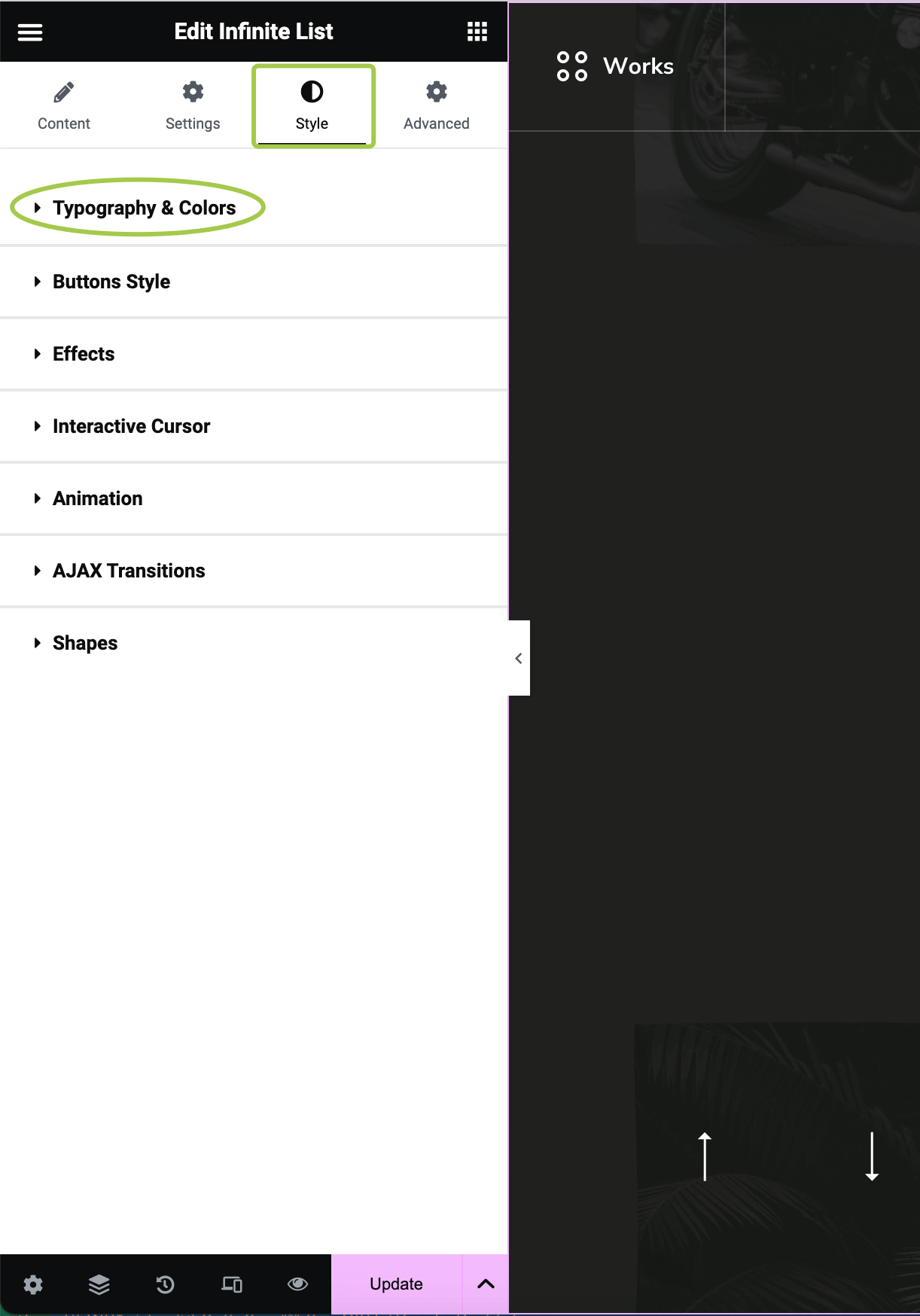
Here, you can modify all typography settings for the selected widget.
Adjusting Cursor Effects
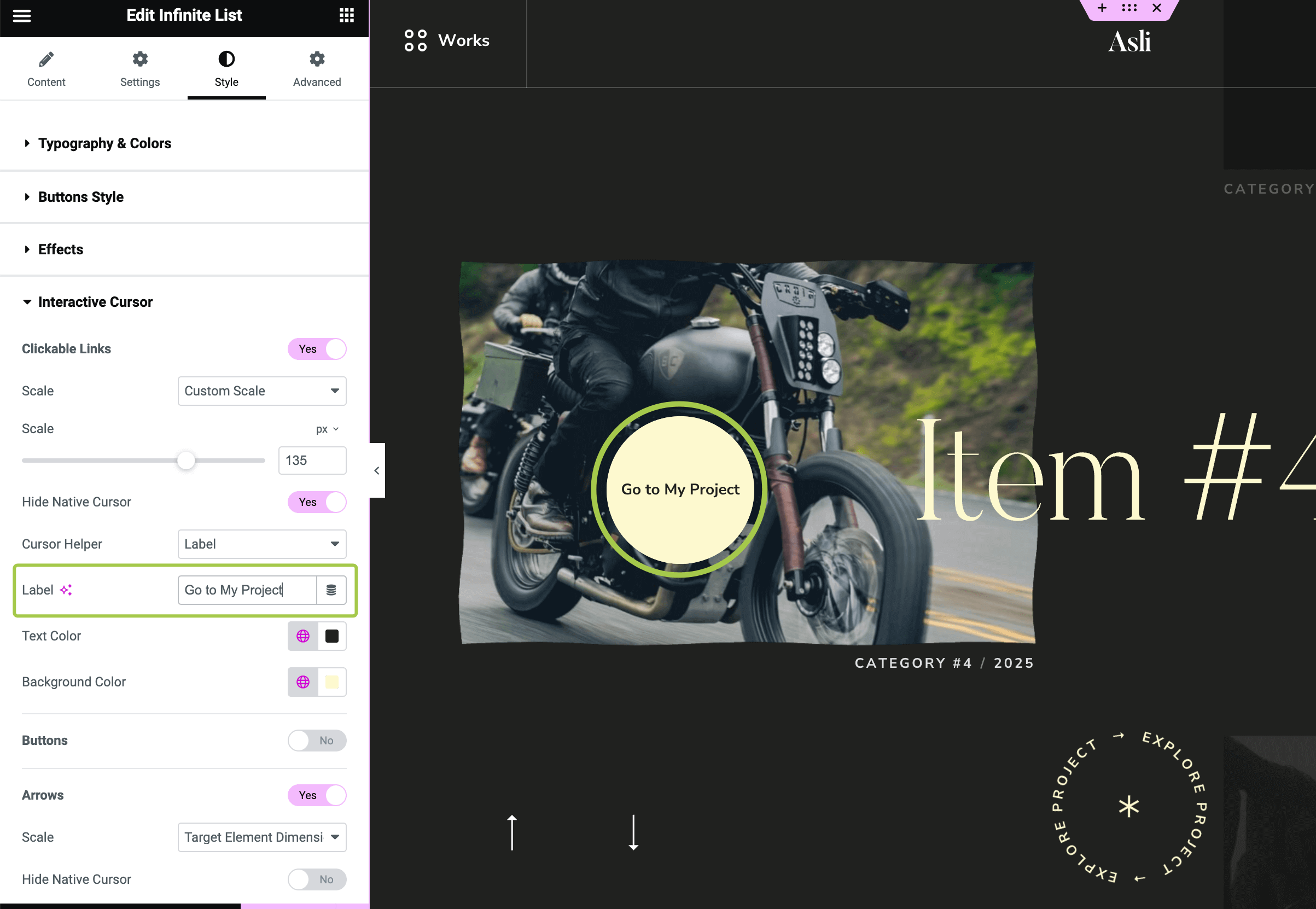
To modify cursor interactions, go to the Style tab and expand the Interactive Cursor section.
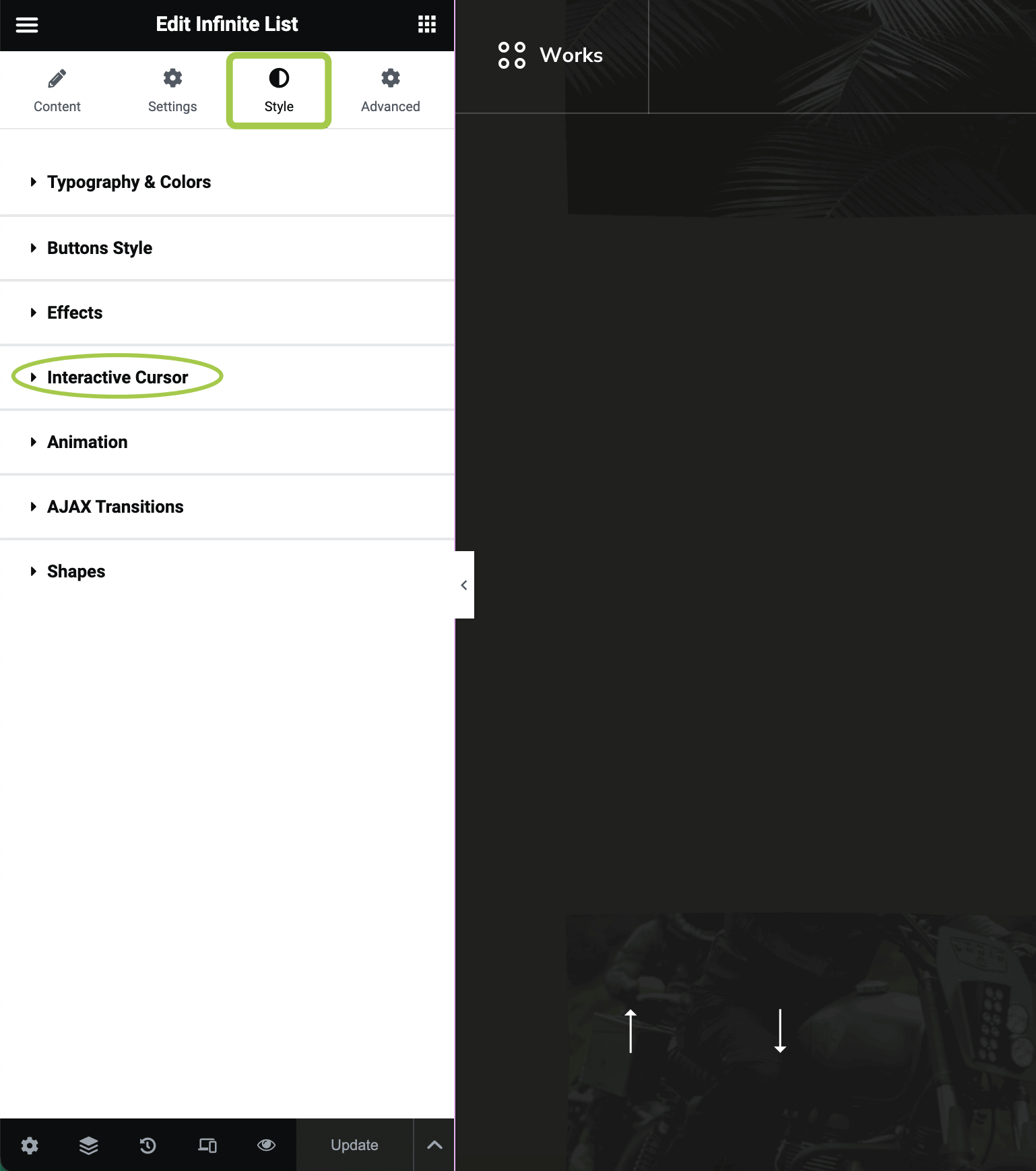
This section allows you to configure how widget elements interact with the mouse cursor follower.
Disabling or Adjusting Appearance Animations
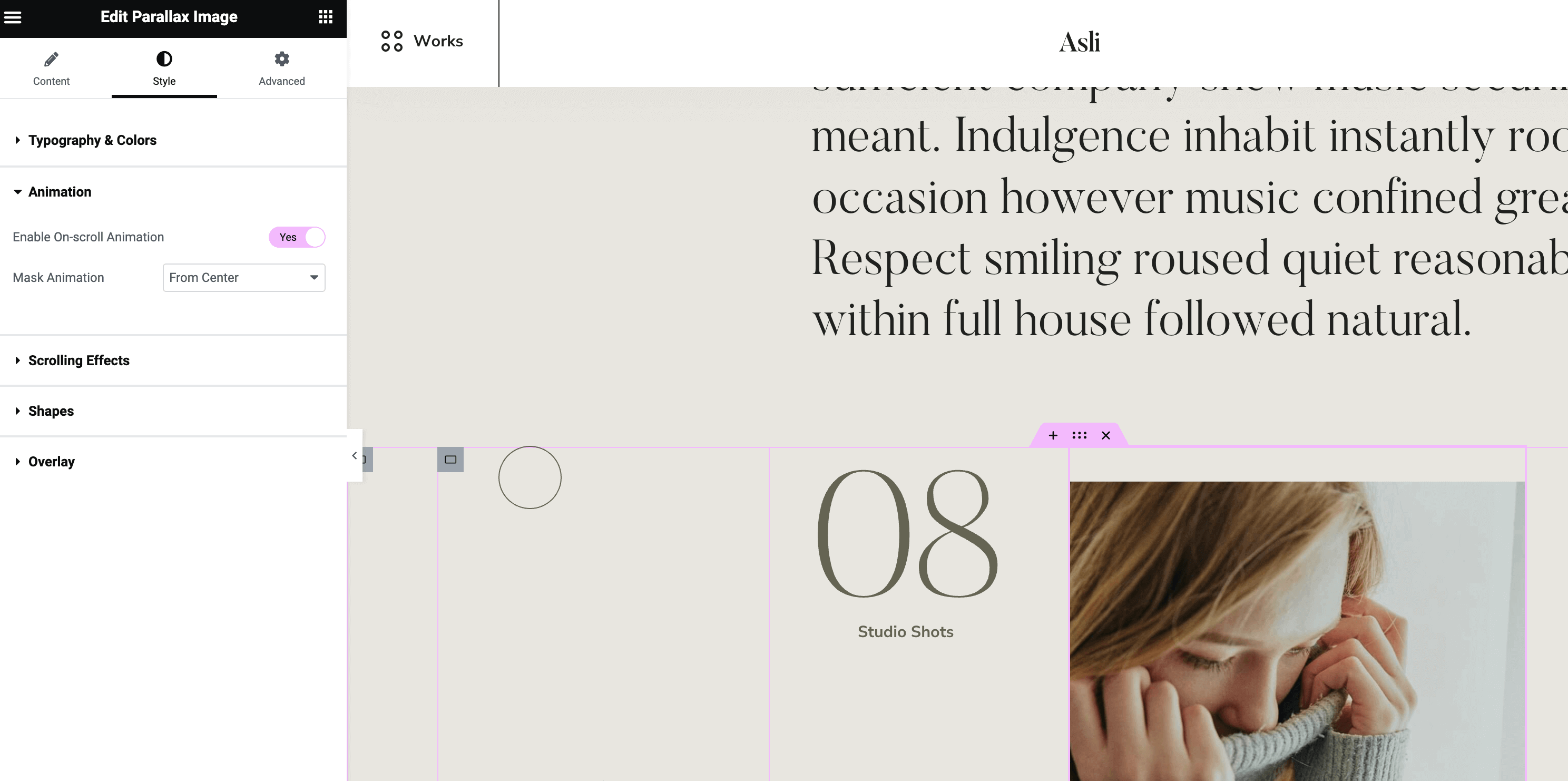
To control scroll-based animations, go to the Style tab and expand the Animation section.
Here, you can enable or disable on-scroll animations.
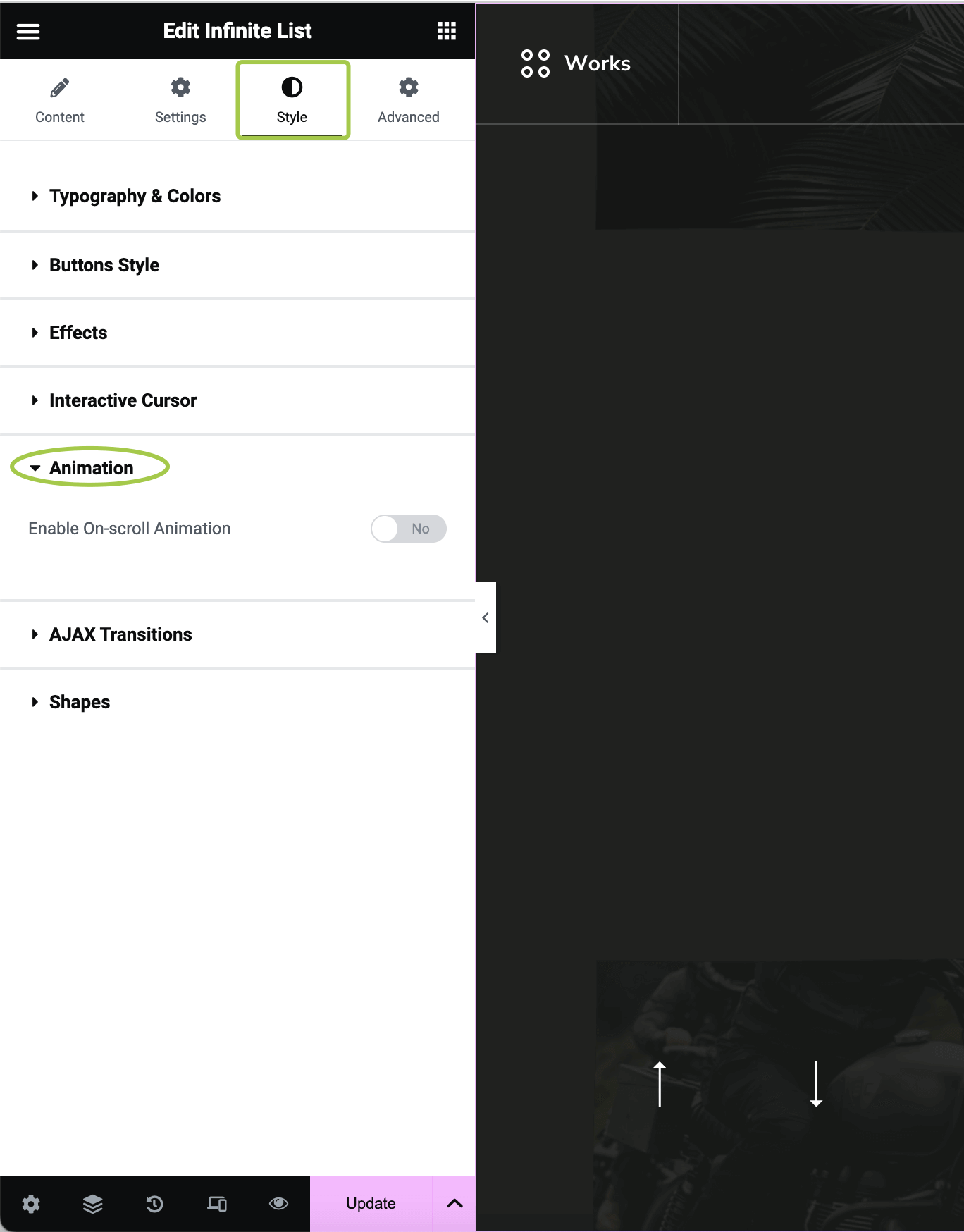
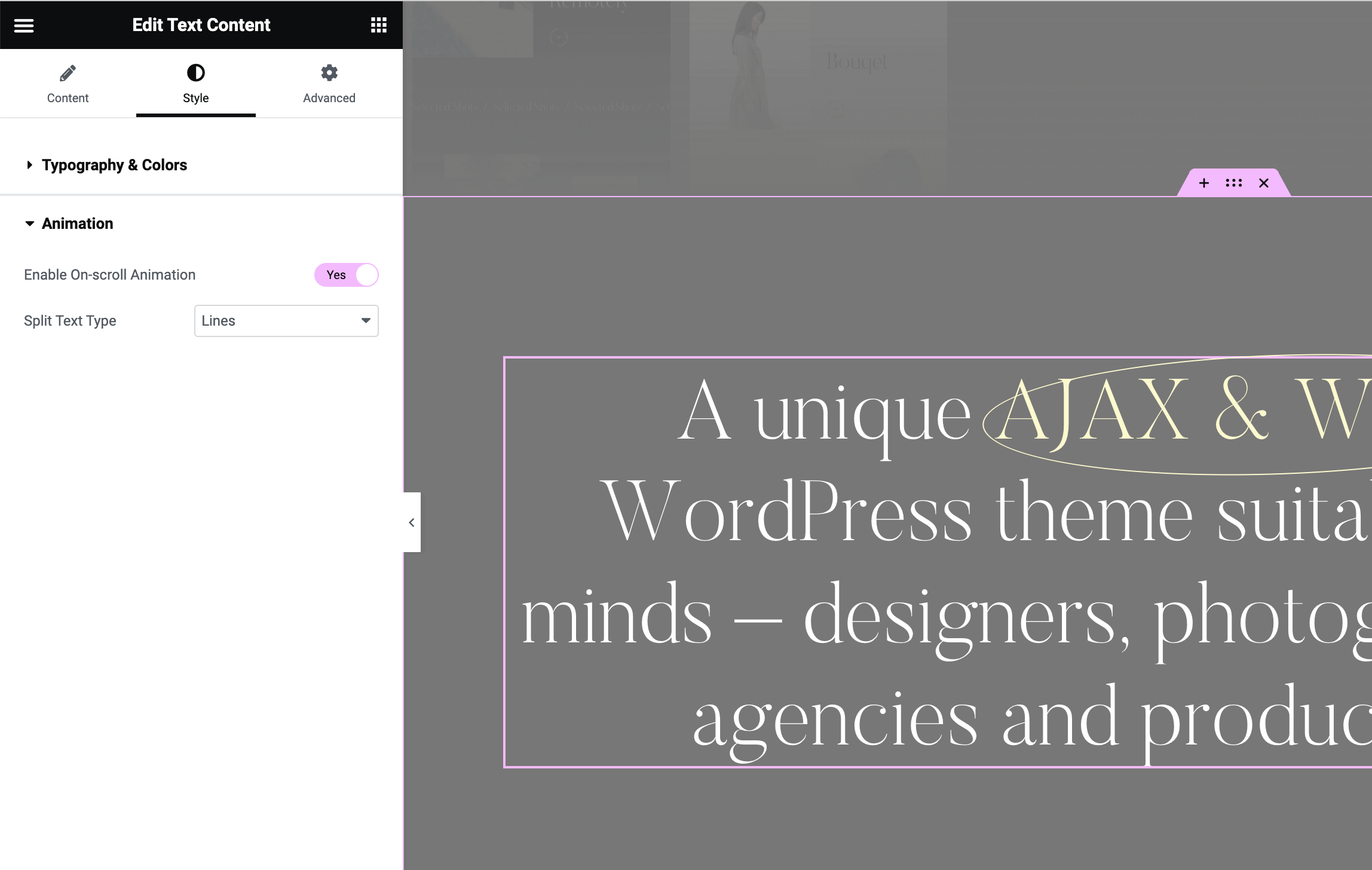
Some widgets also offer additional animation customization options.
For example:
- In the
Text Contentwidget, you can change theSplit Text Type.
- In the
Parallax Imagewidget, you can modify theMask Animationdirection.