Appearance
Wizard Setup & Demo Import
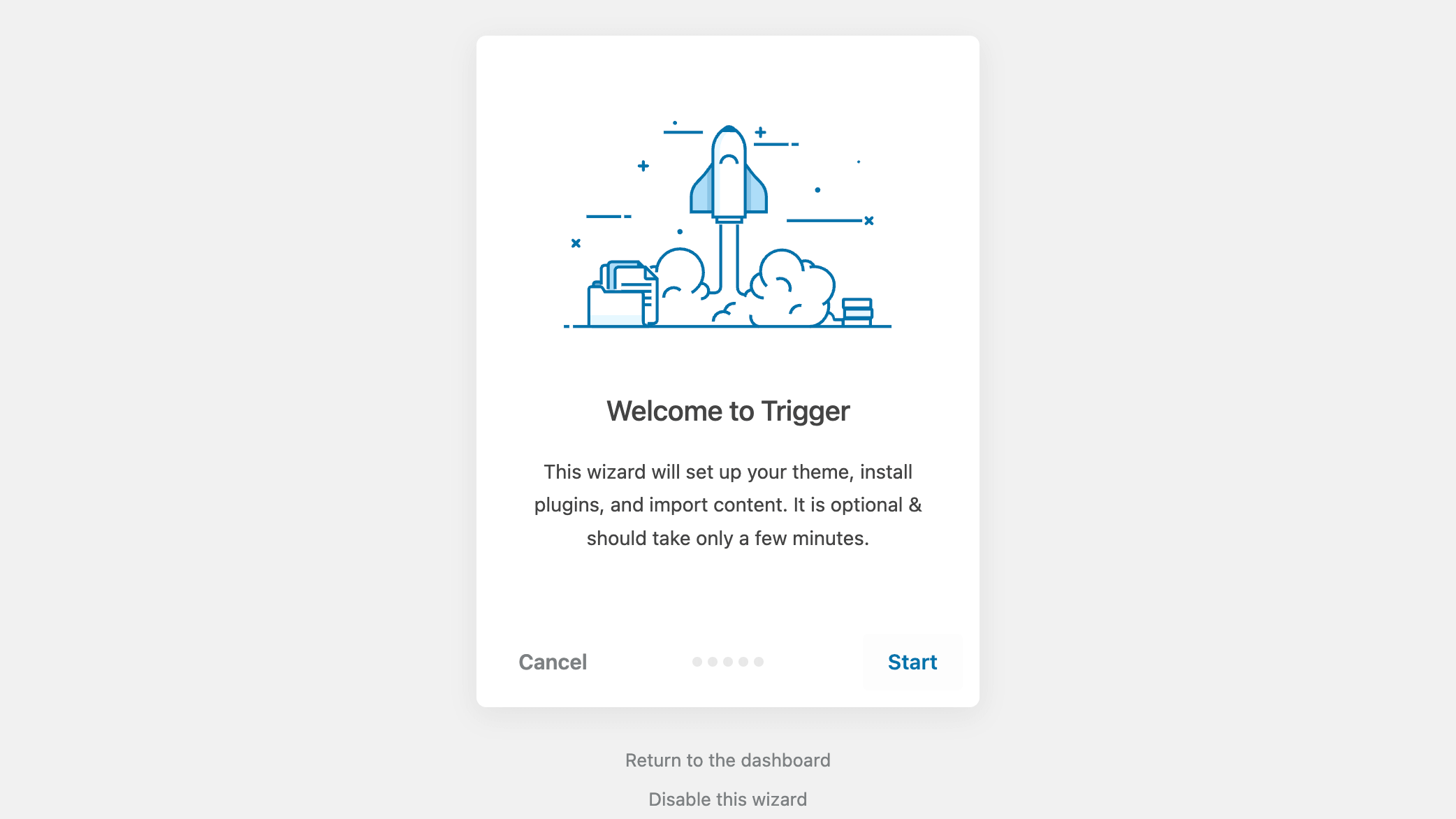
After the first theme activation, a simple wizard will guide you through the initial theme setup. Simply follow all the steps by clicking the Next button. Once you complete all the steps, your website will be ready to use.
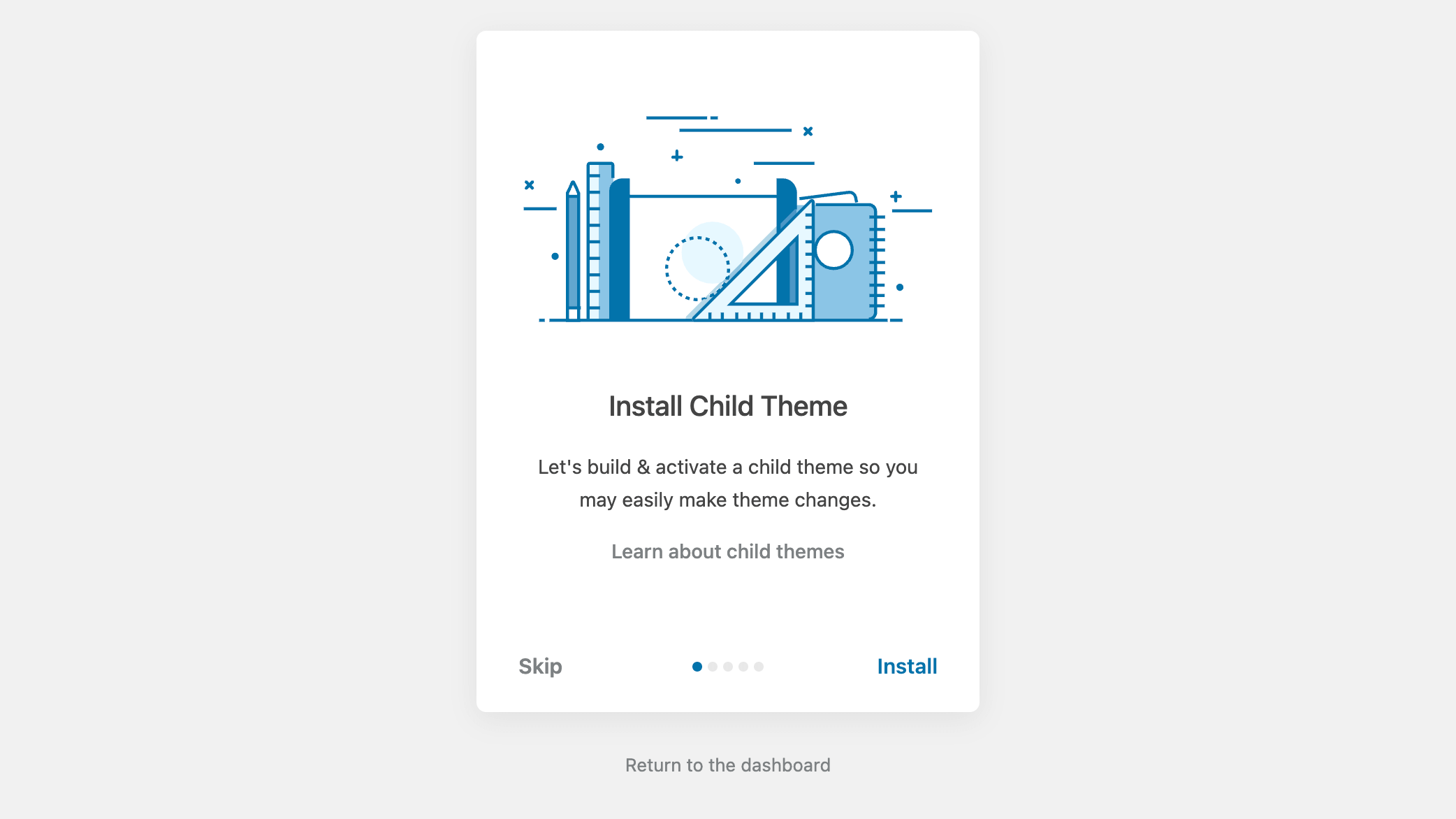
▶️ Step 1.
Install and activate the child theme first.
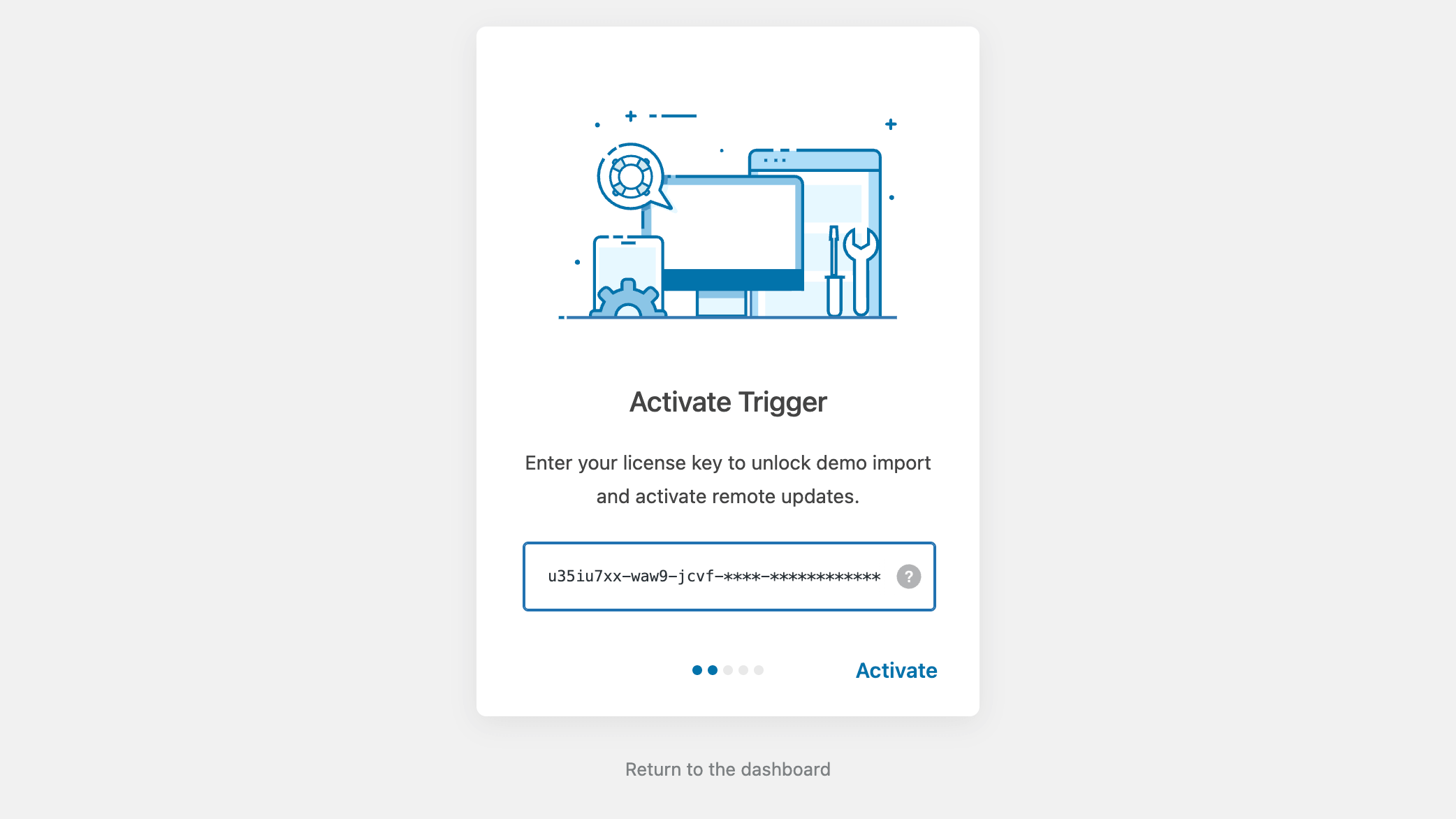
▶️ Step 2.
Activate your theme license by entering the purchase code.
▶️ Step 3.
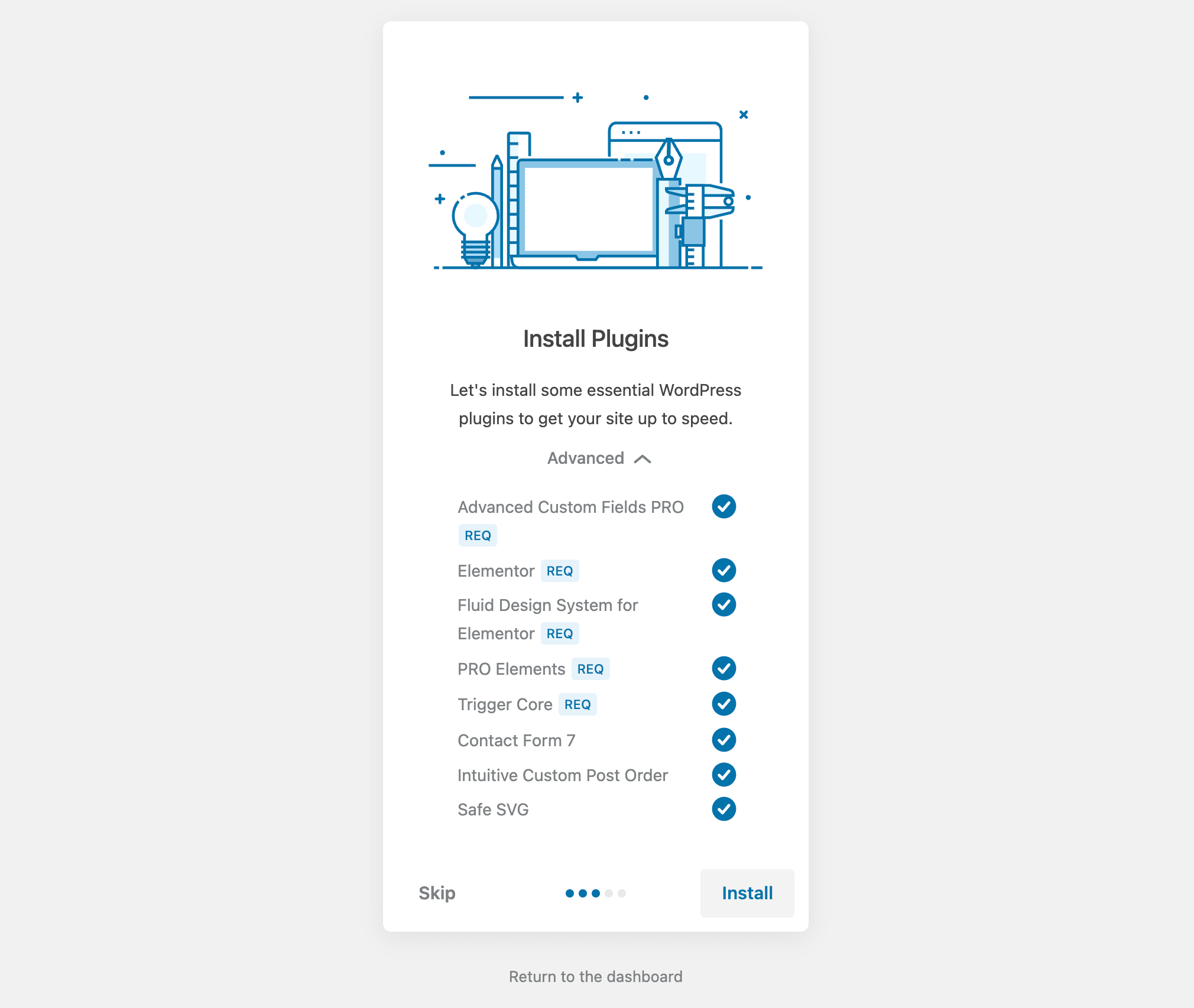
Install and activate all required and recommended plugins. See Plugin Compatibility Overview for detailed setup guides for each plugin.
▶️ Step 4.
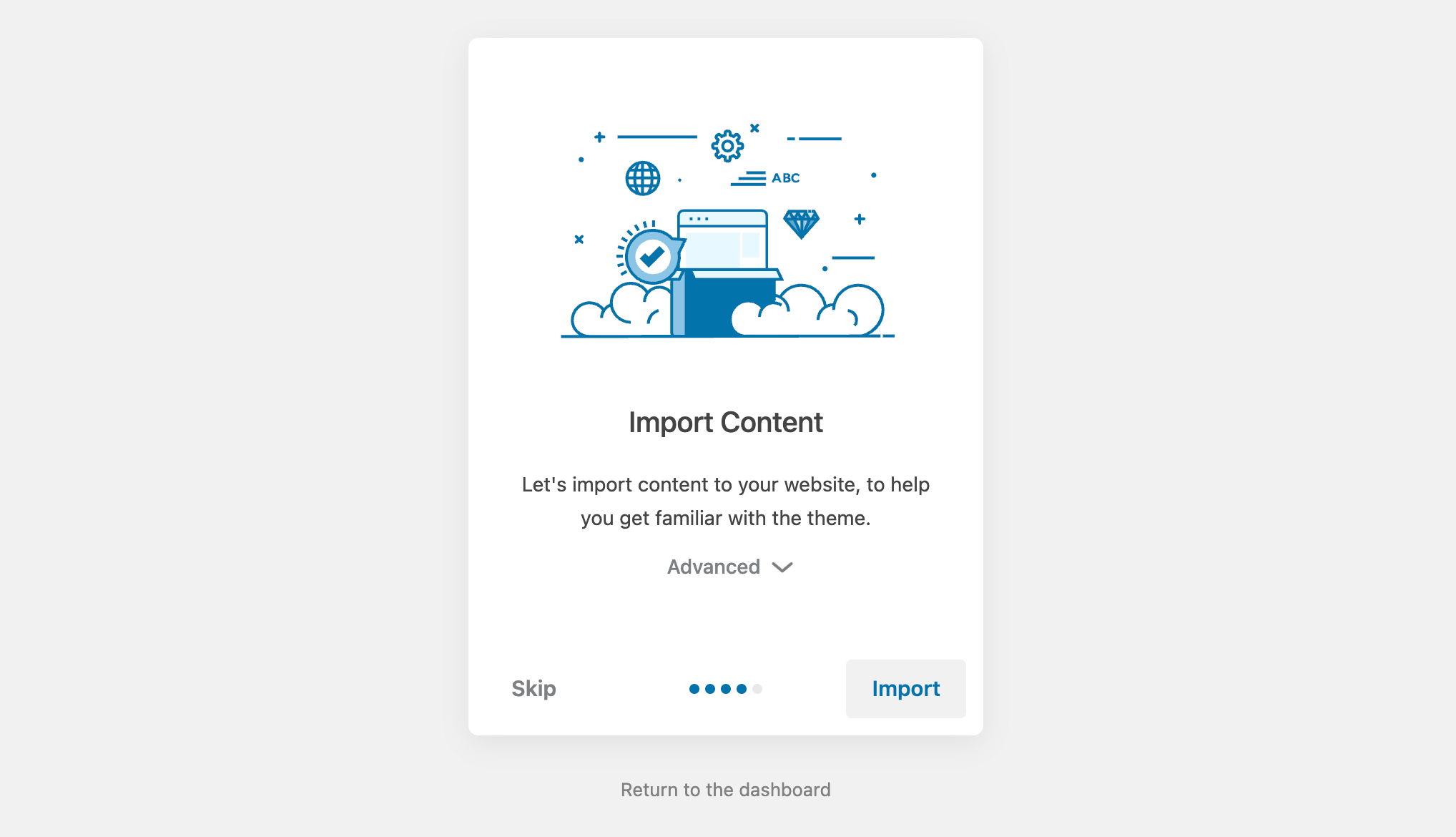
Import the theme’s demo data into your WordPress installation. This process typically takes 10-20 minutes, depending on your server location and bandwidth.
WARNING
Do not close the browser tab during the import!
▶️ Step 5.
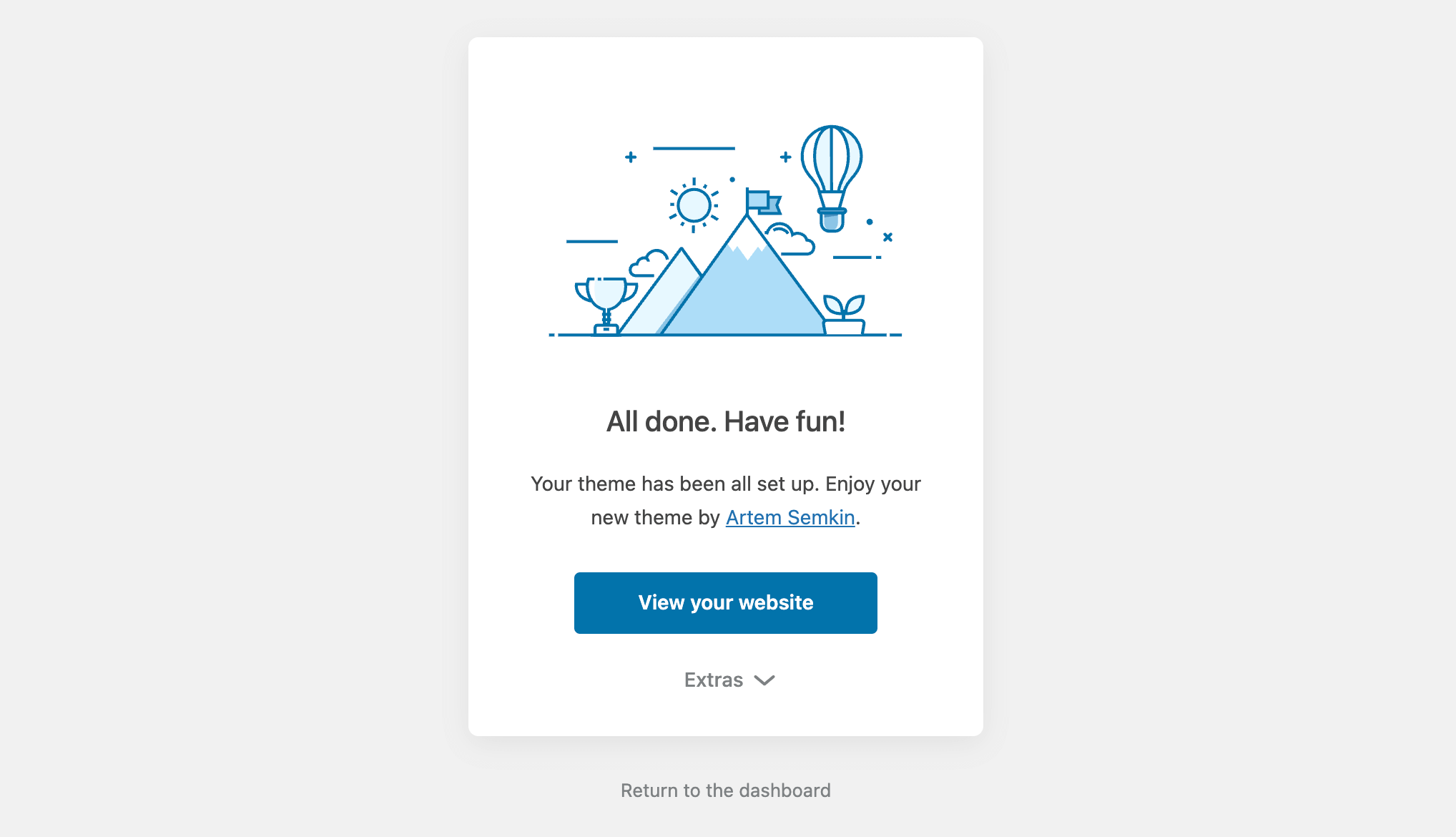
Once the demo import is complete, click Visit your website. You should see a homepage with a fullscreen slider.
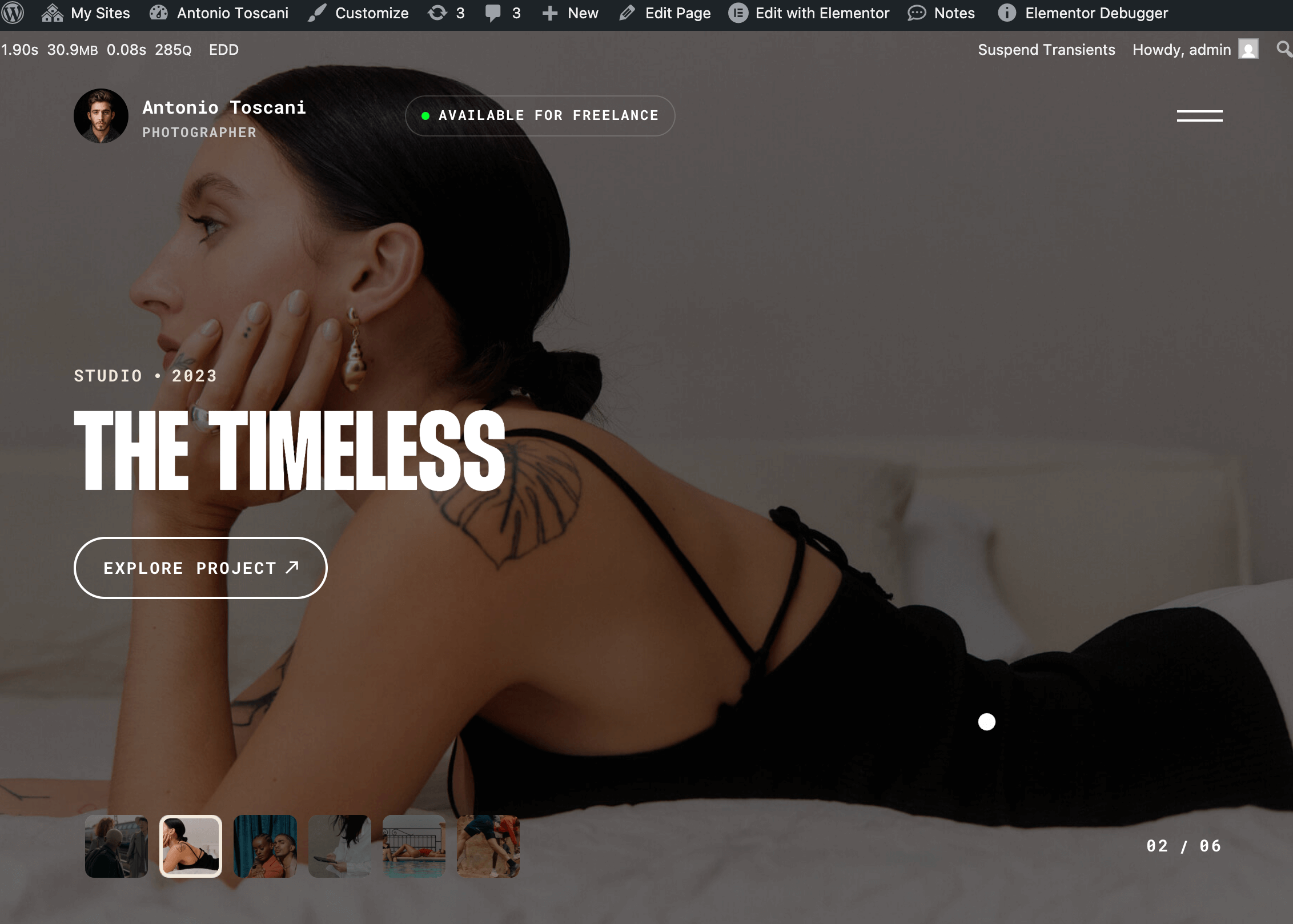
If you think the demo import didn't go well (e.g., missing images, broken page layout, incorrect typography), please check the Troubleshooting article for solutions.
After Setup Complete
Now that your theme is installed:
How to Regain Access to the Wizard Setup
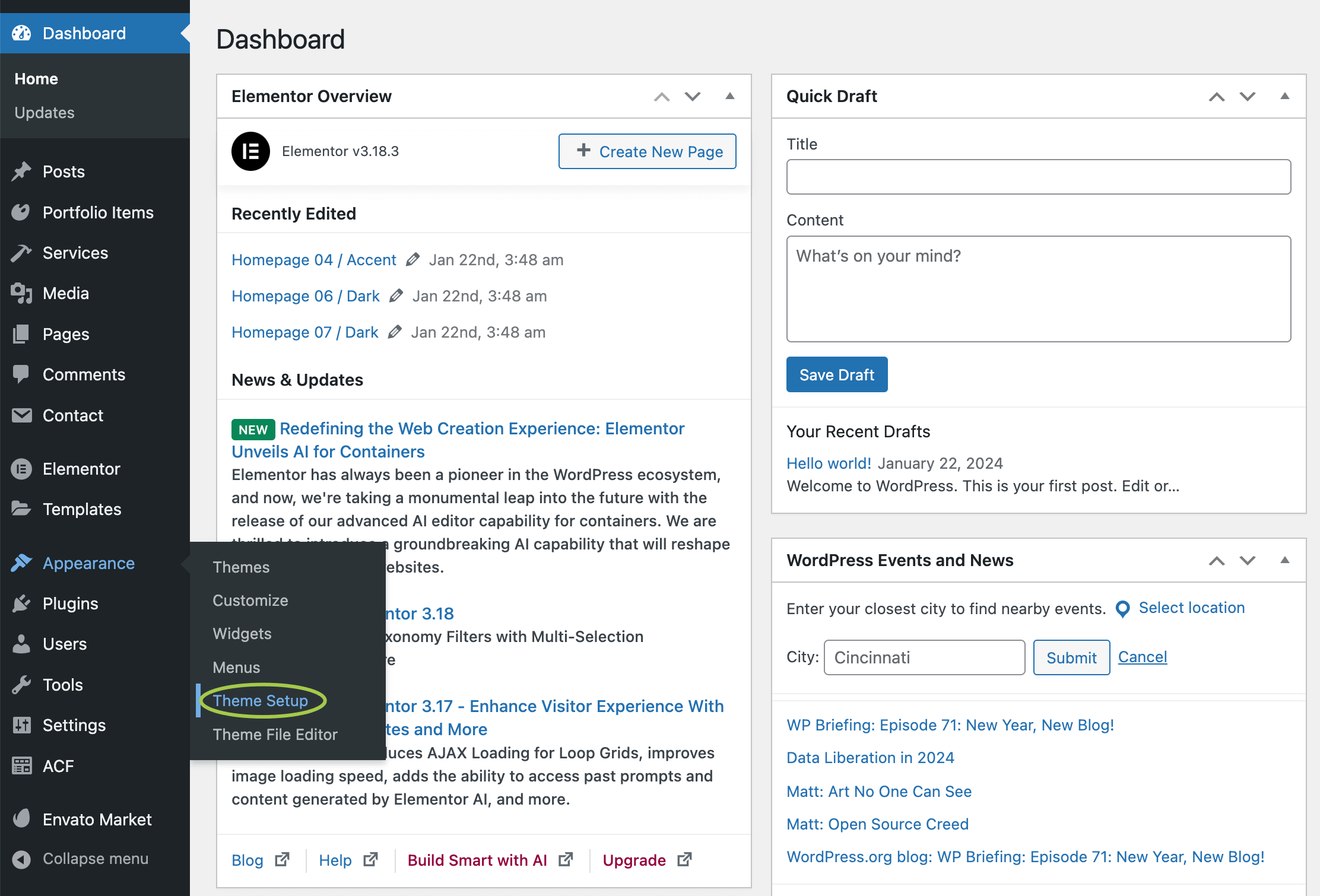
In the admin panel, hover over Appearance, then click the Theme Setup menu item.