Appearance
Editing Saved Templates (Shortcodes)
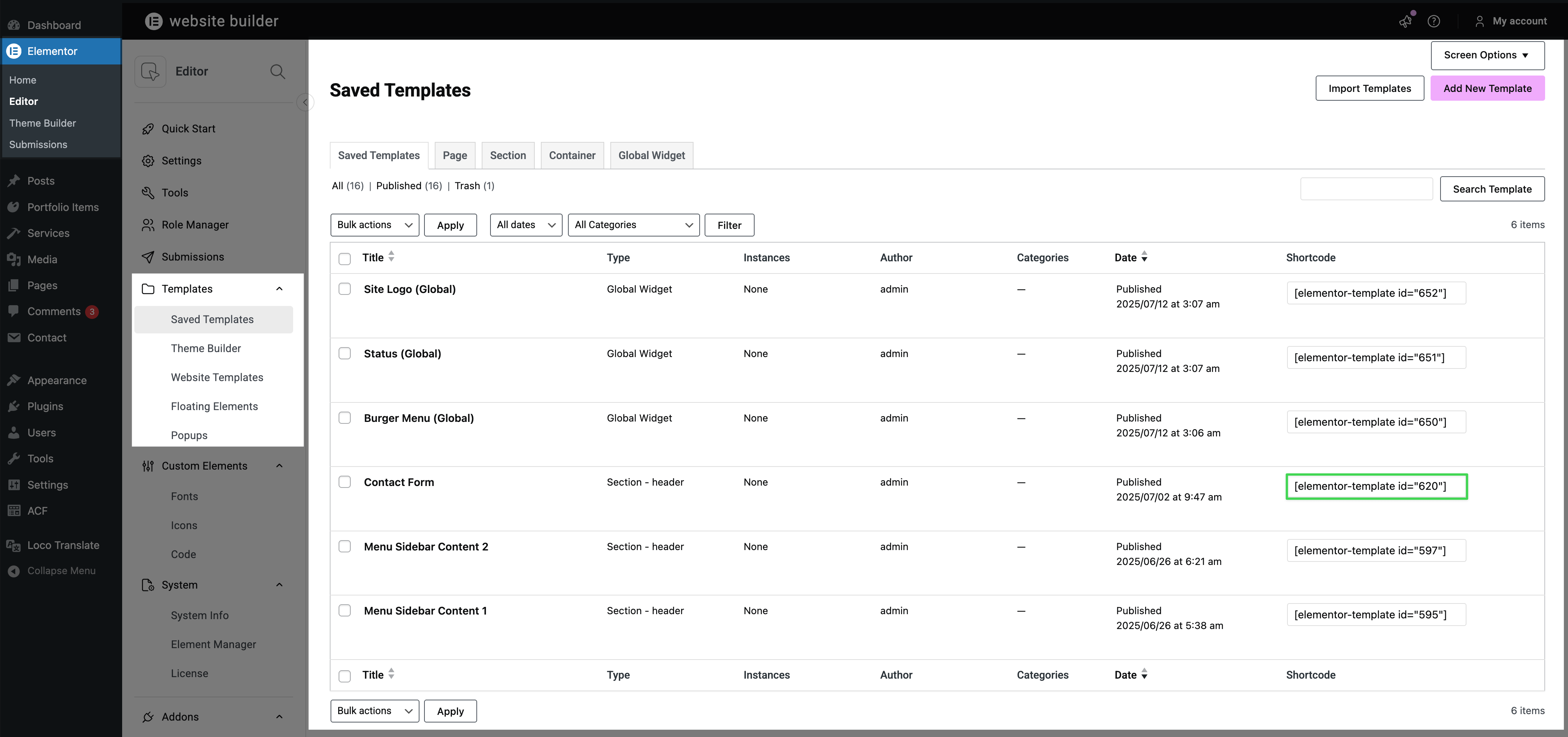
Trigger uses Elementor's saved templates to display reusable content blocks in various places — like the social icons in the burger menu, the "Start Project" button, or the contact form popup. These templates are embedded via shortcodes (e.g., [elementor-template id="620"]).
The benefit: edit once, update everywhere. For example, your contact form or call-to-action button can appear in multiple places — all pulling from the same template. Update the content once, and it changes across your entire site.
Finding Saved Templates
▶️ Step 1.
Go to Elementor → Templates → Saved Templates in WordPress admin.
▶️ Step 2.
Find the template you want to edit:
| Template Name | Where It's Used |
|---|---|
| Menu Sidebar Content 1/2 | Burger menu sidebar (button + social icons) |
| Contact Form | Status widget popup ("Available for Freelance") |
▶️ Step 3.
Click on the template name to edit with Elementor.
What You Can Customize
Once inside the template, you can edit everything using standard Elementor tools:
- Social icons — change platforms, URLs, add or remove icons
- Buttons — change text, links, styling. See Button Theme Actions for special interactive behaviors.
- Contact form layout — rearrange elements, change text
- Any other content — these are regular Elementor templates
Contact Form Fields
The contact form itself is powered by Contact Form 7. To edit form fields or email settings, go to Contact → Contact Forms. See Contact Form 7 documentation for details.
How Shortcodes Work
When you see a shortcode like [elementor-template id="620"] in a widget's settings, it means that widget displays content from a saved template.
To find which template a shortcode refers to:
- Note the ID number (e.g.,
620) - Go to Elementor → Templates → Saved Templates
- Look at the Shortcode column to match the ID
This lets you trace any shortcode back to its source template for editing.