Appearance
Mouse Cursor Follower
The cursor follower (also known as a custom cursor, cursor animation, or mouse trail effect) adds a stylized animated circle that follows your mouse pointer, creating an interactive visual effect popular in portfolio and creative websites.
This Elementor-based feature is designed for desktop users only — the theme automatically hides it on touch devices and screens without precise pointer input.
How to Access this Panel
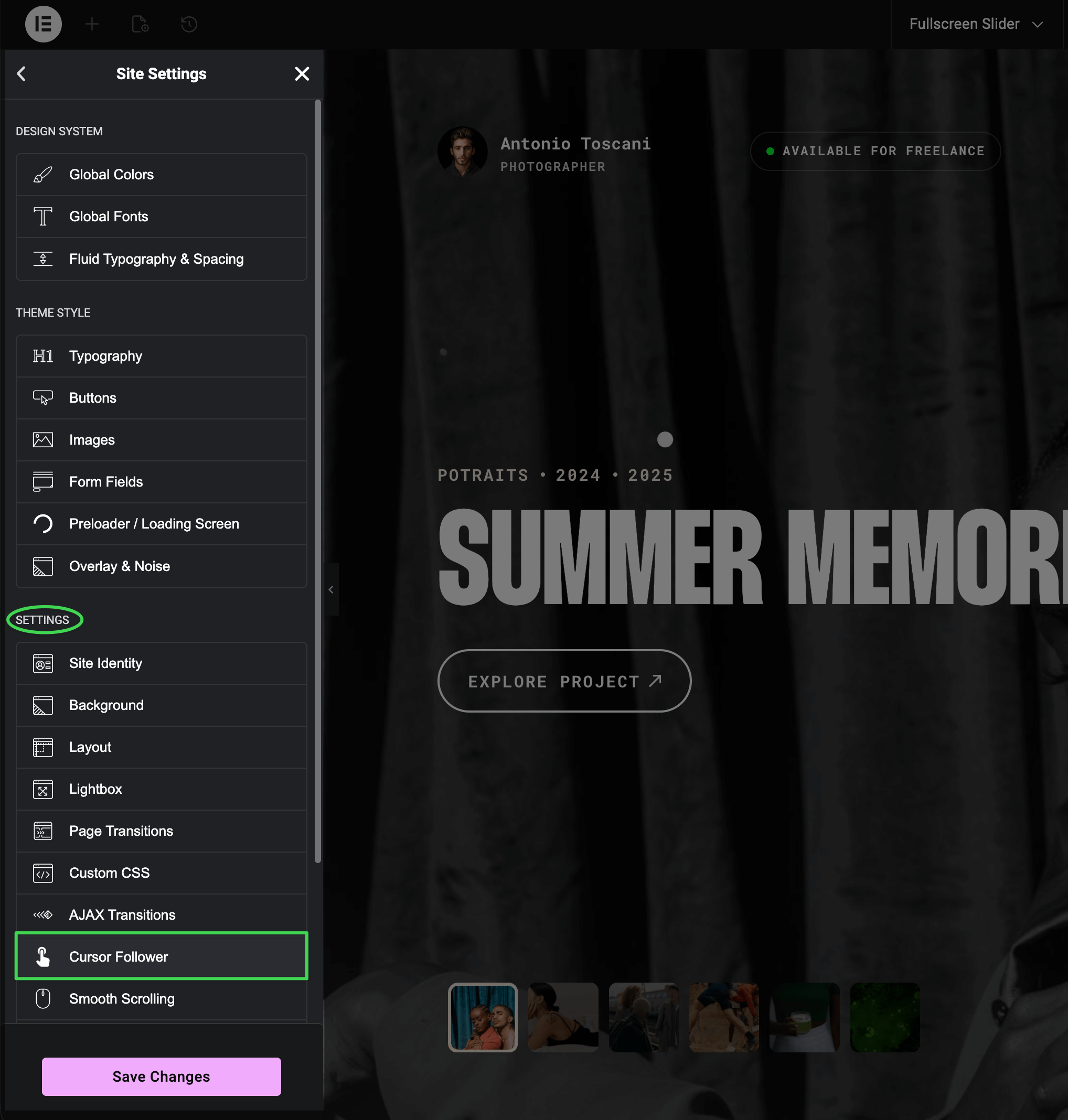
Open Site Settings panel in Elementor using this guide Accessing Theme Options Panel and select Cursor Follower.
Enabling or Disabling
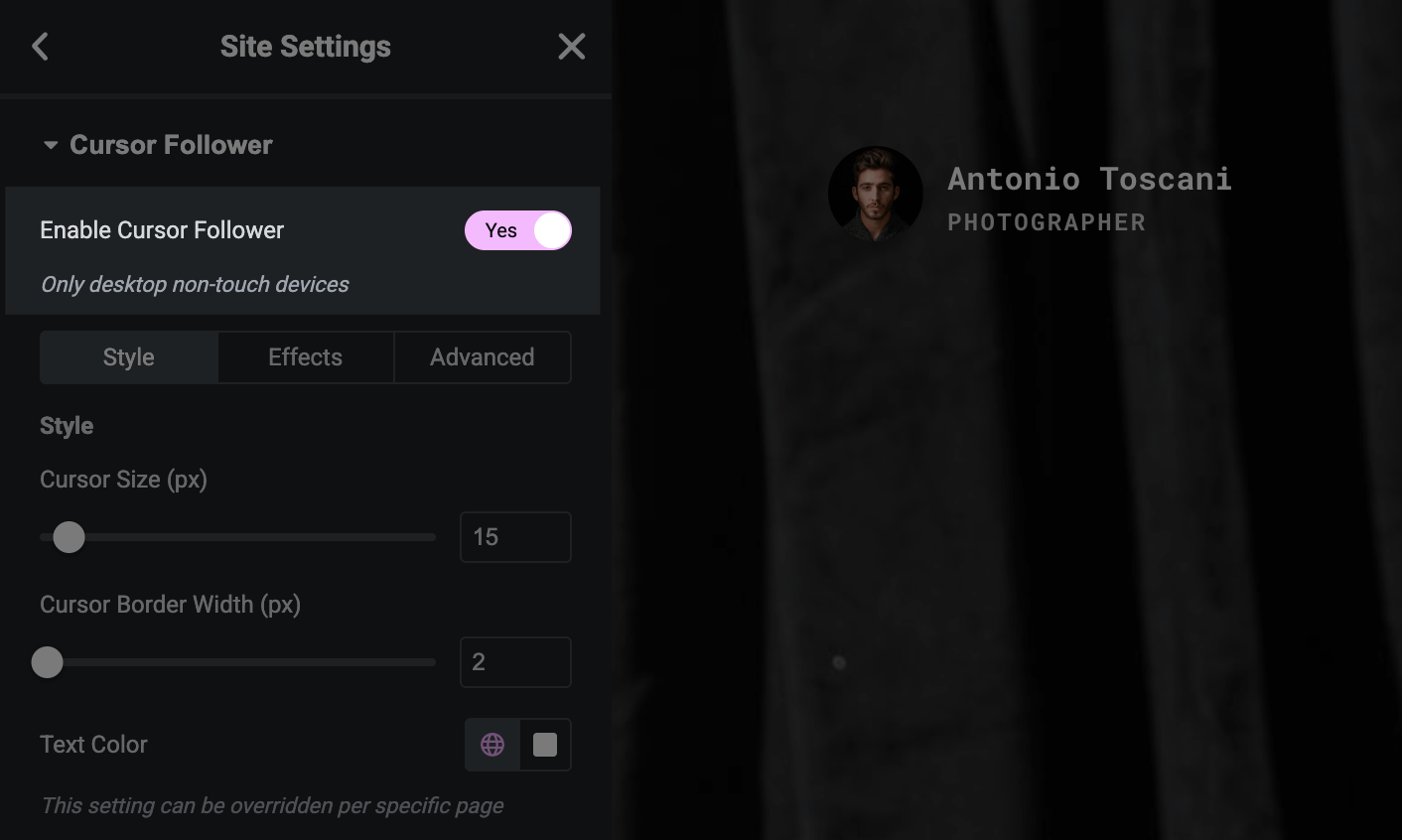
Toggle Enable Cursor Follower at the top of the panel to turn the effect on or off site-wide.
Why doesn't it appear on mobile?
The cursor follower only works on devices with a mouse pointer. Tablets, phones, and touchscreens don't have hover interactions, so the effect is automatically hidden on those devices regardless of this setting. As a bonus, the cursor follower JavaScript doesn't load at all on mobile — keeping your site fast and lightweight for touch users.
Customizing Appearance
In the Style tab, you can match the cursor to your brand:
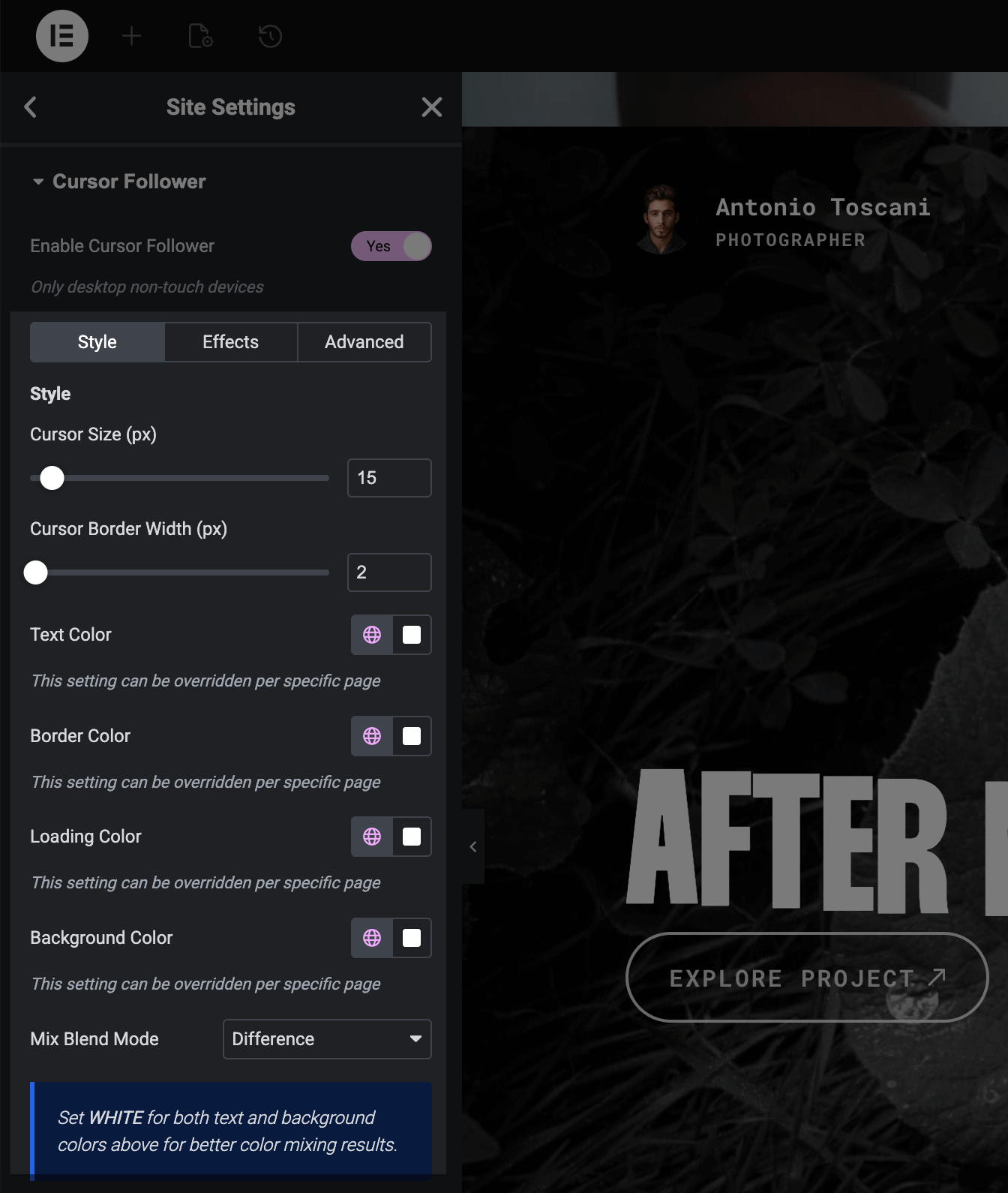
- Cursor Size — diameter in pixels (smaller values feel subtle, larger ones more prominent)
- Border Width — thickness of the cursor outline
- Colors — text, border, background, and loading indicator colors
- Mix Blend Mode — set to "Difference" for an inverted color effect that adapts to any background
Mix Blend Mode
Trigger uses "Difference" mode with white colors by default — this creates an inverted color effect that automatically adapts to any background. If you change the blend mode, you may need to adjust the colors accordingly.Cursor Effects
In the Effects tab, toggle and fine-tune these behaviors to add personality and polish to your cursor:
- Trailing Effect — adds a smooth delay as the cursor follows your mouse, creating fluid motion
- Elastic Effect — the cursor stretches and squishes based on movement speed for a playful feel
- Highlight Effect — cursor expands when hovering over links and buttons, drawing attention to interactive elements
- Magnetic Effect — cursor snaps slightly toward clickable elements, improving perceived interactivity
- Scale on Click — cursor shrinks or grows when you click, providing visual feedback
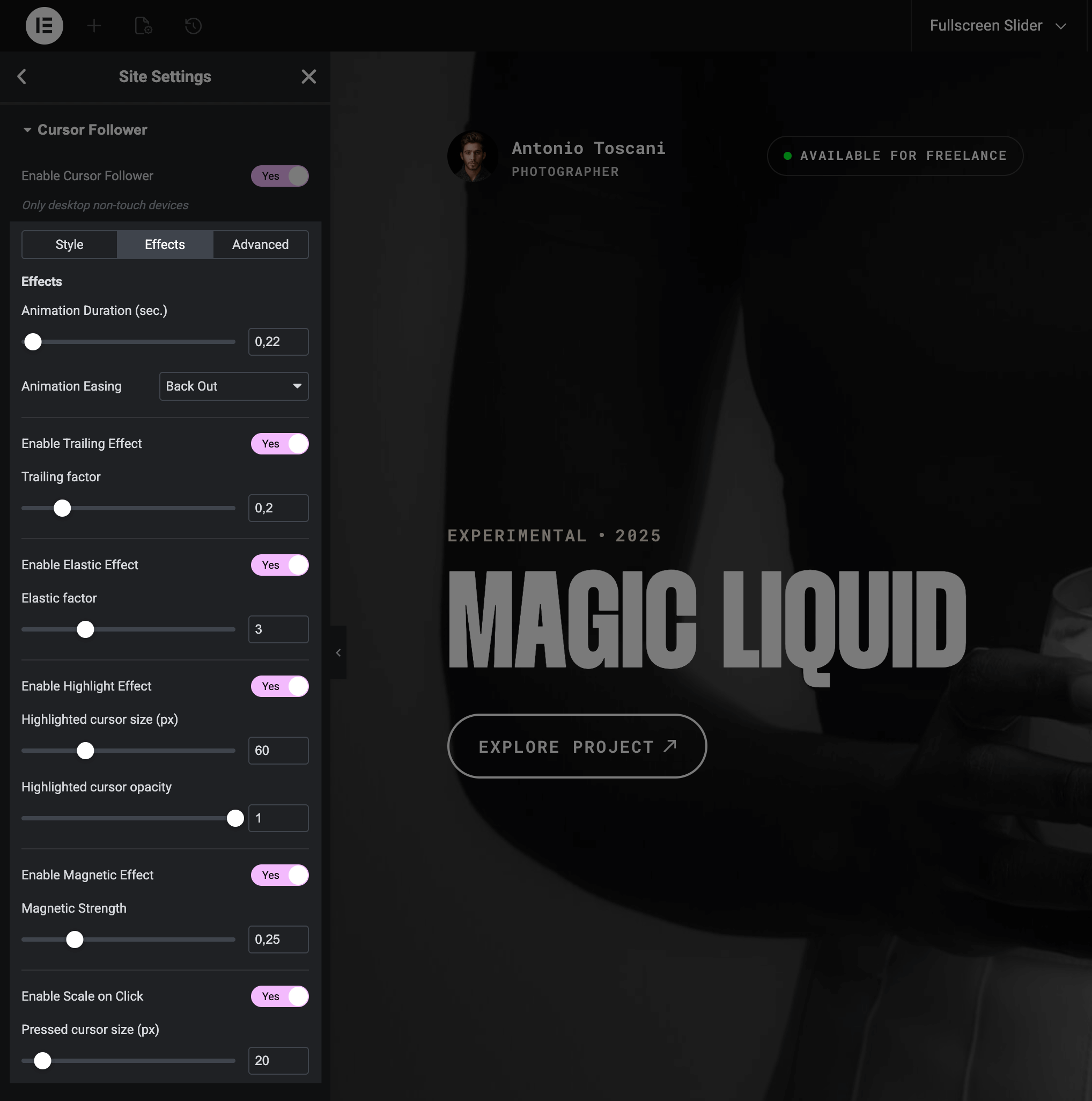
Each effect has additional controls (duration, strength, scale) to dial in exactly the feel you want. Start subtle — a little goes a long way.