# Using Custom Icons
Elementor initially comes with some default icon packs for your widgets. But what if you want to use a completely unique custom SVG icon? That’s possible! You need to set up a plugin called Custom Icons for Elementor (opens new window).
TIP
Custom Icons for Elementor (opens new window) is recommended by Rhye theme, so you are likely to already have it installed. If not, just search for it from the admin panel Plugins → Add New. It’s completely free and very easy to use.
# ▶️ Step 1.
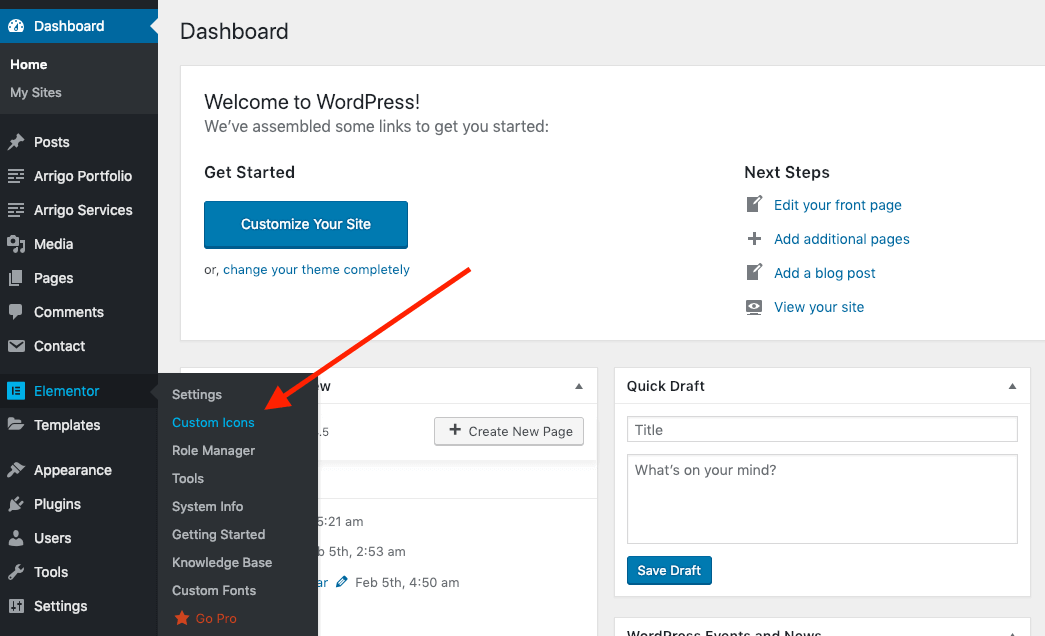
If the plugin is installed correctly, you should see an extra menu row under the Elementor section.
# ▶️ Step 2.
Get your SVG icons prepared. If you don’t have any icons, try to find some and download them from many open resources:
- Flaticon (opens new window)
- The Noun Project (opens new window)
- Icons8 (opens new window)
- Material Design Icons (opens new window)
# ▶️ Step 3.
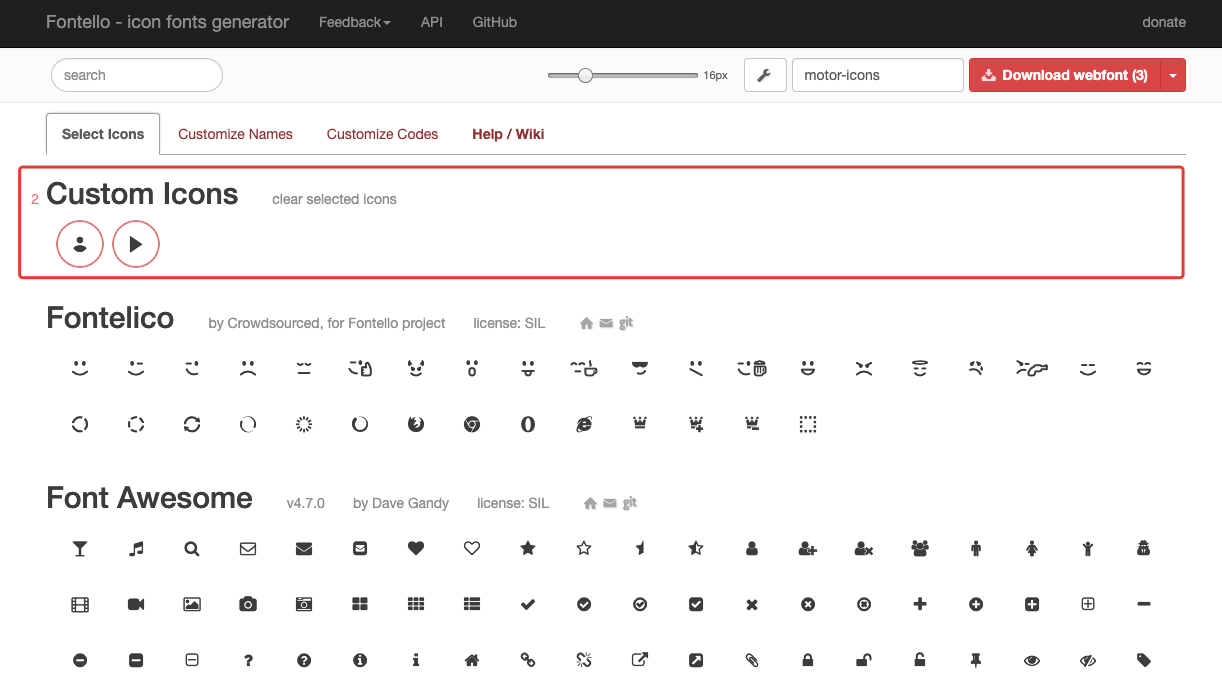
Make a web font pack using Fontello (opens new window). This service is an icon font generator that helps you create a web font out of your SVG icons. Just drag and drop all your icons to the Custom Icons area. Optionally, you can name each of your icons more concisely to ease the search afterward.
Download webfont# ▶️ Step 4.
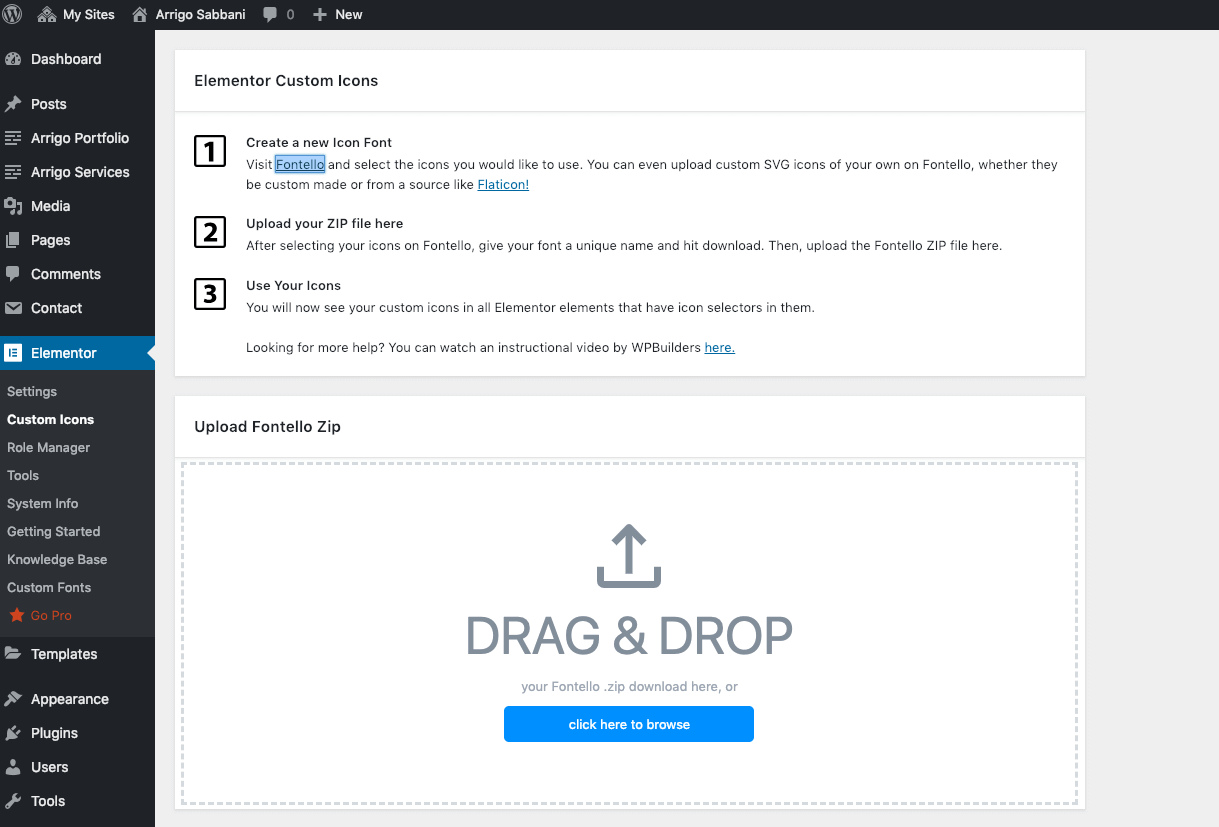
Drag and drop your font pack in Elementor → Custom Icons.
# ▶️ Step 5.
You are now able to use your icons while editing Elementor widgets. In the example below, I’ve uploaded the Linear Icons pack (opens new window) and extended the default icon set.
