# Building Pages
When launching a website, you can simply edit the existing pages that have been imported from demo content. However, it’s also possible to go beyond the classic “import demo & edit & go” concept. You can construct pages from scratch! With the Rhye theme, you are not limited to any default theme templates or layouts.
TIP
Any Elementor widget can be placed in any layout, anywhere, giving you infinite customization possibilities!
Let’s see how to add an Elementor widget to a page.
# ▶️ Step 1.
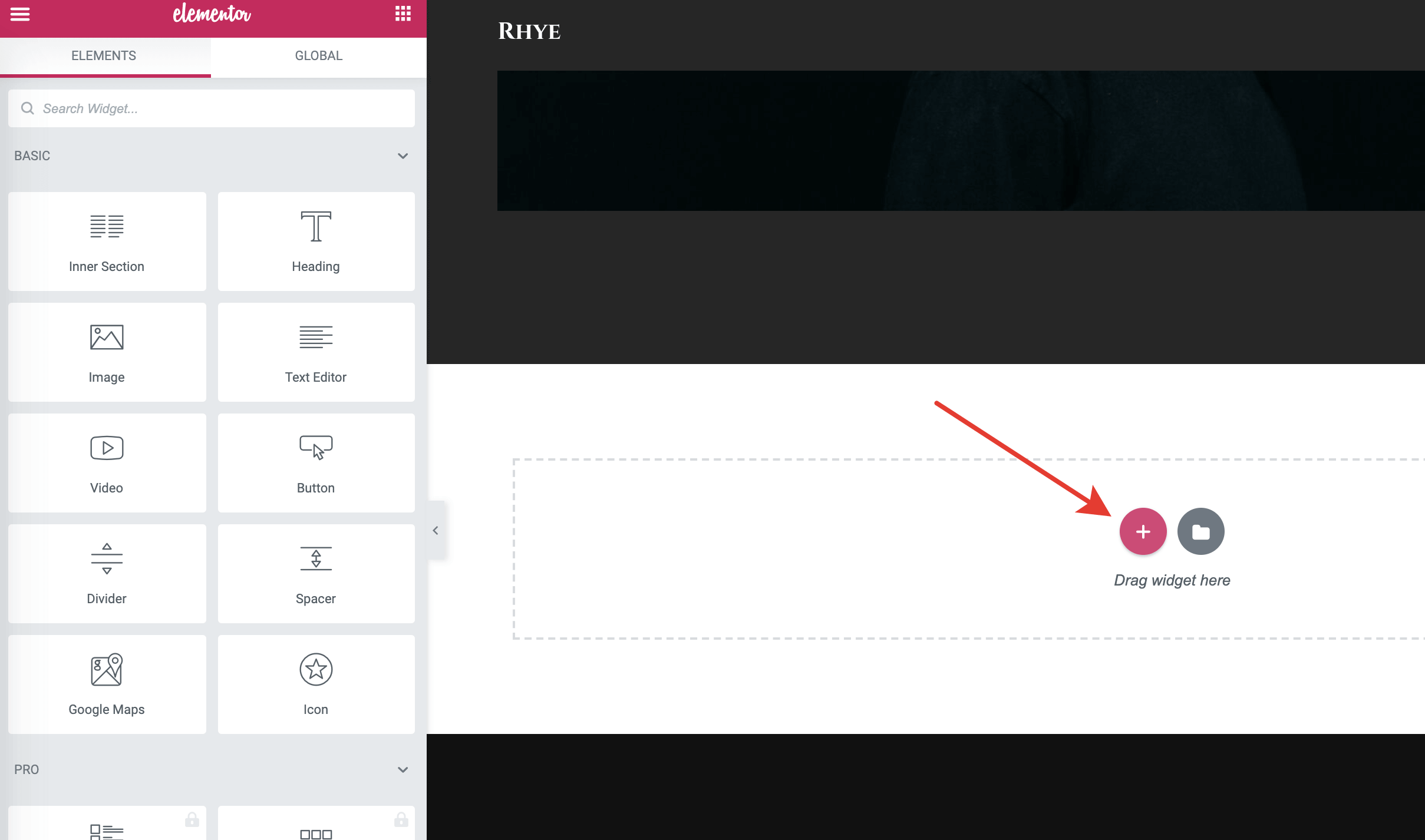
When editing a page with Elementor, click on the Plus sign.
# ▶️ Step 2.
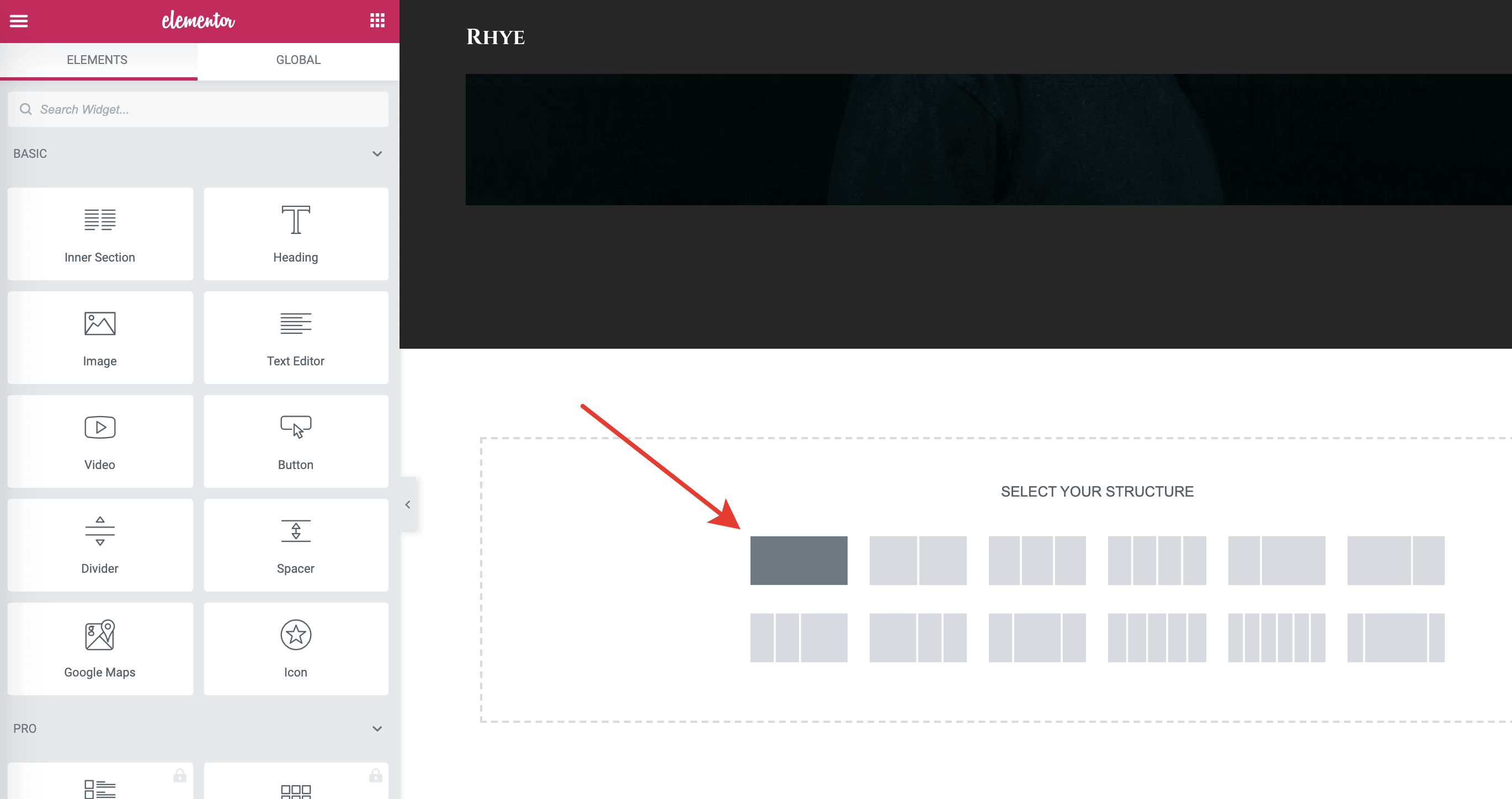
You will be prompted to select a section structure.
# ▶️ Step 3.
Click on the Grid icon in the left panel. You will see all the available widgets you can place on the page. When the Rhye Core Plugin is active (required by the theme), you will see two extra sections in the Elementor widget panel – Rhye Static Widgets and Rhye Dynamic Widgets.
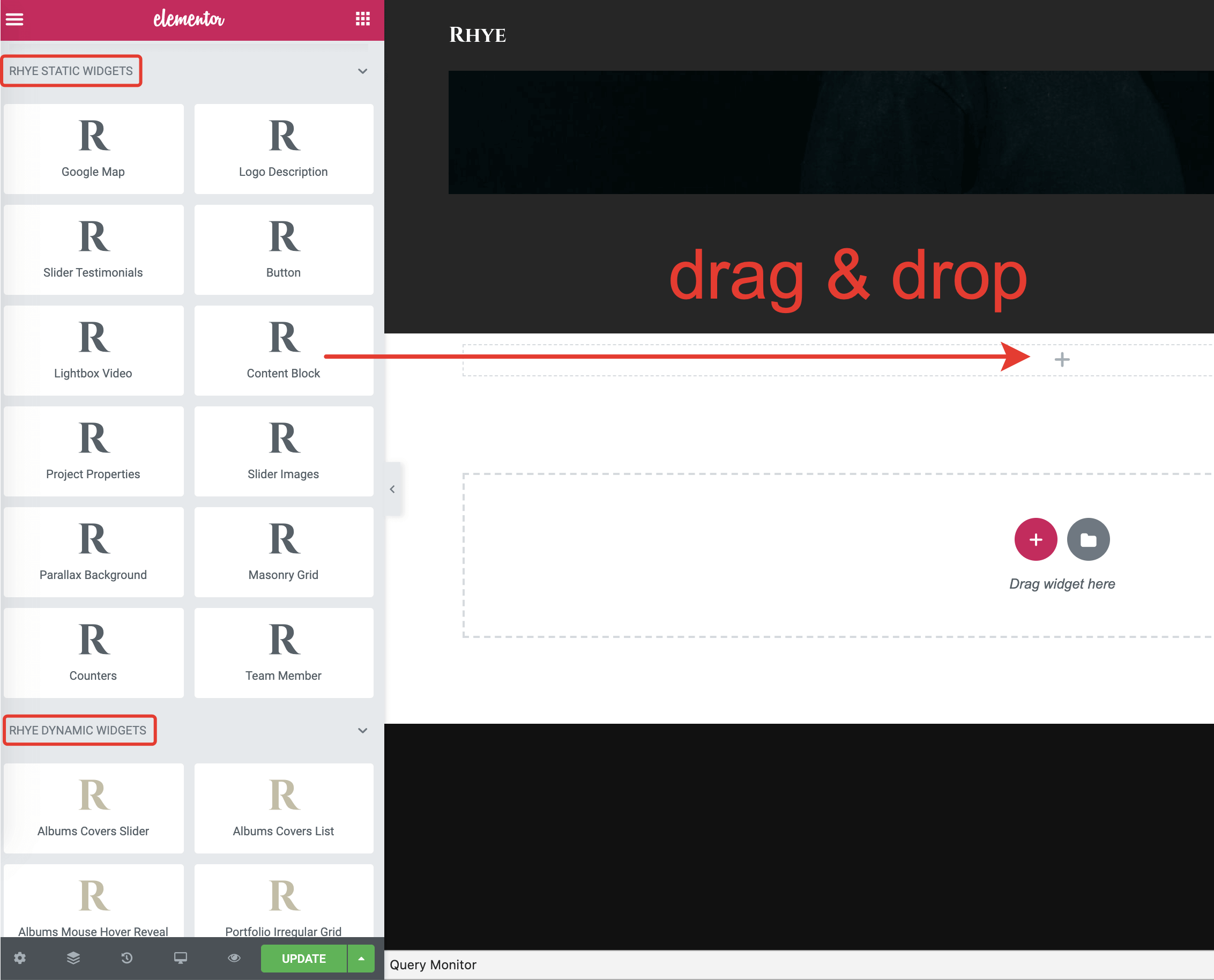
Simply drag and drop any widget onto the page. Some widgets support live editing, meaning you can click on any text on the widget and start typing the content you need. Feel free to mix custom theme widgets with Elementor default widgets when building a page.