# New Pages and Posts
In Rhye theme, pages are created normally like in any other WordPress themes. The specific difference is that you need to click the Edit with Elementor button after creation to use the live page builder for that page. There are some additional features available, which we will explore now.
Let’s figure out everything step-by-step and create a new portfolio item from scratch.
# ▶️️️️️ Step 1.
Go to Admin Panel → Portfolio Items and click Add New.

# ▶️️️️️ Step 2.
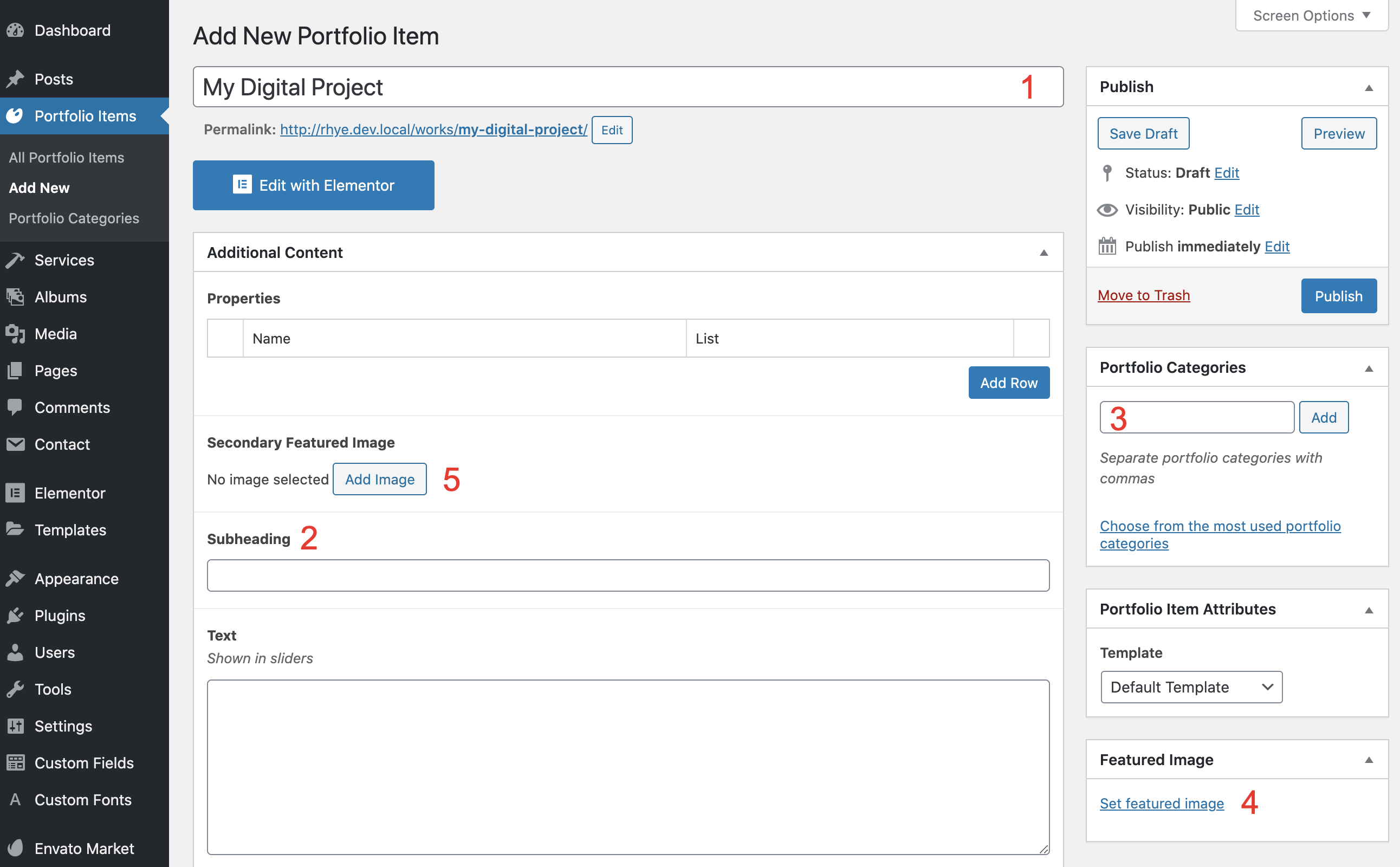
Fill in the page with some initial content:
Title(required)Subheading(optional) – additional text.Portfolio Categories(optional) – used for grid filtering.Featured Image(optional but recommended).Secondary Featured Image(optional). For example, you can upload a landscape image as theFeatured Imageand upload a portrait version of the same image as theSecondary Featured Image.
Too low file size limit?
If you struggle with uploading your large media content due to a tight file size limit, check and adjust these PHP directives in your hosting panel in the php.ini file:
upload_max_filesize = 32M
post_max_size = 32M
# ▶️️️️️ Step 3.
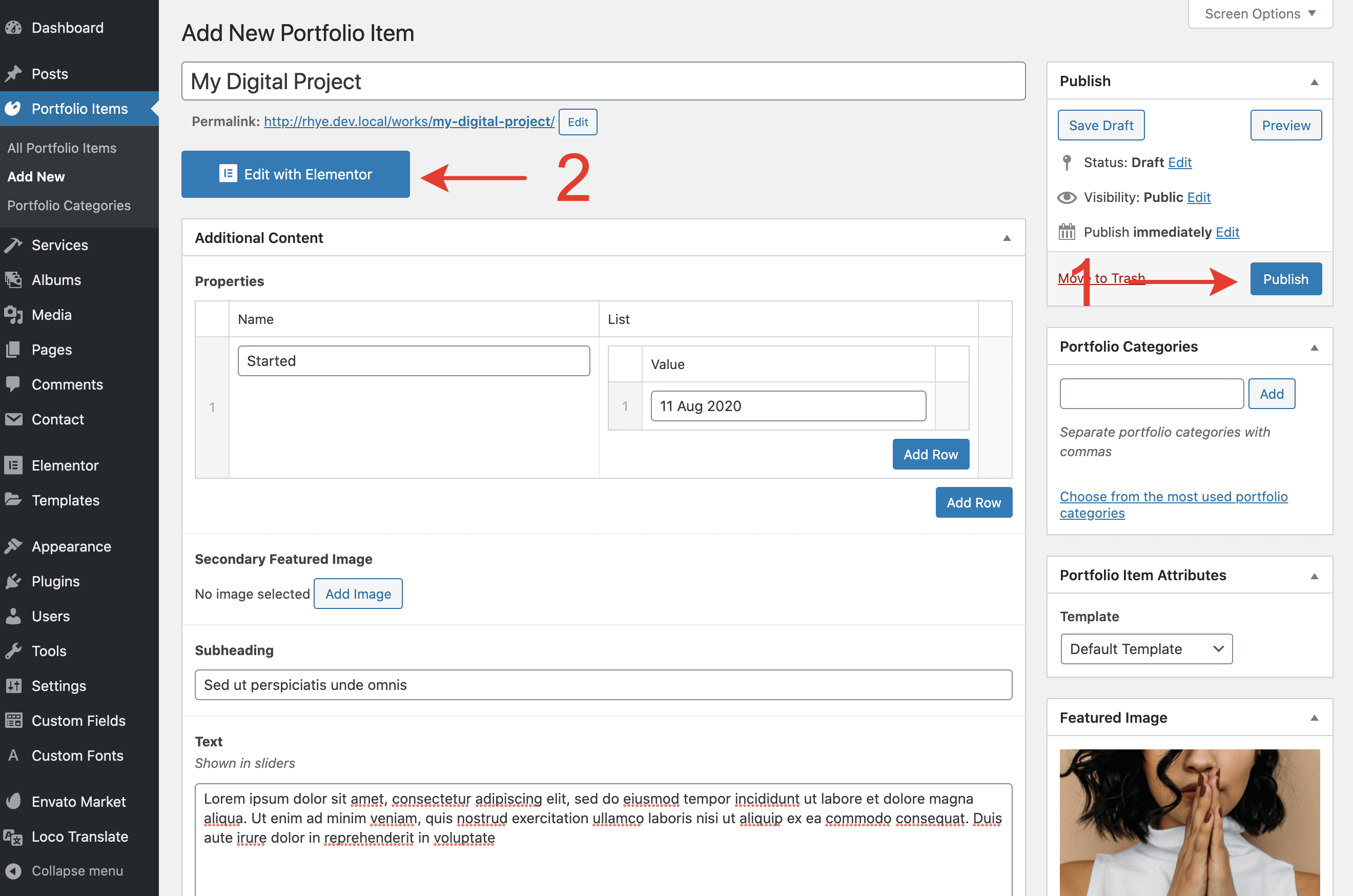
Click the Publish button. Your post will be saved and it will be ready to use with the page builder. Click the Edit with Elementor button here.
# ▶️️️️️ Step 4.
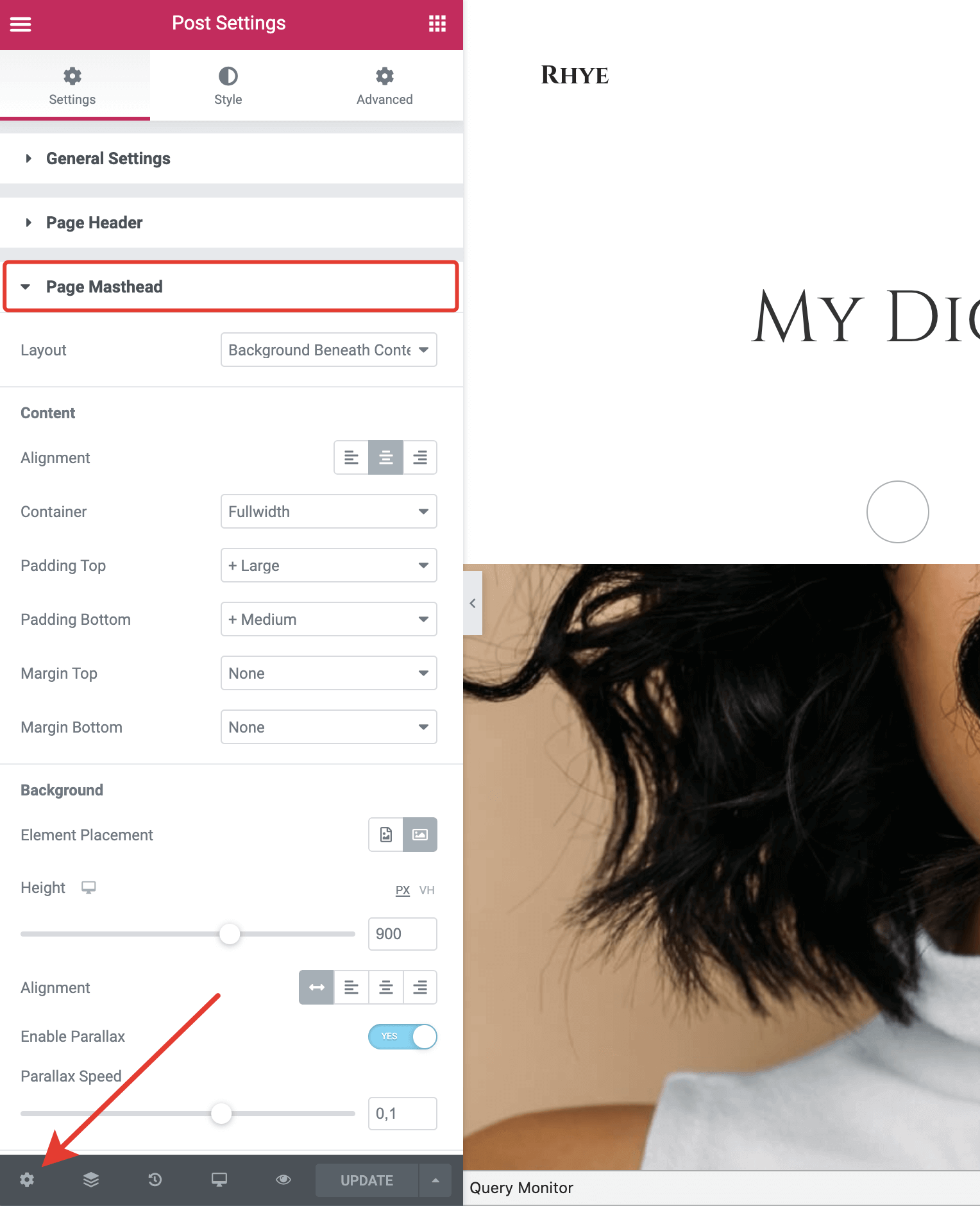
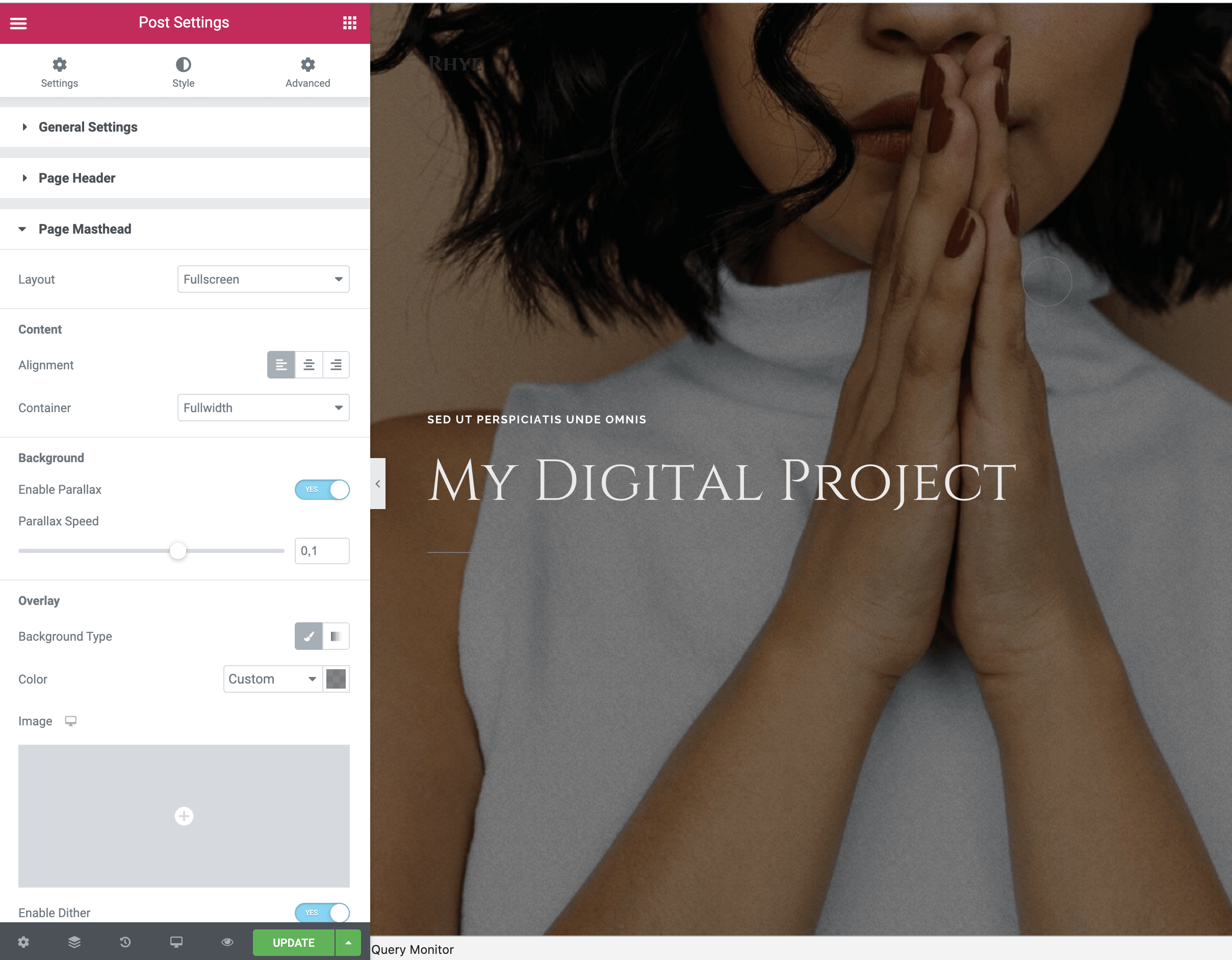
You will see that the new portfolio item is saved to the WordPress database and we are ready to fill it with content! But before that, let’s make some styling adjustments. While in Edit with Elementor mode, go to Document Settings → Page Masthead and make the necessary adjustments. You have plenty of options to play with here.
# ▶️️️️️ Step 5.
Start composing your page with Elementor widgets in the left panel. Don't forget to save your changes from time to time by clicking the Update button in the bottom left corner.
# Displaying in Dynamic Widgets
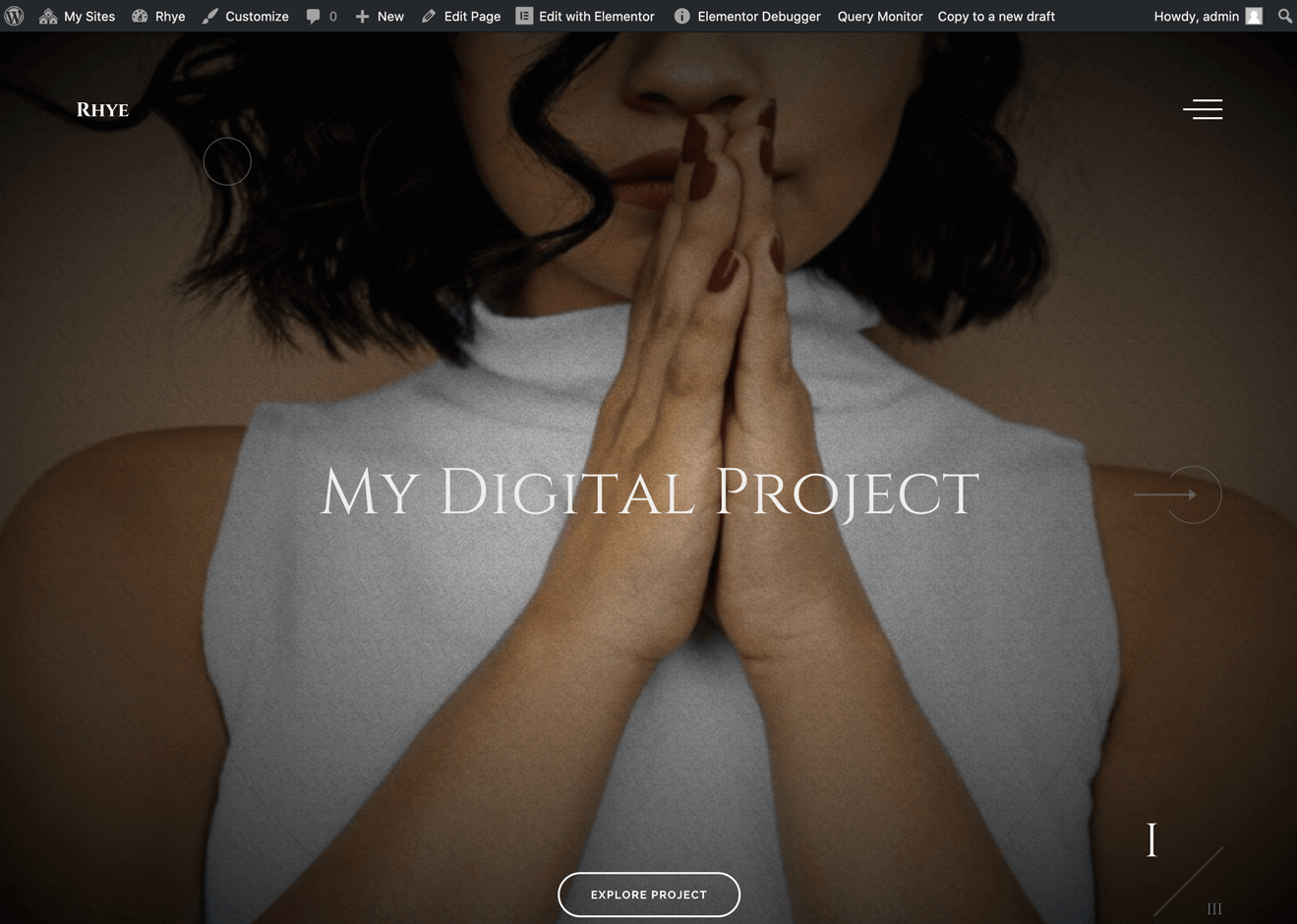
When you save a new portfolio item, it will be automatically fetched in dynamic Elementor widgets. For example, here is a fullscreen slider widget where our new portfolio item just appeared.
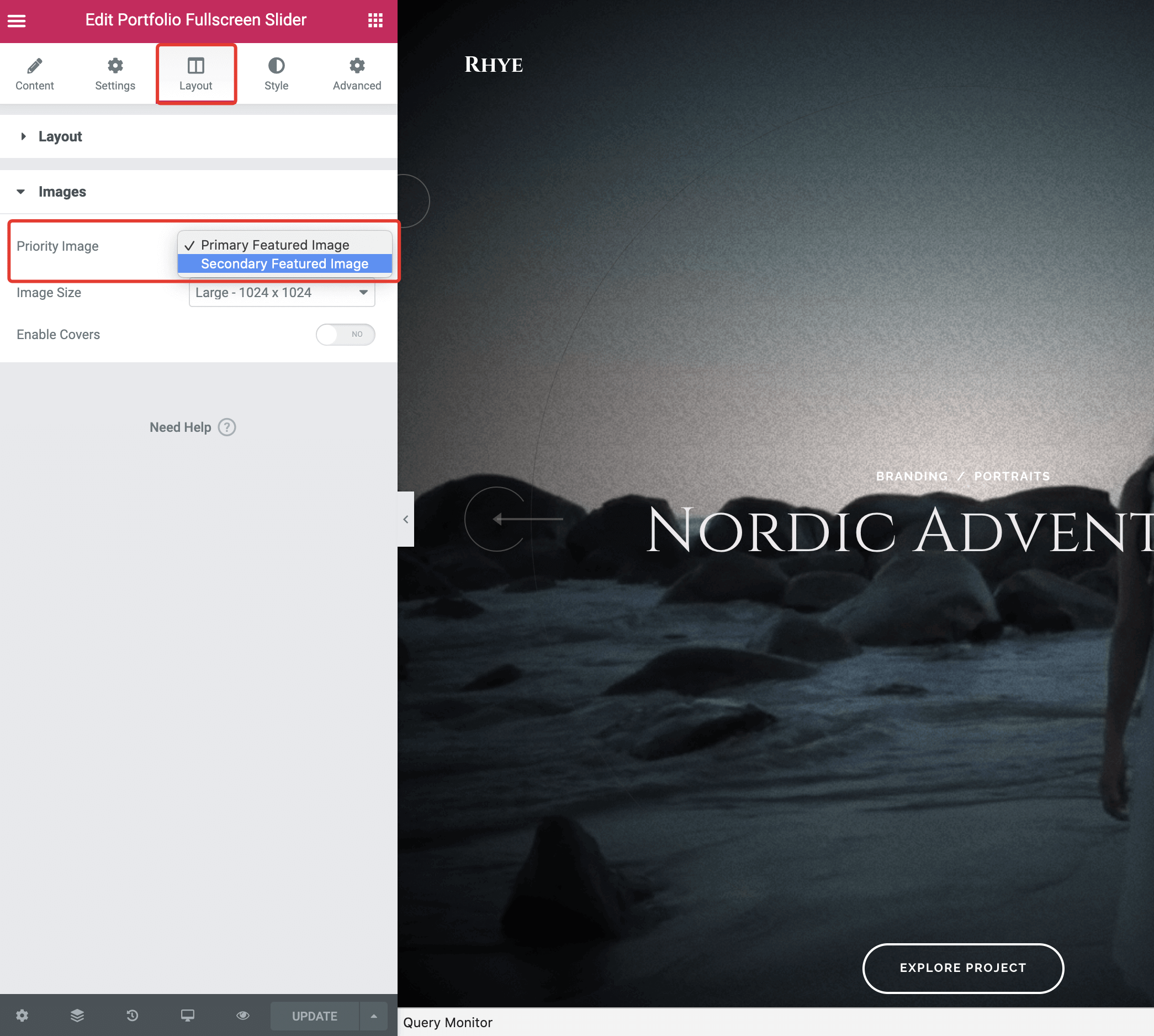
In dynamic widgets, you may also adjust which image you prefer to display. This is where the Secondary Featured Image comes into play.
# Manipulating the Posts
To improve your content editing experience, refer to these articles: