# Multilingual CMS
You can create a fully functional multilingual site using one of the popular multilingual plugins supported by the Kinsey theme:
- WPML (opens new window) (powerful all-in-one paid plugin)
- Polylang (opens new window) (lightweight alternative available for free)
- TranslatePress (opens new window) (free front-end visual translation editor)
Note
Please keep in mind that there will be no AJAX transition when you switch between page languages. A hard page reload is required for the correct page translation display.
# WPML
# ▶️ Step 1.
Set up and activate your multilingual plugin.
# ▶️ Step 2.
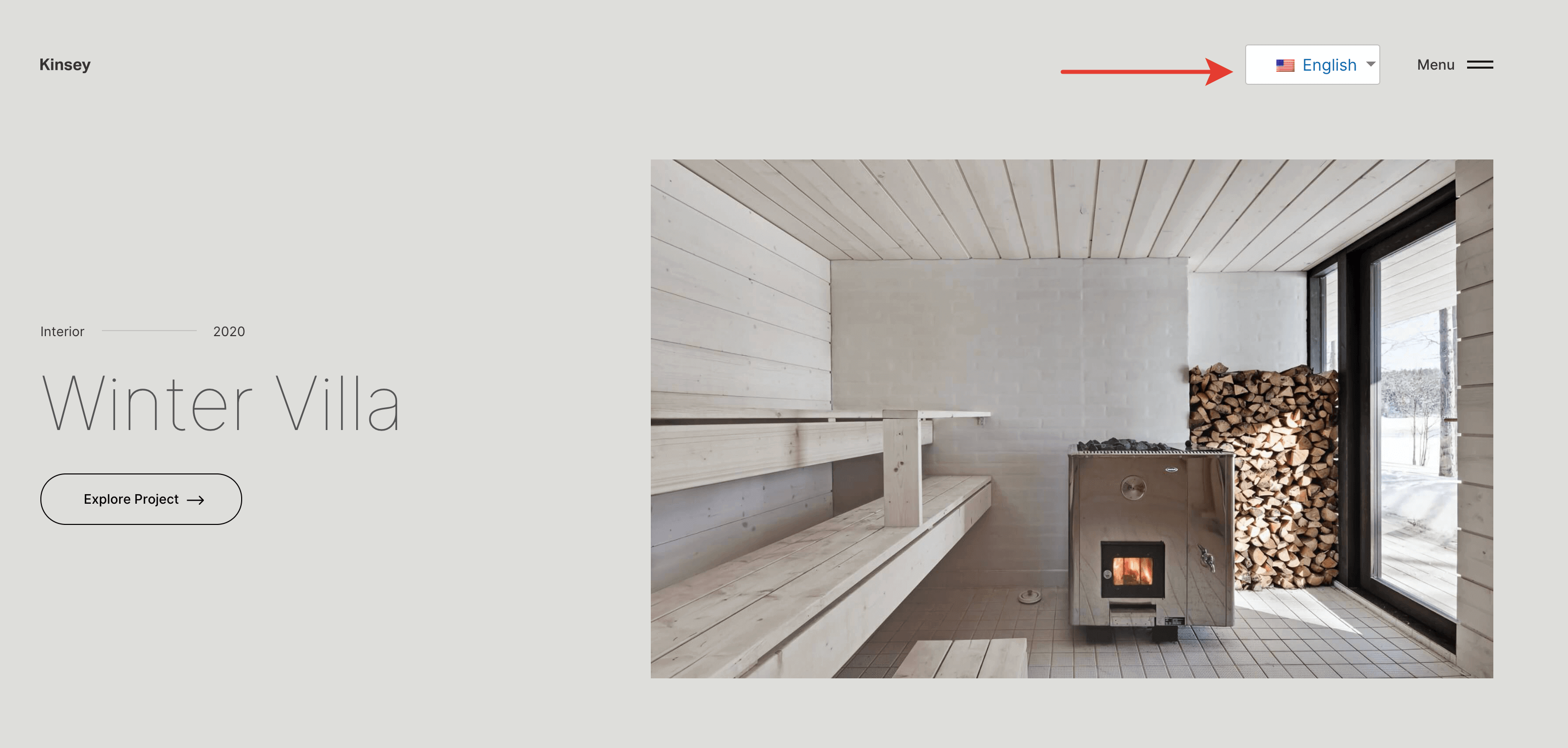
When you activate WPML, the wizard will guide you on how to set up everything, including the language switcher. In Polylang, you need to go to Appearance → Widgets and drag & drop a language switcher to the Language Switcher Area.
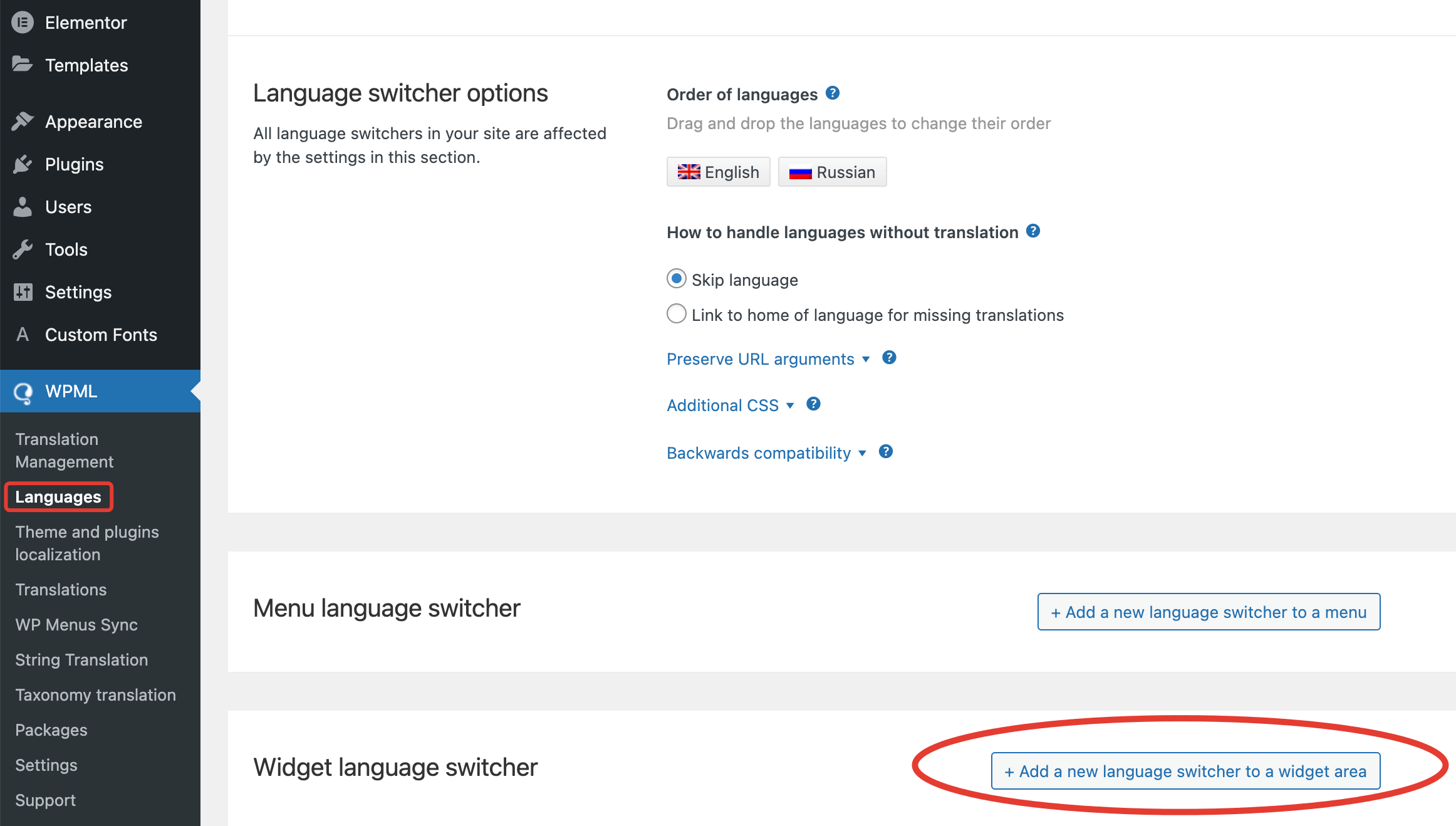
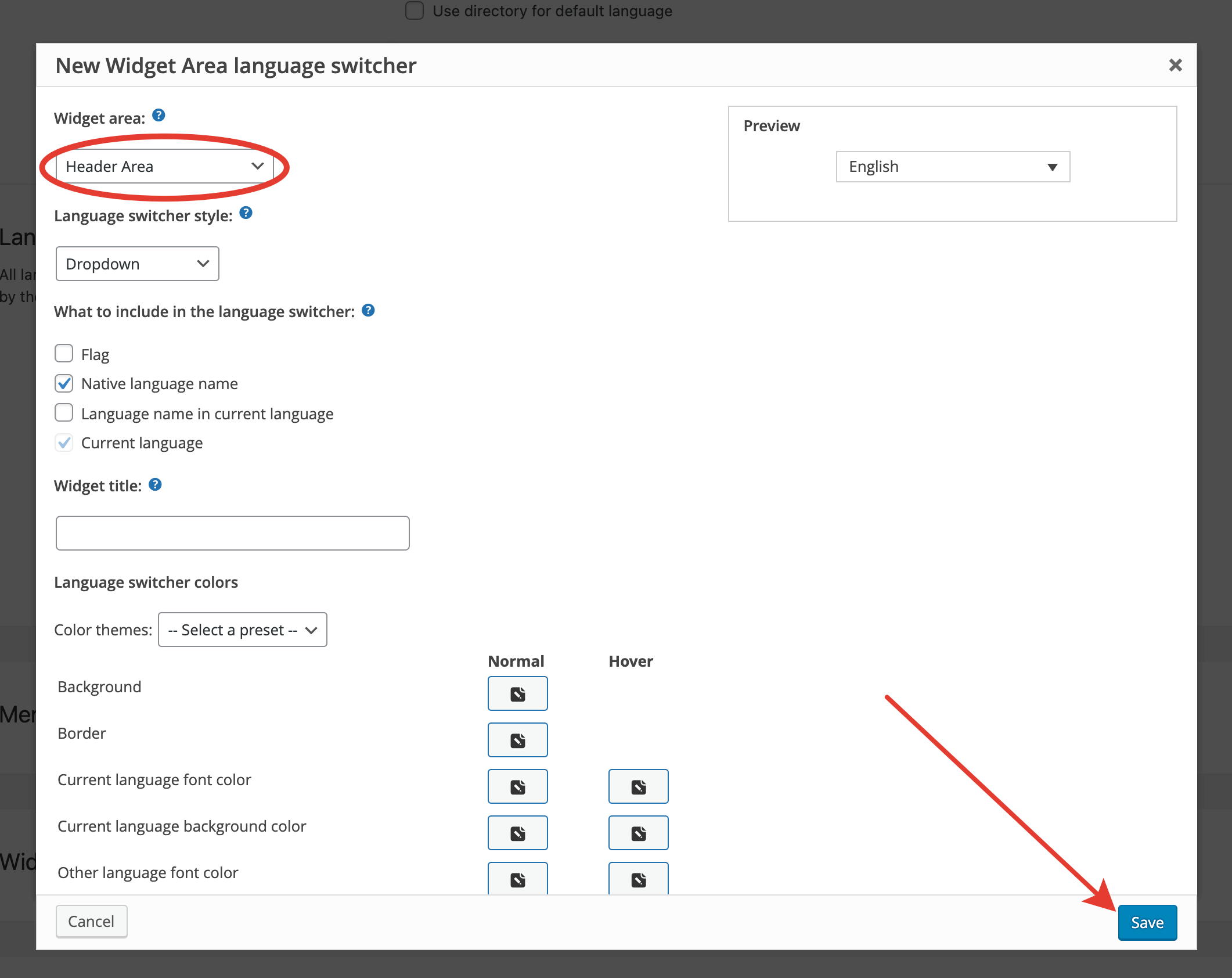
Language Switcher Area# ▶️ Step 3.
You will see a new widget area for the language switcher.
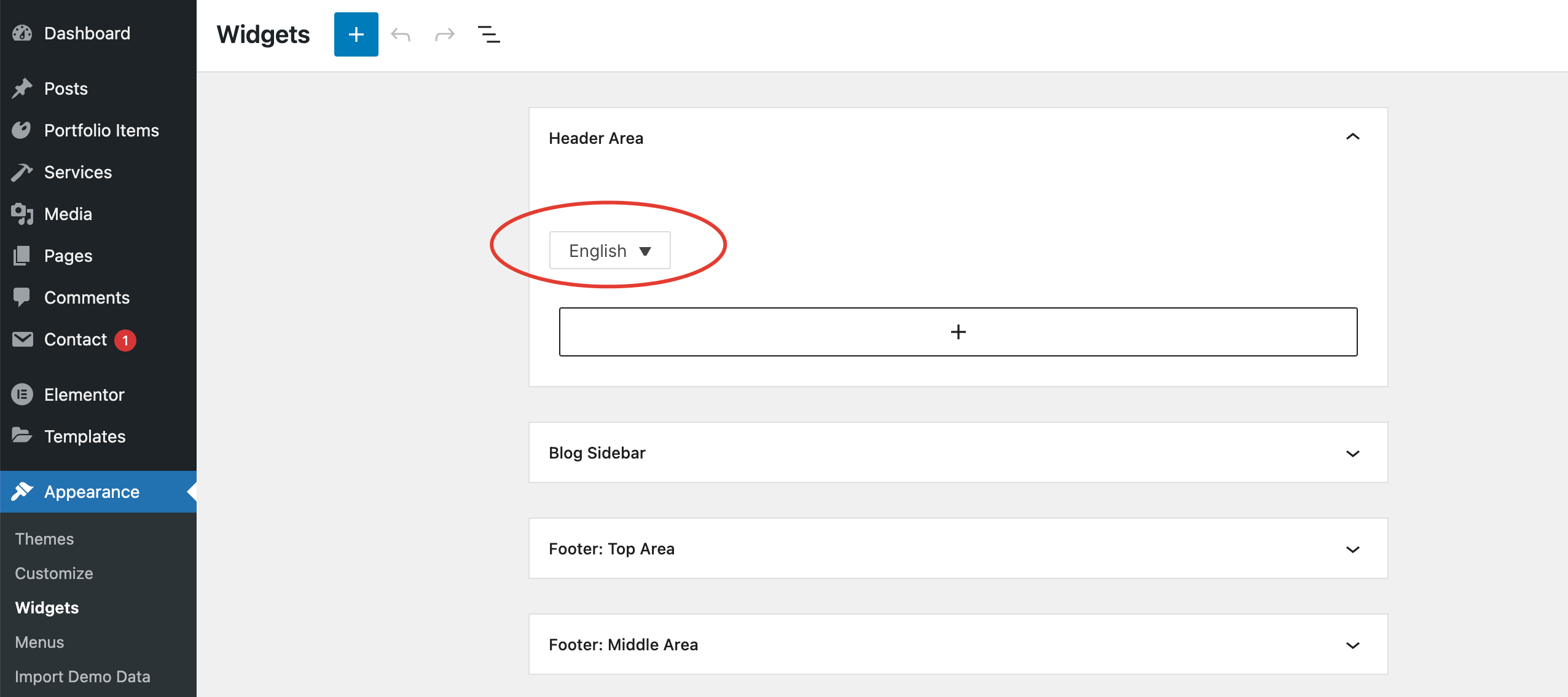
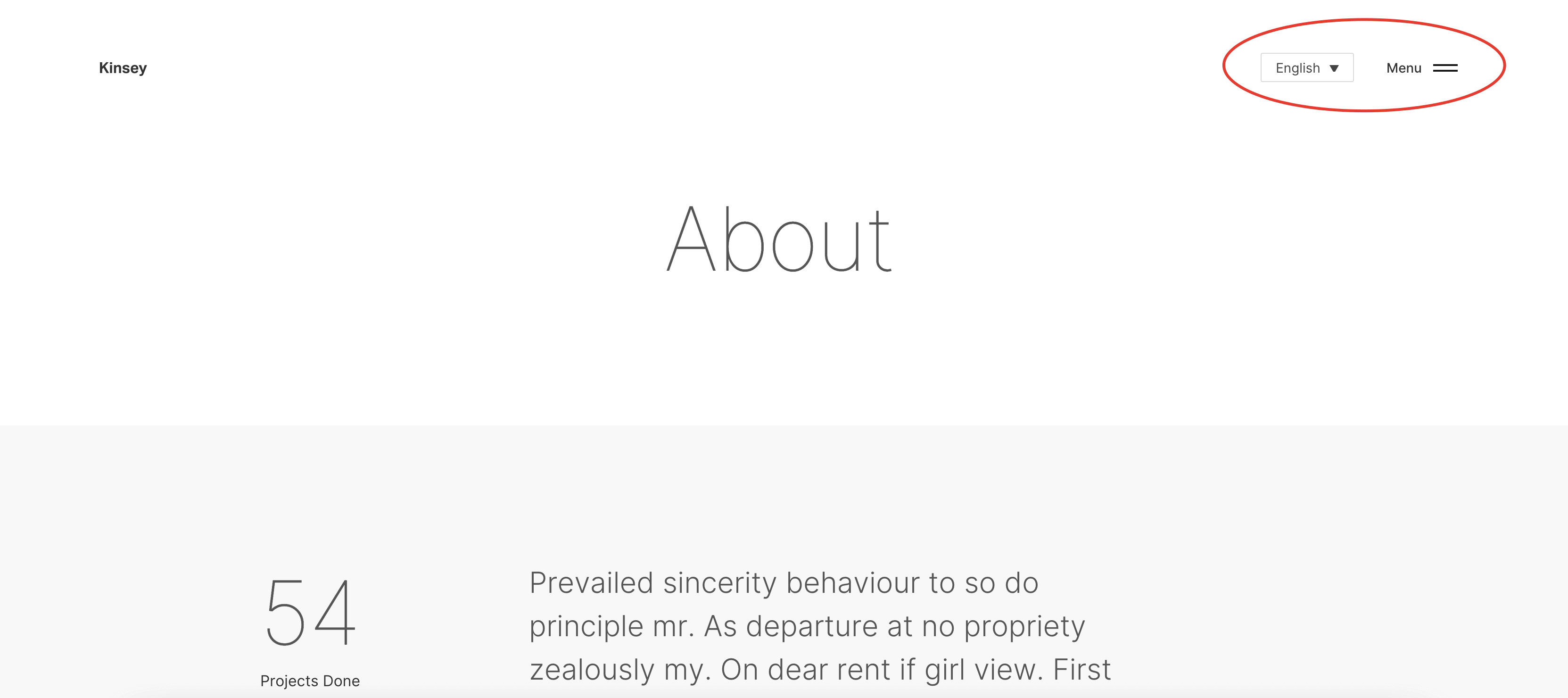
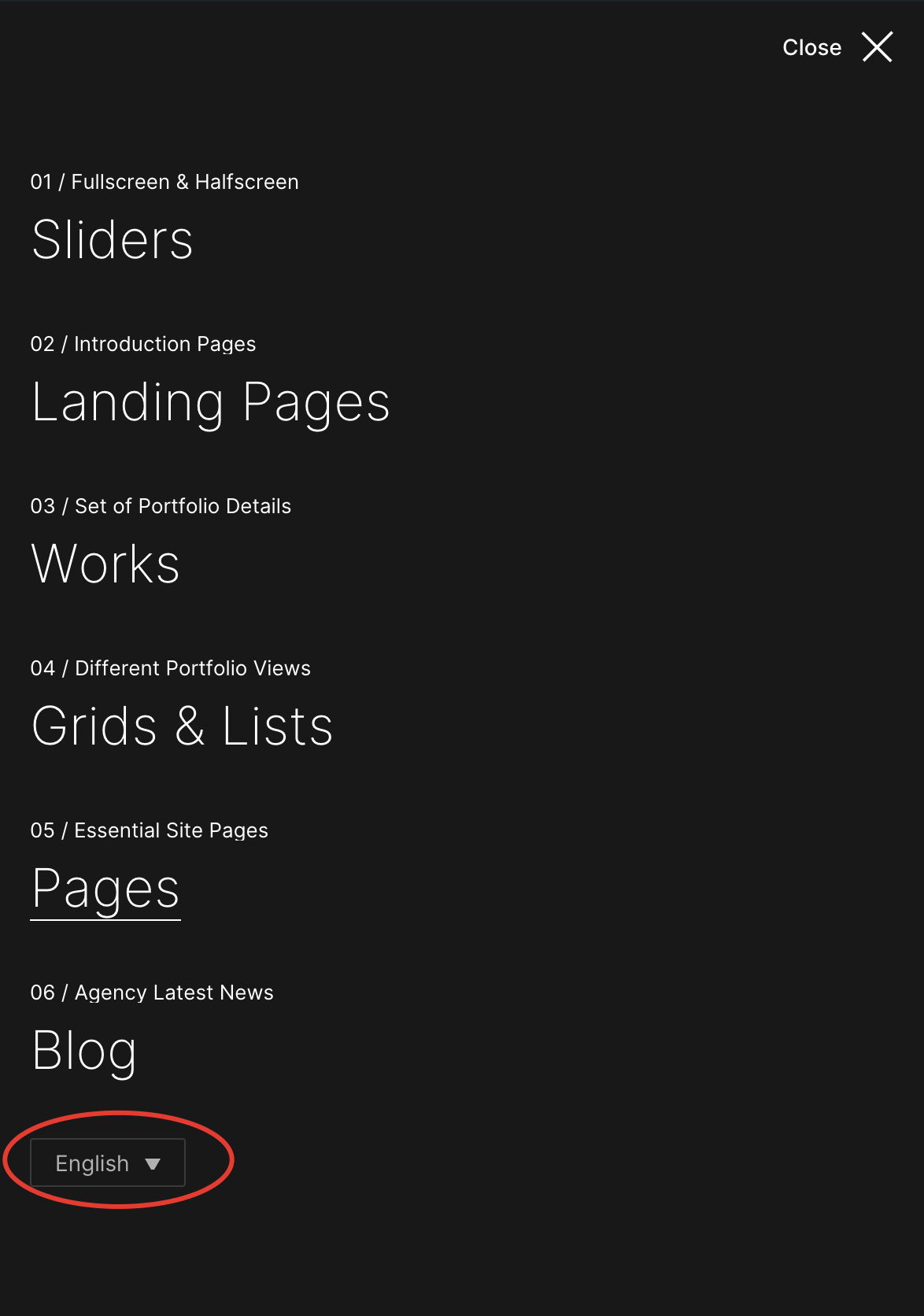
Appearance → WidgetsThe language switcher is customizable. You can choose for it to appear as a dropdown or horizontal list. While the theme provides some styling for the switcher, all the customizations are available inside the multilingual plugin settings.
# Polylang
Polylang is to be configured in a similar way as WPML. You simply drag & drop the language switcher to the Language Switcher Area in Appearance → Widgets.
The rest of the plugin configuration is done via the plugin's settings page in Settings -> Polylang.
# TranslatePress
# ▶️ Step 1.
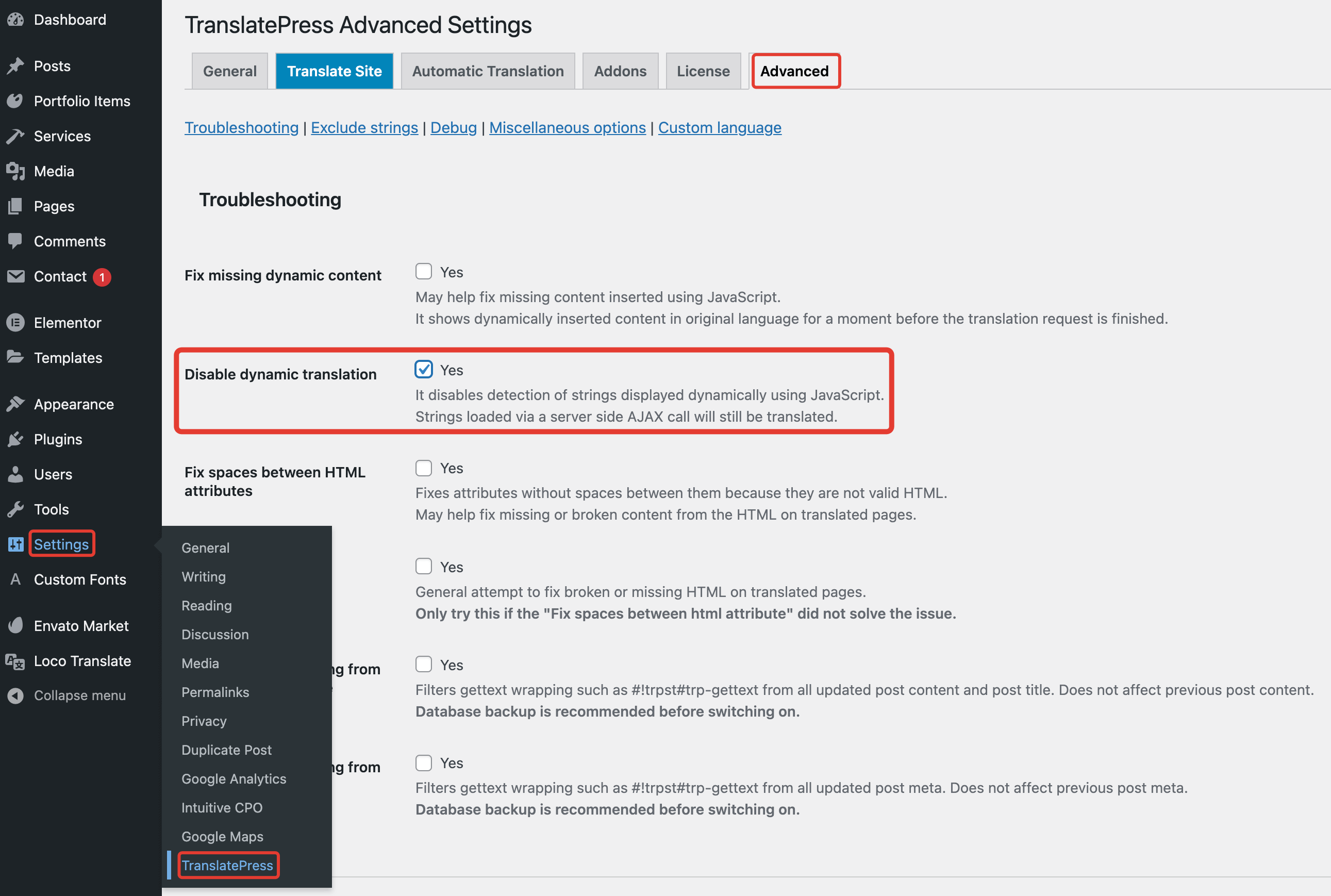
In the admin panel, go to Settings -> TranslatePress and open the Advanced tab. Make sure to put a checkmark at Disable dynamic translation. This should speed up the overall page loading speed and fix broken AJAX transitions of the translated pages.
# ▶️ Step 2.
TranslatePress provides a WordPress shortcode that renders the language switcher.
[language-switcher]
You can use this shortcode anywhere in the theme. If you'd like to have the language switcher in the header, open the Appearance → Widgets page and use the default Text widget with the inserted shortcode.
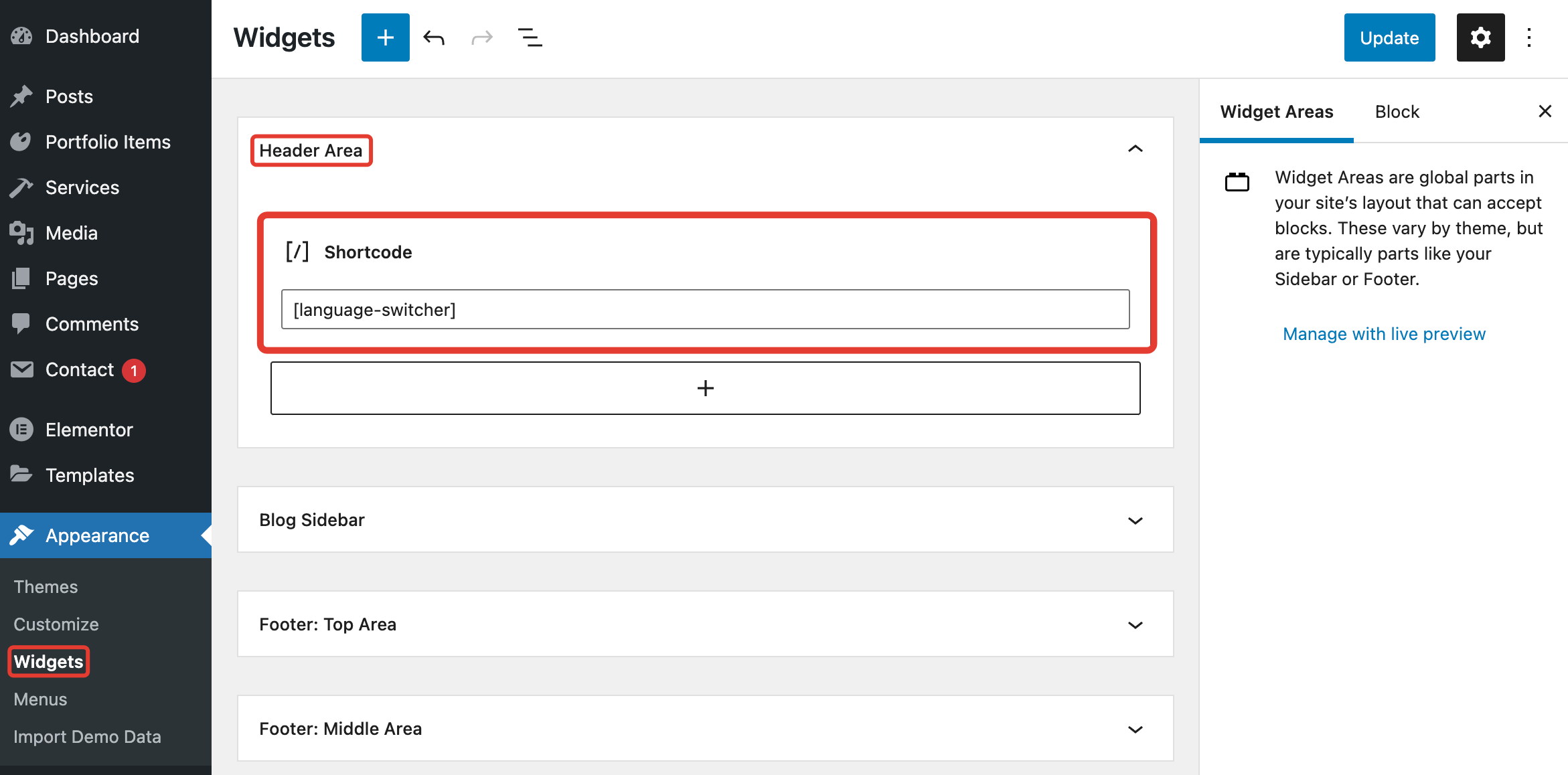
Text widget to the Language Switcher Area with the shortcode# ▶️ Step 3.
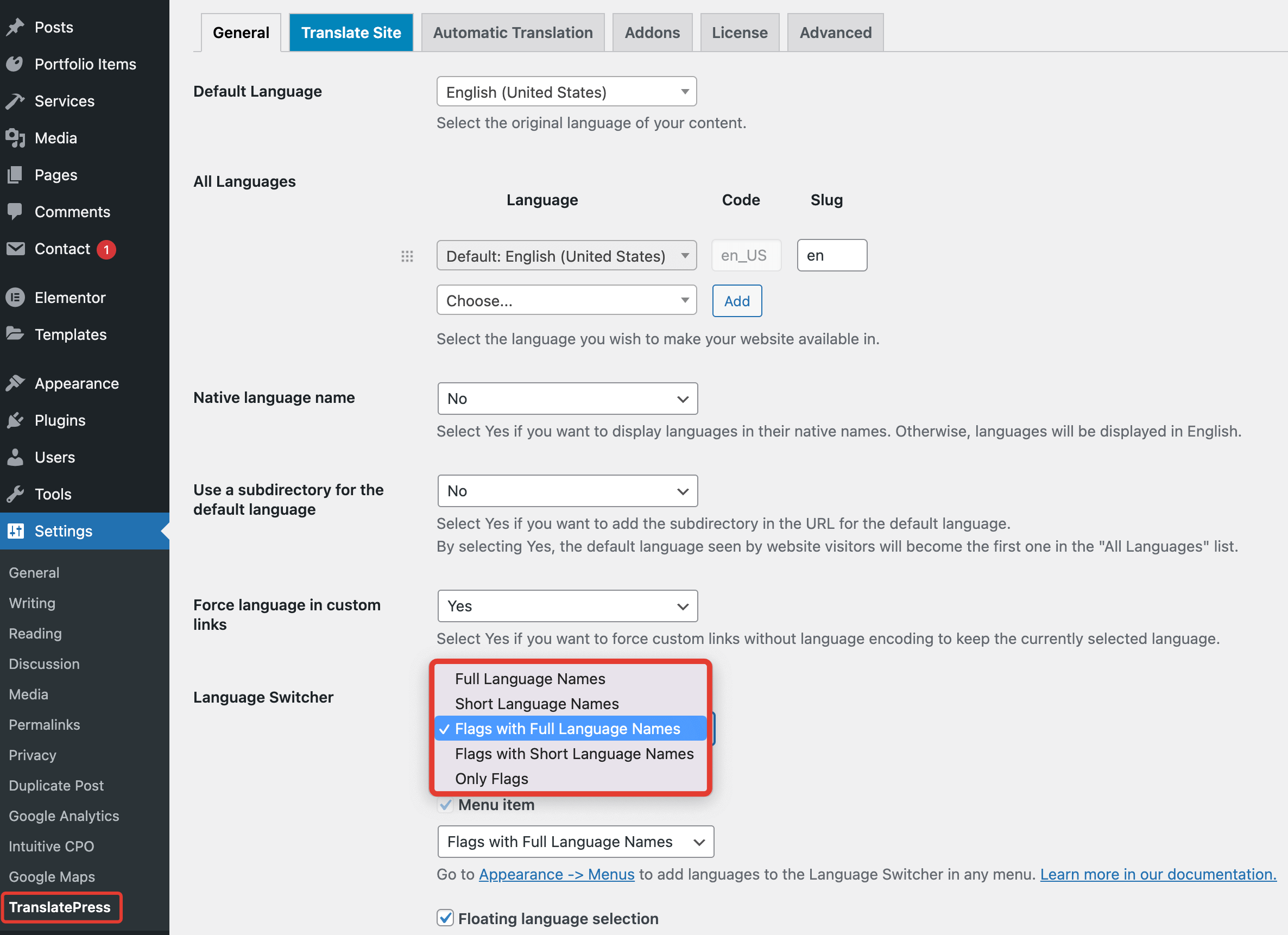
The language switcher visual appearance can be configured from the plugin settings page Settings -> TranslatePress under the General tab.