# Theme Translation
Your brand-new theme is fully translatable to other languages. For convenient translation, I recommend installing the Loco Translate (opens new window) plugin. It’s available for free and allows you to translate your theme right from the admin panel.
# Preparing
WARNING
Before you do any translating, make sure the folder 📁wp-content/languages/loco/themes exists on your site and is writable by the web server.
If you have WordPress automatic updates enabled, then the 📁wp-content/languages folder probably exists already. The 📁/loco subfolder is there to protect your custom translations from automatic translation updates. This is critical if you want to avoid your files being deleted behind your back.
# Translation Dashboard
If you haven't installed and enabled the Loco Translate (opens new window) plugin yet, do that now.
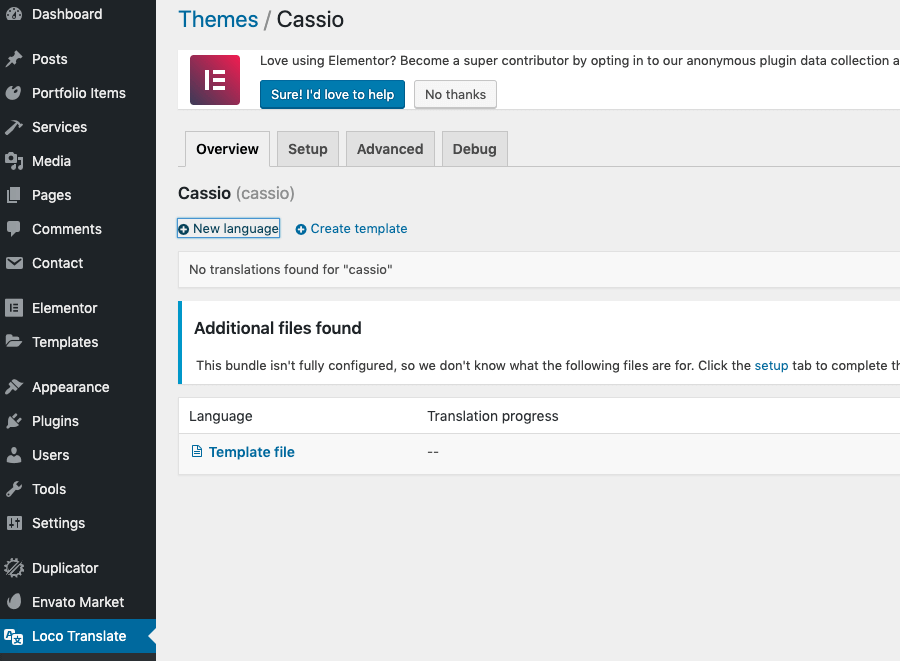
From the admin panel, go to the Loco Translate → Themes menu. This will take you to a list of all available themes in your WordPress. You should see Cassio in that list. Click it and you should see the following screen:
New language with an add icon# Add a New Language
To start translating the theme into another language, click New language and you'll be taken to a new screen where you can choose the language you want.
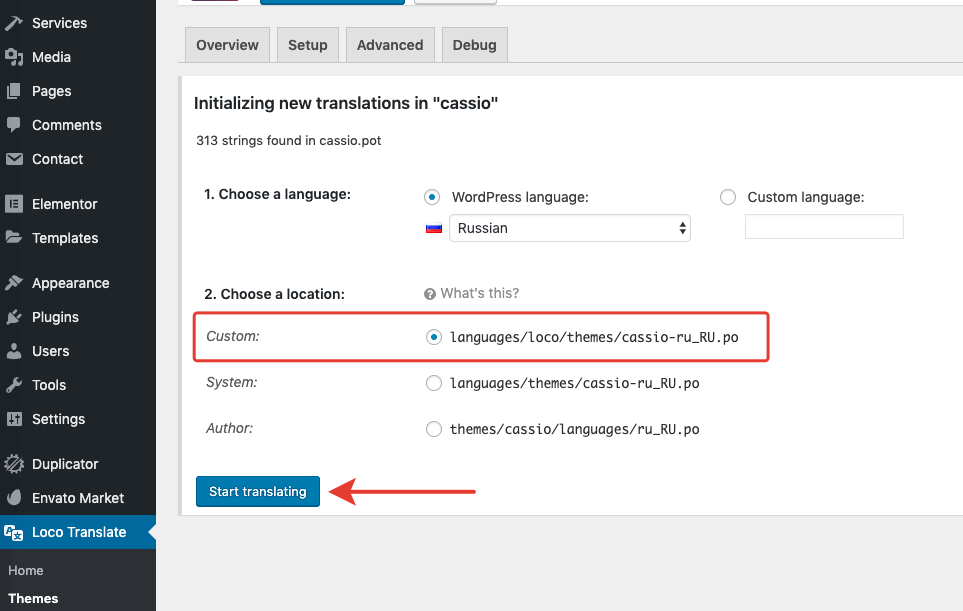
Select a language from the dropdown list of common languages. In this example, I will select Russian. You could achieve the same result by entering ru into the text field instead.
If you've set up your folders correctly, you should see a location marked as Custom.
Once on the editor screen, you'll see all the strings the theme has defined in its template file. Untranslated strings are shown in bold blue. To start with, they will all be untranslated.
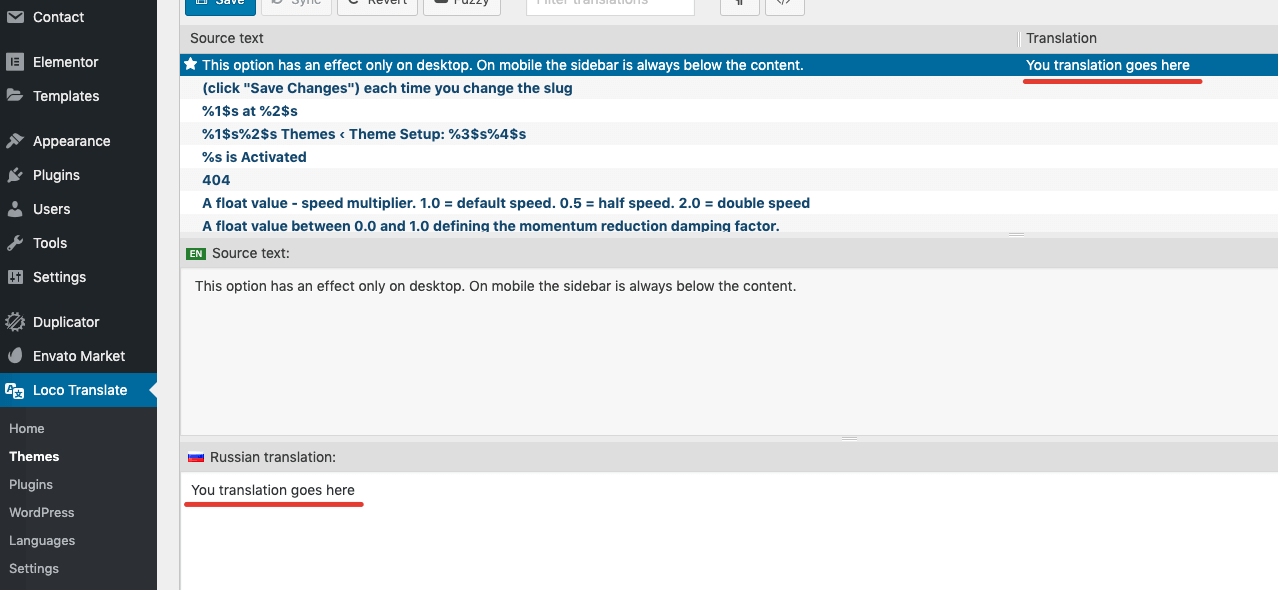
Save button once you're done