# Color Themed Sliders
Some of the theme sliders have a color-changing effect based on the current slide. In this article, you'll learn where those color themes are set and how to customize them.
# Customizing Post Masthead Colors
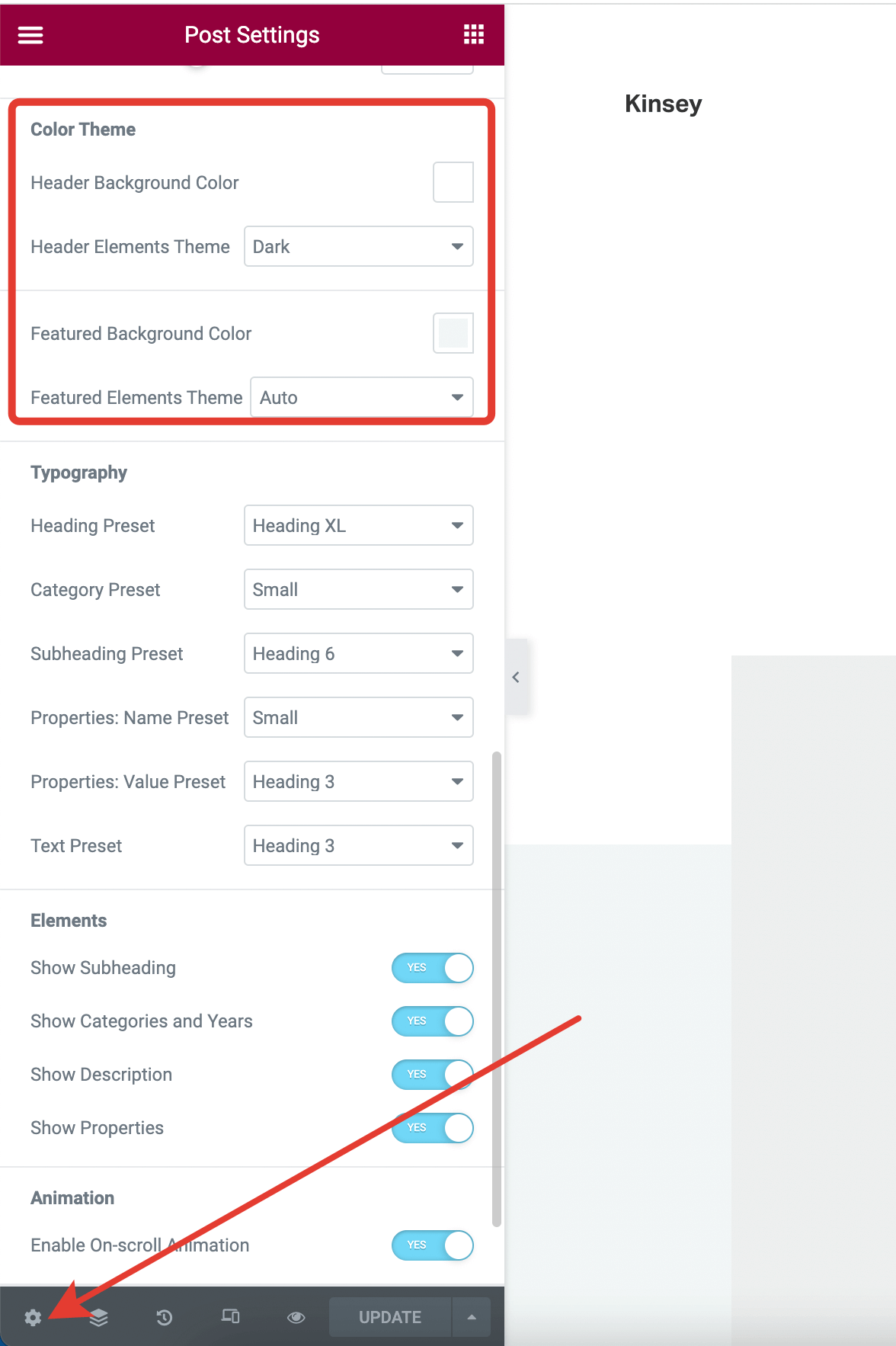
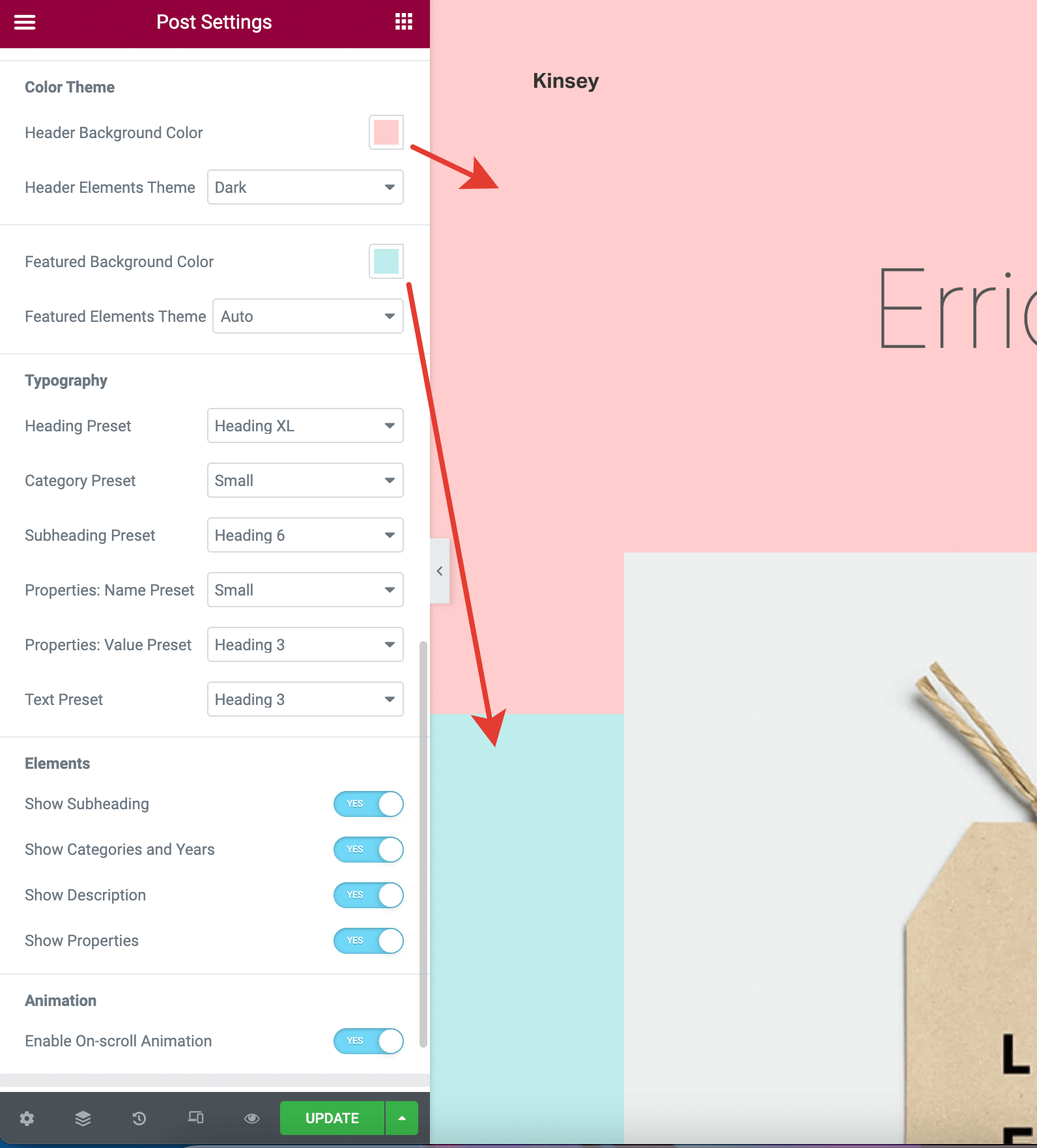
On a portfolio item page, enter Edit with Elementor mode and open Document Settings (bottom left cog icon). Go to the Page Masthead tab and find the Color Theme panel.
# Customizing Slides Colors
In the slider widget, go to Style, open the Effects panel, and find the Slides Dynamic Themes controls group. There you'll see how the portfolio item colors are reflected in the slide colors:

In the screenshot below, you see how the slides' color themes are built:

# Customizing Header Theme per Slide
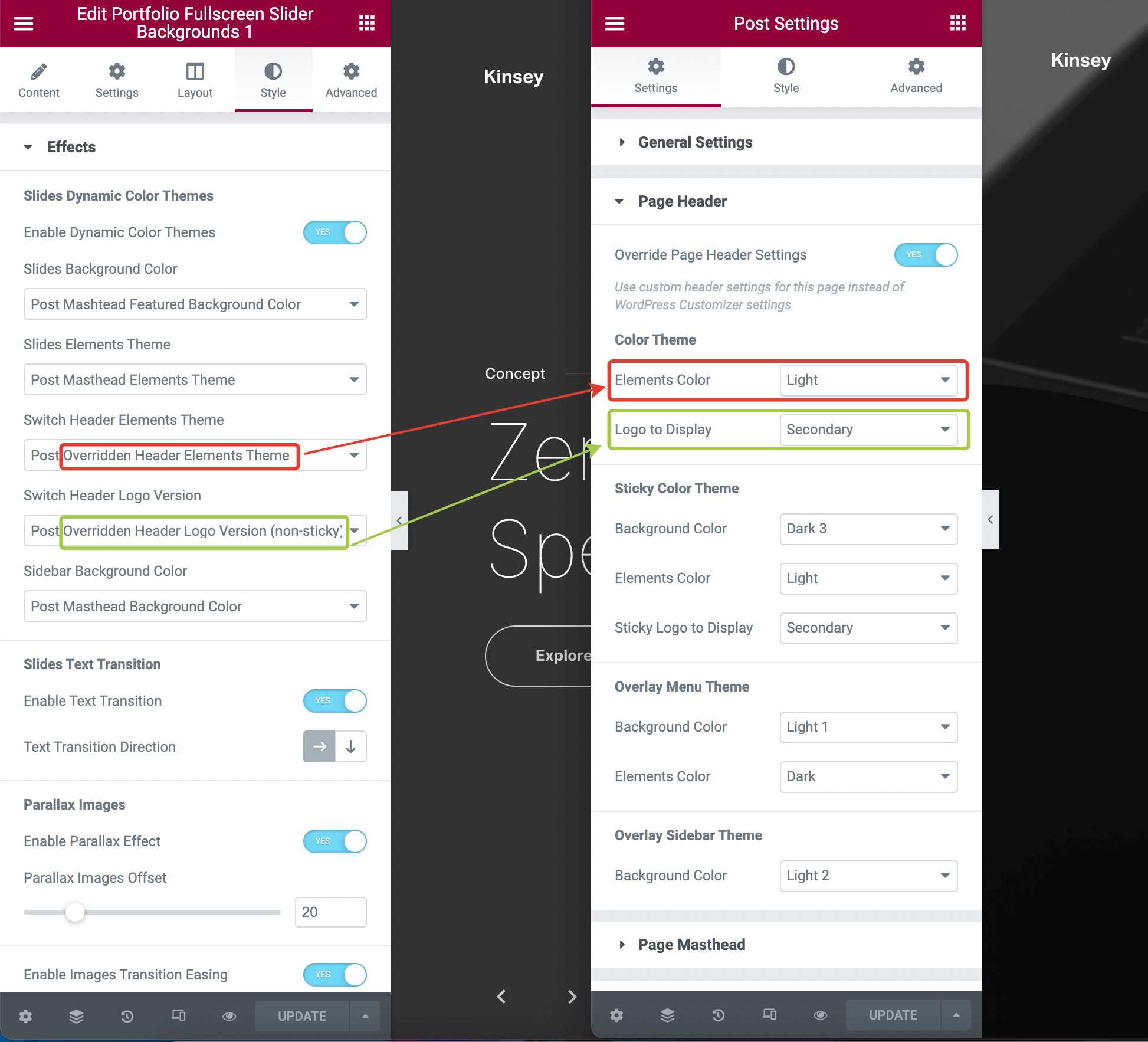
It's also possible to temporarily switch the current page header color theme for each slide. On a portfolio item page, enter Edit with Elementor mode and open Document Settings (bottom left cog icon). Go to the Page Header tab. If the header override is turned on, you'll see the Color Theme controls group where you can set the page-specific color theme for the header.

In the screenshot below, you see how the slides will temporarily switch the current page header theme based on the active slide:
# Turning off Slides Color Change
In the slider widget options, go to Style, open the Effects panel, and find Slides Dynamic Themes. Here, simply disable the toggle Enable Dynamic Color Themes.