# Contact Form 7
Cassio is compatible with the popular plugin Contact Form 7 (opens new window) for sending messages through your website.
TIP
This plugin is recommended by the Cassio theme, so you are likely to already have it installed. If not, just search for it and install it from the WordPress Plugins directory in Plugins → Add Plugin.
Let’s set up the plugin.
# ▶️ Step 1.
From the admin panel, go to Contact → Contact Forms. If you have correctly imported the demo data, you should see a form with a shortcode here.

Click on the form Cassio Contact Form 1 and open the Mail tab. Here you can configure where your messages from the contact form will be sent.

Save button# ▶️ Step 2.
Copy the form shortcode. This is just an example. The ID and title can be different, and that's okay.
[contact-form-7 id="221" title="Cassio Contact Form 1"]
Now edit a page with Elementor where you want to place your contact form. Use the standard Shortcode Elementor widget.
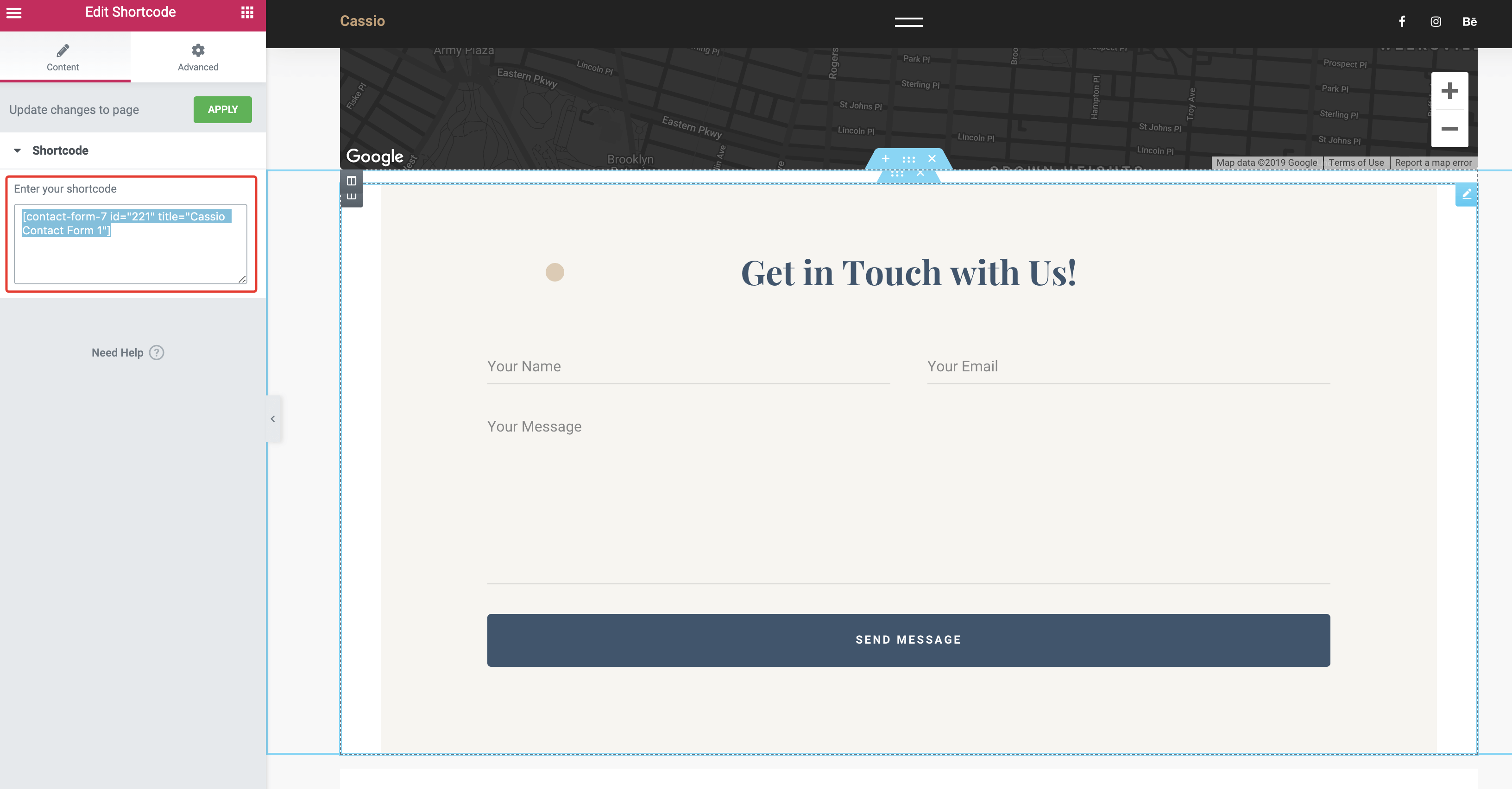
Apply# ▶️ Step 3.
Your contact form is ready now, and you can test if it works. If you'd like to change labels for the fields, button, or heading, you can do this by going back to the admin panel to Contact → Contact Forms → Cassio Contact Form 1.

SaveMissing the form shortcode?
In case you don’t see an imported shortcode (which ships together with the demo content), you can create a new one by yourself. Just add a new contact form in Contact → Contact Forms and paste this HTML code in the Form tab:
<div class="container section section_pt-small section_pb-small bg-off-white">
  <div class="row justify-content-center text-center">
    <div class="col-sm-10">
      <h3 class="form__heading">Get in Touch with Us!</h3>
      <div class="row form__row">
        <div class="col-lg-6 form__col">
          <label class="input-float js-input-float">
            [text* your-name class:input-float__input]
            <span class="input-float__label">Your Name</span>
          </label>
        </div>
        <div class="col-lg-6 form__col">
          <label class="input-float js-input-float">
            [email* your-email class:input-float__input]
            <span class="input-float__label">Your Email</span>
          </label>
        </div>
      </div>
      <div class="row form__row">
        <div class="col form__col">
          <label class="input-float js-input-float">
            [textarea your-message class:input-float__input class:input-float__input_textarea rows:3]
            <span class="input-float__label">Your Message</span>
          </label>
        </div>
      </div>
      <div class="row form__row">
        <div class="col form__col form__col_submit">
          <button class="button button_solid button_accent-secondary-2 button_fullwidth wpcf7-form-control wpcf7-submit" type="submit"><span>Send Message</span></button>
        </div>
      </div>
    </div>
  </div>
</div>
For more information on how to set up your email settings and templates, please check the official Contact Form 7 Documentation (opens new window).