# Wizard Setup
# Setup Flow
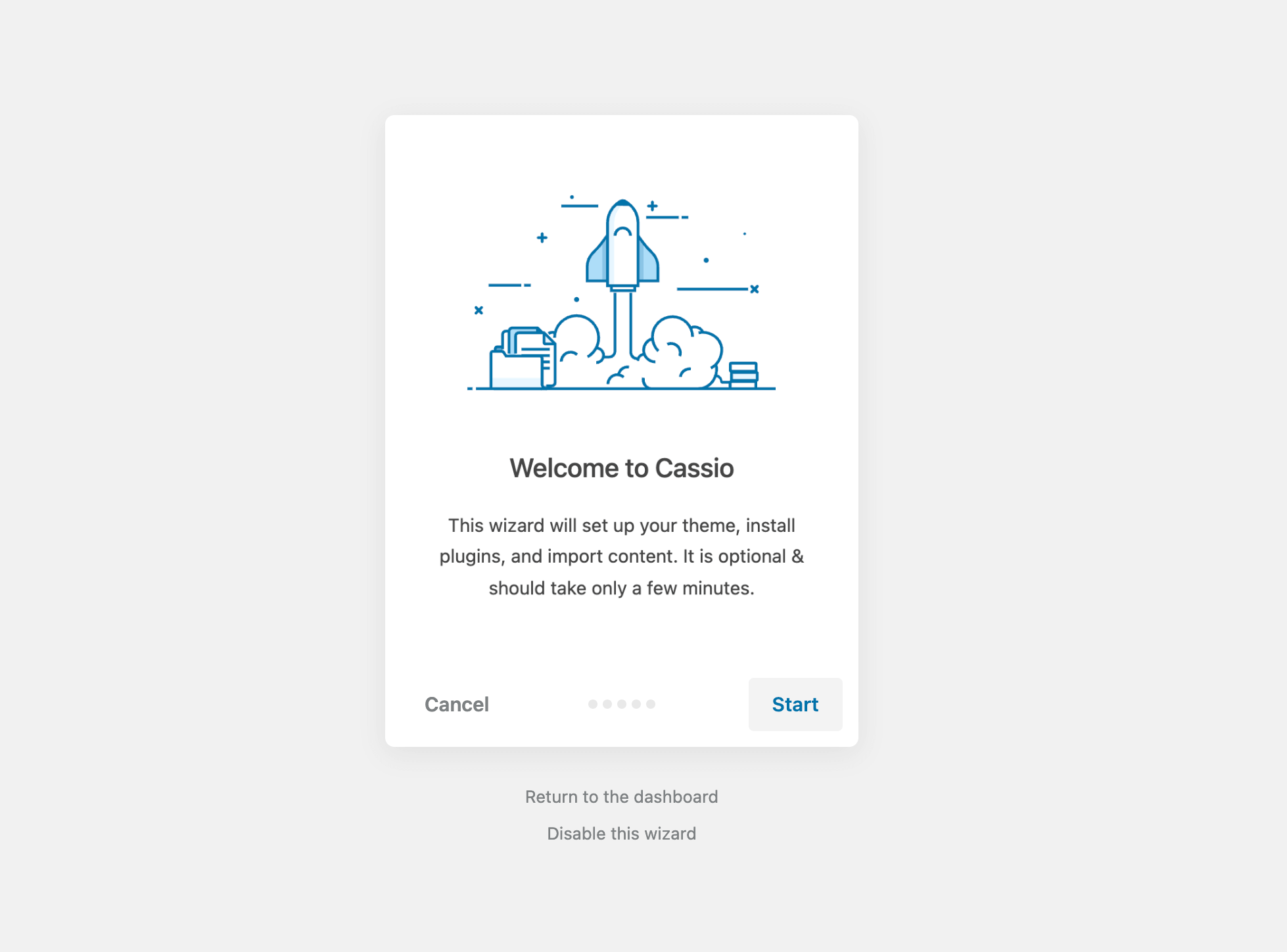
After the first theme activation, you should see a simple wizard that will help you with the initial theme setup. Simply follow all the steps by clicking the Next button. After going through all the steps, you will be ready to use your brand new website.
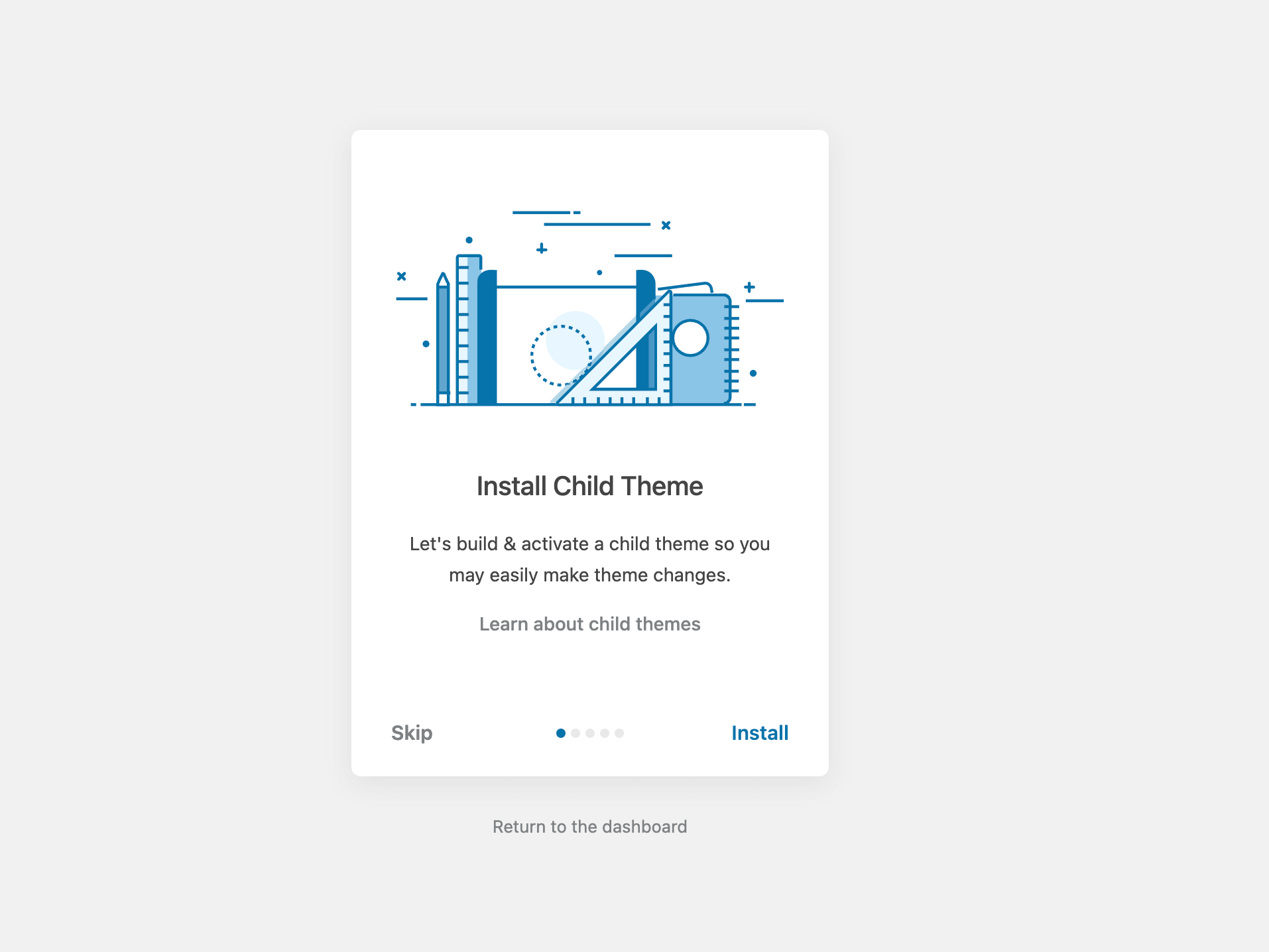
# Step 1
Install and activate the child theme first.
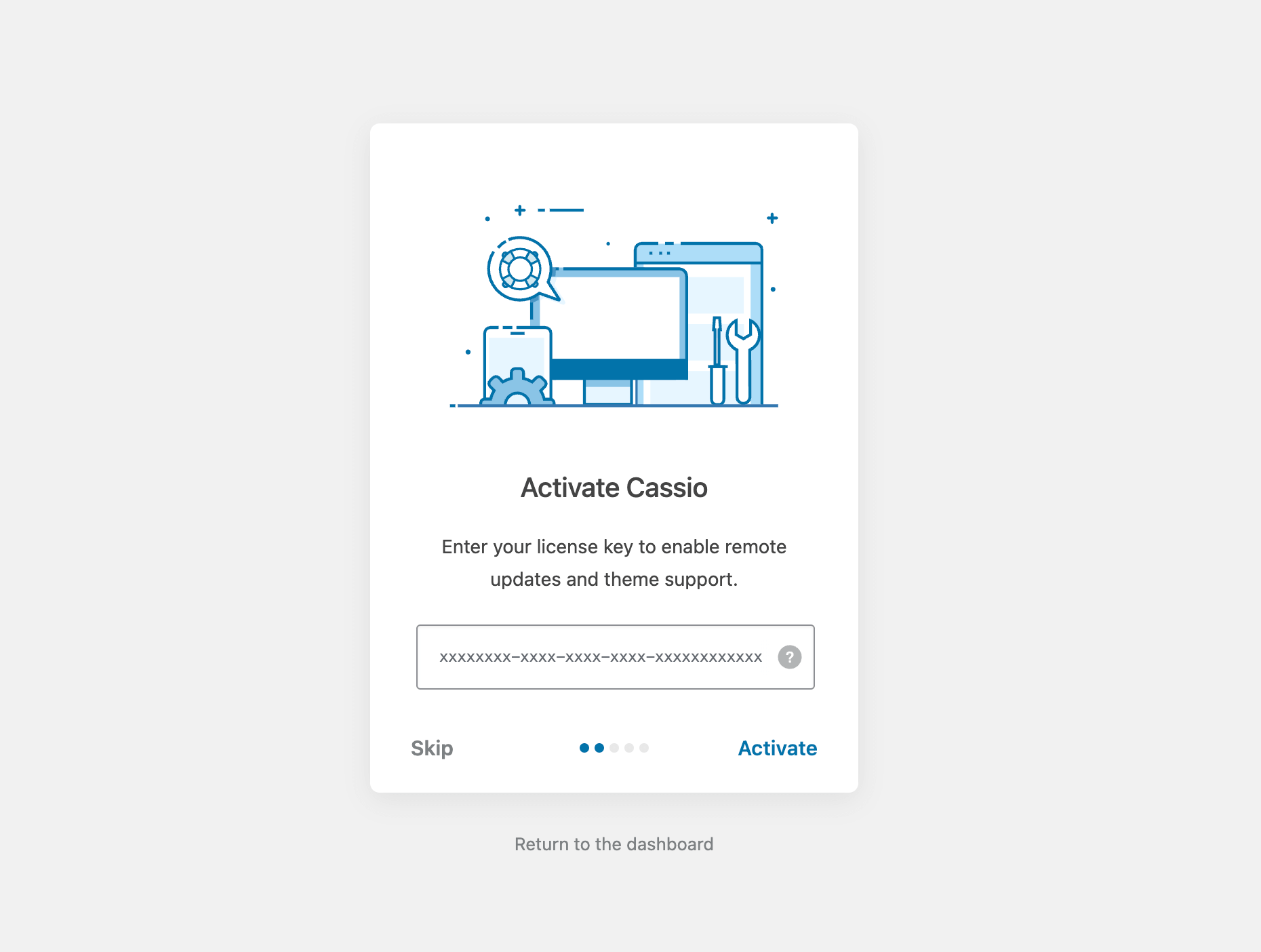
# Step 2
Activate your theme license by entering the purchase code. If you don't have a purchase code yet – e.g., you downloaded the theme via Envato Elements, please click the Skip button.
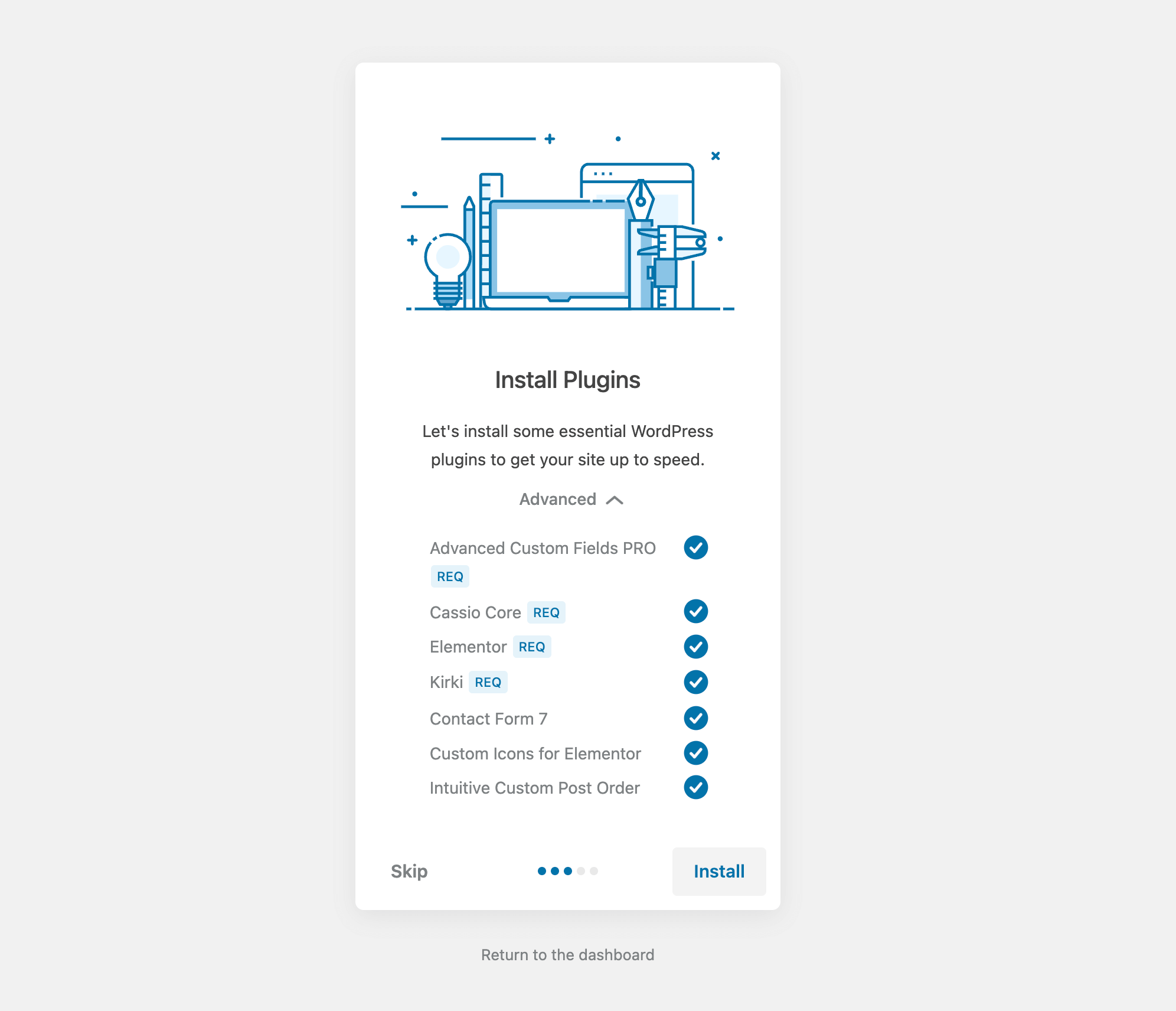
# Step 3
Install and activate all required and recommended plugins.
# Step 4
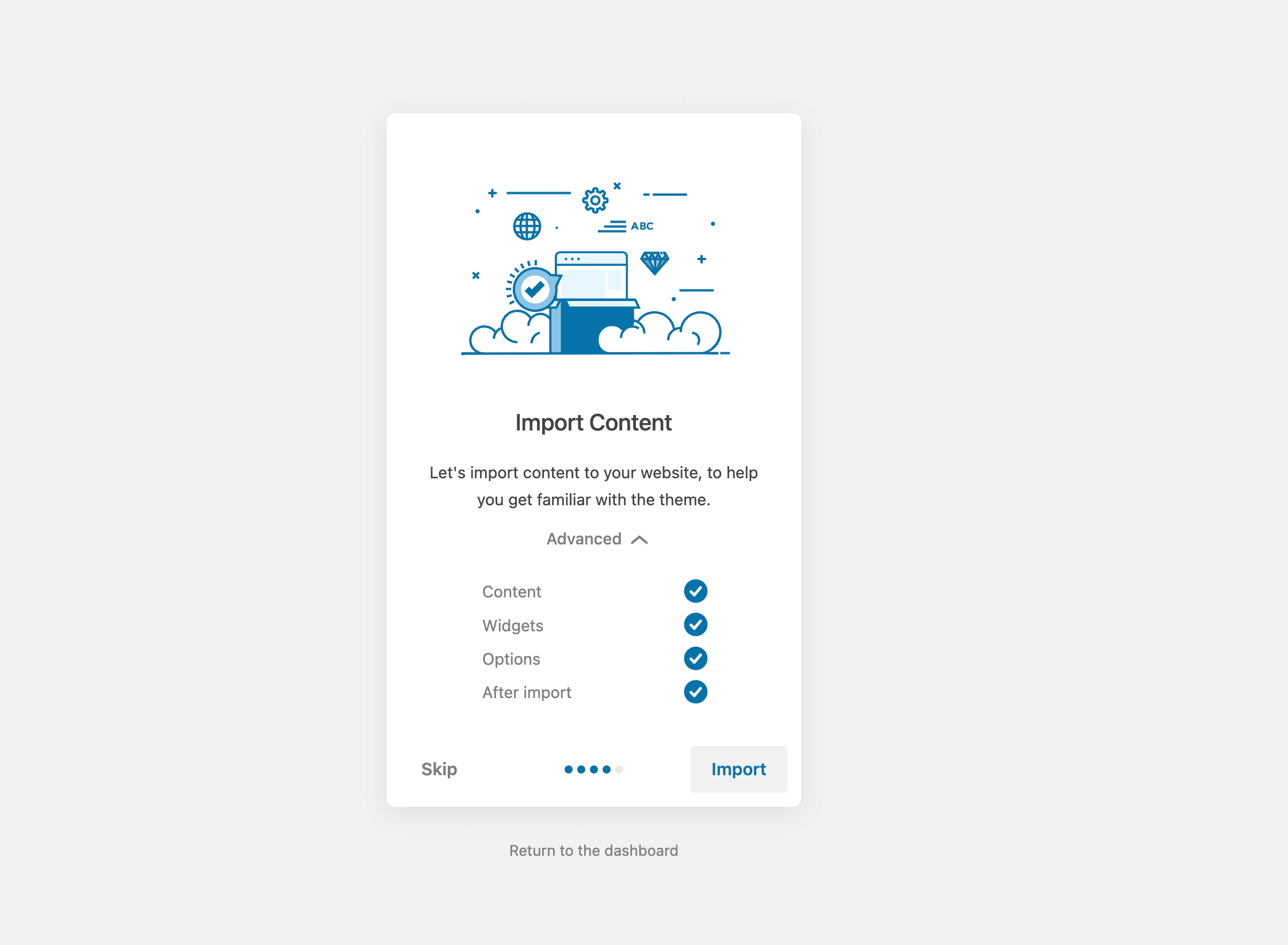
Import the theme's demo data to your WordPress installation. Normally, this can take about 10-20 minutes depending on your server location and bandwidth.
WARNING
Don't close the browser tab during the import!
# Step 5
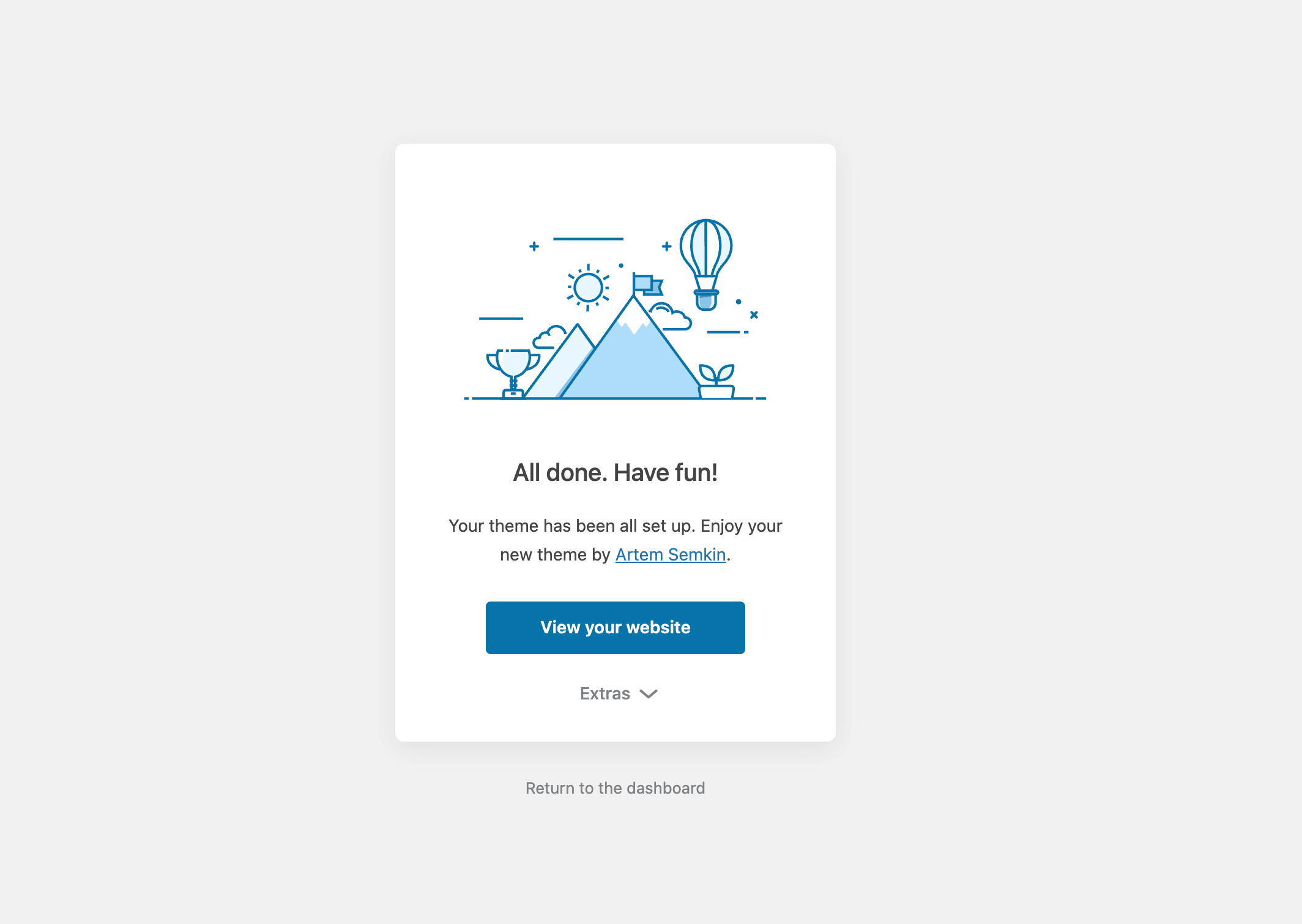
Once the demo import is complete, click Visit your website. You should see a homepage with the fullscreen slider.
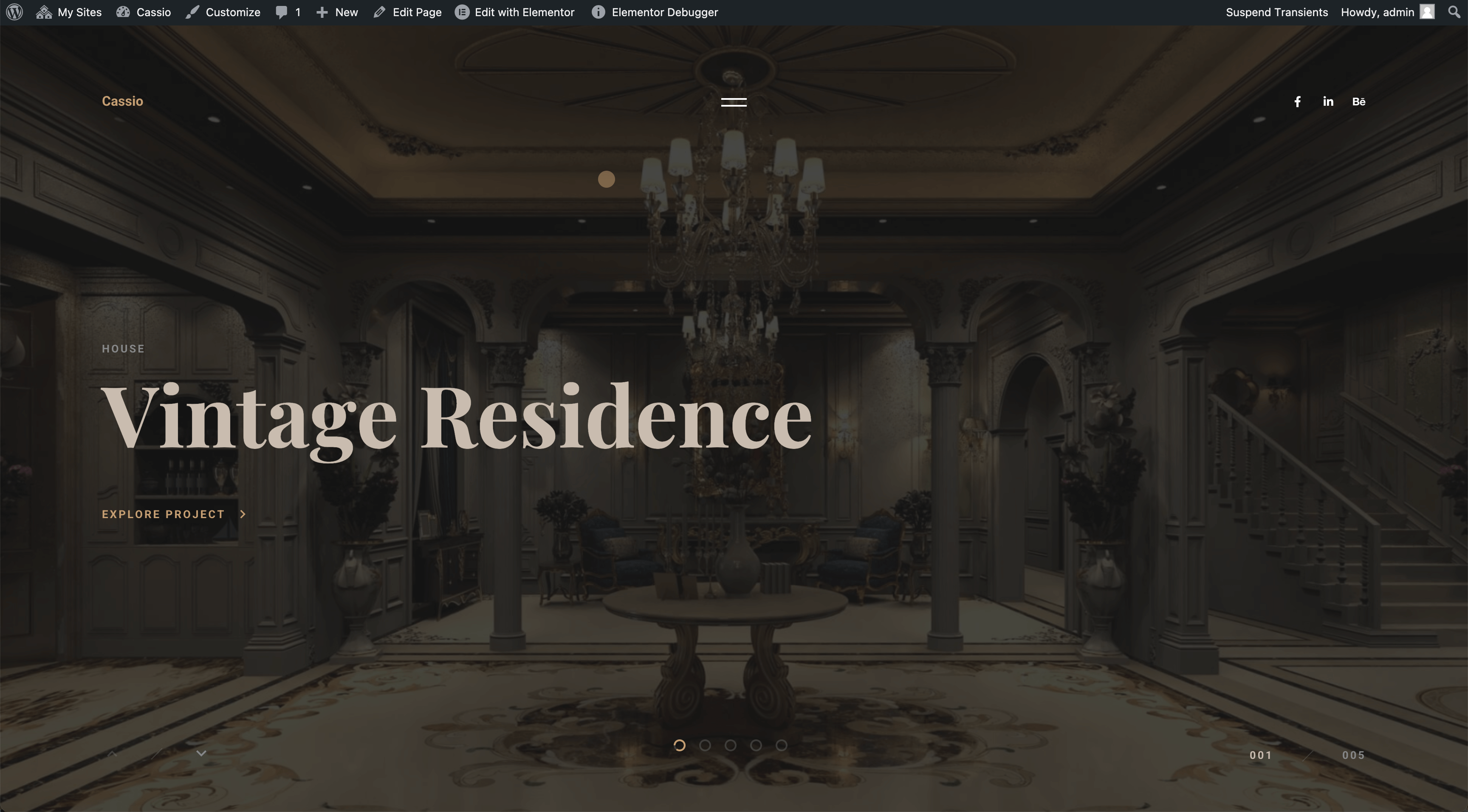
If you think the demo import didn't go well (no images, broken page layout, no custom typography), please check the Troubleshooting article for solutions.
# How to Regain Access to the Wizard Setup
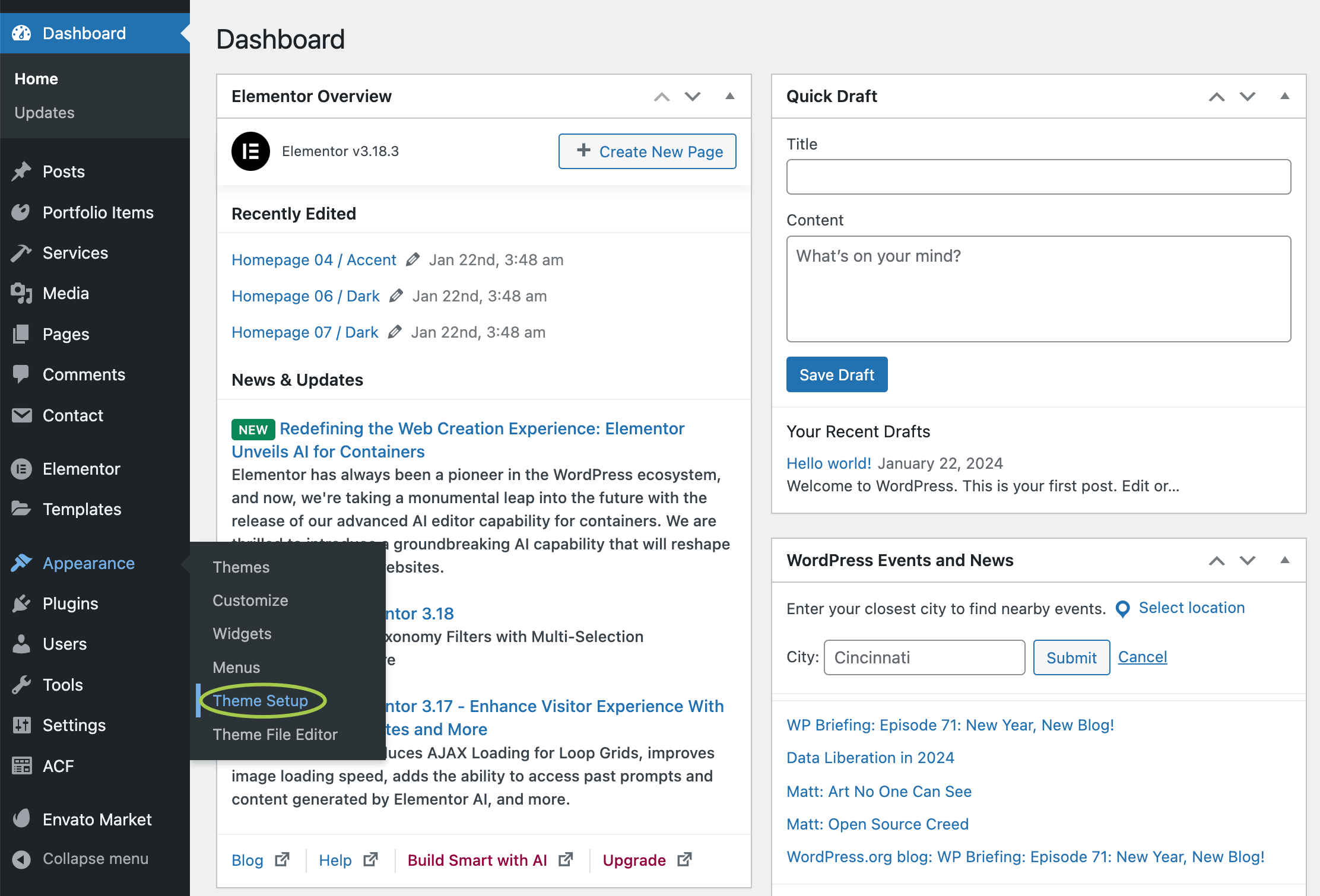
In the admin panel, hover over Appearance then click the Theme Setup menu item.
WARNING
If the menu item doesn't appear, please make sure the "One Click Demo Import" plugin is DEACTIVATED.