# Favicon
A favicon (short for favorite icon), also known as a shortcut icon, website icon, tab icon, URL icon, or bookmark icon, is a file containing one or more small icons associated with a particular website or web page.
Browsers typically display a page's favicon in the browser's address bar (sometimes in the history as well) and next to the page's name in a list of bookmarks.
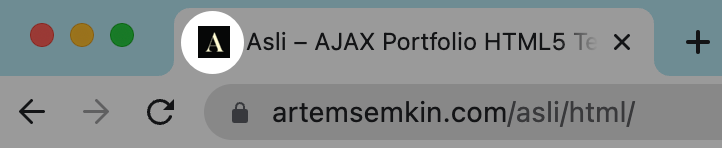
You can create a set of such icons for various devices and use them in the template. Just follow the next steps.
# ▶️ Step 1.
Prepare an image 512x512 .png or .jpg you wish to use as your site favicon. It's recommended to avoid high-detail images and logotypes because of the default favicon size of 16x16, in which all the details will be lost.
# ▶️ Step 2.
Use the free online tool Favicon Generator (opens new window) to generate a full set of icons, which will include high-resolution icons for modern smartphones as well.
# ▶️ Step 3.
Replace the contents of 📁 img/favicon with your own icons.
# ▶️ Step 4.
Make sure your icons are linked correctly in the <head> of each page throughout the template.
<head>
  ...
  <!-- Favicons & App Icons -->
  <link rel="apple-touch-icon" sizes="57x57" href="img/favicon/apple-icon-57x57.png"/>
  <link rel="apple-touch-icon" sizes="60x60" href="img/favicon/apple-icon-60x60.png"/>
  <link rel="apple-touch-icon" sizes="72x72" href="img/favicon/apple-icon-72x72.png"/>
  <link rel="apple-touch-icon" sizes="76x76" href="img/favicon/apple-icon-76x76.png"/>
  <link rel="apple-touch-icon" sizes="114x114" href="img/favicon/apple-icon-114x114.png"/>
  <link rel="apple-touch-icon" sizes="120x120" href="img/favicon/apple-icon-120x120.png"/>
  <link rel="apple-touch-icon" sizes="144x144" href="img/favicon/apple-icon-144x144.png"/>
  <link rel="apple-touch-icon" sizes="152x152" href="img/favicon/apple-icon-152x152.png"/>
  <link rel="apple-touch-icon" sizes="180x180" href="img/favicon/apple-icon-180x180.png"/>
  <link rel="icon" type="image/png" sizes="192x192" href="img/favicon/android-icon-192x192.png"/>
  <link rel="icon" type="image/png" sizes="32x32" href="img/favicon/favicon-32x32.png"/>
  <link rel="icon" type="image/png" sizes="96x96" href="img/favicon/favicon-96x96.png"/>
  <link rel="icon" type="image/png" sizes="16x16" href="img/favicon/favicon-16x16.png"/>
  <link rel="manifest" href="img/favicon/manifest.json"/>
  <meta name="msapplication-TileColor" content="#060707"/>
  <meta name="msapplication-TileImage" content="img/favicon/ms-icon-144x144.png"/>
  <meta name="theme-color" content="#060707"/>
  ...
</head>
# Troubleshooting
In case your custom favicons don't appear, please make sure that:
- There are no 404 errors for your icons in the browser console.
- The browser's cache is cleared. Alternatively, you can try to check the updated favicons from the browser's incognito mode.