Appearance
Theme Installation
There are two ways to install WordPress themes: using the WordPress admin panel or via FTP upload. The first method is probably the simplest for most users. Let’s figure it out.
Installing via WordPress Panel
Follow the steps below to install the theme through the WordPress admin panel:
▶️ Step 1.
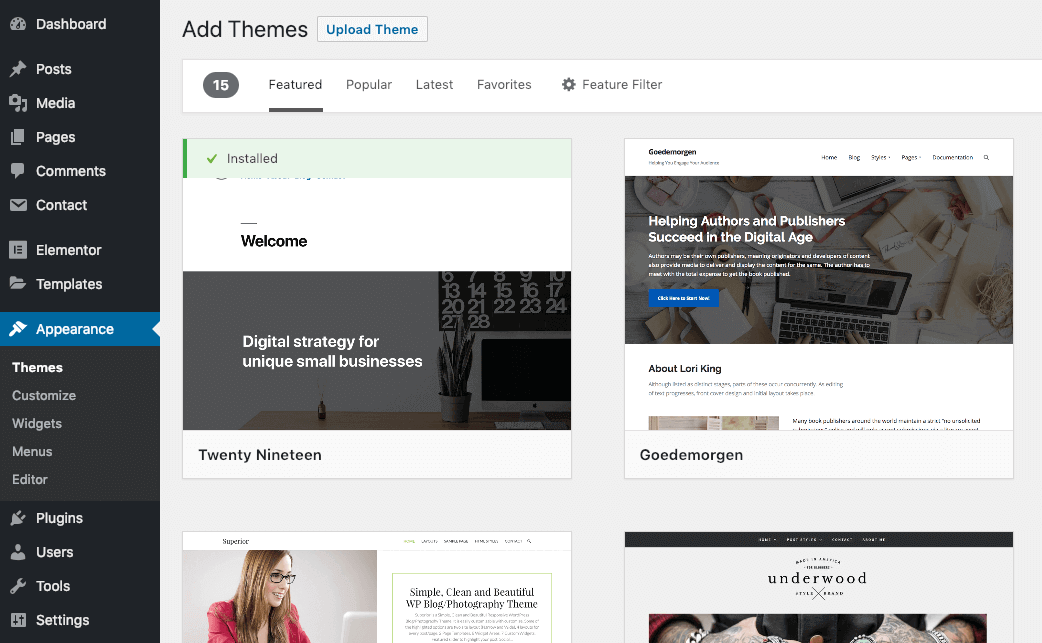
Navigate to Appearance → Themes and click Add New Theme.

▶️ Step 2.
Click Upload Theme.
▶️ Step 3.
Select your downloaded theme file 📄 rhye.zip and click Install Now.

Installing via FTP Upload
If you would like to install the theme via FTP, follow these steps:
▶️ Step 1.
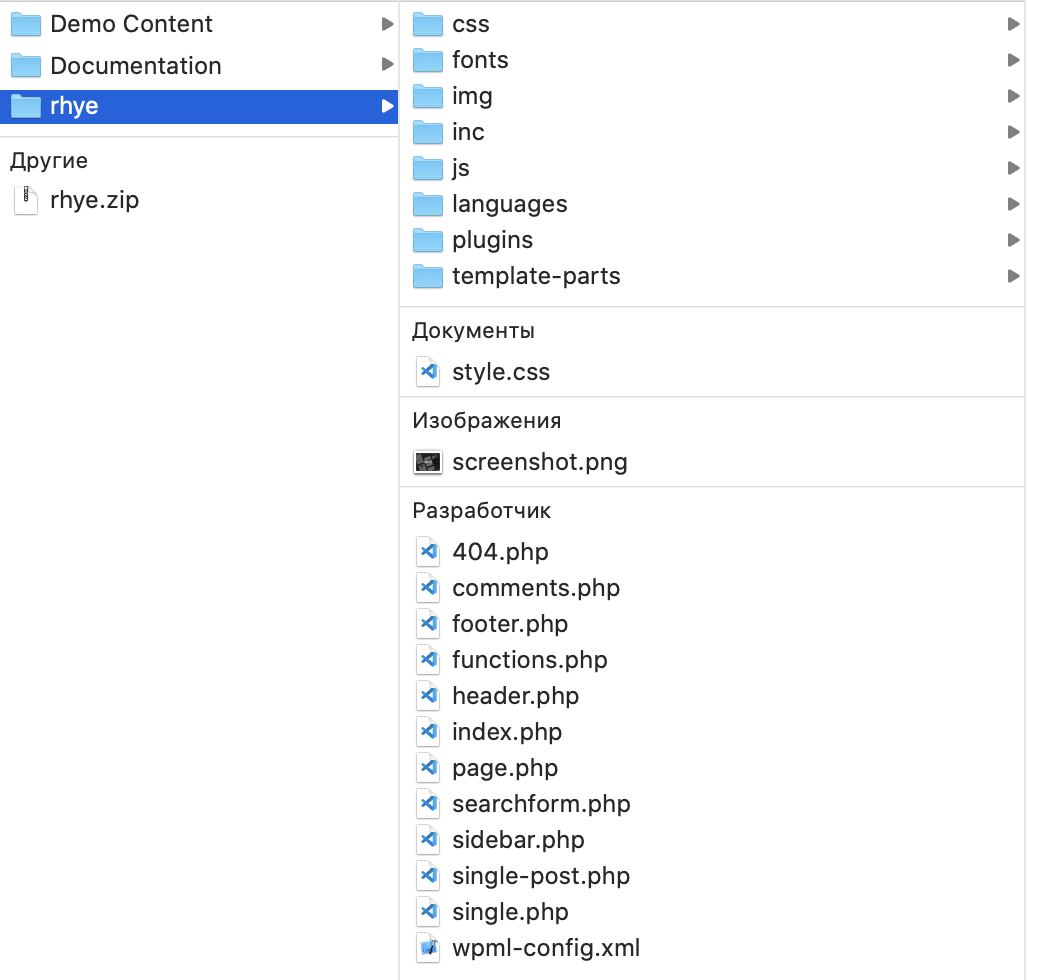
Extract the 📄 rhye.zip file that you've downloaded previously. You should get a folder named 📁 rhye with the following files and folders.
▶️ Step 2.
Using any FTP client (I recommend the free Cyberduck), log in to the server where your WordPress website is hosted.
▶️ Step 3.
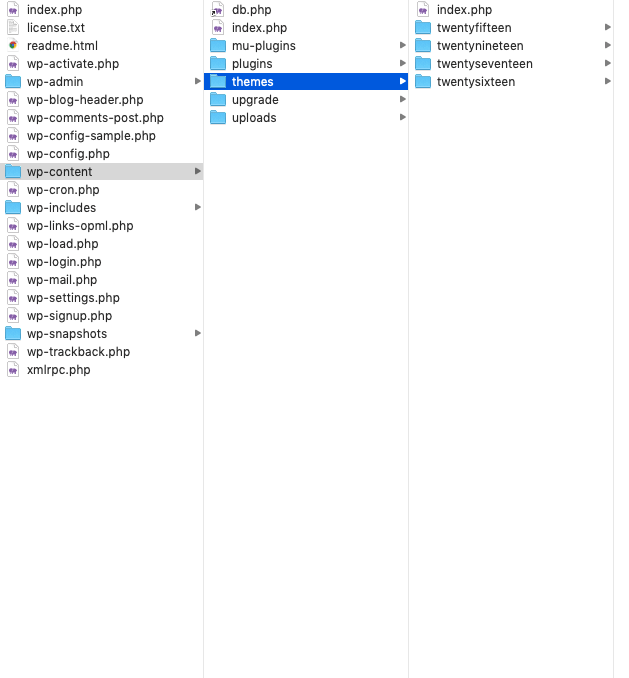
Using the FTP client, navigate to the 📁wp-content/themes/ folder under your WordPress website’s root directory.
▶️ Step 4.
Upload the folder you extracted in the first step into 📁wp-content/themes/.

Theme Activation
Once the installation is complete, your brand new theme is ready to use. Let’s activate it. To do so, go to Appearance → Themes.
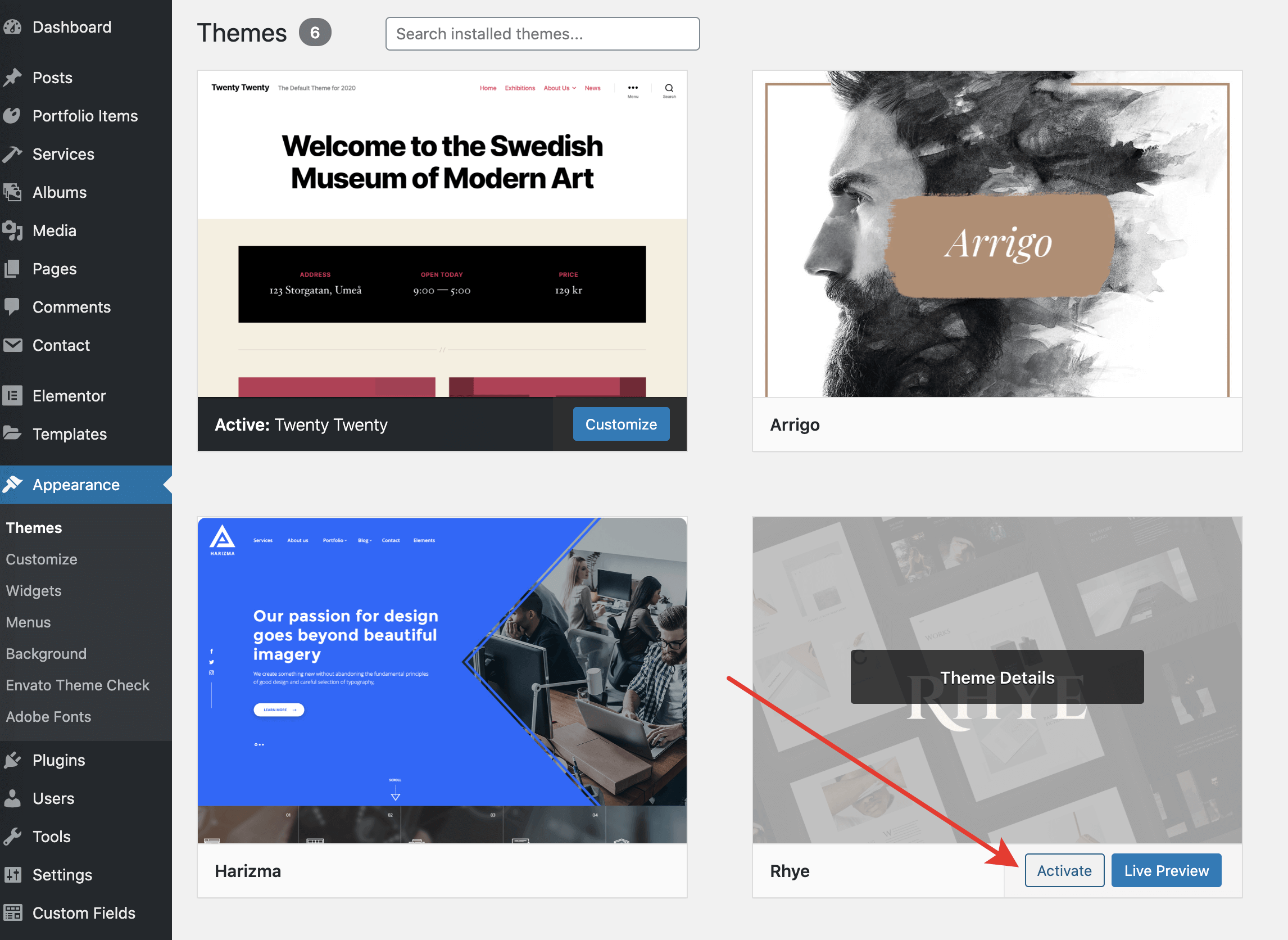
Activate button beneath it.