Appearance
Using Child Theme
A child theme allows you to change small aspects of your site’s appearance yet still preserve your theme’s look and functionality.
What is a Parent Theme?
A parent theme is a complete theme that includes all of the required WordPress template files and assets for the theme to work. All themes – excluding child themes – are considered parent themes. For example, in your download package 📄rhye.zip is a parent Rhye theme.
What is a Child Theme?
A child theme inherits the look and feel of the parent theme and all of its functions but can be used to make modifications to any part of the theme. In this way, customizations are kept separate from the parent theme’s files. Using a child theme lets you upgrade the parent theme without affecting the customizations you’ve made to your site.
How can Child Themes be useful?
Child themes:
- make your modifications portable and replicable;
- keep customization separate from parent theme functions;
- allow parent themes to be updated without destroying your modifications;
- allow you to take advantage of the effort and testing put into the parent theme;
- save on development time since you are not recreating the wheel;
- are a great way to start learning about theme development.
WARNING
Child theme customizations are recommended only for advanced WordPress users. When customizing a child theme, please make sure you’re 100% sure of what you’re doing, otherwise your website may malfunction or even crash.
Setup Child Theme
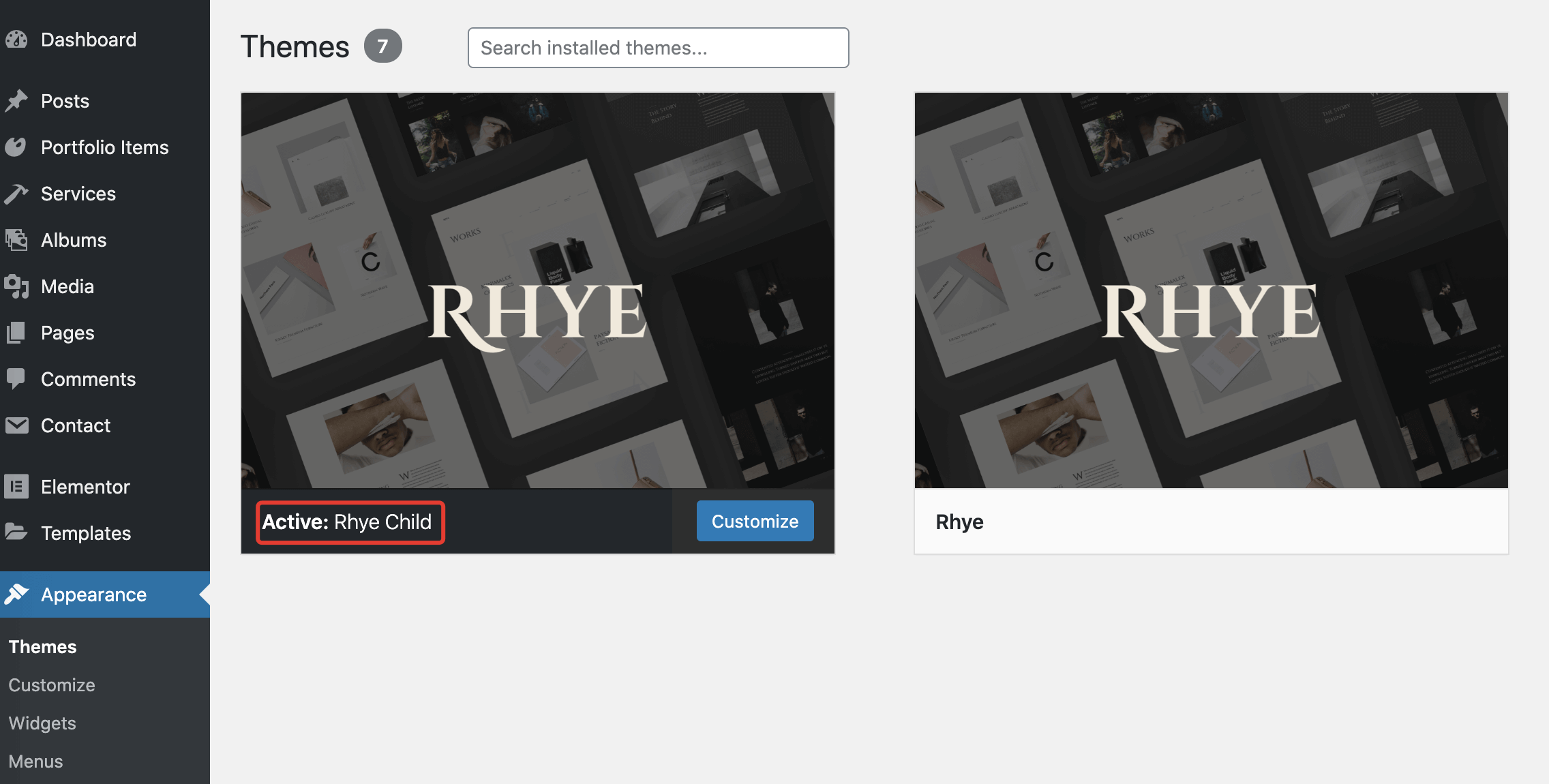
If you went through the Wizard Theme Setup you’re likely to already have the child theme installed and activated. If you skipped child theme installation, just get the file 📄rhye-child.zip from your download package and install it as an ordinary WordPress theme.
Customizing PHP Files
To modify a .php file in the theme, simply copy that file from the wp-content/themes/rhye/ directory and paste it to wp-content/themes/rhye-child/ respecting the full path and file name. WordPress will look for the required file in the child theme directory first and will use it if it exists. If it doesn't, it will try to look in the parent theme directory.
Example 1. Overriding header template
- Copy the file
📄wp-content/themes/rhye/header.phpand paste it to📄wp-content/themes/rhye-child/header.php - Edit the
📄header.phpfile in the child theme.
Example 2. Overriding preloader template
- Copy the file
📄wp-content/themes/rhye/template-parts/preloader/preloader.php - Create a new directory structure in the child theme
wp-content/themes/rhye-child/template-parts/preloader - Paste the copied file to
📄wp-content/themes/rhye-child/template-parts/preloader/preloader.php - Edit the
📄preloader.phpfile in the child theme.
Customizing JavaScript Files
Unlike working with .php files, you can't simply override .js files by copying them from the parent theme to the child theme at the same path. JavaScript files require a different workflow since WordPress doesn't look for them in the theme directories.
Here is the plan:
- Copy/paste the
.jsfile you want to override in the same way you've been working with.phpfiles - Locate the script identifier you want to load in
📄wp-content/themes/rhye/inc/functions/frontend.php - Unload the selected parent theme script ID
- Load the custom script from the child theme under the same ID
Example 3. Overriding main theme frontend file
The code below is intended for use in the 📄wp-content/themes/rhye-child/functions.php file.
php
add_action( 'wp_enqueue_scripts', 'rhye_child_enqueue_custom_scripts', 60 );
function rhye_child_enqueue_custom_scripts() {
  // unload parent theme frontend
  wp_deregister_script( 'rhye-components' );
  wp_dequeue_script( 'rhye-components' );

  // load child theme custom frontend from /rhye-child/js/components.js
  wp_enqueue_script( 'rhye-components', get_stylesheet_directory_uri() . '/js/components.js', array( 'modernizr', 'jquery', 'barba', 'isotope', 'imagesloaded', 'swiper' ), wp_get_theme()->get( 'Version' ), true );
}