# Editing Header
The Kinsey theme supports several header layouts that you can try and apply to your website from Customizer -> Header -> Options.

# Classic Menu Layouts



# Fullscreen Menu Layouts




# Adding Secondary (Right Side) Menu to Split Layout
# ▶️ Step 1.
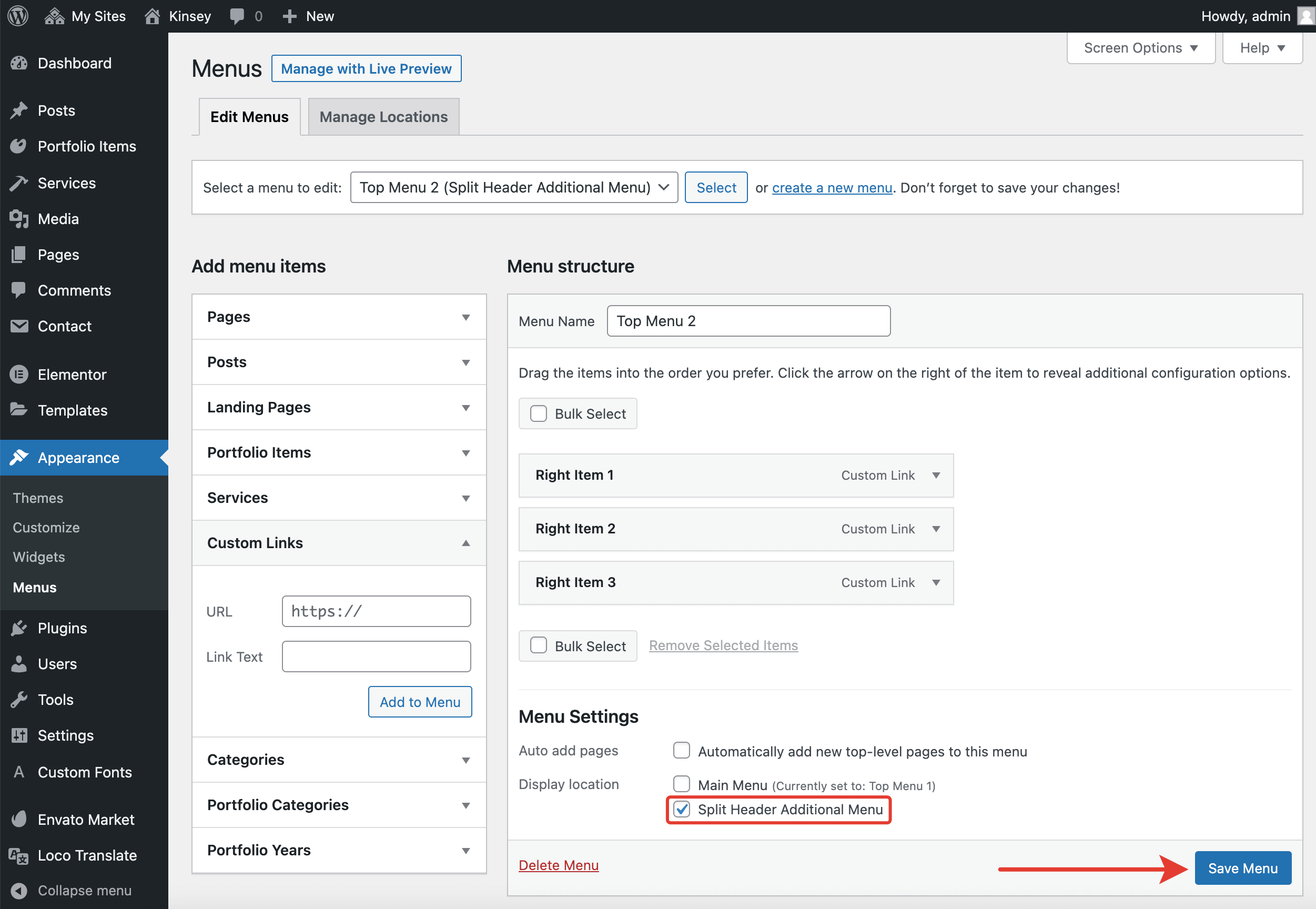
Go to Admin panel -> Appearance -> Menus. Under the Edit Menus tab, you can create a new menu or use the Top Menu 2 menu, which was imported along with the demo data.

Select# ▶️ Step 2.
Populate the chosen menu with navigational links. In Display location, select Split Header Additional Menu and click Save Menu.
# ▶️ Step 3.
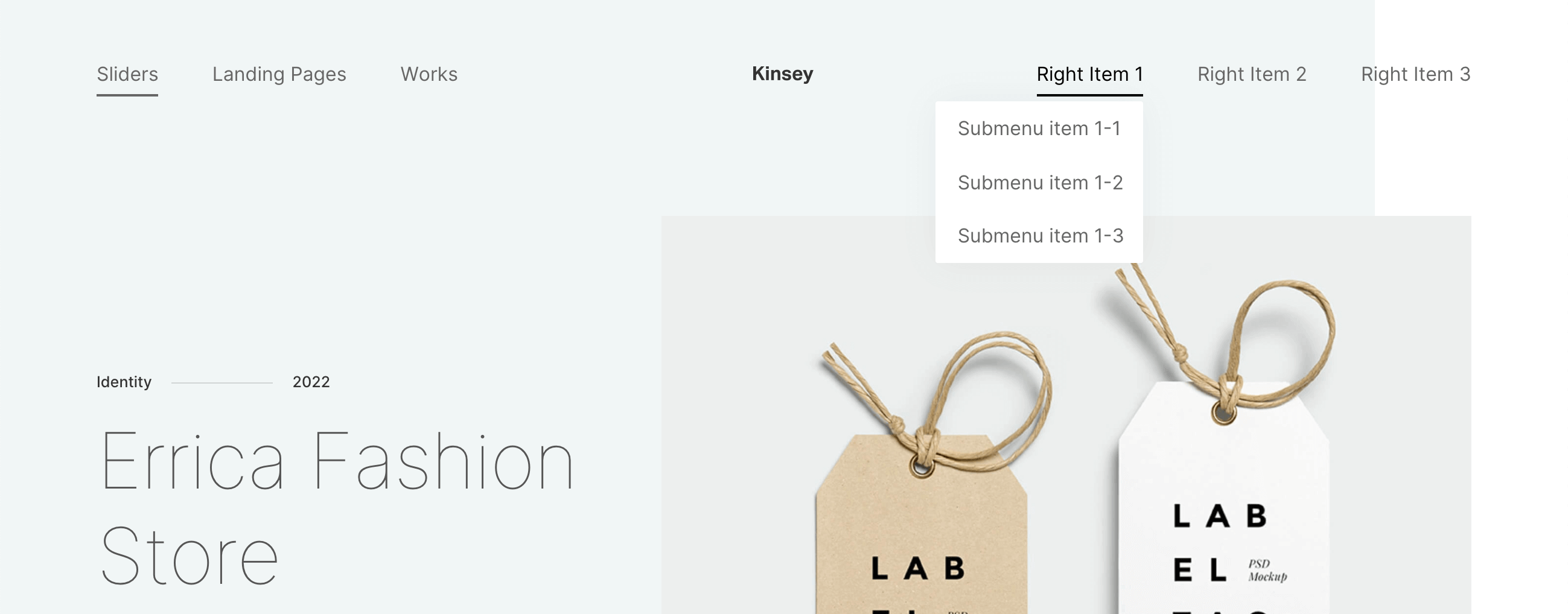
Check the split menu appearance on the frontend.
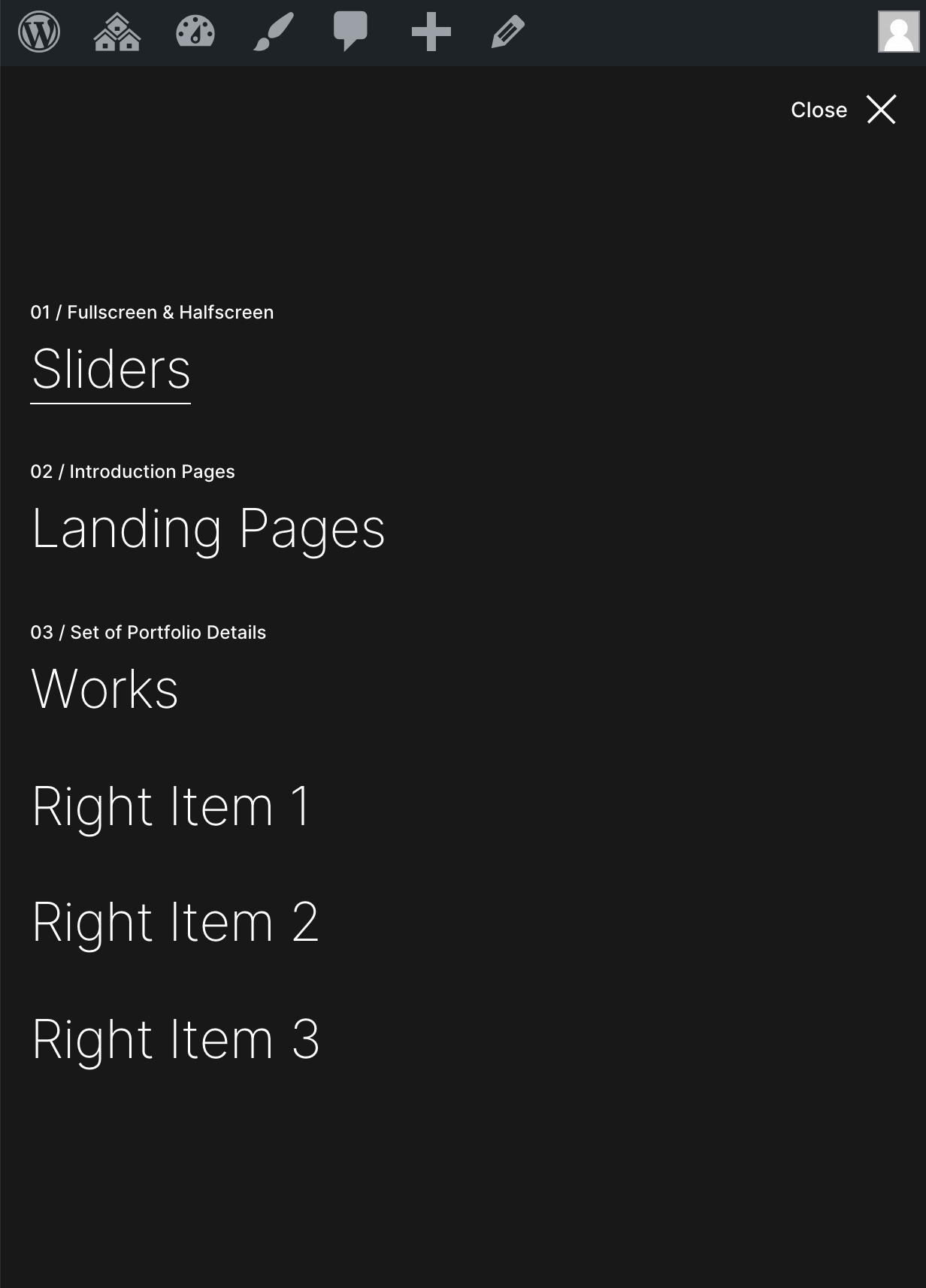
On mobile devices, the left and right menus will be merged into one.
# Adding Labels to Fullscreen Menu Items
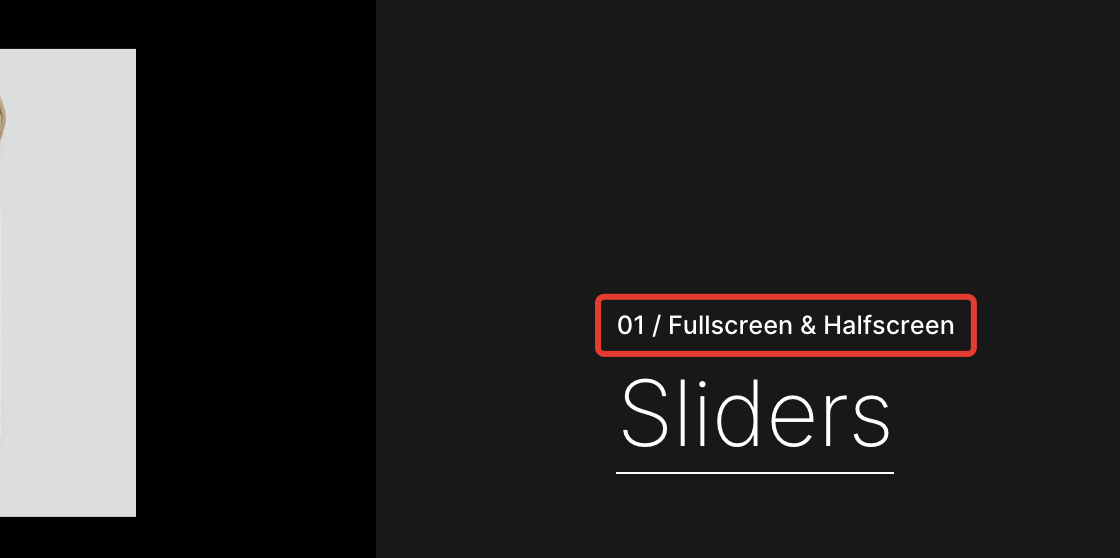
You can add optional labels to the menu items, which appear in the Fullscreen Menu layout above the links.