# Updating Core Plugin
# Update from WordPress Admin Panel
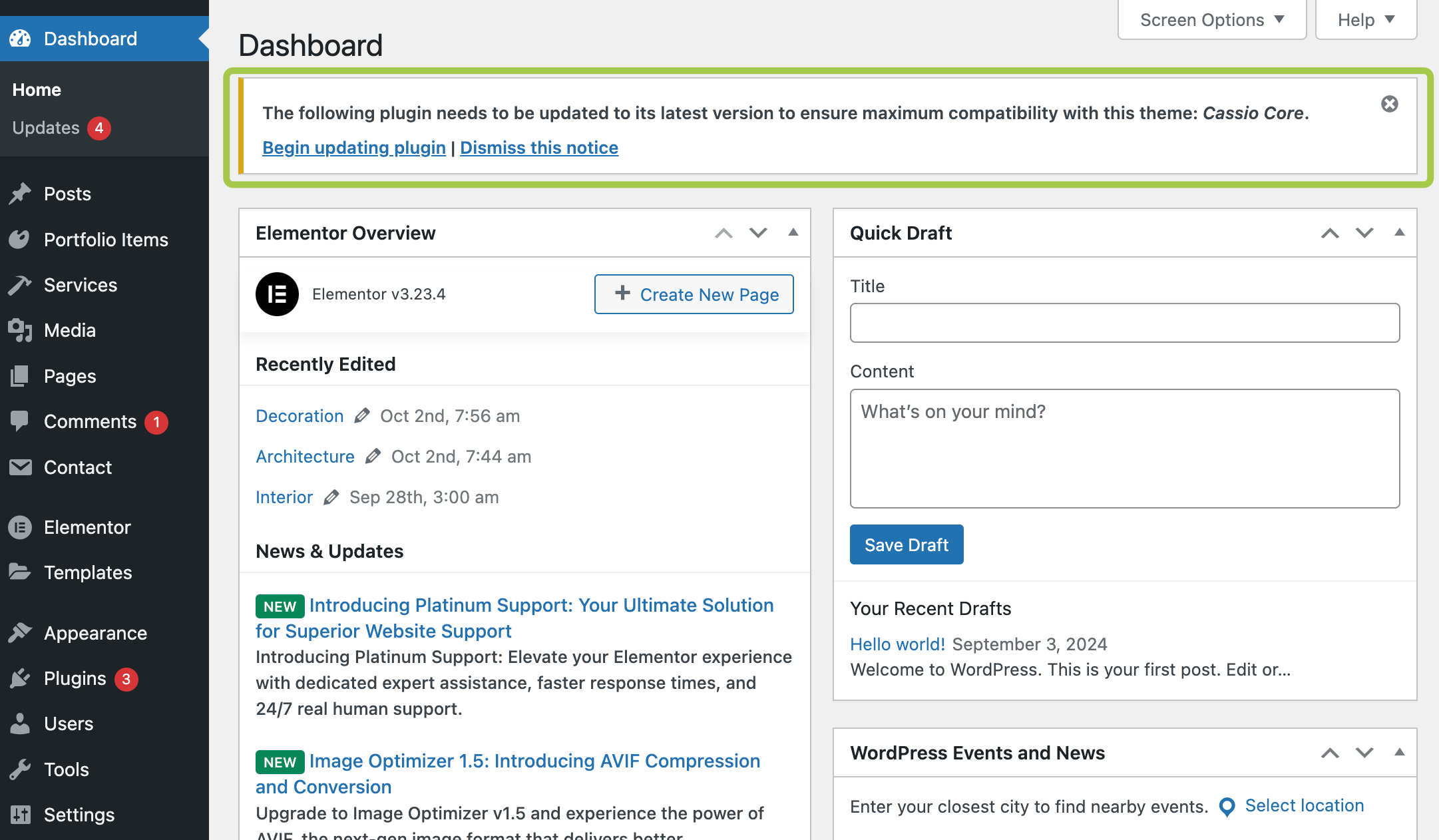
From time to time (or right after a theme update in some cases), you'll get a reminder to update Cassio Core Plugin. The reminder could look like this:
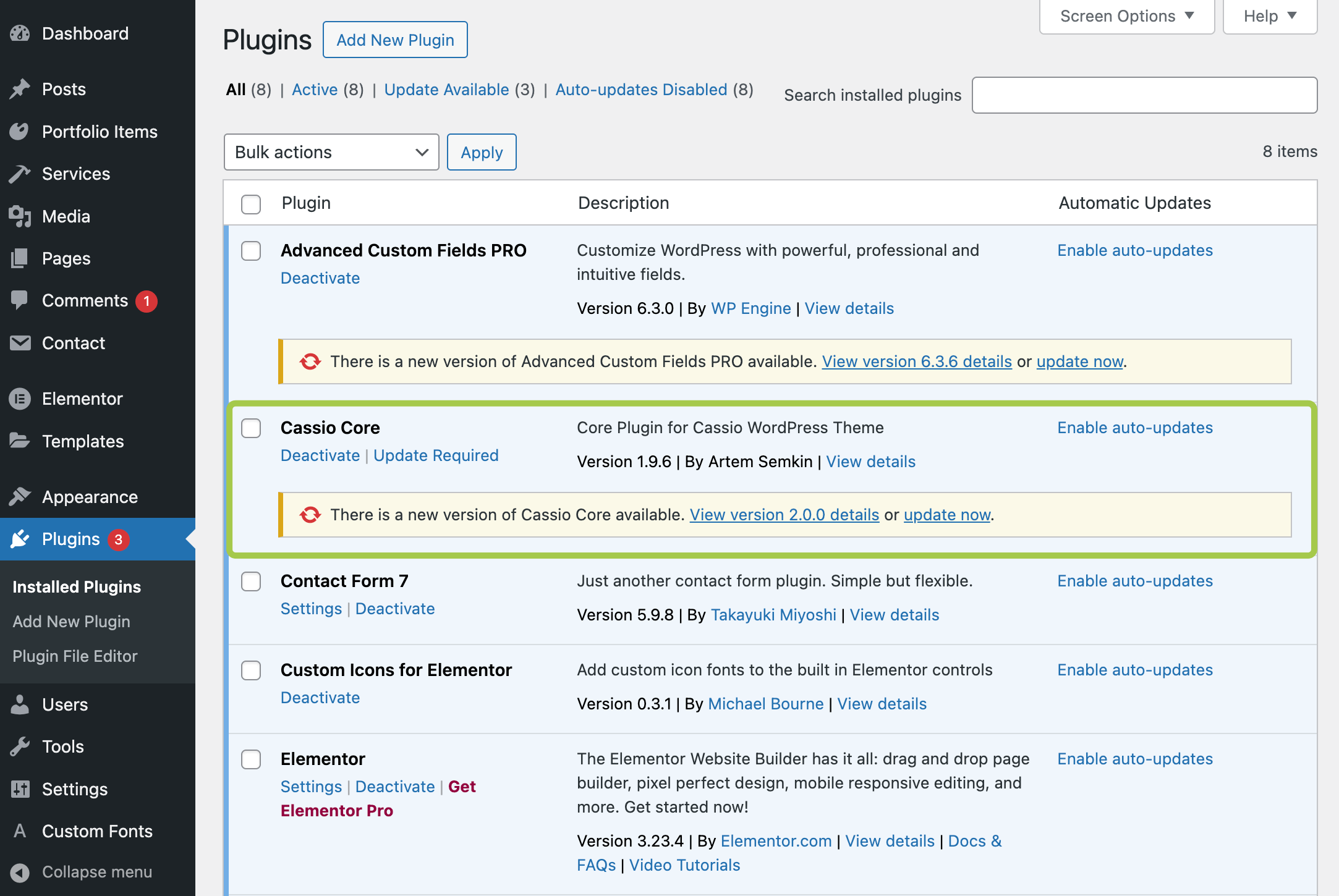
Plugins -> Installed Plugins section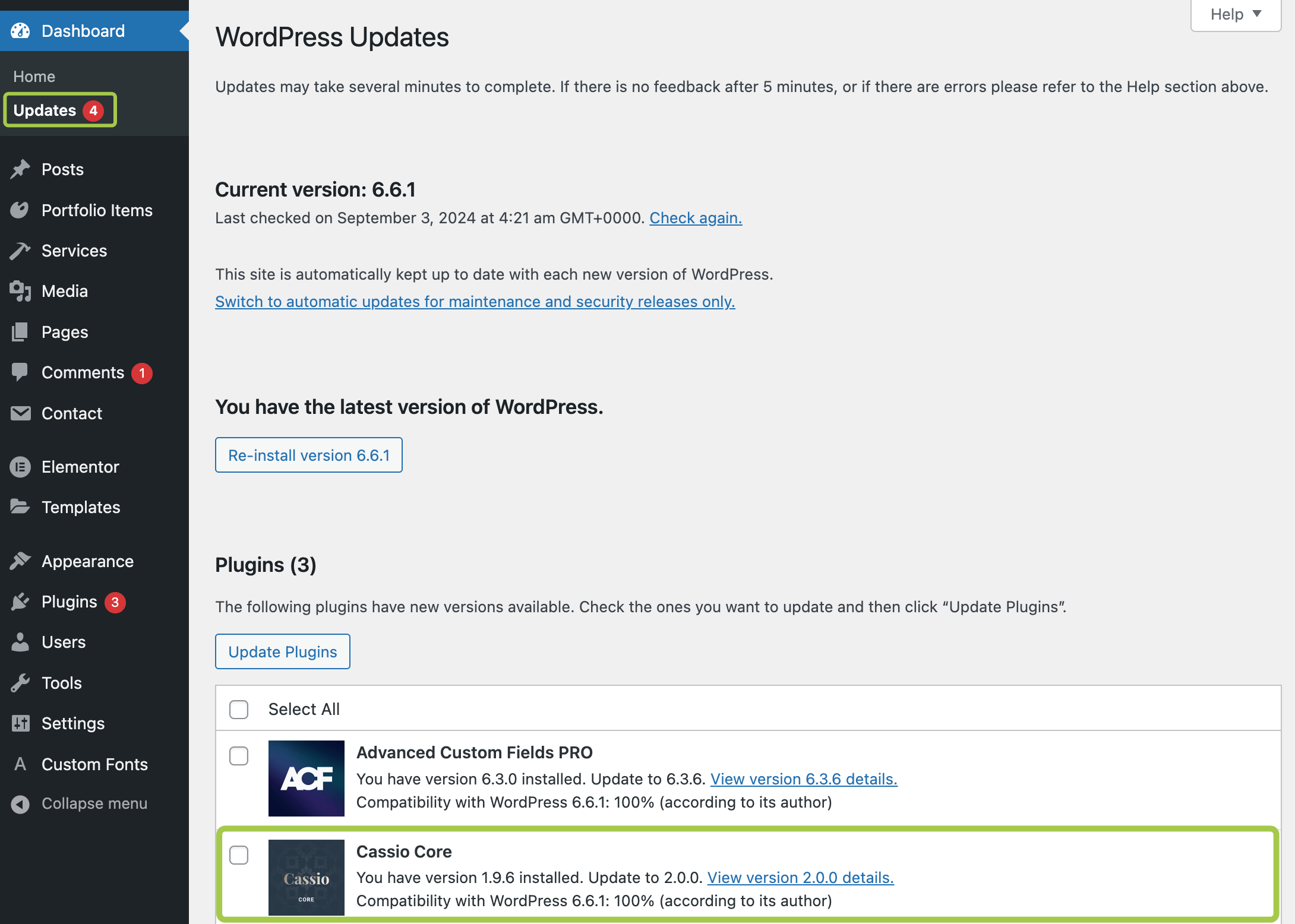
Dashboard -> Updates sectionSince the core plugin is an important part of the theme, you should always keep it up to date. Simply click Update now in the notification and wait until the update is finished.
# Offline Update
If the update of the core plugin fails, you can update it manually. Here are the steps to do this:
# Step 1
Download the theme files from your ThemeForest account (opens new window). Choose All Files & Documentation.

# Step 2
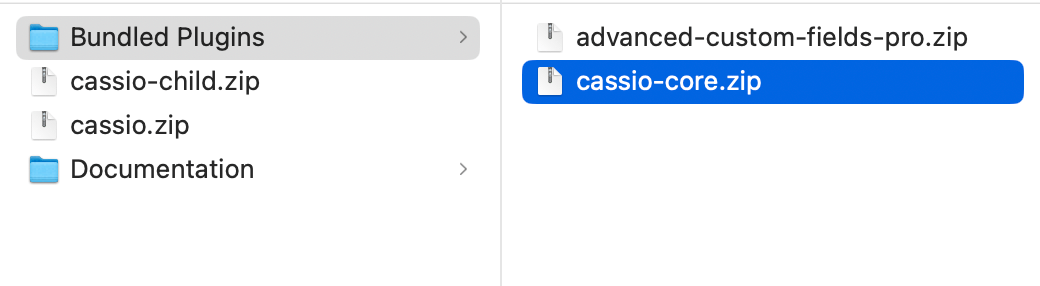
Unzip the downloaded archive. In the 📁 Bundled Plugins folder, locate the 📄 cassio-core.zip archive.
# Step 3
Upload the updated plugin archive into the Plugins section in your WordPress backend panel. Agree to replace the existing plugin version when prompted.
# Enabling Automatic Updates
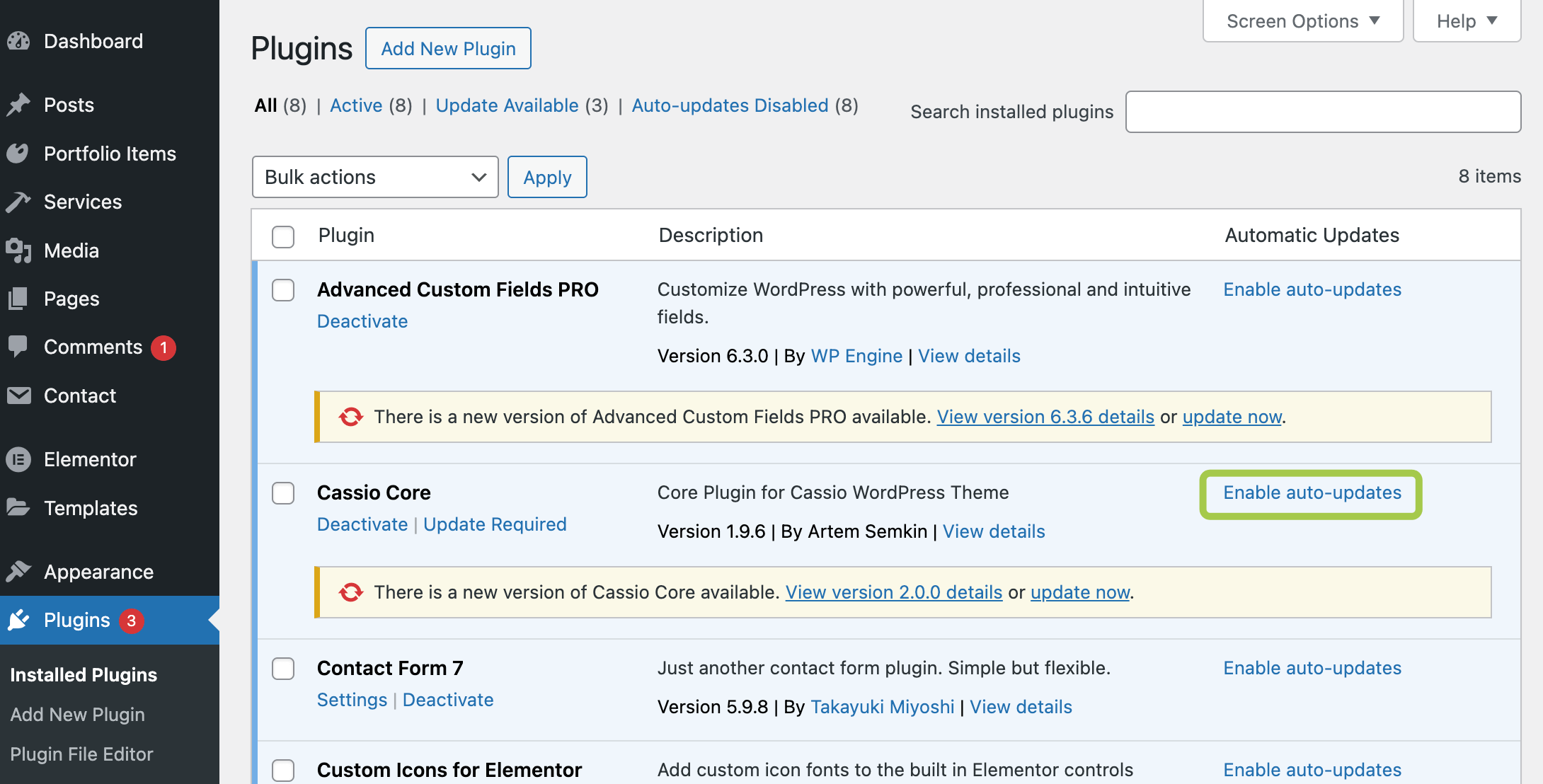
To ensure compatibility with the latest WordPress and the theme, it's recommended to turn on automatic updates for the core plugin: