# Uploading Site Logo
To upload your logo, go to Customizer → Site Identity. You are free to use the standard text logo version (with or without tagline) or upload your own brand image.
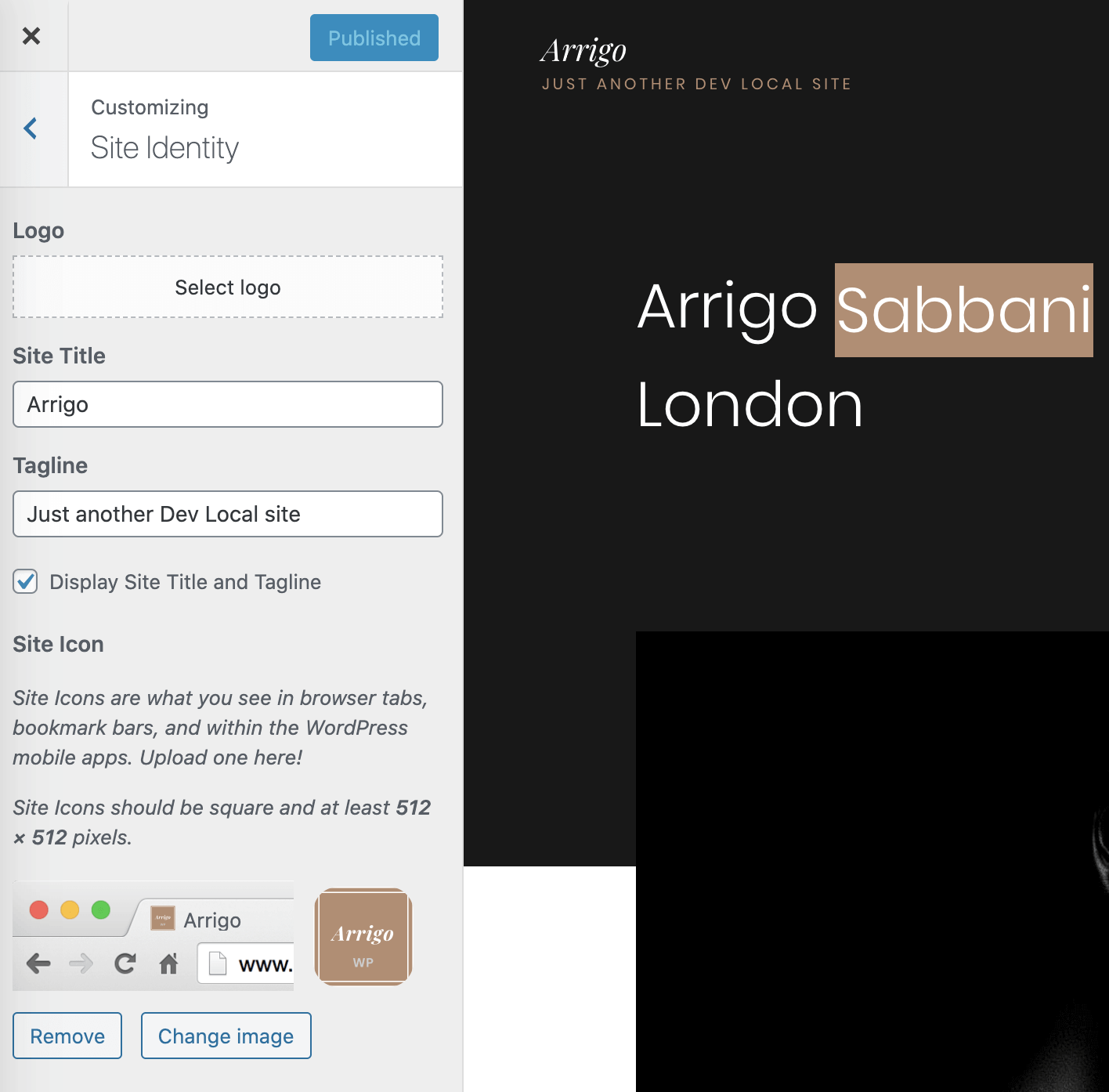
Select Logo and upload your logo to WordPress media libraryOnce the logo is uploaded, you will have some more options available.
# Responsive Height
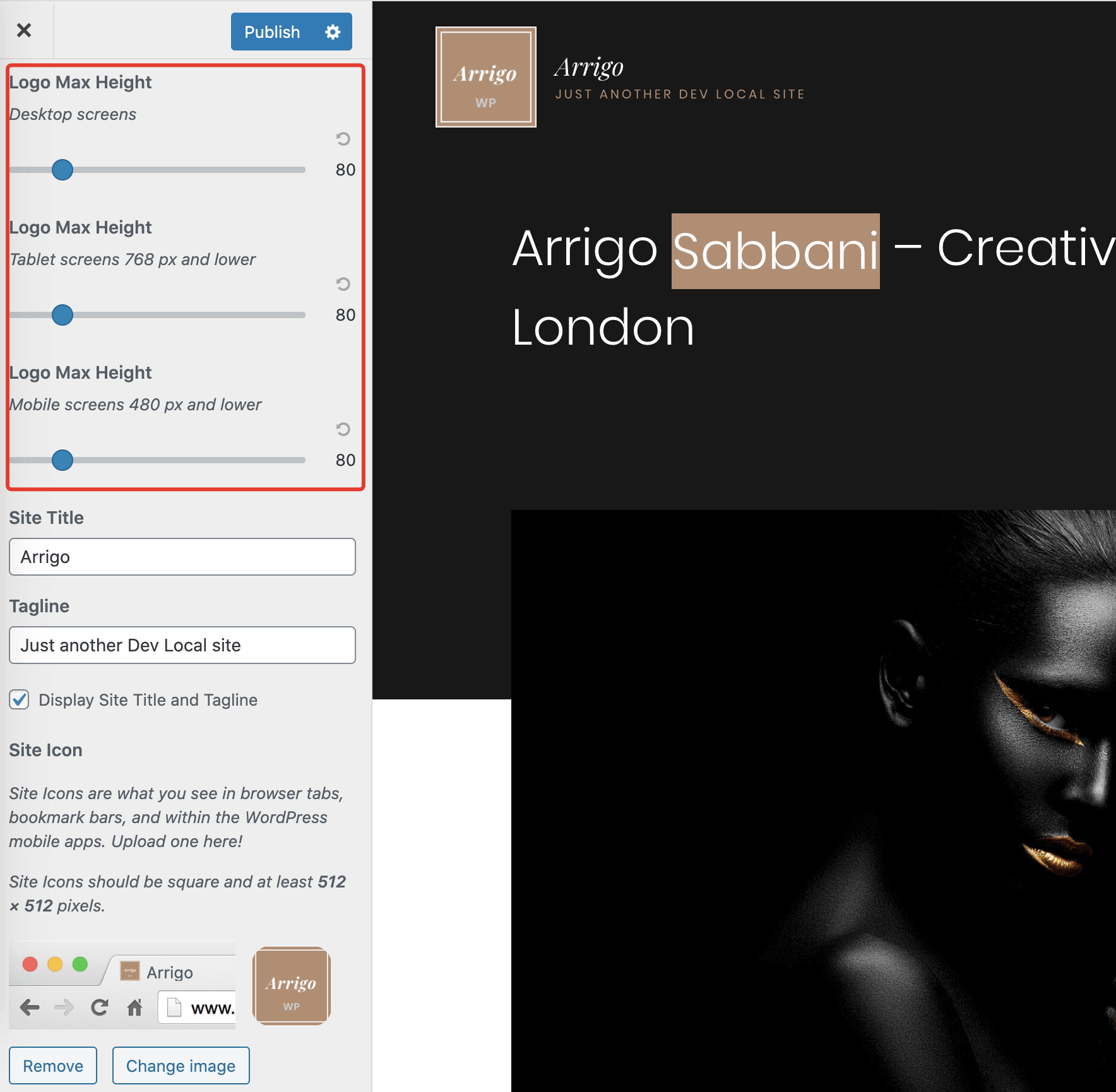
Some WordPress themes restrict you to use specific logo dimensions. This may result in a "too small" or "too big" look for some logo brands. Arrigo has special options for tailoring logo height for different screen sizes, which can be really handy.
For example, you can have a fairly large logo on desktop screens, but you may want to make your logo smaller on mobile devices where there is less room for big elements. Using the sliders, you can adjust your logo look on three screen sizes – desktops, tablets, and mobiles.
# Handling Different Backgrounds
Arrigo has dozens of page templates that include a mix of dark and light backgrounds and different header styling. The problem is that if you upload a black logo, it will look good on light backgrounds, but it will not be noticeable on dark backgrounds.
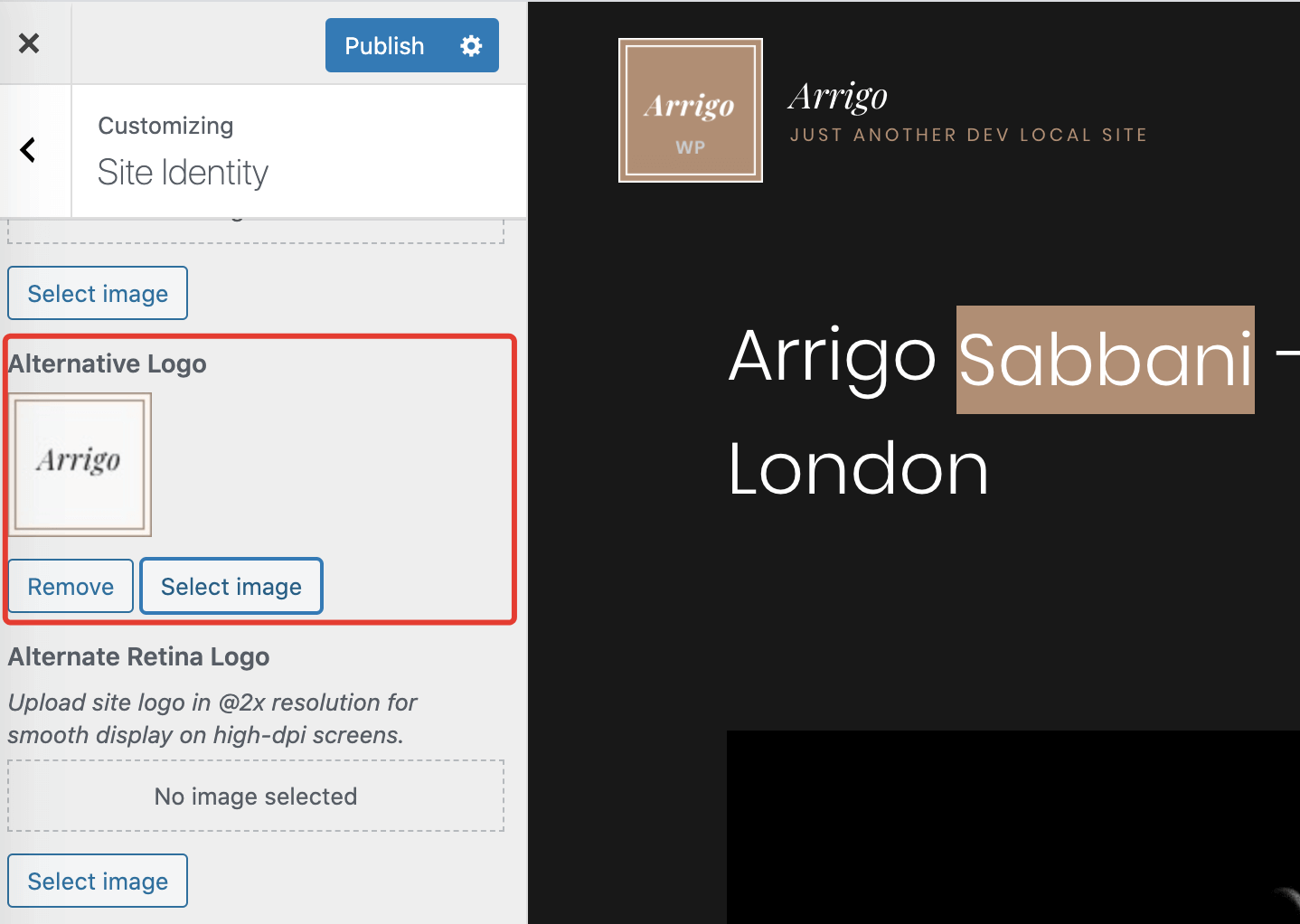
Luckily, you can upload an alternative logo version. You can do this in the same Site Identity panel in Customizer.
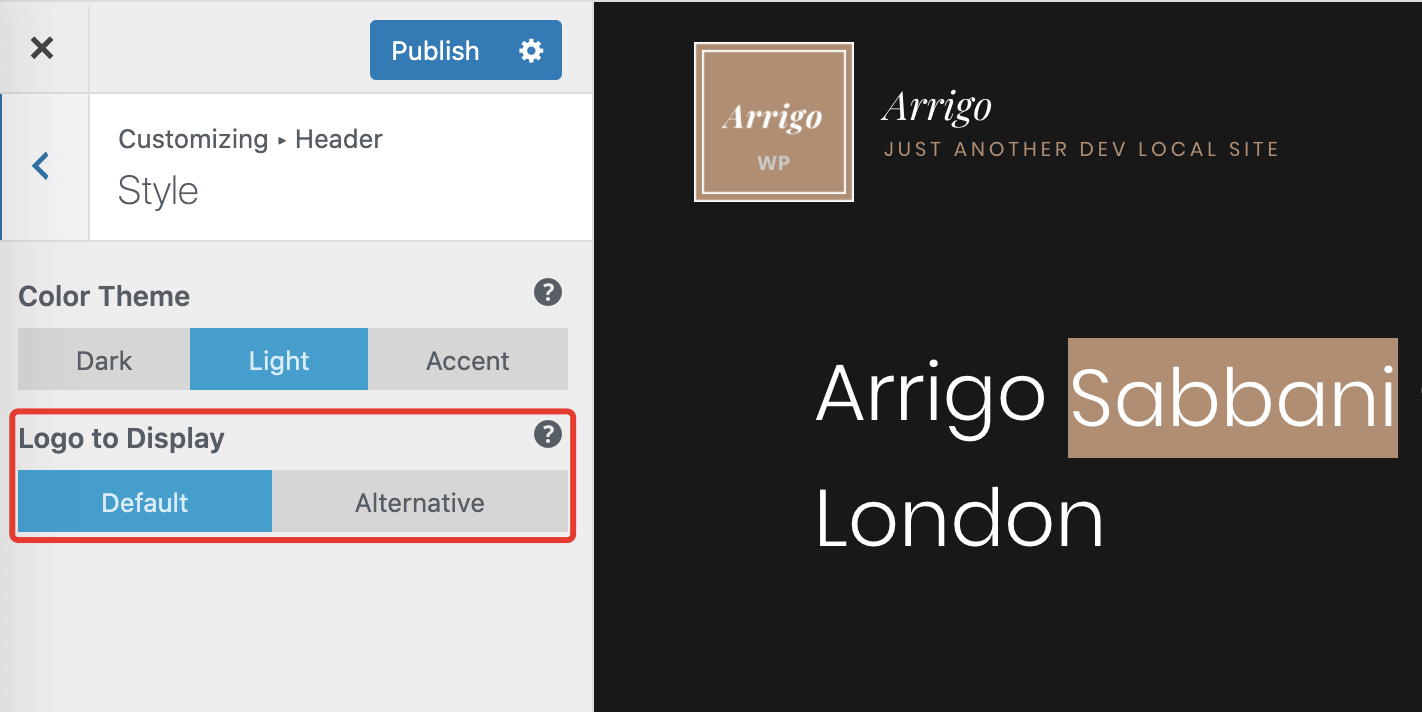
Customizer → Header → StyleNow you'll be able to override the logo version for specific pages in the theme. This allows you to select the "dark" logo version for light pages and the "light" logo version for dark pages. The overrides are tuned in Edit with Elementor -> Document Options -> Page Header.
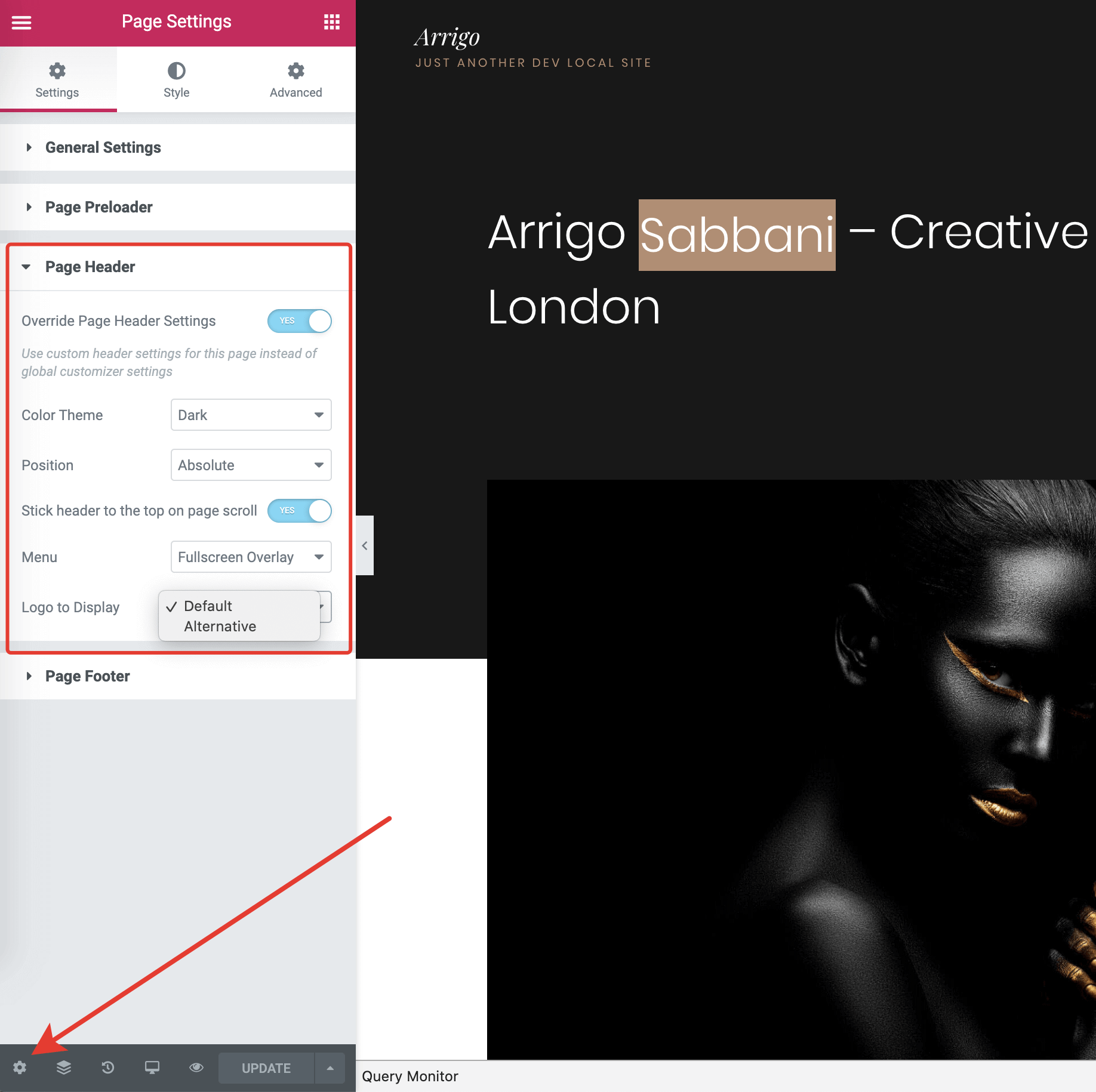
Override Page Header Settings option and select which logo you'd like to appear on this specific page.# Uploading SVG Logo
WordPress doesn't allow uploading SVG files in the media library. If you try to upload any .svg file, you will get an error like this:
WARNING
"home.svg" has failed to upload.
Sorry, this file type is not permitted for security reasons.
There is a handy plugin Safe SVG (opens new window) that enables SVG uploads and makes it safe. There is no need for additional configuration. Simply install this plugin and upload your SVG logo like you did with raster images.